A printed invoice has one job: be read correctly by someone else. A total that prints faint gray, a column that gets chopped off at the margin, or a logo that comes out as a blurry smudge all slow that down. The fix is rarely a new printer. It is usually five minutes of page setup and a few good habits.
This guide is for small business owners, office managers and tradespeople who print invoices to hand over, post, file or scan. You will find how to set up Excel and Word so every invoice fits one page, which fonts and colors survive the printer, what paper to use, the printer settings that matter, a troubleshooting table for the usual problems, and how to store copies so they are still readable in five years.
Quick picks
| Product | Best for | Price | Link |
|---|---|---|---|
| Ledgerline Invoice, Quote and Receipt Kit | Forms set to fit one page, with printable PDFs in two styles | Original price was: $3.00.$1.50Current price is: $1.50. | View |
| Ledgerline Business Forms Kit | Blank printable forms with writing lines for handwritten invoices | $2.99 | View |
| Client Billing Hub Invoice Tracker | Print-ready invoice and receipt tabs that fill from your log | $6.49 | View |
| PaidPath Client and Invoice Hub | One-click printing of invoices, quotes and statements | $9.49 | View |
Start with the right paper size
Most printing headaches start here. US Letter is 8.5 by 11 inches. A4 is 210 by 297 millimeters, a little narrower and a little taller. Print an A4 invoice on Letter paper and the bottom lines, often the total and payment details, can get cut off. Print a Letter invoice on A4 and you get an odd white strip at the bottom, or the right edge shrinks.
Check three things match: the paper in the tray, the paper size in your printer settings, and the page size in the invoice file. If you work with clients in different countries, keep both versions of your template. A template that ships in both sizes saves you resizing it yourself.
Setting up Excel so invoices fit one page
Excel does not think in pages. It thinks in a grid that goes on forever. You have to tell it where the invoice starts and stops.
- Set the print area. Select the invoice from the top-left corner to the bottom-right, then choose Page Layout, Print Area, Set Print Area. Anything outside will not print.
- Fit to one page. In Page Setup, choose “Fit to 1 page wide by 1 page tall.” Excel scales the invoice to fit.
- Check Page Break Preview. From the View tab, Page Break Preview shows exactly where pages split. Drag the blue lines if needed.
- Center it. Under Margins, tick “Horizontally” so the invoice sits in the middle of the page.
- Hide gridlines. Make sure “Print gridlines” is off, or the invoice looks like graph paper.
One warning: “Fit to one page” will shrink the text if the invoice is too long. If a 40-line invoice comes out in tiny print, set it to one page wide and two pages tall instead, and repeat the header row on the second page.
A well-built template has the print area and one-page fit set already, so you never touch these menus.
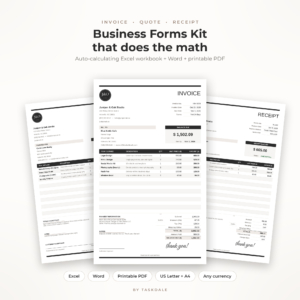
Ledgerline Invoice Kit
Price: Original price was: $3.00.$1.50Current price is: $1.50. | Best for: Owners who print or PDF every invoice
An Excel workbook where the invoice, quote and receipt forms are each set to fit one page, ready to print or save as PDF. It also includes printable PDFs of all three forms in Classic Black and Soft Taupe, in US Letter and A4, which you can print blank and write on or type into on screen. Word templates in both sizes come too. Print one blank PDF and one filled Excel invoice to check your printer before your next job.
Setting up Word invoices for clean prints
Word is closer to paper by nature, but a few settings still trip people up:
- Match the page size under Layout, Size, before you type anything.
- Keep margins at 0.5 inch or more. Many home printers cannot print right to the edge, so anything closer may be clipped.
- Use a table for line items, not tabs and spaces. Tables keep columns lined up when you print.
- Turn on “Repeat header row” for long tables, so a second page still shows the column names.
- Check Print Preview every time you add rows. A single extra line can push the total onto a lonely second page.
Fonts and sizes that stay readable
Numbers are what matter most on an invoice. Choose fonts that make every digit clear.
- Body text at 10 or 11 points. Smaller than 9 is hard work for many readers, especially on a photocopy.
- Totals at 12 to 14 points, in bold. The balance due should be the easiest thing on the page to find.
- Plain sans-serif fonts for figures, such as Arial, Calibri or Segoe UI. Decorative fonts can make 1 and 7, or 5 and 6, look alike.
- Right-align money columns. Decimal points line up, and adding by eye becomes easy.
- Two decimal places, always. 45.5 looks like a typo. 45.50 looks like a price.
Colors that survive the printer
A color that looks soft and elegant on screen can vanish on paper. Pale pink fills, light gray text and thin pastel lines are the usual victims. Many offices also print in black and white or on toner-saving settings, which fades light shades further.
Some quick rules:
- Keep all important text, especially numbers, in black or very dark gray.
- Use color for accents: a header band, a logo, a thin rule. Not for figures.
- If you use shaded rows, make them light enough that black text reads clearly, but not so light they disappear. Print a test page in grayscale to check.
- Avoid white text on colored blocks for anything the client must read.
A useful test: print the invoice once in grayscale, then photocopy that print. If every number is still sharp on the copy, the design is printer-proof.
Paper choice
Standard 20 lb (75 gsm) office paper is fine for most invoices you post or file. If you hand invoices over in person, a slightly heavier 24 lb (90 gsm) sheet feels more substantial and stands up better in a van or a back pocket. Bright white paper gives the best contrast for black text.
For handwritten invoices on site, carbonless duplicate pads are handy: the customer gets the top copy and you keep the one underneath. If you print your own forms instead, print two copies of each blank form and staple them, or use a two-up layout with a dotted cut line. Our guide to printable invoice layouts for small jobs shows half-page and duplicate formats that suit this.
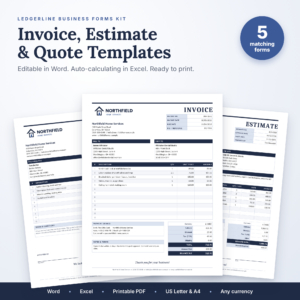
Ledgerline Business Forms Kit
Price: $2.99 | Best for: Trades who write invoices by hand
Ten blank printable PDF forms with writing lines, in US Letter and A4: quote, job estimate, invoice, sales receipt and purchase order in a navy and soft blue design. The same forms come as Word templates, and an Excel Invoice Maker fills in clients and prices and works out totals for typed invoices. Print a stack of blank invoices and receipts on heavier paper for your clipboard first.
Printer settings that make a difference
- Quality: use Normal or Standard, not Draft. Draft mode saves ink by printing lighter, and totals come out faded.
- Scale: print at 100 percent or “Actual size” for PDFs. “Fit to page” can shrink a form with writing lines so the boxes become too small.
- Grayscale: fine for invoices, and cheaper, as long as your design passes the photocopy test above.
- Double-sided: keep invoices single-sided. Clients scan and file them, and a second side often gets missed.
- Clean the heads: if lines start to streak, run your printer’s cleaning cycle before a big batch.
If you print planner pages or forms at home as well, many of the same tricks apply. Our guide to printing and punching planner inserts at home covers paper, scaling and test prints in more detail.
Save as PDF first, then print
Printing straight from Excel or Word works, but saving a PDF first has two advantages. The PDF shows you exactly what the printed page will look like, so you catch problems before wasting paper. And it gives you a permanent copy of the invoice exactly as sent, which you can email, file and reprint months later without worrying that a formula has changed.
Name each PDF the same way: “INV-1053 Greenway Dental.pdf.” Save it in a folder for the year. Then print from the PDF.
Troubleshooting common print problems
| Problem | Likely cause | Fix |
|---|---|---|
| Right-hand column cut off | Print area too wide, or A4 file on Letter paper | Set print area and fit to one page wide; match paper size |
| Numbers show as ##### | Column too narrow in Excel | Widen the column or reduce the font size slightly |
| Blank second page | Empty rows or cells inside the print area | Reset the print area to the invoice only |
| Faded totals | Draft mode or light gray text | Use Normal quality and dark text for figures |
| Blurry logo | Small, low-resolution image stretched larger | Use a larger PNG and shrink it, never enlarge it |
| Writing boxes too small | PDF printed with “Fit to page” | Print at actual size, 100 percent |
| Gridlines all over the page | Excel print gridlines option turned on | Turn off Print gridlines in Page Setup |
Most of these take under a minute to fix once you know where to look. And once fixed in the template, they stay fixed. That is a small, lasting win.
Printing from an invoice log
If you keep your invoices in a tracker workbook, the cleanest setup is a dedicated print tab. You pick an invoice number, and the print tab fills itself in from the log: client, lines, totals, payments and balance. The print tab never changes shape, so every invoice prints identically.
The same idea works for receipts and statements. Print a receipt when a payment lands. Print a statement for a client with three open invoices. Each one looks clean because the layout was set up once and left alone.
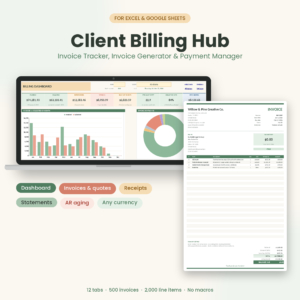
Client Billing Hub Invoice Tracker
Price: $6.49 | Best for: Businesses printing invoices and receipts
An Excel and Google Sheets workbook with dedicated Print Invoice and Print Receipt tabs: pick an invoice number and the page fills with your details, the client, every line, discounts, taxes and the balance due. Each payment gets a receipt number and a one-page receipt, and a statement tab shows one client’s invoices for any date range. Set your business details and currency on Settings, then print a test invoice.
Storing printed copies so they last
Paper copies are only useful if you can find them and read them later. A few habits help:
- File by year, then by invoice number. Not by client. Numbers are easier to search.
- Use folders or binders, away from damp garages and sunny windowsills.
- Avoid thermal paper for anything you need to keep. Till-roll style receipts can fade to blank within a few years. Scan or photocopy them.
- Keep a digital copy of everything. A scan or the original PDF means a coffee spill is not a disaster.
- Check how long to keep records under your local tax rules. Several years is common.
Handwritten invoices that read clearly
Sometimes you write invoices by hand at the job. Make them as readable as a printed one:
- Use a black ballpoint or fine felt-tip, not pencil.
- Write numbers in a box or column so they line up.
- Cross a 7 and close the top of a 4 so they cannot be misread.
- Write the total in words as well as figures on larger amounts, as you would on a check.
- Press firmly on carbonless pads so the bottom copy is legible.
If you are choosing between handwritten, typed Word and spreadsheet invoices, our comparison of invoice templates in Word, Excel and PDF explains what each is best at.
Frequently asked questions
How do I make my Excel invoice print on one page?
Set the print area to the invoice only, then in Page Setup choose “Fit to 1 page wide by 1 page tall.” Check the result in Print Preview.
Why does my invoice total print so light?
Usually because the printer is in draft or toner-saving mode, or the total is formatted in light gray. Switch to Normal quality and use black for figures.
What font size is best for printed invoices?
Ten or 11 points for body text and 12 to 14 points in bold for the balance due works well for most readers.
Should I print invoices in color?
Color is fine for logos and accents, but keep text and numbers dark. Test a grayscale print to be sure nothing important disappears.
Why is the bottom of my invoice cut off?
The file and the paper are probably different sizes, such as an A4 invoice printed on US Letter. Match the page size in the file, the printer settings and the tray.
Is it better to print from Excel or from a PDF?
Saving a PDF first is safer. You see exactly what will print, and you keep a fixed copy of the invoice as sent.
Your next step
Print your current invoice template once in grayscale and photocopy it. Circle anything that is faint, cut off or hard to read, then fix those spots in the template, not in each invoice. If you would rather start from a layout that is already set to fit one page, the Ledgerline Invoice, Quote and Receipt Kit comes print-ready in both US Letter and A4.