Some days a pen just isn’t an option. Maybe your wrist aches after work, your fingers are stiff in the morning, or you’re simply worn out by the time you sit down to plan. The good news: you can run a digital planner without handwriting, or with very little of it, and still get the same calm, organized week.
Most planner advice assumes you’ll write every word with a stylus. You don’t have to. Typing, talking and tapping can do most of the work, and a few planners are built for exactly that.
A quick note before we start: this is a practical guide to planning shortcuts, not health advice. If pain or fatigue in your hands is ongoing, it’s worth talking to a doctor or a hand therapist.
Handwriting is optional (really)
Digital planners became popular because they feel like paper. That’s lovely if writing feels good. If it doesn’t, the “paper feel” becomes a chore you put off, and a planner you put off stops being useful by Wednesday.
Think of input in three types:
- Typing on a keyboard, on screen or a real one.
- Talking, using your device’s voice typing.
- Tapping, with checkboxes, buttons and stickers that drop in with one touch.
Mix them however you like. Type the long stuff. Tap the repeat stuff. Write by hand only when you want to, like a quick doodle or a signature-style note on a good day.
Picture a Sunday evening. You want to plan the week, but your hand has had enough after a day of typing at work. Instead of skipping it, you open the laptop, type five appointments into a fillable page, say your grocery list out loud into a notes box and tap a few stickers onto the busy days. Ten minutes, no pen, and Monday already makes sense.
Fillable PDF planners: click, type, tick
A fillable PDF is a planner file with typing boxes built in. You click a line, type, and the words sit neatly in place. Checkboxes tick with a click. No pen, no messy letters, no cramped boxes.
They work best on a computer, in the PDF viewer built into Chrome or a free reader like Adobe Acrobat Reader. On tablets it depends on the app, because some note-taking apps handle typing boxes better than others. Our guide to typing into a fillable PDF planner on any device goes through the options.
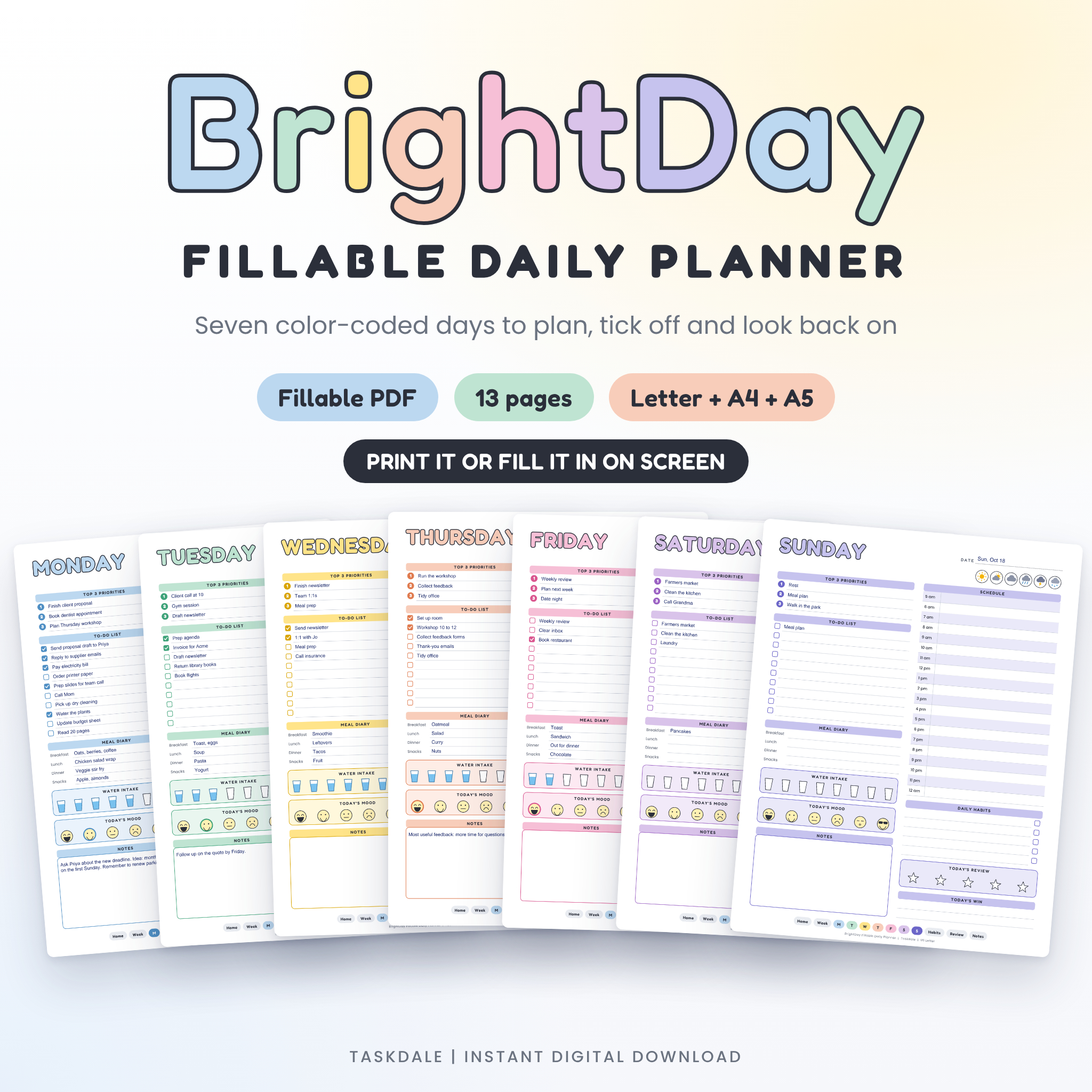
The BrightDay Fillable Daily Planner is a nice gentle starting point, with about 800 typing boxes per file and clickable icons for things like water and weather.
BrightDay Fillable Daily Planner
BrightDay is a fillable daily planner, so you click a line and type, and tick boxes with a click instead of drawing them.
- About 800 fillable form fields in each file
- Clickable checkboxes, water cups and weather icons
- Undated, in US Letter, A4 and A5
The Tab key is your best friend
In most PDF readers, pressing Tab jumps to the next box. So you can fill a whole daily page without touching the mouse much: type your top 3, press Tab, type, Tab, and so on. It’s quicker than it sounds and much kinder to your wrist than lots of tiny clicks.
Reuse without rewriting
Because BrightDay is undated, you keep a clean original and save a copy for each week. Things that repeat, like your habits list, you type once into the copy and leave there.
Let the planner do the sums
Here’s a small thing that saves a lot of effort: totals. Adding up spending or workout minutes by hand means writing every number twice. Some fillable planners do it for you.
The Daily Balance Planner is one of them. On its Money Tracker, the money in, money out and difference fill in automatically, and the Workout Planner adds up weekly minutes the same way.
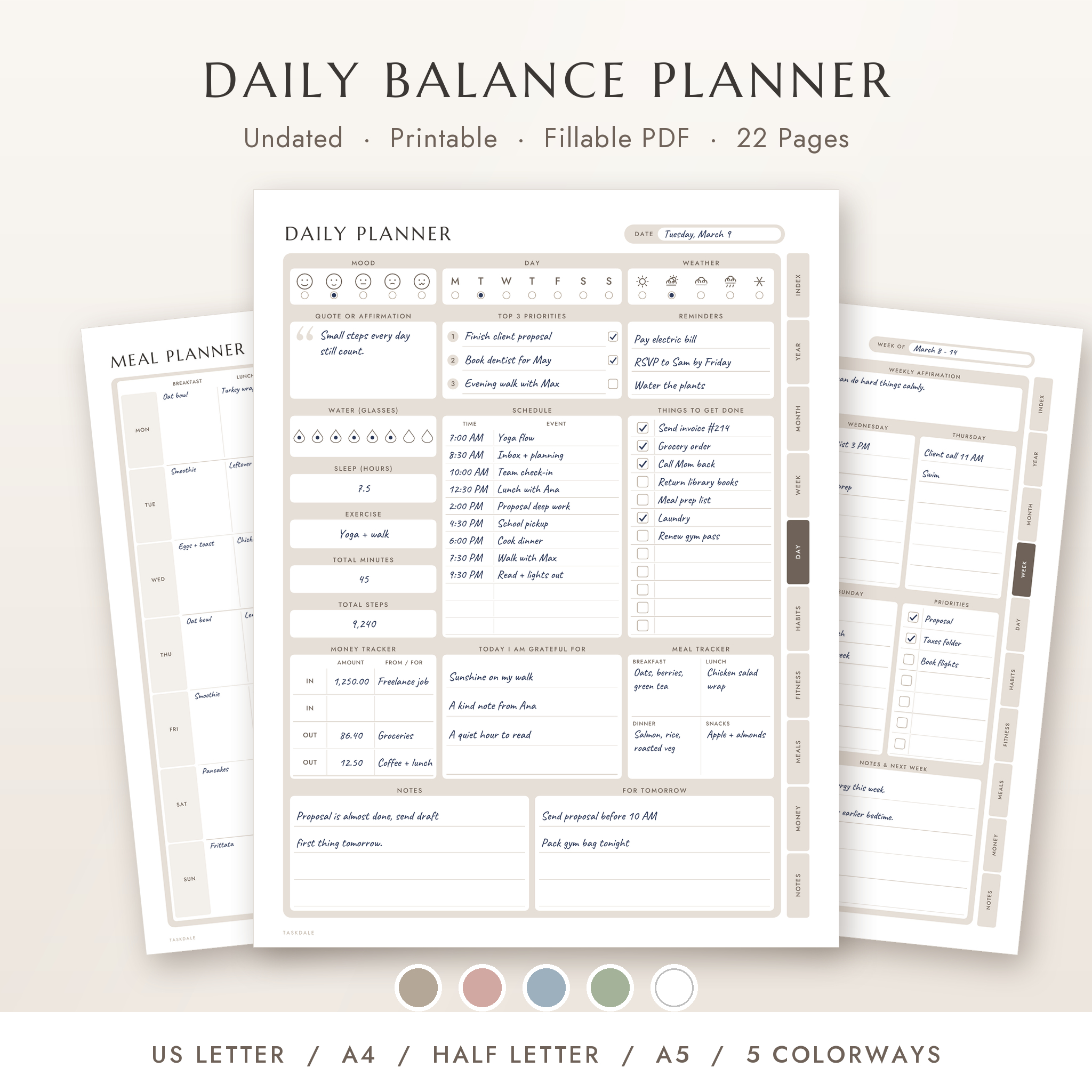
Daily Balance fills in money and workout totals for you, and uses tap-to-select dots for mood, day and weather.
- Every box on all 22 pages is a fillable field
- Money in, money out and difference calculate automatically
- Clickable side tabs to jump between sections
One honest catch: those automatic totals rely on form scripts that Adobe Acrobat Reader runs, and they were also tested in Firefox’s PDF viewer. In simpler viewers you can still type, but you’d add the totals yourself. Worth knowing before you settle on an app.
Daily Balance also uses small tap-to-select dots for mood, day and weather. One click instead of drawing a face. Tiny, but it adds up across a month.
Voice typing: talk your plans in
This is the shortcut people forget. Almost every phone, tablet and computer keyboard has a microphone key or a dictation option. Wherever a keyboard pops up, you can usually talk instead of type.
That includes typing boxes in fillable PDFs, text boxes in note apps, Notion pages and browser-based planners. Tap into the box, tap the mic, and say “Dentist Tuesday at two thirty, bring insurance card.”
A few tips that make voice typing less annoying:
- Speak in short chunks. One task at a time comes out cleaner than a long ramble.
- Say the punctuation. Many dictation tools understand “comma” and “full stop” or “period”.
- Do a brain dump first. Talk everything into one notes page, then copy the important bits into the right places.
- Fix mistakes later. Don’t stop mid-flow to correct a word. Tidy up at the end.
Voice works best in quiet rooms and less well on a busy train. Fair enough. On those days, tapping is your friend.
Where voice typing shines
Some planner jobs suit talking much better than others. Brain dumps, journal entries, meal ideas and “things to tell the school” lists are perfect, because they’re mostly sentences. Short labels like “gym” or “pay rent” are often quicker as a sticker or a tick. And numbers in a budget are usually easier to type, since dictation sometimes spells them out as words.
If you journal in the evening, voice can be a real gift. Three sentences about your day, spoken in under a minute, and the habit survives even the tired weeks.
Stickers as stamps: planning with taps
Stickers usually get sold as decoration. For anyone avoiding writing, they’re much more useful than that. A “Pay day” sticker on the 25th says the same thing as writing it, with one drag instead of seven letters.
Build yourself a small stamp kit of functional stickers:
- Labels: appointment, pay day, bills due, done.
- Date and weekday stickers for undated pages.
- Tracker widgets and checkmarks.
- Sticky notes you can type onto with a text box.
Most note apps let you save favorites so they’re always one tap away. Our guide to adding, sorting and using digital planner stickers shows how to keep them organized.
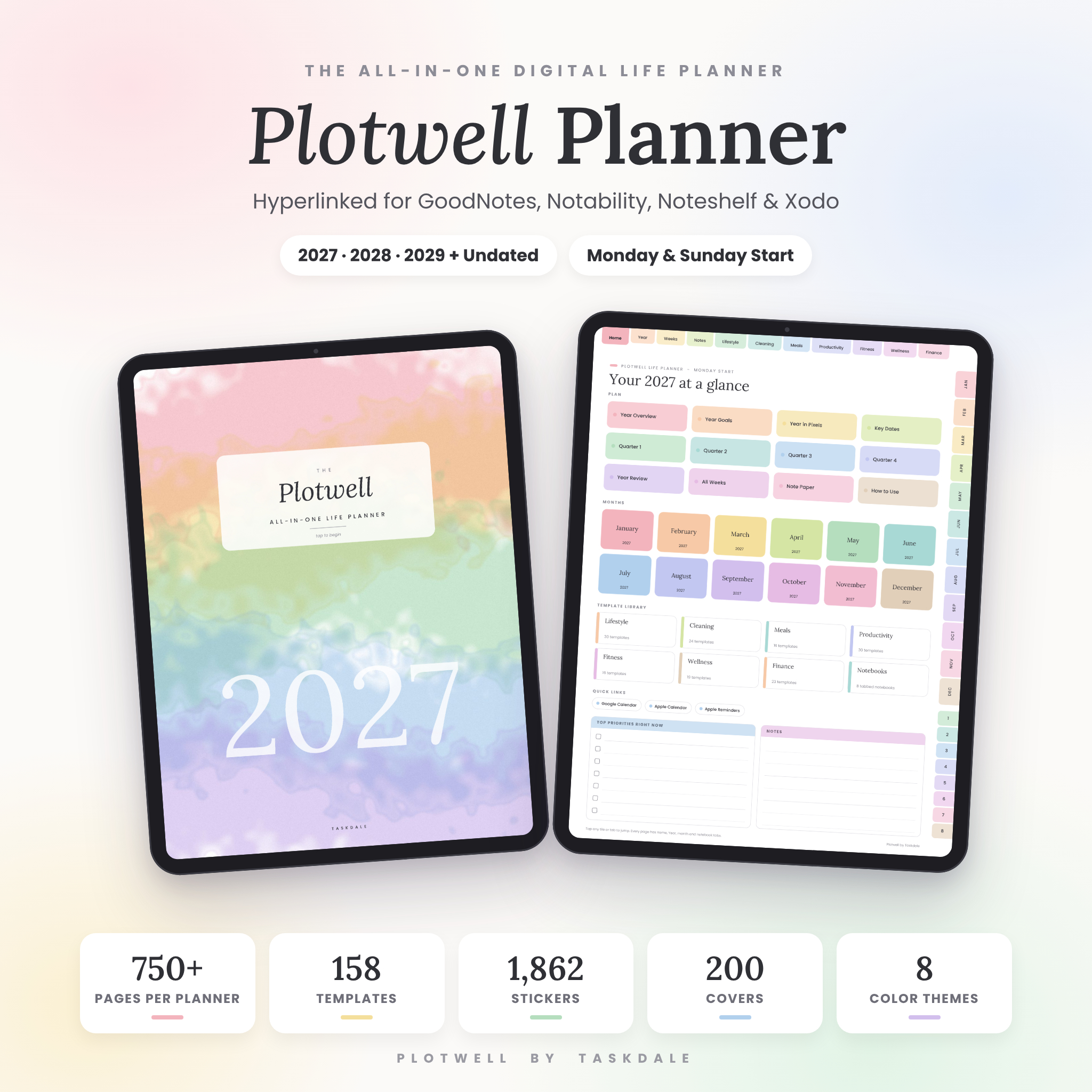
The Plotwell All-in-One Digital Planner is very good for this kind of stamp-style planning, because its sticker book is full of practical pieces: labels, dates, months, weekdays, tracker widgets and sticky notes.
Plotwell All-in-One Digital Planner 2027 2028 2029 + Undated
Plotwell's 1,862 stickers include labels, dates, weekdays and tracker widgets, so you can mark your plans with taps instead of writing.
- 2027, 2028, 2029 and undated planners in one download
- Google Calendar and Apple Calendar shortcuts on daily pages
- 158 templates in 7 libraries
Plotwell also has Google Calendar and Apple Calendar shortcuts on its daily pages, which open your calendar app on the right date. If you’d rather type appointments into your phone’s calendar than write them, that’s a handy bridge. Our post on pairing a digital planner with your calendar app explains how to avoid writing everything twice.
Notion: a planner that’s all typing
If you want to skip the pen completely, a Notion template might suit you better than any PDF. Notion is a free app (with paid plans you don’t need here) where everything is typed, ticked or picked from a list. It works on computers, phones and tablets.
The Notion Life Planner Template (Everkept Life OS) is built around a 60-second Daily Check-in, so mood, sleep, water, steps and habits get logged once and show up everywhere else automatically.
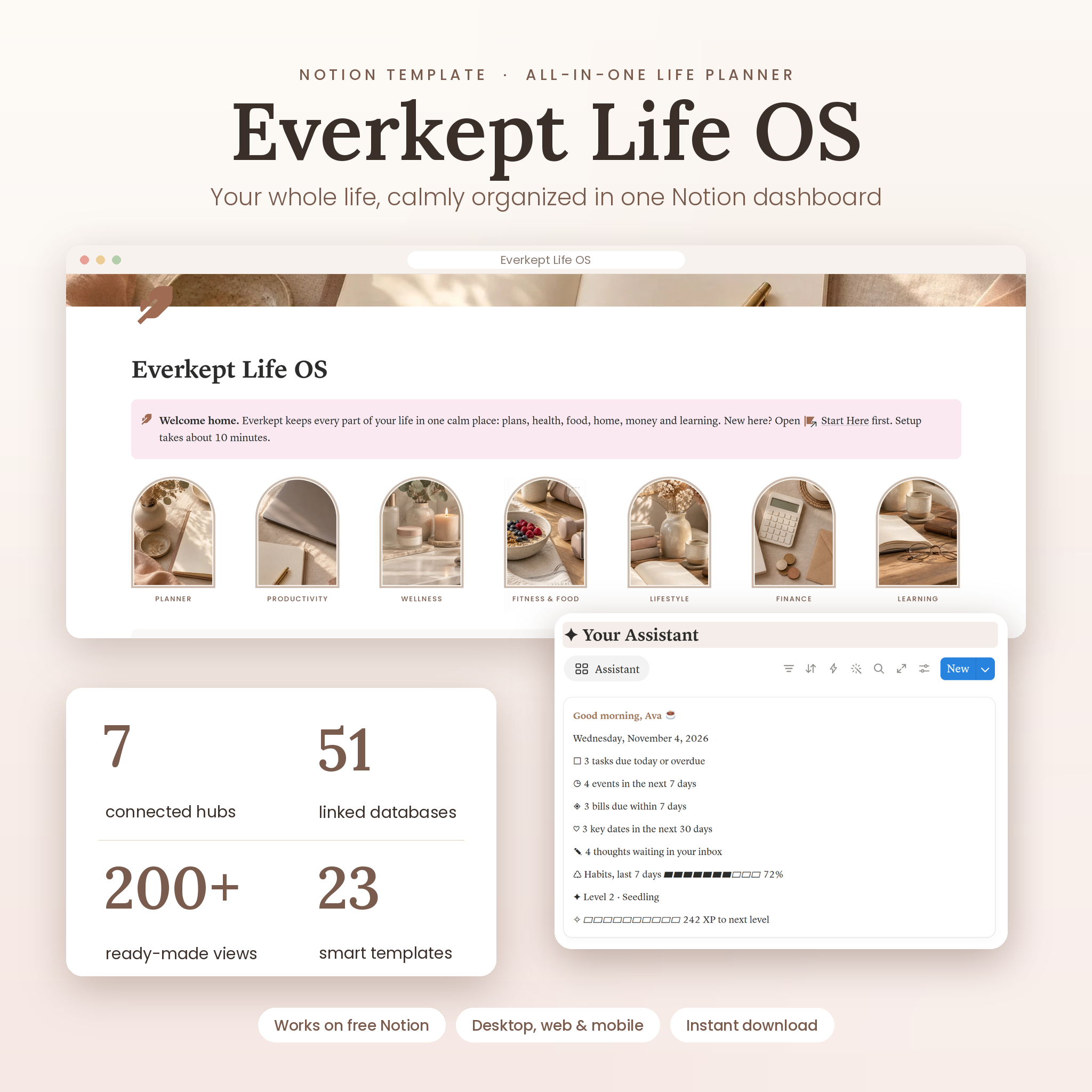
Everkept is a Notion life planner where everything is typed or ticked, and one daily check-in feeds every hub.
- 60-second Daily Check-in for mood, sleep, water, steps and habits
- Works on the free Notion plan on desktop, web, iPhone, iPad and Android
- Templates that fill in today's date for you
The upside for tired hands is less repetition. You don’t copy the same habit into five places. The downside is that Notion has a learning curve. Give it a weekend, follow the Start Here page, and don’t try to use every hub in week one.
Its task list also does some of the remembering for you. Tasks show countdowns like “Today”, “Tomorrow” or “2d overdue”, so you don’t need to rewrite a to-do onto a new page each morning. It just stays where it is until you tick it.
Because Notion works on phones, it’s also a good fit for planning from the sofa or in bed when holding a tablet and pen isn’t comfortable. More on that in our guide to using a digital planner on your phone.
A browser planner you type into
Another typing-first option is a planner that runs in your web browser. No pen, no PDF app, no account. You type, click and the planner sorts things out.
The Vivaloom 2027 Digital Life Planner App is one file that opens in Chrome or Edge, with quick capture buttons and repeating tasks that schedule themselves.
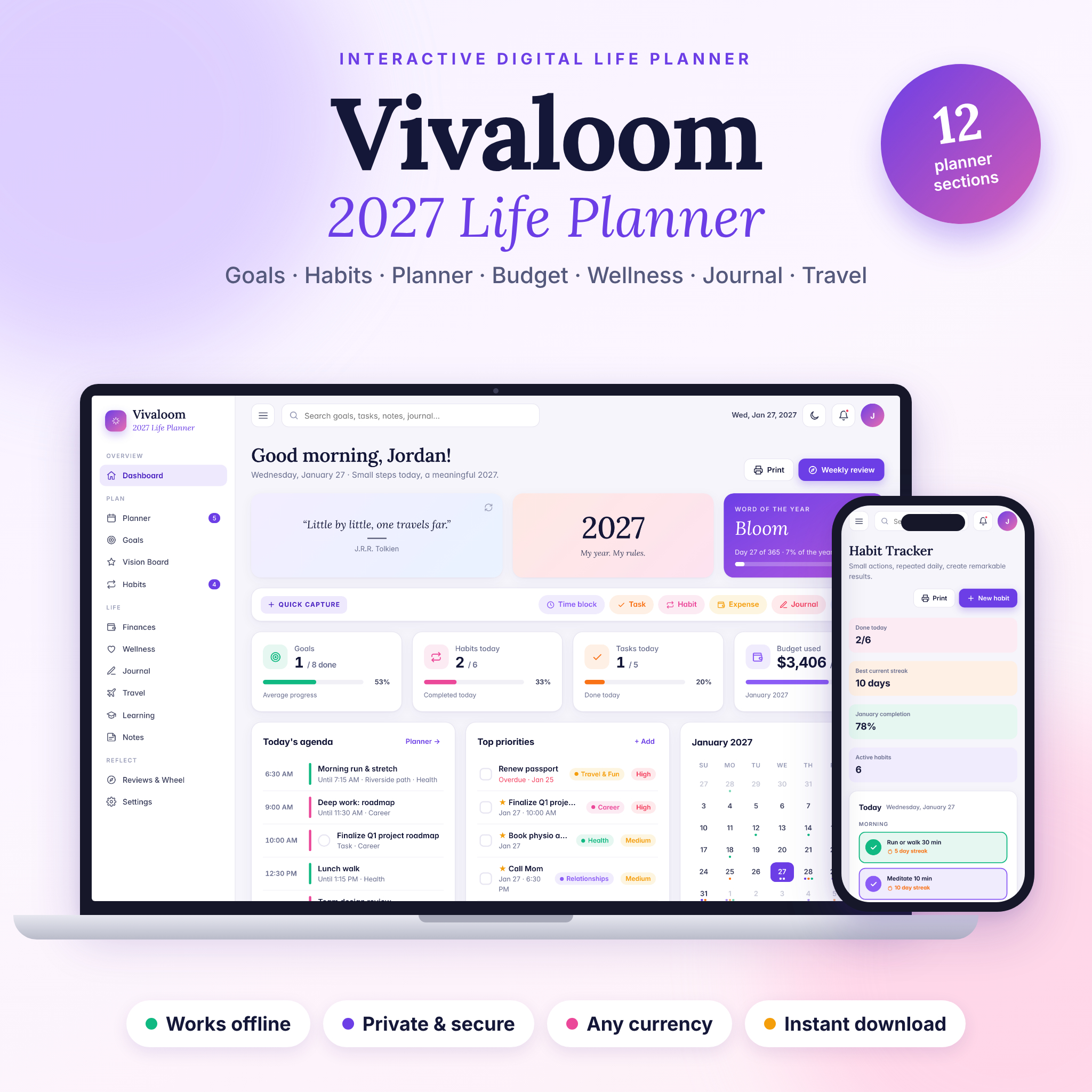
Vivaloom 2027 Digital Life Planner App
Vivaloom runs in your web browser, so planning is all typing and clicking, with repeating tasks that schedule themselves.
- Quick capture buttons and a daily Top 3
- Works offline, no account or subscription needed
- Best on a laptop or desktop in Chrome or Edge
Repeating tasks are a quiet win here. “Take out the recycling, every Tuesday” gets entered once, not 52 times. For anyone counting effort, that’s a lot of saved typing over a year.
Be aware it’s designed for a laptop or desktop. It adapts to tablets and phones, but opening downloaded files on those devices varies, so it’s best if you’re happy planning at a computer.
Small changes inside a handwriting planner
Already have a tablet planner you like? You don’t have to switch. A few tweaks cut the writing a lot.
- Use text boxes. Nearly every note app has a text tool. Type into any page, then move the box where you want it.
- Copy and paste repeat items. Write (or type) your weekly routine once, then copy it to each new week.
- Duplicate filled pages. If your weekly meal plan barely changes, duplicate last week’s page and edit two lines.
- Thicken your pen. When you do handwrite, a thicker pen means you can write bigger and with less precision.
- Use the lasso tool. Most apps let you circle something and drag it to another day instead of rewriting it.
- Write less. “Dr 2:30” does the job. Nobody’s grading you.
- Set up a stamp page. Make one blank page at the front of your planner and paste your ten most-used stickers onto it. When you need one, copy it from there instead of hunting through folders.
If you still want handwriting on good days, our guide on making digital planner handwriting more comfortable covers screen protectors, grips and pen settings.
A five-minute low-effort routine
Here’s a daily routine that uses almost no writing at all:
- Morning, one minute: open today’s page and tap or tick yesterday’s leftovers forward.
- Two minutes: voice-type your top 3 into the priorities box.
- One minute: drop stickers on anything with a time or a due date.
- Evening, one minute: tick what got done, tap a mood, close the app.
On bad days, skip to step 4. A planner that gets a one-minute check-in is still doing its job.
FAQ
Can you use a digital planner without handwriting?
Yes. Fillable PDFs, Notion templates and browser-based planners are all built for typing. In regular tablet planners you can use text boxes, voice typing and stickers instead of a pen.
Do fillable PDF planners work on an iPad?
It depends on the app. Some handle typing boxes well, others don’t. A computer with Chrome or Adobe Acrobat Reader is the most reliable place to use them.
Is voice typing accurate enough for planning?
For short notes, usually yes. Speak in short phrases in a quiet room and do a quick tidy-up afterwards.
Which option takes the least effort?
For most people, a planner that remembers things for you: repeating tasks, automatic totals and one check-in that fills several trackers.
Planning should take weight off your week, not add to it. Pick the method that costs your hands the least today, whether that’s typing, talking or a few taps, and let the pen be a bonus rather than a requirement.