You bought a planner, you’re excited, you tap the file and get “Unable to open”, “Unsupported file type”, or just nothing. When a digital planner won’t import, it feels like the file is broken. It almost never is. In my experience, nine times out of ten it’s one of a handful of small, boring things: the file is still zipped, you picked the wrong file, or the download didn’t finish.
Below are the common causes in the order I’d check them, with the fix for each. Start at the top. Most people are sorted by the third section.
Quick check: what does the error say?
The message on screen is a clue, so read it before you close it.
| What you see | Most likely cause |
|---|---|
| “Unsupported file” or the app grays the file out | It’s a ZIP, a DOCX, a PNG or a spreadsheet, not the planner PDF |
| “File is damaged” or “can’t be opened” | The download didn’t finish |
| Spinning wheel that never ends | Not enough storage, or the file is still in the cloud |
| It imports, but the tabs don’t work | The app doesn’t follow PDF links, or it was imported into another notebook |
| You can’t find the file at all | It saved somewhere you weren’t expecting |
Got one that matches? Jump to that section. If not, read on from here.
Cause 1: the file is still zipped
This is the big one. Many planners, including plenty on Taskdale, arrive as ZIP files. A ZIP is like a sealed envelope holding several files at once. Your note app can’t read the envelope. It needs the PDF inside.
On iPad: open the Files app, find the ZIP (usually in Downloads), and tap it once. It unpacks into a folder right next to it. Open that folder and you’ll see the PDF.
On Android: open your file manager, find the ZIP, tap it, and look for an option to extract or unzip. Some file managers let you preview the files inside first. Extract them, then open the PDF.
Our step-by-step guide on how to unzip and import a digital planner PDF has more detail for both.
A tip: if your planner comes with several ZIPs, unzip only the one you need. The Petal & Pace digital planner, for example, comes as 16 hyperlinked PDFs (three dated years plus undated, two themes, Monday or Sunday start), so pick your year, theme and week start before you start unzipping everything.
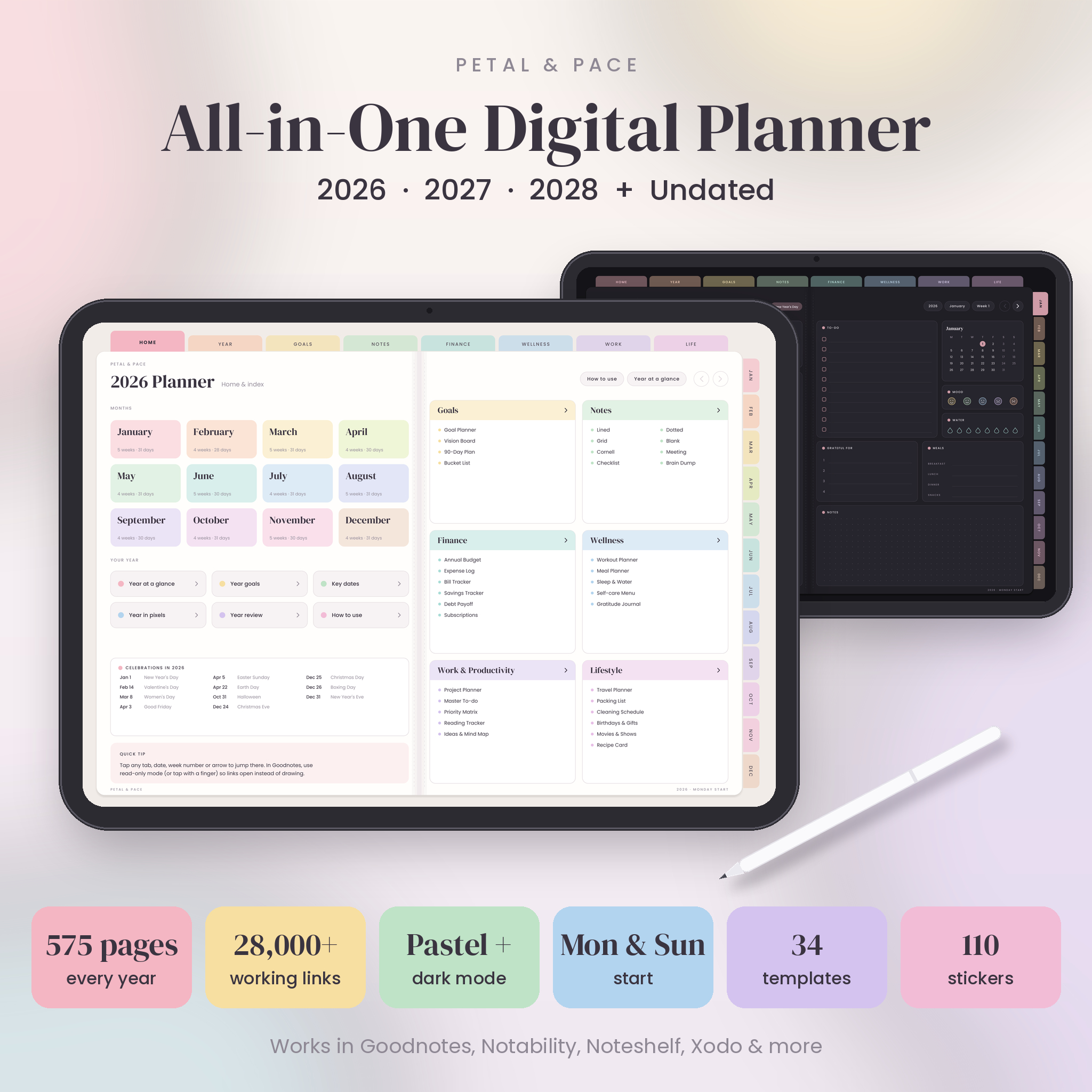
Each year is a light file that opens fast, and the undated version means it never runs out.
- 16 hyperlinked PDFs: 2026, 2027, 2028 and undated
- About 2.5 MB per year file
- Works in Goodnotes, Notability, Noteshelf, Xodo and more
Cause 2: you picked the wrong file
Once unzipped, a planner download can hold quite a few files. Planner PDFs, sticker PNGs, cover images, a sticker book, a user guide in Word format, sometimes a spreadsheet. Only some of those belong in your note app as a notebook.
- PDF: this is the planner. Import this.
- PNG or JPG: stickers and covers. Add these as images inside the planner, not as a new notebook.
- DOCX: the user guide. Open it in Word, Google Docs or Pages.
- XLSX: a spreadsheet. Open it in Excel or a similar app, never in GoodNotes.
That last one trips up a lot of small business owners. The Business HQ Undated Small Business Planner, for example, comes with the planner PDFs plus a separate Finance and Pricing Workbook in Excel format. The PDF goes into your note app. The workbook opens in Excel (it also works in LibreOffice Calc).
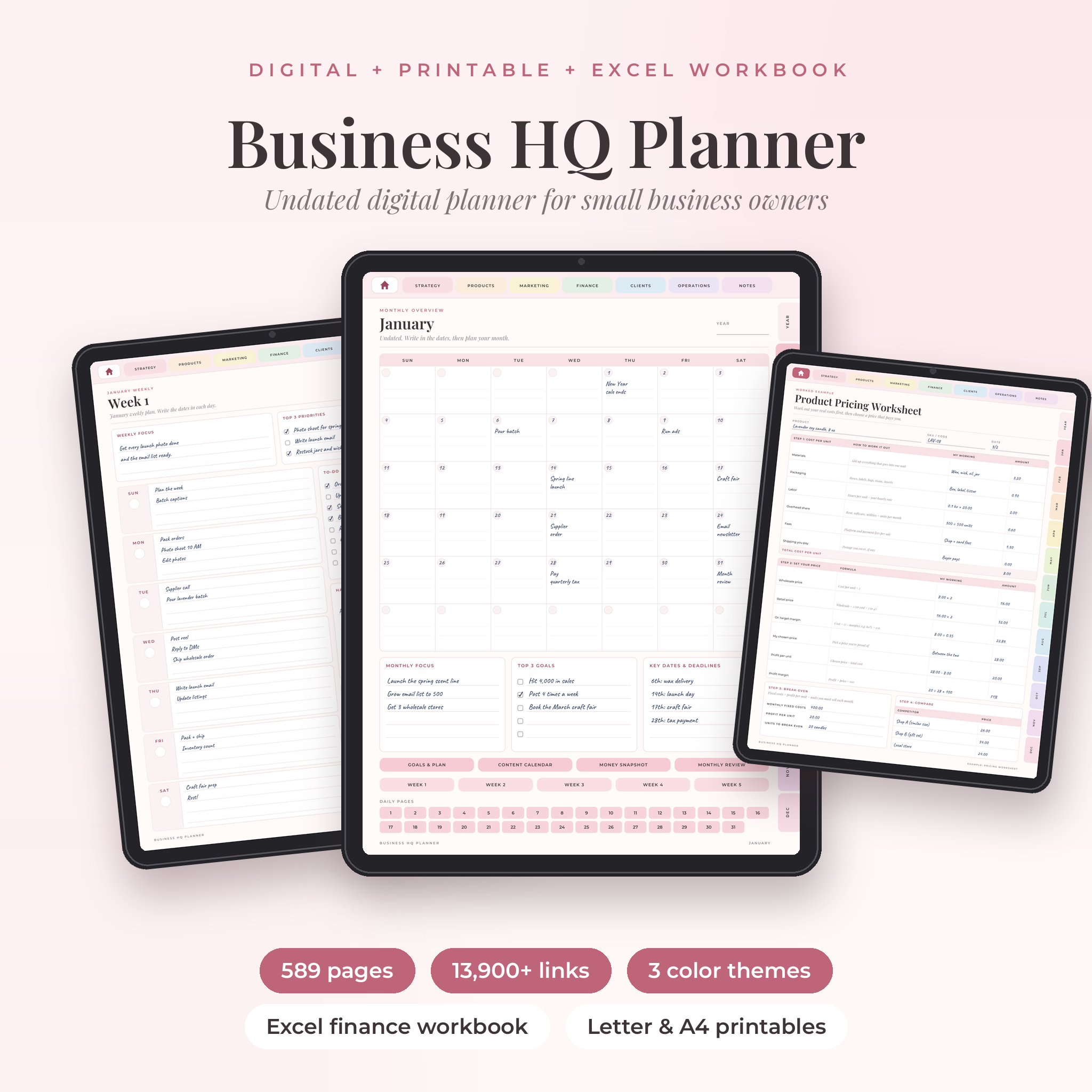
Business HQ Undated Small Business Planner for GoodNotes
The planner PDF goes in your note app and the finance workbook opens in Excel, so each file has a clear home.
- 589 hyperlinked pages in each of 3 color themes
- Excel finance and pricing workbook that does the math
- Printable US Letter and A4 packs included
If you’re unsure which file is the planner, look for the biggest PDF with a name that mentions the year, the theme or “planner”. The user guide that came with your planner is a good place to check too.
Cause 3: the download didn’t finish
A download that cuts out halfway can still leave a file with the right name. It just won’t open, or it opens and the pages are blank past a certain point.
Signs of a broken download:
- The file size is tiny (a few KB when it should be a few MB)
- The ZIP gives an error when you try to unpack it
- The PDF opens but stops partway through
This happens most often when the screen locks during a download, or when you switch apps halfway through. Some browsers pause downloads in the background. Keep the browser open and the screen on until the download completes, especially for bigger files.
The fix is simple. Delete the broken file, connect to steady Wi-Fi, and download it again from your Taskdale account or the link in your order email. Avoid downloading big files on mobile data in a parking lot. Ask me how I know.
Light files help here too. The Quiet Year Planner, for instance, is only about 2.5 MB per planner, which makes downloads quick and less likely to stall on patchy internet.

Each planner is only about 2.5 MB, so it downloads and opens quickly even on slower connections.
- Runs from July 2026 to June 2027
- 734 pages with 3 daily page styles
- Works in GoodNotes, Notability, Noteshelf, Xodo and Flexcil
Cause 4: the file is in the cloud, not on your tablet
On iPad, files in iCloud Drive can show up in the Files app even when they aren’t actually downloaded to the tablet yet. You’ll often see a small cloud icon next to the name. Tap it and wait for it to download before you try importing.
The same thing happens with Google Drive, Dropbox and OneDrive. The file is listed, but your note app can’t grab it until it’s really on the device. If an import spins forever, this is a likely reason.
Can’t find the file at all?
Downloads don’t always land where you expect. On iPad, Safari usually saves to the Downloads folder in the Files app, but if you downloaded from an email app or a different browser, the file might be inside that app instead. On Android, check the Downloads folder in your file manager first, then the browser’s own download list.
Still nothing? Open the Files app or file manager and search for “zip” or part of the planner’s name. It’s faster than clicking through folders. And once you find it, move it into a folder you’ll remember, like one called Planners. Future you will be grateful.
Storage
Also check storage. A tablet with almost no free space can fail to import even a small file. Go to your device settings and see how much space is left. Clearing out old videos usually frees up plenty.
Cause 5: the app can’t handle this kind of planner
Most hyperlinked planners need a PDF annotation app: an app that lets you write on PDFs and tap the links inside them. Basic PDF viewers and some e-readers won’t do both.
Apps that usually work include GoodNotes, Notability, Noteshelf and Xodo, and plenty of planners list others too. Apps and devices that often don’t:
- E-readers like Kindle devices, which are made for books, not linked planners
- Simple PDF viewers that can’t write on pages
- Some e-ink tablets, depending on the model and the planner
The planner listing usually tells you. The Unscatter ADHD Digital Planner, for instance, says plainly that it works in GoodNotes and Notability on iPad and in Noteshelf or Xodo on Android and Windows, and that it isn’t designed for Kindle readers or basic PDF viewers that can’t write on pages.
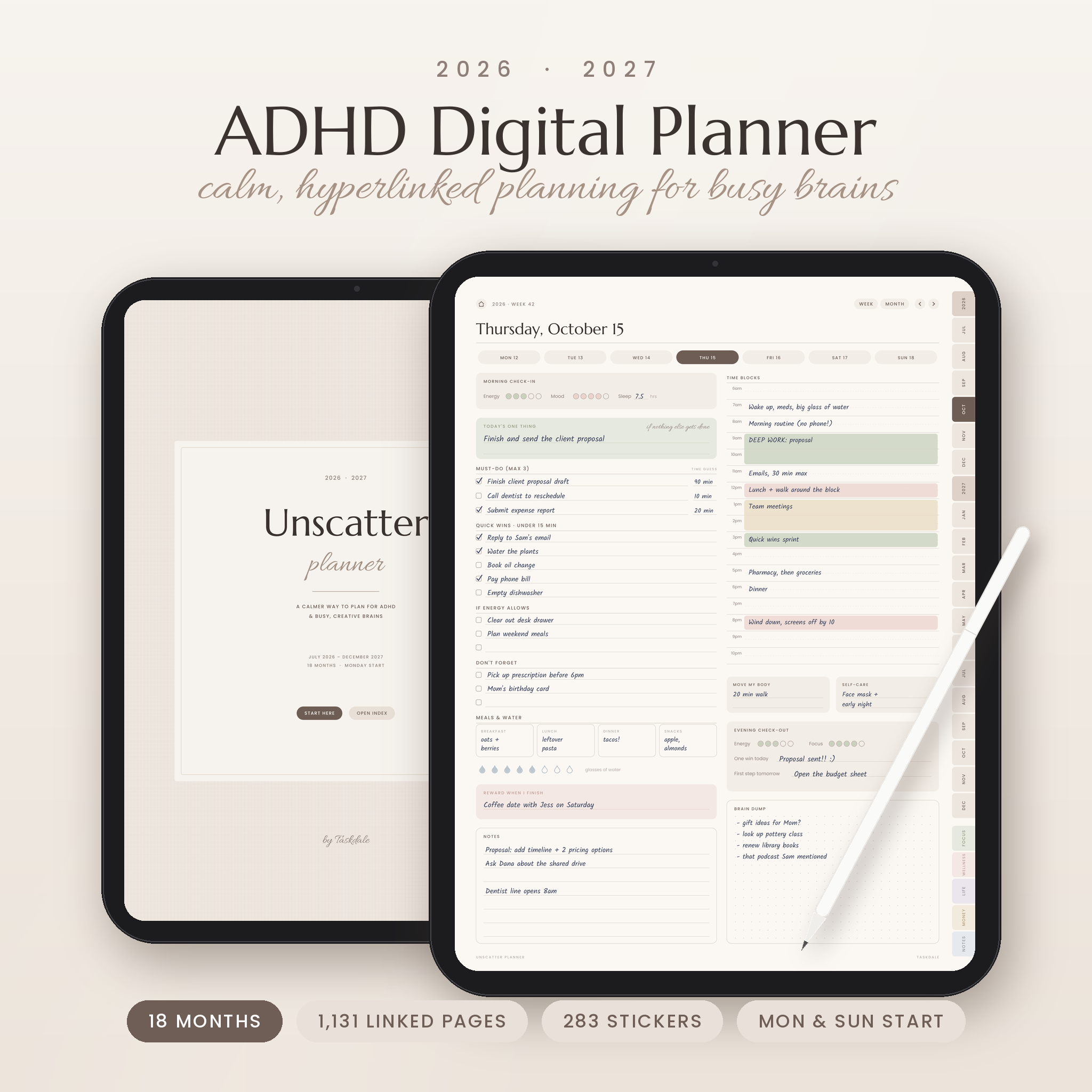
ADHD Digital Planner 2026-2027
The listing spells out which apps it works in and which devices it isn't made for, so you know before you import.
- 18 months, July 2026 to December 2027
- Works in GoodNotes, Notability, Noteshelf and Xodo
- Each planner file is about 8 MB
If you want to check before you buy next time, our digital planner compatibility checklist covers what to look for, and this guide to hyperlinked PDF planner apps looks at app support in more detail.
Cause 6: it imported, but into the wrong place
Sometimes the import technically works, but the planner behaves badly afterwards. The usual reason: it was added as pages inside an existing notebook instead of as its own new document.
When that happens, the planner’s internal links can point to the wrong page numbers, because page 1 of your planner is now page 48 of an old notebook. Tap “January” and you land on someone’s shopping list.
The fix: delete the merged pages and import the planner PDF again, this time as a new notebook or new document. Most apps ask when you import. If they don’t, look for the import option from the main library screen rather than from inside an open notebook.
Kindly Kept Self-Care Digital Planner says this in its own instructions: import it as one document so the links keep working. Good advice for any hyperlinked planner.
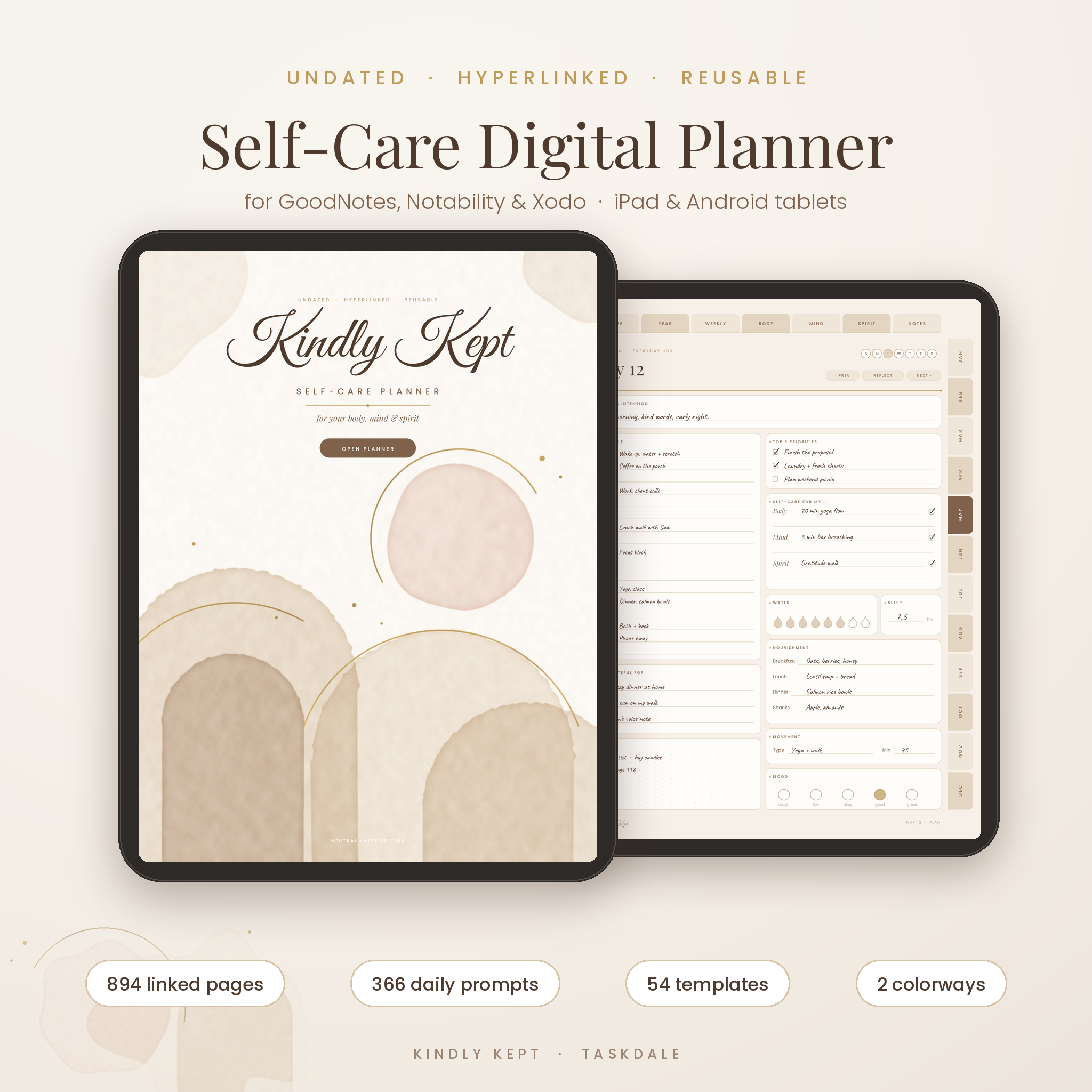
Kindly Kept Self-Care Digital Planner
A self-care planner whose own setup steps remind you to import it as one document so every link works.
- 894 hyperlinked pages, fully undated
- 366 daily plans plus 366 evening reflections
- User guide with setup steps for GoodNotes, Notability and Xodo
App-by-app notes
GoodNotes
The easiest route is usually from the Files app: tap and hold the PDF, open the share menu and pick GoodNotes. If it asks, choose a new document. Or start inside GoodNotes from the library and look for Import or the + button. Our beginner steps for using a digital planner in GoodNotes go through it in order.
Notability
Import from inside the app’s library, or use the share menu from Files and pick Notability. Make sure it creates a new note rather than adding to an open one.
Android apps
On Android, open the PDF from your note app’s own import option, or open it from the file manager and choose your note app. Link support varies between Android apps, so if one app imports the planner but the tabs do nothing, try another. Our guide to setting up a digital planner on Android walks through the setup in Samsung Notes.
Still stuck? Try this before you give up
- Restart the tablet. Boring, but it clears a surprising number of stuck imports.
- Update your note app to the latest version.
- Try importing the same PDF into a second app, like Xodo. If it opens there, the file is fine and the first app is the problem.
- Download a fresh copy from your Taskdale account and try again.
- Open the user guide that came with your planner. Most include a troubleshooting section for exactly this.
If none of that works, get in touch with us through Taskdale and tell us your device, your app and the exact error. A screenshot helps a lot. So does telling us which file you tried to open, because “the planner” could mean any of a dozen files in the download.
One more thing worth saying: don’t keep re-importing the same file over and over. Every failed attempt can leave a half-made notebook behind in your library, and soon you’ve got five copies called “Planner (3)” and no idea which one is real. Clear out the failed ones before each new try.
FAQ
Why does my planner say “unsupported file” when I import it?
You’re almost certainly trying to open the ZIP, a sticker image, the Word guide or a spreadsheet. Unzip the download and import the PDF.
Can I import a digital planner on my phone?
Usually yes, if your phone has a PDF app that supports links. Writing on a small screen is harder, though, and many planners are sized for tablets.
Do I need to download the planner again on every device?
You can, or you can use your note app’s sync. Either way, your handwriting lives in the app, not in the original file.
The planner imported but the tabs don’t work. What now?
Check whether you’re in writing mode (many apps only follow links in reading mode or with a finger tap) and whether it was imported as its own document.
A planner that won’t open is annoying, but it’s rarely a lost cause. Unzip it, pick the PDF, make sure the download is complete, and import it as its own notebook. Ten minutes from now you could be writing in it.