If you want to sync a digital planner across your tablet, phone and computer, the first thing to know is that the planner file itself doesn’t do the syncing. The app or service it lives in does. That one fact explains most of the “why isn’t my Tuesday showing up on my laptop?” moments.
It’s Sunday night. You planned the whole week on your iPad, and on Monday morning you open the same planner on your phone at the train station. Half of it is missing. Nothing is broken. The two devices just haven’t talked yet.
So let’s sort out which kind of planner syncs how, what to switch on, and the small habits that stop you from ending up with three slightly different copies of the same week.
What “sync” actually means for a planner
People use the word for three different things, and it helps to keep them apart.
- Sync means the same planner shows the same content on every device, and a change on one shows up on the others by itself.
- Copying means you move a file from one device to another by hand. Each copy then lives its own life.
- Backup means a saved copy you can go back to if something goes wrong. It doesn’t update your other devices at all.
Real sync needs something in the middle, usually a cloud account. Notion has one. Google Sheets has one. Most note-taking apps have one. A plain PDF sitting in your downloads folder does not.
Your planner type decides how syncing works
Before you change any settings, figure out which of these you’re using. It takes ten seconds and saves an evening of confusion.
| Planner type | How it syncs | Effort |
|---|---|---|
| Notion template | Through your Notion account, on every device | None once set up |
| Google Sheets planner | Through your Google account and Drive | None once set up |
| PDF planner in a note app | Through the note app’s own cloud, if you turn it on | Low, but check it |
| Offline HTML planner app | Doesn’t sync. You move a backup file | A minute each time |
If having the same planner on three devices is your top priority, the first two rows are the easy road. If you love handwriting on a tablet, the third row works well with a bit of setup. Let’s go through them.
Notion planners: syncing is built in
Notion stores your pages in your account, not on the device. Log in on your laptop, your iPad and your phone, and they all show the same workspace. Add a task on the phone at lunch and it’s on the laptop before you sit down.
The trade-off is screen size. A big Notion dashboard with lots of linked databases is lovely on a laptop and a bit much on a phone. That’s why it’s worth choosing a template that thinks about smaller screens.
Hearth & Horizon is a good example. It’s a 2027 Notion life planner with nine linked hubs, and it works on the free Notion plan. The listing is honest that it’s designed for Notion on a computer, but it includes a single-column Today page made for your phone. So you’d plan in the big hubs on the laptop and press the quick-add buttons on the phone during the day.
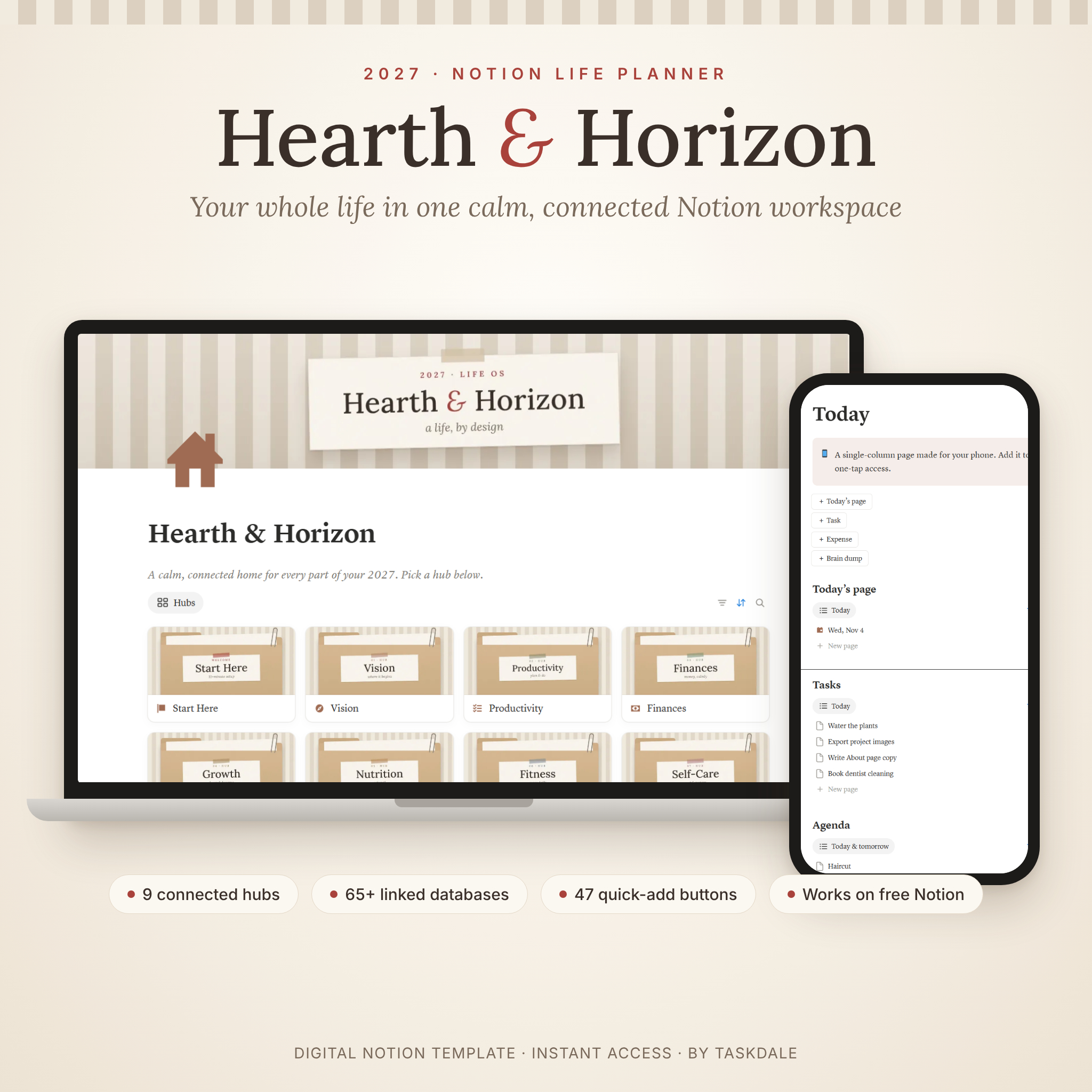
Hearth & Horizon 2027 Notion Life Planner
A Notion life planner that syncs through your Notion account, with a single-column Today page designed for small screens.
- Nine linked hubs and more than 65 databases
- Works on the free Notion plan
- A single-column Today page for your phone
- 47 quick-add buttons for tasks, expenses and journal entries
Make the phone side pleasant
Once Notion is on all your devices, give the phone a smaller job. Favorite the one page you check most, and let the laptop handle budgets and long lists. Wide tables in Notion tend to scroll sideways on a phone, which is fine for a glance and annoying for data entry.
Blossom Life OS says exactly that in its FAQ: your copy opens in the Notion app like any other page, it looks its best on a larger screen, and wide tables scroll sideways on a phone. It’s a pretty pink Notion life planner where a task with a due date shows up on your dashboard, daily planner, week board and calendar, so you write it once and it appears everywhere you look.
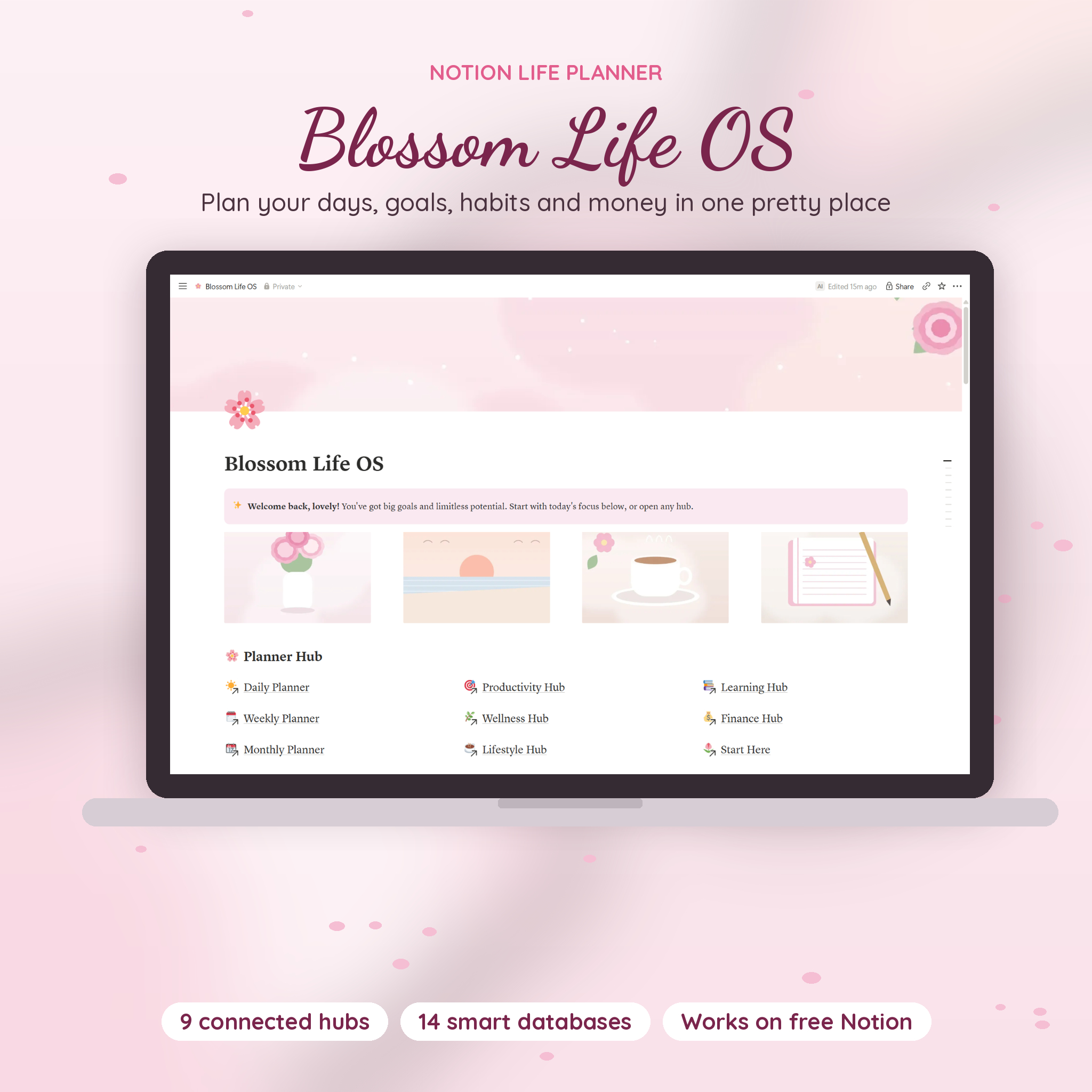
Blossom Life OS: All-in-One Notion Life Planner Template, Aesthetic Pink Digital Planner
Add a task once and it appears on your dashboard, daily planner, week board and calendar, on any device you open Notion on.
- Nine hubs and fourteen connected databases
- Built and tested on a free Notion account
- Opens in the Notion app; wide tables scroll sideways on a phone
- Goals with progress bars that move as you tick tasks
Spreadsheet planners: Google Sheets is the easy route
A spreadsheet planner sounds old-fashioned until you realize how well it syncs. Upload it to Google Drive, open it as a Google Sheet, and it’s the same file on your laptop, tablet and phone. Excel can do something similar if you keep the file in OneDrive and open it with Excel for the web or the Microsoft 365 apps.
Linen Life OS is built for this. It’s a life planner spreadsheet that works in Excel 2016 or newer, Microsoft 365, Excel for the web and Google Sheets, with no macros or add-ins. The listing suggests uploading the blank file to Google Drive and saving it as a Google Sheet. It’s best on a laptop, and it says the Excel and Google Sheets mobile apps work well for quick daily check-ins.
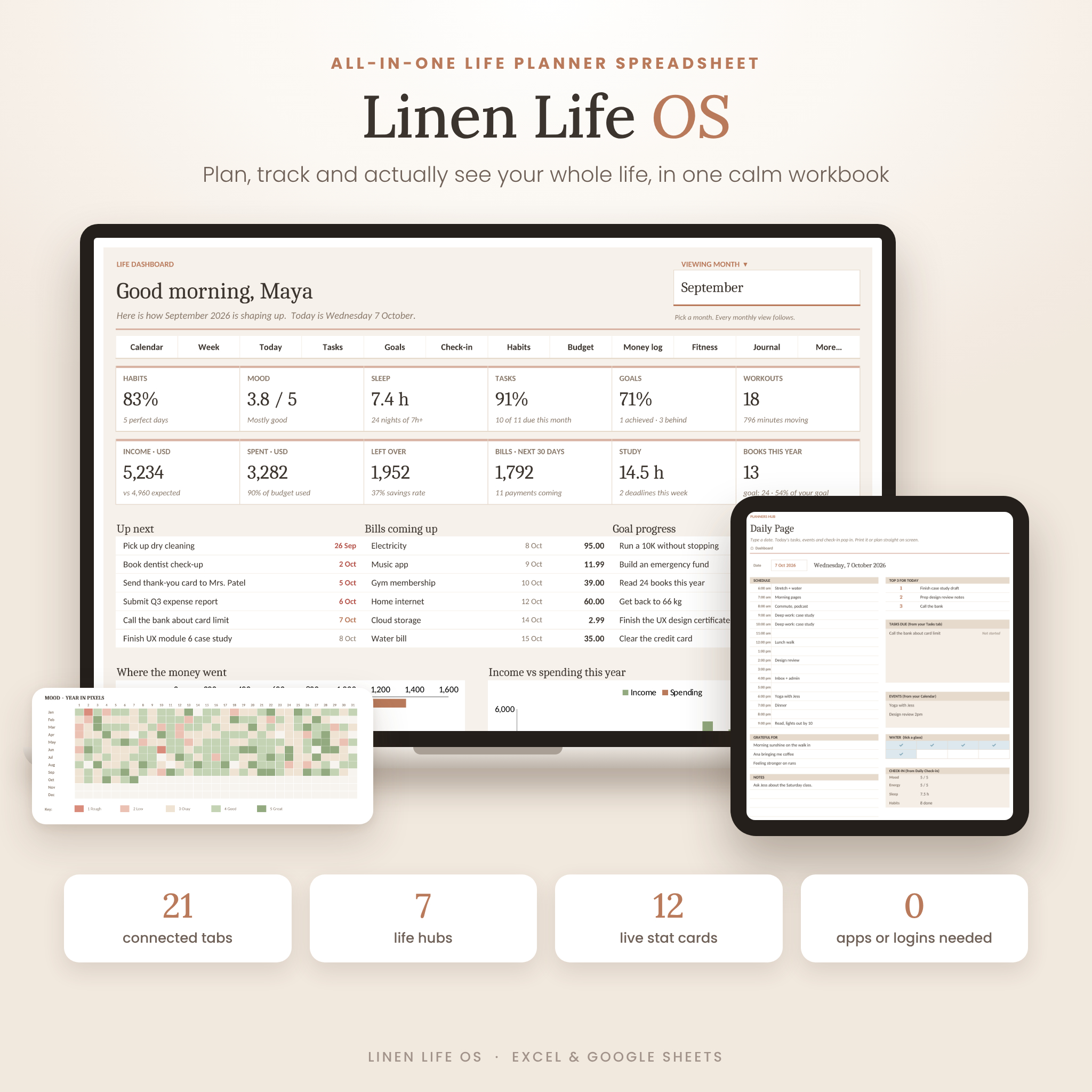
Linen Life OS: Ultimate Life Planner Spreadsheet for Excel & Google Sheets
A life planner spreadsheet you can save as a Google Sheet, so the same file opens on your laptop, tablet and phone.
- Works in Excel, Excel for the web and Google Sheets
- No macros, add-ins or internet connection needed
- Mobile apps work well for quick daily check-ins
- 21 tabs in 7 life hubs with a live dashboard
One small catch. If you keep a copy in Excel and another in Google Sheets, they won’t talk to each other. Pick one home for the file and stick with it.
PDF planners in GoodNotes, Notability and friends
Hyperlinked PDF planners are the ones most people mean when they say “digital planner.” The PDF is just the paper. Your handwriting, stickers and highlights are saved by the note app on top of it. So the sync question is really about the app.
On Apple devices
Most popular iPad note apps can sync your notebooks through iCloud or their own account, which means the same notebook appears on your iPad, iPhone and Mac. Look in the app’s settings for a sync or iCloud option and make sure it’s on. Then do a quick test: add a dot on the iPad, wait a minute, and open the notebook on the other device.
The Rosewren Undated Life Planner is a hyperlinked PDF for GoodNotes, Notability or a similar app, and it’s a nice fit for this kind of setup. Each planner file is under 3 MB, which helps, because smaller files tend to upload and download faster between devices. It’s undated, too, so you can keep a blank copy and import it again whenever you want a fresh year.
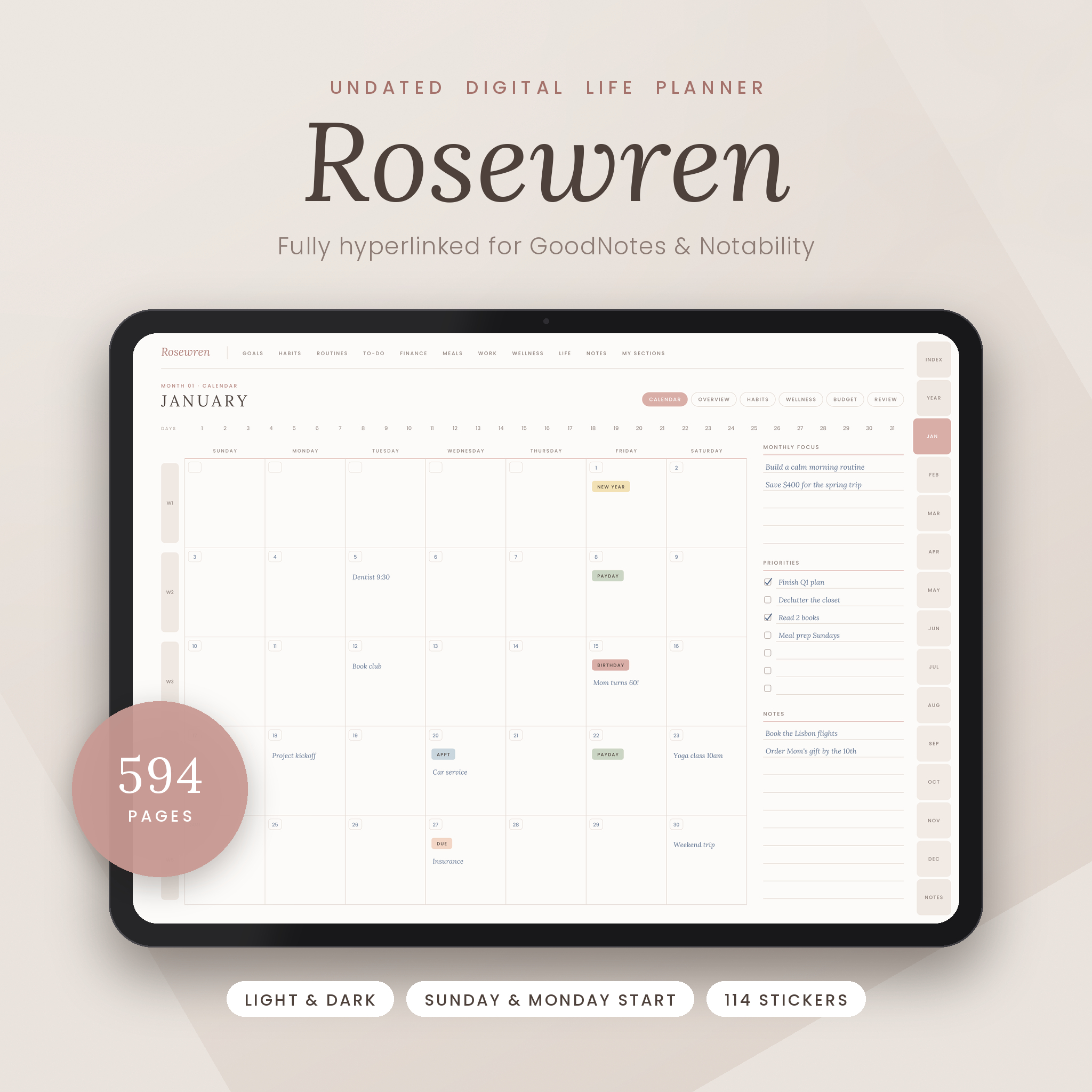
Rosewren Undated Digital Life Planner
An undated hyperlinked PDF that stays under 3 MB per file, so it moves between devices without dragging its feet.
- Works in GoodNotes, Notability and similar PDF apps
- 594 pages with more than 23,000 working links
- Undated, so you can start any month
- Light and Dark editions, each with Sunday or Monday start
Expect the phone version to be small. A tablet planner on an iPhone is great for checking what’s on today and much less fun for writing. We go into that in our guide to using a digital planner on your phone.
On Android and Windows
Here it depends a lot on the app. Some Android note apps sync through their own account, some through a cloud drive, and some keep notebooks only on the device. Check the app’s settings, and if there’s no sync option, you’re in copy-and-backup territory. Our digital planner for Android guide walks through Samsung Notes setup if that’s your app.
If you switch between brands of device, pick a planner and an app that work on all of them. Daybloom is one to look at. It’s an all-in-one hyperlinked PDF that opens in GoodNotes, Notability, Samsung Notes, Xodo or any PDF notes app, and the listing says it’s made for iPad, Android tablets and Windows tablets. It also says it works on phones, but pages will feel small, which is the honest answer for any tablet PDF.
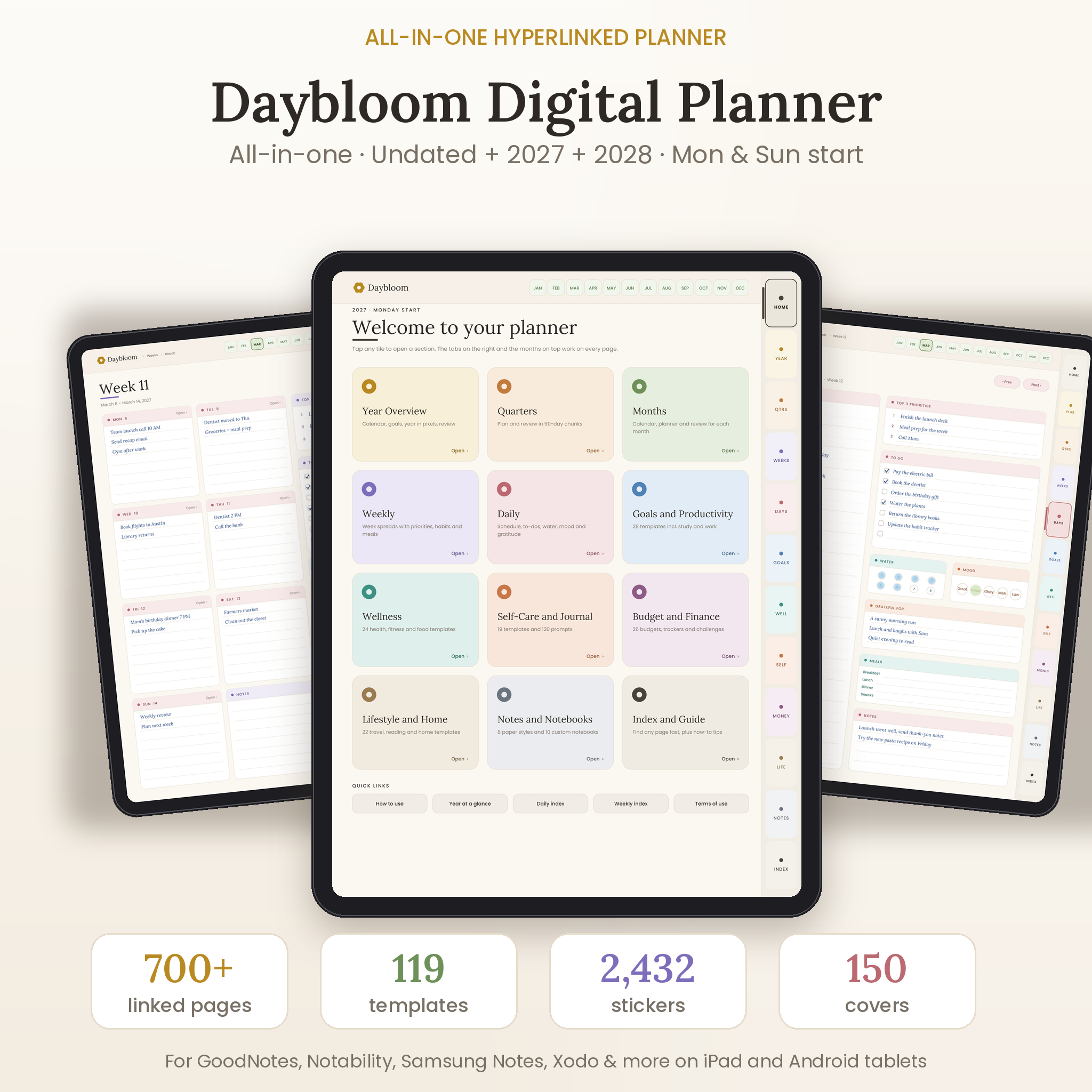
One hyperlinked PDF made for iPad, Android tablets and Windows tablets, so it fits whatever mix of devices you own.
- Opens in GoodNotes, Notability, Samsung Notes and Xodo
- Undated, 2027 and 2028 editions in one download
- About 2.5 MB per planner, so it opens fast
- Big tabs sized for fingers, not just a stylus
One more thing with PDF planners: import the planner once on your main device and let the app sync it. If you import the same PDF separately on each device, you get two separate notebooks that never meet.
Offline browser planners: backup and restore instead
Offline HTML planner apps open from a single file in your browser and save everything inside that browser. That’s great for privacy. It also means nothing leaves the device unless you move it.
The routine is simple. Download a backup on device A, put the backup file somewhere you can reach from device B (a USB stick, an email to yourself, or a cloud folder), then restore it on device B. Some planners can write a dated backup into a folder you choose, so if that folder is in Dropbox or OneDrive, the file is waiting for you on the other computer.
It isn’t live sync, and you shouldn’t edit on both devices between backups, or one set of changes will be overwritten. Most people pick one main device and use the other occasionally.
So which should you pick? If you plan on one laptop and only peek at a phone now and then, the backup routine is no hardship, and you get total privacy in return. If you bounce between three devices every single day, choose Notion or a spreadsheet instead. You’ll thank yourself by Wednesday.
Habits that prevent sync headaches
Most sync problems aren’t bugs. They’re timing. A few habits fix nearly all of them.
- Let it finish. After a big planning session, keep the app open for a moment with a connection so the changes can upload. Closing the tablet lid mid-sync is the classic way to lose an evening’s work on the other device.
- One device at a time. Editing the same page on two devices while one is offline can create a conflict. Some apps keep both versions as separate copies, which is safer but messy.
- Open before you write. When you pick up the second device, give it a few seconds to catch up before you start writing.
- Watch your storage. A full iCloud or Google Drive quietly stops syncing. If changes stop appearing, check your storage first.
- Keep file sizes sensible. Hundreds of large stickers and photos make a notebook heavy, and heavy notebooks sync slowly. Split very old months into an archive notebook if it gets sluggish.
- Check the sync status now and then. Many apps show a small cloud icon or a “last synced” time. A glance once a week tells you it’s still working before you need it.
- Use one capture spot. Pick one list where quick tasks go, whatever device you’re on, so nothing gets stranded on the phone.
Sync is not a backup
This one catches people out. If you accidentally delete a page on your iPad, sync faithfully deletes it on your phone and laptop too. Sync copies mistakes just as happily as it copies good work.
So keep a separate backup as well, like a monthly export of your planner to a cloud folder or a computer. We cover the options for every app in our digital planner backup guide. Ten minutes a month is cheap insurance for a year of notes.
FAQ
Can a hyperlinked PDF planner sync by itself?
No. A PDF is just a file. Syncing happens through the note app or cloud service you open it in. Turn on that app’s sync and the planner follows along.
What’s the easiest planner to sync across devices?
A Notion template or a Google Sheets planner. Both live in your account, so every device sees the same thing as soon as you log in, with nothing to switch on.
Why does my planner look different on my phone?
Phones have smaller, narrower screens. Tablet PDFs shrink to fit, and Notion pages stack their columns. Your content is the same; the layout just changes to fit.
Can I use GoodNotes on iPad and a different app on Android?
You can open the same PDF in both, but your handwriting won’t move between different apps. Each app keeps its own notes. If you use mixed devices, choose one app that runs on both, or accept two separate notebooks.
Pick the planner type that matches how you actually move between devices, switch on the right sync setting, and give it a minute to catch up. Do that, and Monday morning on the train looks exactly like Sunday night on the sofa.