Picture it. Your tablet slides off the kitchen counter, the screen goes black, and eight months of weekly plans, budget notes and habit streaks are sitting on a device that won’t turn on. A digital planner backup is the only thing standing between you and starting over from January.
The good news: setting one up takes about 15 minutes, and it works the same way whichever app you use. GoodNotes, Notability, Samsung Notes, Noteshelf, Xodo. The buttons differ. The idea doesn’t.
Here’s the simple, three-layer setup I recommend, plus what to do with planners that aren’t PDFs at all.
Sync is not a backup
This is the one thing to understand before anything else. Most note apps sync your notebooks through iCloud, Google Drive or their own account. That feels like a backup. It isn’t, quite.
Sync copies whatever is on your tablet to your other devices. All of it. Including mistakes. Delete a notebook by accident and sync helpfully deletes it everywhere. Corrupt a file and sync passes the broken version along.
A backup is different. It’s a separate copy, frozen at a point in time, that doesn’t change when your planner changes. If something goes wrong today, you can go back to last week’s copy.
Sync is great. Keep it on. Just don’t let it be your only safety net.
The plan below has three layers, and each one covers a different kind of disaster:
- Automatic app backups for everyday accidents.
- A monthly PDF export for when the app itself lets you down.
- Clean original files so you can always rebuild.
Layer one: turn on your app’s automatic backup
Most planner apps have a backup setting tucked away in their settings menu. Look for words like Backup, Auto-backup or Export. It’s usually a one-time switch.
A few pointers by app:
- GoodNotes has an auto-backup option in its settings that sends copies of your notebooks to a cloud service you choose. Turn it on, pick your cloud, and check it once to make sure files are actually showing up there.
- Notability has a similar auto-backup setting for cloud storage. Same idea: switch it on, then confirm a file landed.
- Samsung Notes and other Android apps often lean on your account sync. Check whether your app also offers a separate backup or export. If not, layer two matters even more for you.
If you’re on GoodNotes and still finding your way around, our guide to using a digital planner in GoodNotes covers the basics. On Android, start with setting up a digital planner in Samsung Notes.
One thing people skip: actually looking at the backup. Open your cloud storage on a computer and find the files. If the folder is empty, the backup isn’t working, no matter what the toggle says. I found this out the hard way after three months of “backups” that went nowhere.
Layer two: export a PDF once a month
App backups are usually saved in the app’s own format. That’s fine as long as the app keeps working and you keep using it. But apps change. Companies change pricing. You might switch tablets and switch apps with them.
A plain PDF export is your insurance. Once a month, export your planner with your handwriting on it as a PDF and save it to cloud storage. A PDF opens anywhere: on a phone, a laptop, a library computer, in ten years.
How to do it, roughly, in most apps:
- Open the planner.
- Look for the share or export button.
- Choose PDF as the format.
- Save it to iCloud Drive, Google Drive, OneDrive or Dropbox.
- Name it with the date, like “2027-03 Life Planner backup”.
Big planners make big exports. If your app lets you export a range of pages, you can export just the month you finished. If not, exporting the whole file once a month is still fine. Storage is cheap. Your handwriting isn’t.
This matters more the more you write. Take the Daywoven Digital Planner: it gives you two pages for every day (a plan and a reflection) and four for every week, across more than 1,280 linked pages. Fill those in for a few months and you’ve got something you really don’t want to lose.

Daywoven Digital Planner 2027 2028 & Undated
With a plan page and a reflection page for every day, Daywoven fills up fast, which makes a monthly export well worth the five minutes.
- 2027, 2028 and undated editions in one download
- 1,280+ linked pages with four pages for every week
- 6 themes including dark mode, Monday and Sunday start
My routine: on the first Sunday of the month, right after my weekly review, I export and file the PDF. Five minutes. It’s become as automatic as paying the phone bill.
Layer three: keep the clean originals
The last layer is the one most people forget. Keep the blank planner files you downloaded, the ones you haven’t written in, somewhere safe outside your tablet.
Why? If your app’s copy gets damaged, or a page goes weird after an update, you can import a fresh planner and carry on. Your exported PDFs hold your past. The clean original gives you a future.
Keep the ZIP files from your download in a cloud folder. Many shops, Taskdale included, also let you download your files again from your account, which is a nice fallback. But don’t rely on that alone. Links expire, emails get deleted, and it’s faster to have them right there.
Undated planners make this layer extra useful. With the Rosewren Undated Digital Life Planner, you keep a blank copy and import it again whenever you want a fresh start, and each file is under 3 MB, so stashing a spare copy costs almost no space.
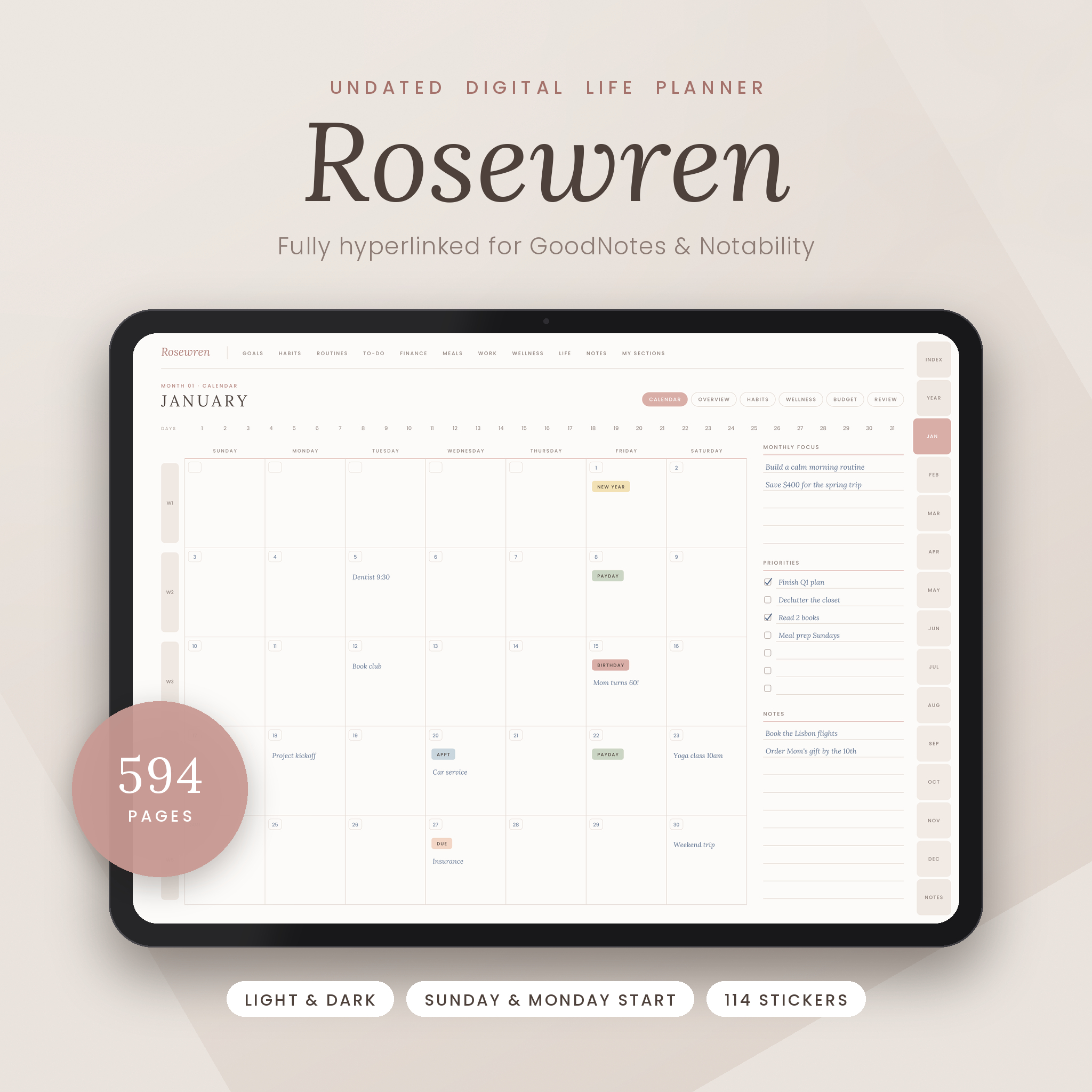
Rosewren Undated Digital Life Planner
An undated planner you can import fresh any time from a blank copy, with files small enough to keep spares in your cloud folder.
- 594 pages with 23,000+ working links
- Each planner file is under 3 MB
- Light and Dark editions, Sunday or Monday start
Our post on organizing digital planner files has a folder layout that keeps originals, exports and working copies apart, so you never mix them up.
What about planners that aren’t PDFs?
Not every planner lives in a note app. Some are web apps, some are spreadsheets, some are Word documents. They need their own backup plan.
Browser-based planner apps
An offline planner that runs in your web browser stores your entries in that browser, on that device. Clear your browser data, or lose the laptop, and the entries go with it.
That’s exactly why the Fernhaven All in One Digital Life Planner has backups built in. It’s a single HTML file that opens in Chrome or Edge, and it lets you download a backup file whenever you like, or a password-protected one with AES-256 encryption (a strong lock that keeps the file private). It even reminds you to back up every week, and you can change how often.
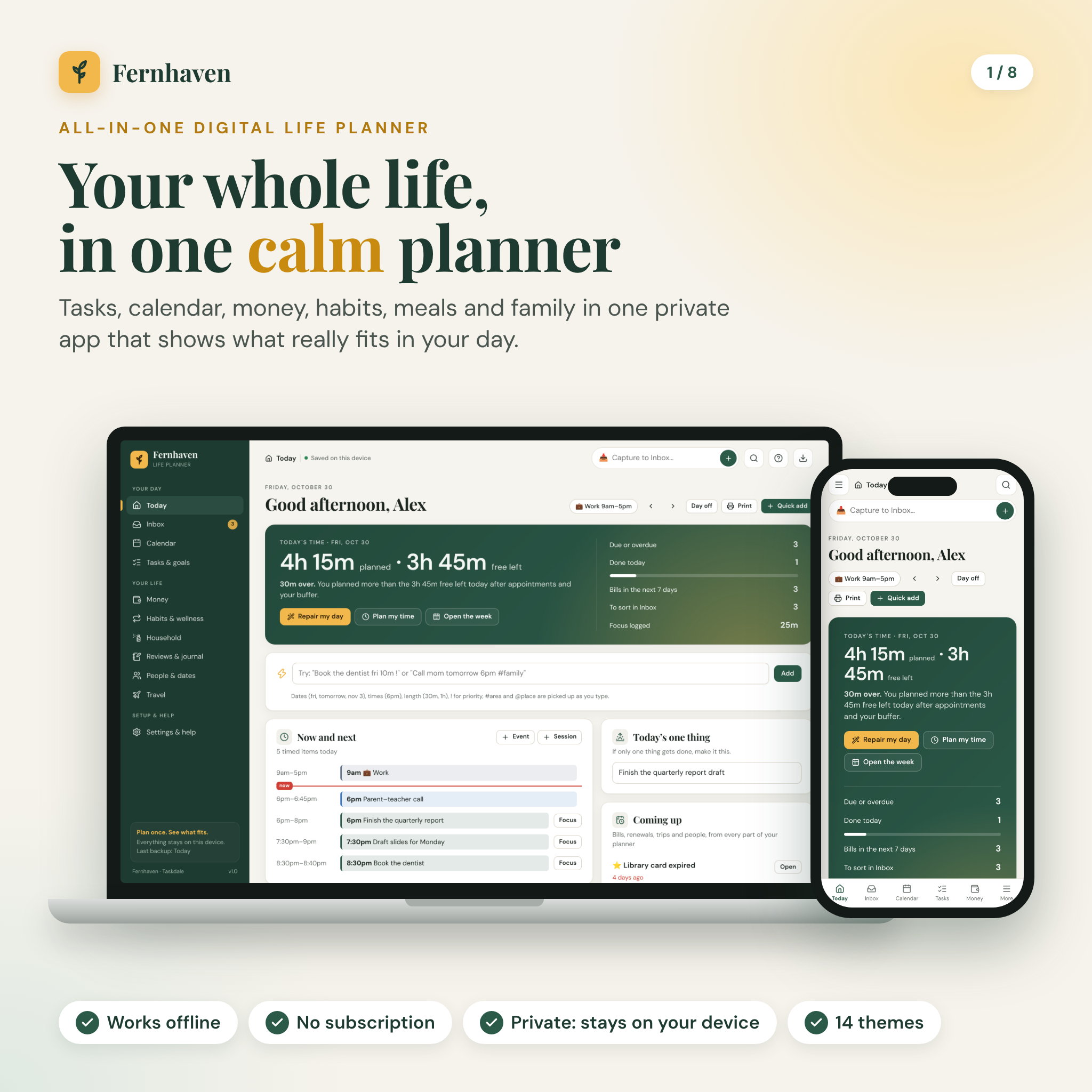
All in One Digital Life Planner
Fernhaven saves to your browser and lets you download a backup file anytime, with a weekly reminder so you don't forget.
- Password-protected backups with AES-256 encryption
- Restore from a backup to move to a new computer or phone
- Works offline, no account or subscription
The backup file also doubles as your moving box. Copy the planner and the backup to a new computer or phone, open the planner, press Restore, and your data comes across.
Spreadsheets and Word documents
If part of your planning lives in Excel, Google Sheets or Word, the simplest fix is to keep those files in cloud storage rather than only on your device. Google Sheets saves to Google Drive as you type. Excel and Word files can live in OneDrive or any synced folder.
Some planners mix formats, and those need the most care. The Ever and Always Digital Wedding Planner pairs a 307-page PDF planner with a budget and guest list workbook for Excel or Google Sheets, plus a day-of binder as a Word file. That’s three formats holding deposit dates, vendor details and RSVPs. Not something you want living on one tablet with no copy.
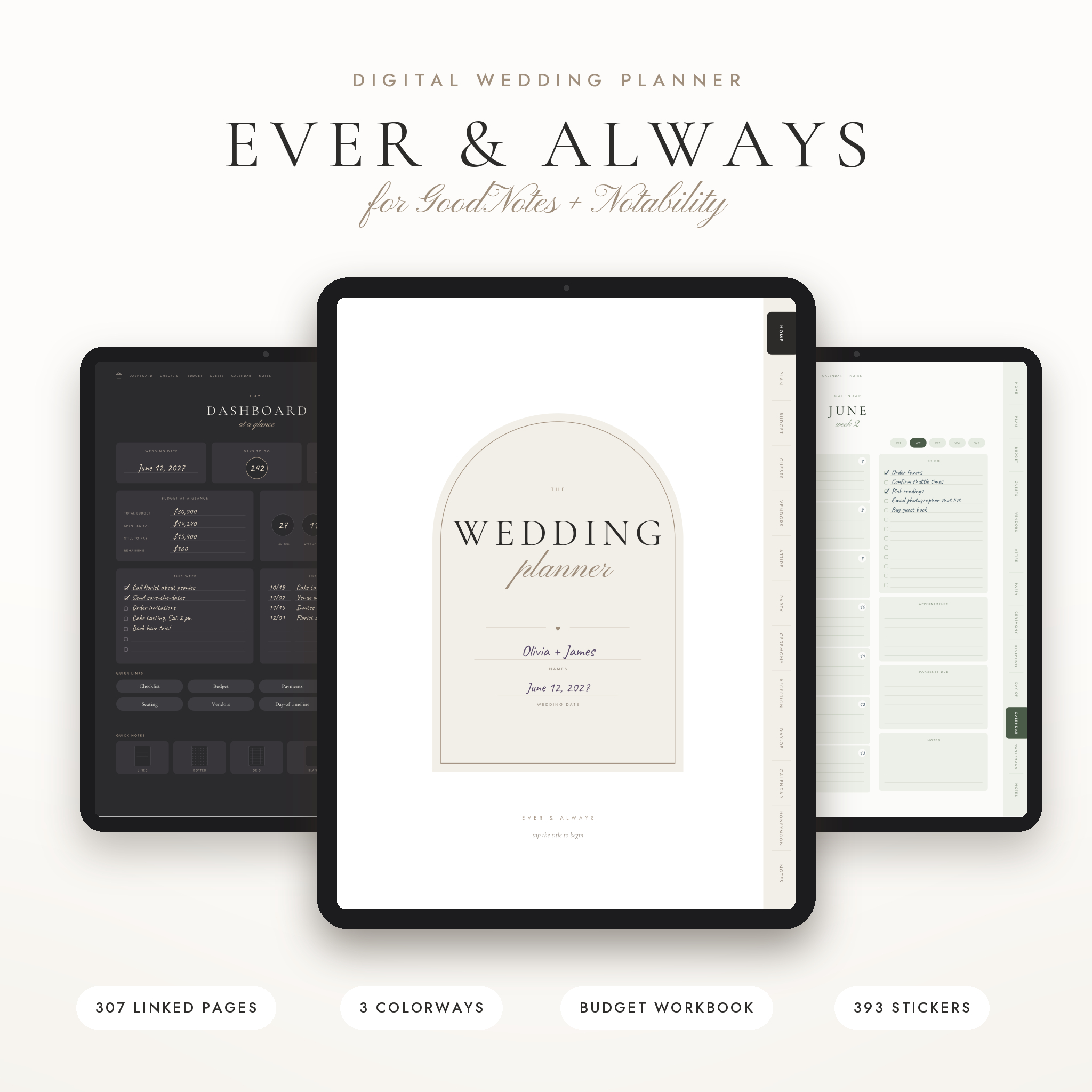
A wedding planner that spreads your plans across a PDF, a workbook and a Word binder, so it pays to back up all three.
- 307 hyperlinked pages in Ivory, Charcoal and Sage
- Budget and guest list workbook for Excel and Google Sheets
- Editable day-of binder and printable US Letter and A4 copies
For a wedding or any big event, I’d export the PDF planner weekly in the final two months, not monthly. Things move fast and the stakes are high.
Paper is still a good backup
This might sound odd in an article about digital planners. But for the pages that matter most, a printout is the most reliable backup there is. No battery. No app. No login.
I’m not saying print your whole planner. Print the few pages you’d hate to lose: a year of mood tracking, a reading log, a finished goal plan, the annual review you wrote in December. Pop them in a folder.
Some products make this easy because they come in both formats. The 2027 Cozy Doodle Journal includes 341 printable pages and a 290-page hyperlinked digital edition, so you can keep the digital version on your tablet and print the pages you want on paper too.
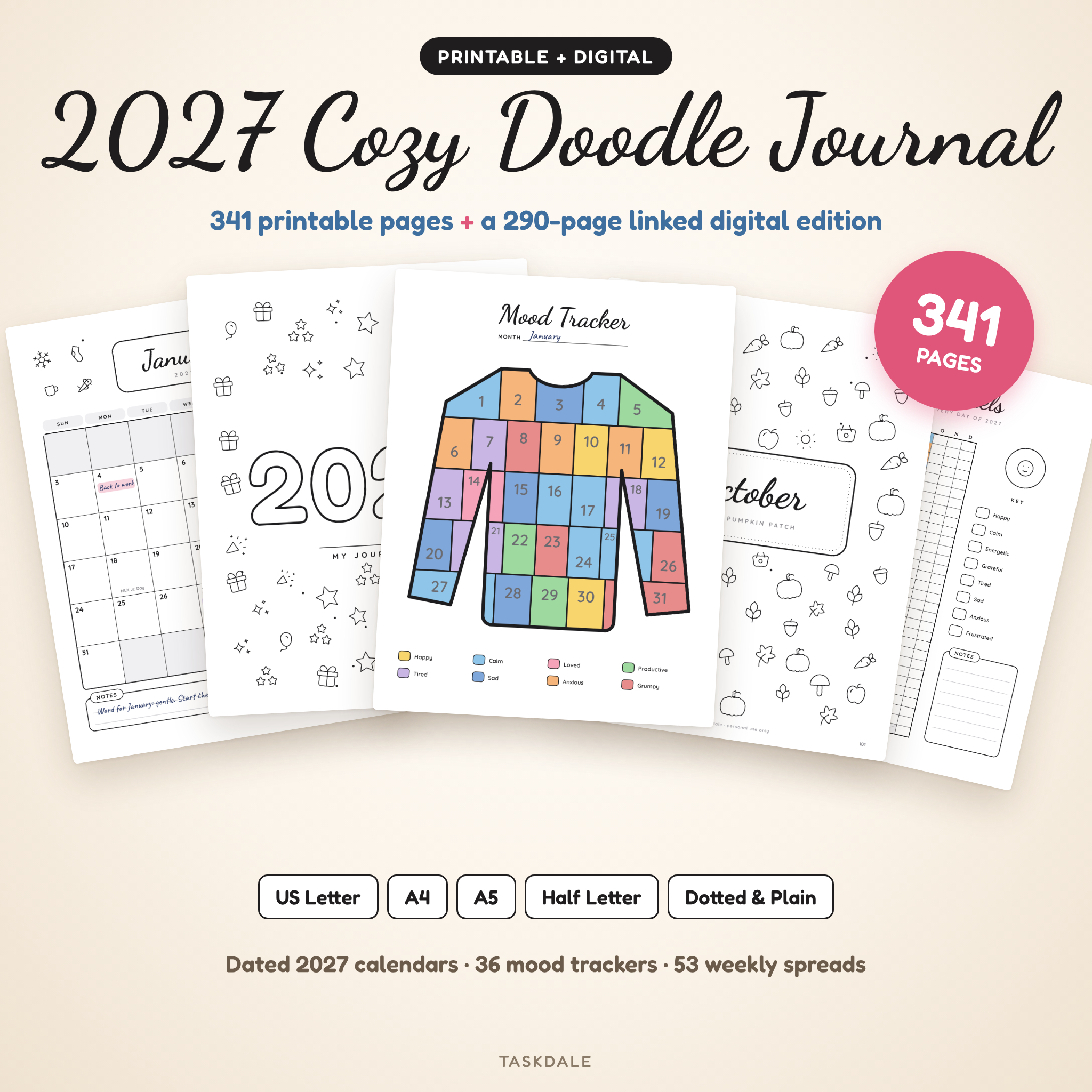
You get both a printable journal and a hyperlinked digital edition, so your favorite pages can live on paper and on your tablet.
- 341 printable pages in US Letter, A4, A5 and Half Letter
- 290-page hyperlinked digital edition for GoodNotes and Notability
- 36 mood trackers and 44 Year in Pixels trackers
It’s also lovely to flip through a printed Year in Pixels page at the end of the year. A screen just doesn’t feel the same.
Switching to a new tablet or app
New tablet day is exciting. It’s also when planners most often go missing, because people assume everything will just come across. Sometimes it does. Sometimes the app restores your notebooks but not the folder you kept them in, or it restores last week’s version instead of today’s.
Before you wipe or trade in the old device, do this:
- Run a manual backup in your app and check the cloud folder for today’s date.
- Export every active planner as a PDF, one last time.
- Copy your sticker folders and any covers you’ve added. They’re easy to forget.
- Set up the new tablet, install the app, restore, and open your planner.
- Flip to the last page you wrote on. Only when it’s there do you reset the old device.
Switching apps altogether, say from GoodNotes to Notability or from Samsung Notes to Xodo? Your app backup probably won’t open in the new app. That’s when the PDF export saves you: import it into the new app and keep writing on top of it. You may lose the ability to erase old strokes, but every page and every note will still be there.
It’s a bit like moving house. Pack the boxes properly once and you won’t spend the next month looking for the kettle.
Test your restore before you need it
A backup you’ve never opened is a guess. Once, ideally right after you set everything up, test it:
- Open an exported PDF on a different device. Can you read your handwriting? Are all the pages there?
- Restore an app backup to a test notebook. Most apps let you import a backup file as a new notebook. Do it, check it, then delete the test copy.
- Import a clean original. Make sure the links work and it’s the right theme and week start.
Then set a reminder on your planner’s monthly page: “Export and file.” That’s the whole system.
When the year ends, your backups also become your archive. We cover that handover in how to archive last year’s digital planner and start fresh.
FAQ
How often should I back up my digital planner?
Leave automatic app backups running all the time, and export a PDF once a month. If you’re planning something high-stakes, like a wedding or a move, export weekly.
Is iCloud or Google Drive sync enough on its own?
No. Sync copies changes, including deletions, to every device. Use it, but pair it with a separate digital planner backup that doesn’t change when your planner does.
Will my hyperlinks still work in an exported PDF?
Often, yes, but it depends on the app. Some apps keep the links when you export, and some flatten them. Your handwriting and pages will be there either way, which is what matters for a backup.
Where should I keep my backups?
Somewhere that isn’t your tablet. A cloud service is easiest. A computer or external drive works too. Two places is better than one.
Fifteen minutes to set up, five minutes a month to keep going. That’s a small price for knowing that a dropped tablet or a bad app update is an annoyance, not a disaster.