You’ve used a few digital planners, you’ve spotted what they get wrong, and now you want to make a hyperlinked digital planner of your own. Maybe just for you. Maybe to sell. Either way, the hard part isn’t the pretty pages. It’s the links.
A 12-month planner with weekly and daily pages runs to hundreds of pages and thousands of links. Plan it badly and you’ll spend a weekend fixing one wrong tab on 400 pages. Plan it well and the build is mostly copy, paste, check.
This guide walks through the whole thing from a blank screen: who it’s for, the page map, the tools, the links, testing, and getting it ready for buyers.
What “hyperlinked” actually means (and what it can’t do)
A hyperlinked planner is a normal PDF with clickable areas on the pages. Tap the “March” tab and the app jumps to the March page. Tap “16” on the calendar and you land on the 16th. That’s all a link is: an invisible button that says “go to page 87”.
Those links are what buyers pay for. Without them, a 700-page planner is a scroll-fest nobody keeps using past January.
What links can’t do is worth knowing up front, because buyers will ask:
- They can’t move or copy anything the user writes.
- They can’t send reminders.
- They don’t behave the same in every app. Most PDF note apps on iPad and Android follow them, but some apps drop them on import. Our guide on which note-taking apps keep PDF links covers the differences.
Pick who it’s for before you draw a page
“A digital planner” isn’t a product. “A digital planner for nurses on rotating shifts” is. So is “an undated budget planner for couples” or “a homeschool planner for three kids”.
The buyer decides almost everything else. A student planner needs a class timetable and an assignment tracker. A shift worker needs hour labels that don’t start at 6 am. A busy parent needs meals and a family calendar. Get the buyer wrong and no amount of nice fonts will fix it.
If you’re stuck on the niche, the Launchloom 640 Digital Product Ideas atlas has a planners niche among its 16, and every idea comes with a format, a buyer, a skill level and a price tier, which saves a lot of guessing.

Launchloom 640 Digital Product Ideas to Sell
Helps you choose who your planner is for before you design a single page, then price it after fees.
- 640 digital product ideas in 16 niches, including planners
- Each idea shows format, buyer, skill level and price tier
- Spreadsheet with an Idea Scorer and a Profit Calculator
Once you have a buyer, write down five pages they’d open every day. That’s your core. Everything else is extras, and extras can wait for version two.
Map every page and link on paper first
This is the step people skip, and it’s why their planners break. Before you open any design tool, draw the structure. A sheet of paper is fine.
A typical dated planner looks like this:
- Cover links to Home.
- Home links to the year, each month, notes and extras.
- Year at a glance links each date to its daily page.
- Months (12) link to their weeks and days.
- Weeks (52 or 53) link to their seven days.
- Days (365 or 366) link back up to their week and month.
Then decide what sits on every page: usually a row of month tabs down one side and a few section buttons (Home, Year, Notes) across the top. Those are your navigation links, and they’ll be the same on all pages.
Count them. Twelve month tabs plus four section buttons on 450 pages is 7,200 links before you’ve linked a single date. That number tells you whether you can do it by hand or need a faster method (more on that below).
Dated or undated?
Undated is much easier to build. No real calendar dates, no leap years, no “which week does March 1 fall in”. The trade-off is buyers write the dates in themselves. For your first planner, I’d go undated. For selling, a lot of makers offer both, but get one working first.
Choose a page size and a design tool
Pick your page shape before you design anything, because changing it later means redoing every page. Tablet planners tend to come in two shapes: a single portrait page close to the iPad’s 3:4 screen, or a wide two-page spread that looks like an open paper planner. Portrait suits Android tablets and e-ink devices better. Two-page spreads look lovely in mockups. Choose one.
For the design tool, you have good free options:
- Canva (free plan): easy to learn, lets you add links to text and shapes, and downloads a PDF. Very popular with first-time makers.
- Google Slides, Keynote or PowerPoint: each slide becomes a page, and all three let you link an object to another slide. Export to PDF at the end.
- A dedicated layout or vector app: more control, steeper learning curve.
We compare these in more depth in our roundup of free digital planner design tools. Whatever you choose, test link export early, with a five-page dummy, before you build 400 pages.
If Canva is your pick and it still feels like a maze of panels, the Drag, Drop & Done Canva for Beginners Guide maps the editor step by step and labels what works on the free plan, including how to download print-ready and digital files.

Drag, Drop & Done: Canva for Beginners Guide
If Canva is your design tool, this guide maps the editor and shows which features work on the free plan.
- 60-page PDF with a numbered map of the Canva editor
- Free and Pro features clearly labeled
- File type guide for downloading print-ready and digital files
Build master pages and a tab system
Design one of each page type first: one month, one week, one day, one notes page. Put the shared navigation (tabs and buttons) on all of them in exactly the same spot. Pixel-perfect sameness matters here. If the March tab shifts by a few pixels between pages, the planner feels jumpy when you tap through.
A few habits that save pain later:
- Make tabs big. Fingers aren’t mice. Tiny tabs mean mis-taps, and mis-taps mean refund requests.
- Keep tabs clear of app toolbars. Note apps put tools along the top or sides. A tab hidden under a toolbar is useless.
- Use the same name for the same thing. If the button says “Notes” on one page, don’t call it “Notebook” on another.
- Leave writing room. Handwriting on glass is bigger than pen on paper. Lines that look fine on screen at 50% zoom are cramped under a stylus.
Then duplicate. Twelve months, 52 weeks, 365 days. Rename each page clearly as you go (“W14”, “Day 2027-04-05”) so you can find them when it’s time to link.
Add the links, by hand or the faster way
For each link, you draw an invisible (or transparent) shape over the tab or date and link it to the right page. In Canva, Slides, Keynote and PowerPoint, the link option on a selected shape usually lets you choose a page or slide in the same file. Menu names move around between versions, so look for a chain-link icon or a “Link” item in the right-click menu.
Here’s the honest bit. By hand, this is slow. A small undated planner with 100 pages is a long weekend. A dated planner with 450 pages and thousands of links is weeks, and every mistake is easy to miss.
Ways makers speed it up:
- Link the master page before you duplicate it. The month tabs and Home buttons then copy across with the right targets, as long as the target pages exist.
- Build undated first. Fewer date links, fewer chances to get them wrong.
- Generate the PDF with a script. Some makers write a small program that draws every page and places every link automatically. One of the undated planners on Taskdale holds 30,160 internal links, which is not a number you’d want to place by hand.
If you’d like a printed checklist for this stage, the Spark & Sell Idea Vault includes a one-page creation playbook for digital planners, with tools, steps and a quality checklist, alongside playbooks for 18 other product formats.
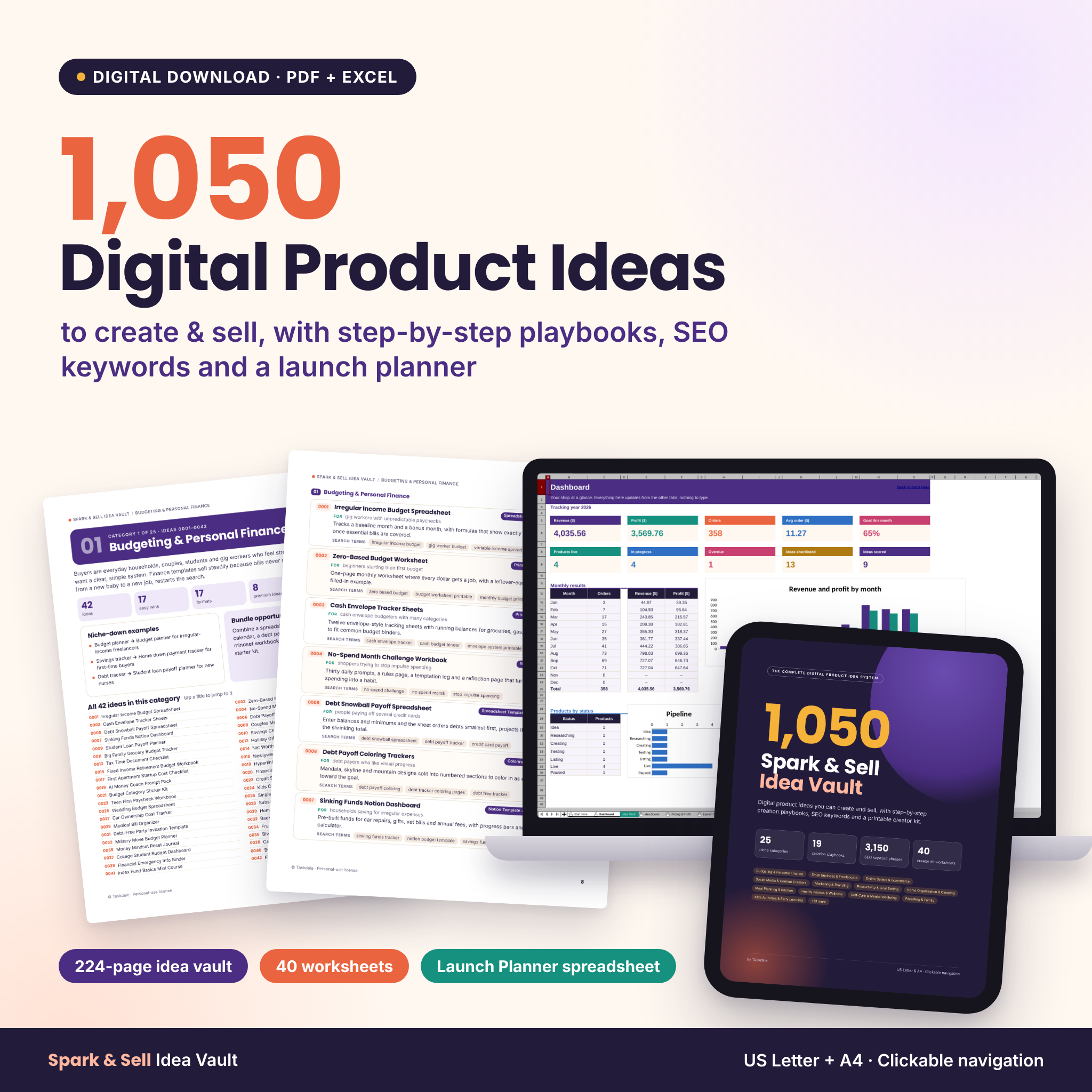
Its digital planner playbook gives you tools, steps and a quality checklist for the build stage.
- 19 creation playbooks, including digital planners
- 40 printable Creator Kit worksheets, from page planner to testing checklist
- Launch Planner spreadsheet to score ideas and track launches
Export, test, then test again
Export your PDF and check two things before anything else: the file size and whether the links survived. A planner that’s 80 MB will feel slow in a note app. Most planners on Taskdale sit between about 2 and 5 MB, which gives you a target to aim for. Compress big images and avoid huge photo backgrounds on every page.
Then test in the apps your buyers use. At minimum, import into GoodNotes or Notability on an iPad and into a PDF note app on Android, such as Xodo or Samsung Notes.
- Tap every tab on the first page, the middle page and the last page.
- Tap through a full month: calendar to week to day and back up.
- Try a few random dates from the year page.
- Check the leap day if your planner is dated.
- Write on a page with a stylus and make sure the tabs still work afterwards.
If a tap draws a line instead of jumping, that’s usually the app being in writing mode, not your planner. Put that in your user guide, because buyers will hit it on day one. Our guide on fixing digital planner links that don’t work is a handy reference for the common causes.
Package it so buyers can use it
A planner file on its own isn’t a finished product. Buyers expect a few extras, and the right ones cut your support emails in half.
- A ZIP file (one compressed folder) with clearly named files: “Planner-Undated-Monday-Start.pdf” beats “final_v7.pdf”.
- Monday and Sunday start versions. People care about this a lot.
- A short user guide with import steps for GoodNotes, Notability and an Android app.
- A license note that says what buyers can and can’t do with the file.
- Listing images that show real pages, not only the cover.
Licenses trip up a lot of new sellers, especially around fonts and graphics. Make sure everything in your design is cleared for commercial use. The First Sale Playbook has a chapter on licenses, copyright, PLR and MRR, plus a fillable launch planner with a listing builder and photo planner.
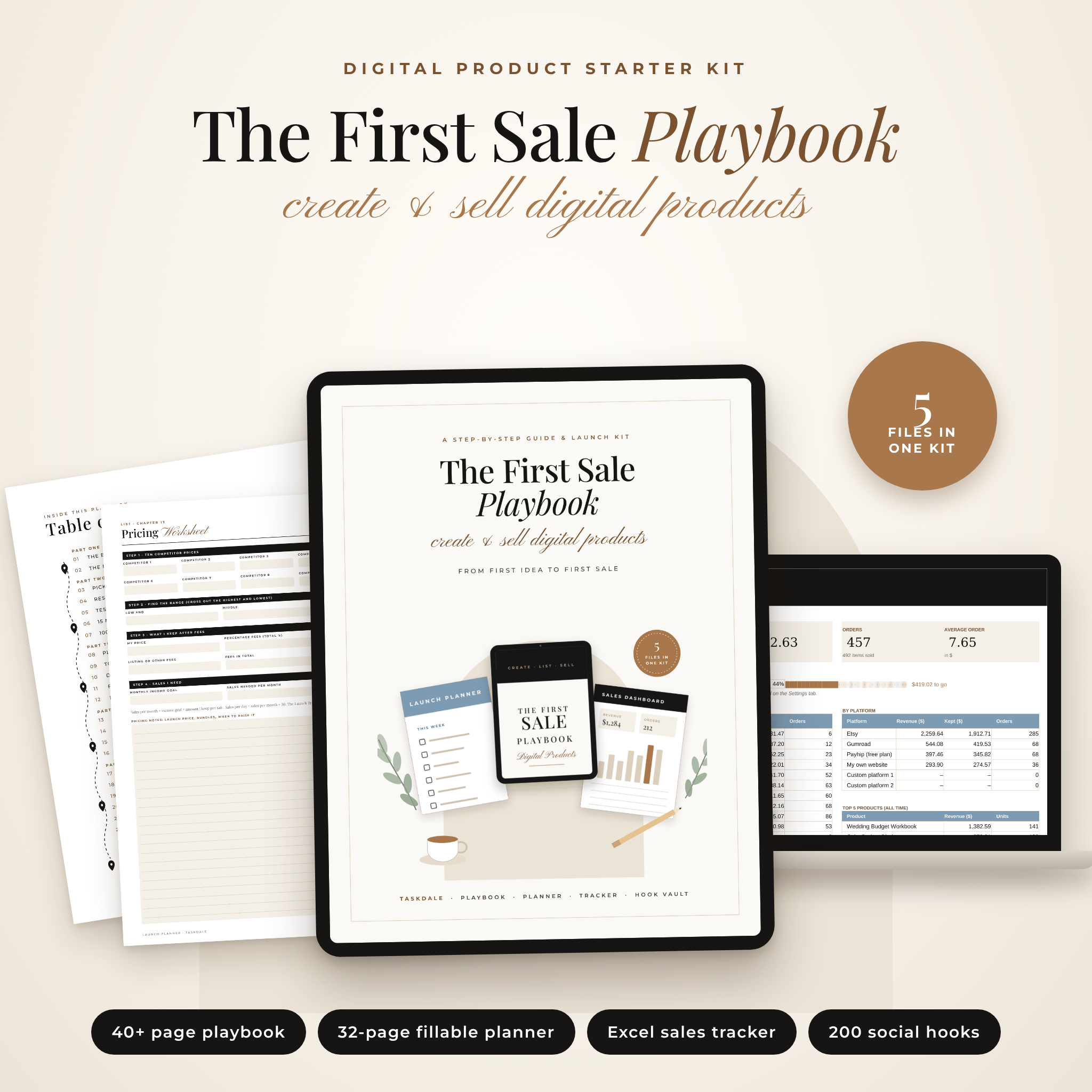
Covers licenses and copyright, then helps you write the listing and plan your photos.
- Chapter on licenses, copyright, PLR and MRR
- 32-page fillable launch planner with a listing builder and photo planner
- Excel tracker with a price calculator and sales dashboard
Price it and launch it
New makers almost always underprice. They count the hours of design and forget platform fees, payment fees, refunds and the time spent answering “how do I import this?” emails. Work out what you keep per sale, not just what the buyer pays. Our guide on how to price digital products walks through the math.
For the launch itself, keep it simple: one listing, real screenshots, a clear title with the app names buyers search for (GoodNotes, Notability, iPad, Android), and a short run of social posts showing the links in action. A screen recording of tapping through tabs sells a hyperlinked planner better than any photo.
The Digital Product Launch Kit covers this stage with an Excel pricing calculator that compares fees on five platforms and a 14-day launch plan you follow day by day. For the wider picture, read our step-by-step guide on how to create and sell digital products.
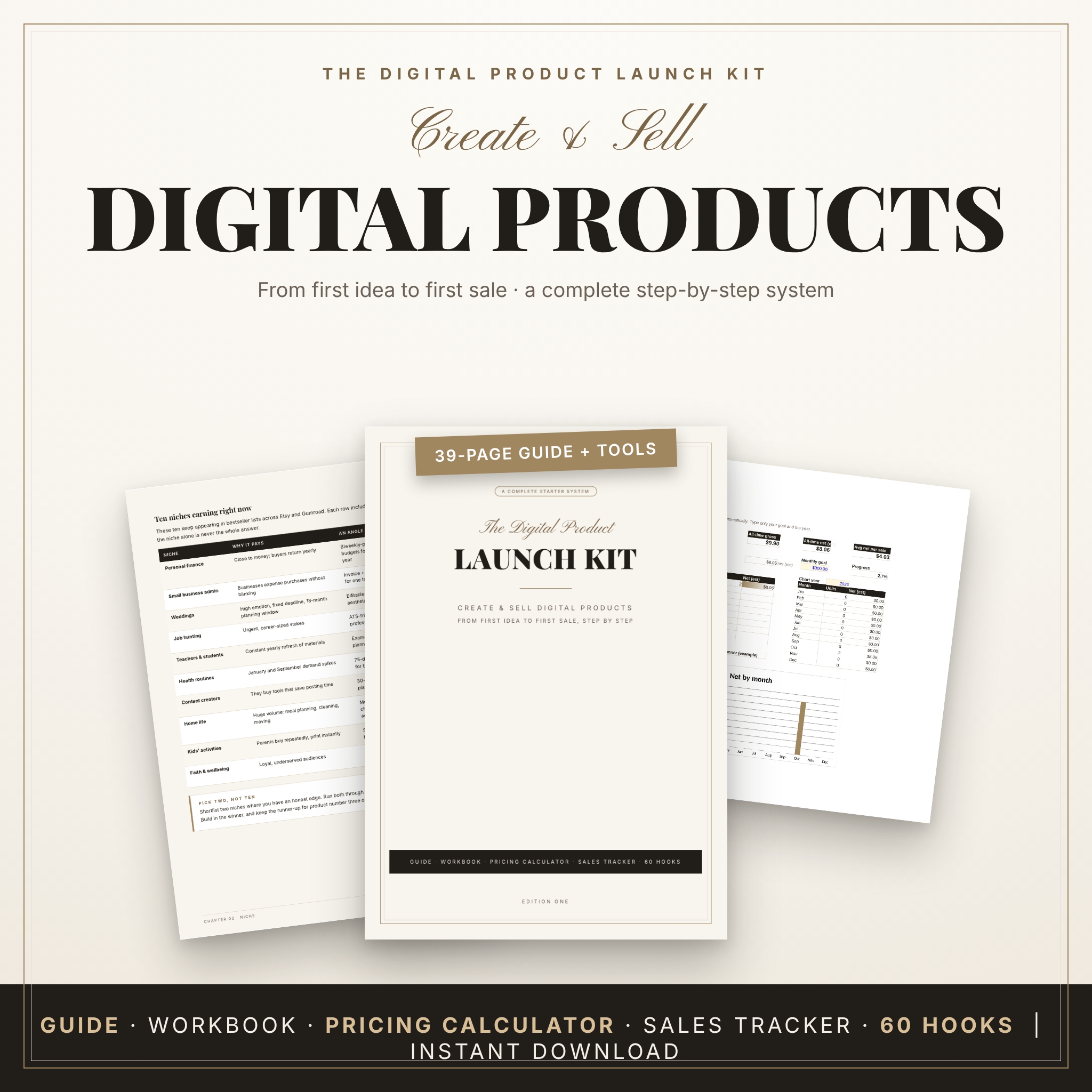
How to Create and Sell Digital Products
Shows what you keep after fees and gives you a day-by-day plan for going live.
- Excel pricing calculator comparing fees on five platforms
- 39-page guide plus a printable launch workbook
- 14-day launch plan and 60 social media hooks
FAQ
Can I make a hyperlinked digital planner for free?
Yes. Canva’s free plan, Google Slides, Keynote and PowerPoint can all add page links and export a PDF. Your real cost is time, especially for a dated planner with thousands of links.
How long does it take to build one?
A small undated planner of about 100 pages is a weekend or two by hand. A full dated planner with daily pages can take weeks unless you link master pages before duplicating or generate the file with a script.
Why do my links work on my computer but not in GoodNotes?
Usually the app is in writing mode, or the links were flattened on export. Test a five-page dummy file in your target apps before you build the full planner.
Can I sell a planner I made from a template?
Only if the template’s license allows it. Check fonts and graphics too. When in doubt, build from your own designs and fonts cleared for commercial use.
Start small. A 30-page undated planner that links perfectly will teach you more, and sell better, than a 900-page one with broken tabs. Build it, test it in three apps, and grow from there.