Every couple has a seating chart story. Usually it involves a foam board, 140 sticky notes, a glass of wine and an uncle who gets moved three times before midnight. Then one RSVP changes and half the board needs redoing.
An automatic seating chart Excel can build for you skips all that. You type a table number next to each guest, and the chart fills itself in. Move someone, and they move. Overfill a table, and it turns red. No sticky notes, no redrawing.
Here’s how it works, the order to seat people in, and a ready-made planner that does it out of the box.
How an automatic seating chart Excel template works
The idea is simple. Your guest list has a Table column. A separate seating tab has a card for each table. Each card looks at the guest list, finds everyone with its number, and lists them. It also counts seats and compares them to the table’s capacity.
In Mauve & Myrtle, you give each guest a table number on the Guest List and the names appear on the right table card among 30 cards, with seats counted. Over capacity turns red. You set the number of tables and seats yourself, so it works for rounds of 8, rounds of 10 or a mix.
The key benefit: the guest list stays the single source of truth. You never type a name twice.
If you’d rather build your own
You can make a basic version in newer Excel (Microsoft 365 or Excel 2021) or Google Sheets with the FILTER function. Say guest names are in A2:A300 and table numbers in E2:E300. On a seating tab, this lists everyone at table 1:
=FILTER(A2:A300, E2:E300=1, "")
Copy it across for each table, change the number, and add a COUNTIF above each list to count seats. It works. What it won’t do is handle households, color the full tables, check meals or flag who still needs a seat, unless you build all that too. That’s usually the point where a template saves an evening. If you want an automatic seating chart Excel and Google Sheets can both run without writing a single formula yourself, a ready-made planner is the faster route, and you can spend that saved time on the guest list itself.
The order to seat people in
Don’t start at table 1 and work forward. Start with the hardest decisions:
- Wait until most RSVPs are in. Seating 180 invited guests when 150 will come is wasted effort. Rough it in early if you like, but finalize late.
- Head table or sweetheart table first. Then immediate family.
- The tricky ones next. Divorced parents, family feuds, the ex who somehow made the list. Place them while you still have options.
- Friend groups. Keep groups together. A table of college friends is one decision, not ten.
- Everyone else. Fill the gaps with people who’ll get along.
Seating rules worth following
- Keep couples and plus-ones together. Always.
- Older guests away from the speakers and closer to the restrooms.
- A kids table works for ages 6 and up, ideally near their parents.
- Don’t create a “singles table”. Everyone can tell.
- Leave one or two seats free across the room for surprise plus-ones.
When the seating chart changes late
It will. Someone cancels the week before. A cousin brings a new partner. With an automatic chart, the fix is one cell. Delete the table number for the guest who cancelled, give the new partner the same table number as the cousin, and check the cards. If a table is now over capacity, it turns red, so you spot it immediately.
The meal side matters too. In Mauve & Myrtle, meal counts add up across the Guest List, and if a household’s meals don’t match the number attending, the cells turn pink. Handy when the late addition forgot to pick chicken or fish.
Before the seating chart: the Guest Draft tab
One Mauve & Myrtle tab worth using early is Guest Draft. It lets you sort a rough list into A, B and C before you commit. A is must-invite, B is would-like-to, C is if-there’s-room. By the time you seat anyone, the list is settled, and the guest list itself holds 300 rows (each can be a household).
The rest of the planner
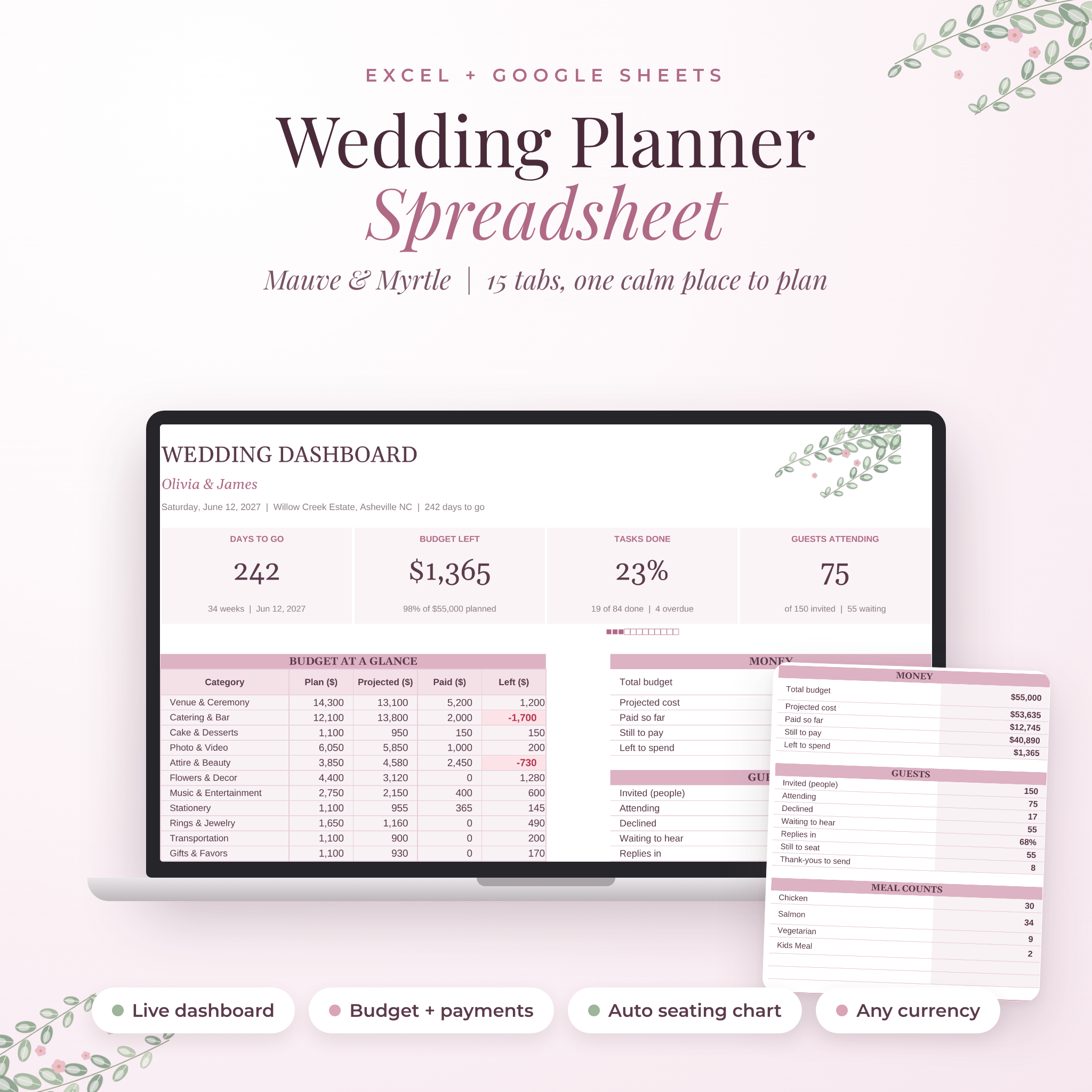
Seating is one tab of 15. Mauve & Myrtle also has a live dashboard, an 85-task checklist with automatic due dates, a budget that says “Over by” when a category slips, vendor tracking for up to 60 vendors, a venue comparison with true cost per guest, a day-of timeline that shifts when you change a duration, and a 41-shot photo list. It opens in Microsoft Excel (Microsoft 365, Excel 2016 or newer, Windows and Mac, Excel for the web) and in Google Sheets. Every tab prints landscape on US Letter, with A4 available in print settings.
Who it suits
Good fit: couples seating 50 to 300 guests who’d rather click than shuffle sticky notes, and anyone who wants seating connected to RSVPs and meals.
Not ideal: if you need a drawn floor plan of the room. This tracks who sits at which table and how full each table is, so you’ll still sketch the layout of tables separately. Apple Numbers isn’t supported either.
FAQ
Can Excel make a seating chart automatically?
Yes. With a table number on your guest list and formulas on a seating tab, Excel can list each table’s guests and count seats. A template like Mauve & Myrtle has this built in.
How many guests should sit at each table?
Most 60-inch round tables seat 8 to 10 comfortably. Check with your venue, since chair size and centerpieces both change the answer.
Does the automatic seating chart work in Google Sheets?
Yes. Upload the .xlsx file to Google Drive and open it with Google Sheets. The seating chart, formulas and dropdowns all work.
Can I print the seating chart for the venue?
Yes. Every tab is set up to print landscape on US Letter, and you can switch to A4 in your print settings.