To-do apps keep getting fancier. Tags, AI suggestions, streaks, a paid plan for the feature you actually need. Meanwhile a plain to do list spreadsheet quietly does the job for years. You type a task, give it a date and a priority, and the sheet sorts out what’s overdue, what’s due today and what can wait.
The trick is setting it up with the right columns from day one. Get that wrong and you end up with a long, guilt-inducing column of unfinished things. Get it right and the spreadsheet tells you what to do next.
Here’s how to build one in Excel or Google Sheets, how to use it day to day, and two ready-made versions if you’d rather skip the setup.
The columns every to do list spreadsheet needs
- Task. Start with a verb. “Email Sam about the quote”, not “Sam”.
- Due date. Even a rough one. Undated tasks drift forever.
- Category. Work, home, kids, money, health. Six to eight is plenty.
- Priority. High, medium, low. Resist marking everything high.
- Status. To Do, In Progress, Waiting, Done. That “Waiting” status matters more than you’d think: it gives “waiting on the plumber to call back” a home, so it stops cluttering your head.
- Time estimate. In minutes. This is the column that saves you from overplanning.
- Notes. Links, phone numbers, the order reference.
Formulas that make it useful
If you’re building your own, a few simple additions turn a list into a planner:
- Days left:
=B2-TODAY()where B2 is the due date. Negative means overdue. - Overdue in red: conditional formatting on rows where the due date is before today and status isn’t Done.
- Done in grey: another rule that greys out and strikes through finished rows.
- Today’s load:
=SUMIFS(F:F,B:B,TODAY(),E:E,"<>Done")adds up the time estimates for today’s open tasks.
That last one is the eye-opener. If today’s total says 7 hours and you have 3 free hours between meetings and the school run, you know before 9am that something has to move.
How to use a to do list spreadsheet every day
- Capture all day. New task? Add a row. Takes ten seconds. Don’t sort yet.
- Morning, five minutes. Sort by due date. Look at overdue and today. Pick three to focus on.
- Update status as you go. Mark Done, or move things to Waiting when you’re stuck on someone else.
- Friday, ten minutes. Filter for overdue. Reschedule, delegate or delete. Deleting is allowed. Some tasks were never going to happen.
Mistakes that kill a to-do list
- Vague tasks. “Sort out car” sits there for weeks. “Book MOT for Saturday” gets done.
- No dates. Undated tasks never feel pressing, so they pile up at the bottom.
- Never deleting. A list of 200 open items is too heavy to look at. Archive or delete anything older than a month that you haven’t touched.
- Planning more hours than you have. Add up the estimates. If they don’t fit, something moves to tomorrow.
Add a simple priority matrix
Once you have priority and due dates, you can sort tasks into four groups automatically: high priority and due soon (do first), high priority but not soon (schedule it), low priority and due soon (quick wins), and the rest (later). It’s the Eisenhower idea, worked out by formulas so you don’t have to drag anything around.
Two ready-made Clearday spreadsheets
Building all of this takes an evening or two, plus some formula wrangling. These two do it for you, and both open in Excel 2010 or newer and Google Sheets, with no macros or add-ons.
Clearday To-Do Planner: for your own list
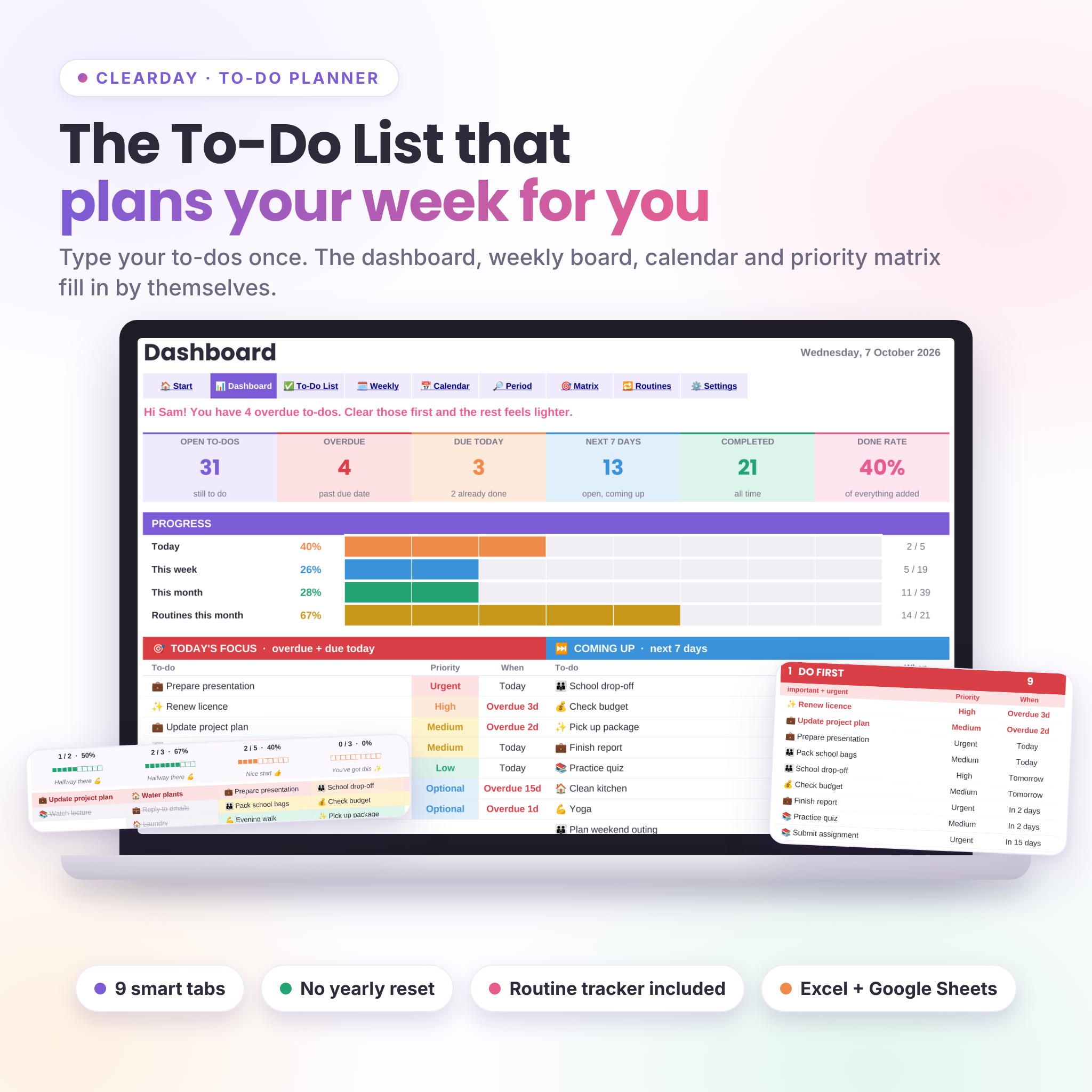
The Clearday To-Do Planner is built around one list of up to 500 to-dos with exactly the columns above: status (To Do, In Progress, Waiting, Done), due date, category, priority, time estimate and notes. Overdue rows turn red, today’s turn peach, and finished ones go grey with a line through.
From that one list it builds a dashboard (six live counters, progress bars for today, this week and this month, a Today’s Focus list and three charts), a Weekly View, a Monthly Calendar for any month, a Period View that shows totals and planned hours for this week, next month or the last 30 days, and a Priority Matrix that sorts open to-dos into Do first, Schedule it, Quick wins and Later. A Routine Tracker handles up to 12 repeating routines on a 12-month grid. You get eight categories with your own emoji and a quick-pick library of common to-dos.
Good for: parents, students and solo freelancers who want one clear personal list.
Clearday Task Tracker: for households and small teams
The Clearday Task Tracker handles more people and more repeating work. It holds up to 1,000 one-time tasks (only the name is required) and up to 40 routines with 12 repeat options, including sensible month-end handling. You can assign tasks to up to 10 people and filter the dashboard by person.
It adds a Kanban board (To do, In progress, Waiting or On hold, Done) where cards move when you change the status, and a daily time budget so you don’t plan 9 hours of work into a 4-hour day. Weekly and monthly views print on one page.
Good for: households sharing chores and small teams sharing projects.
Which one?
Just you? The To-Do Planner. Several people, or lots of routines? The Task Tracker. Both come with a sample file to explore and a written guide.
FAQ
Is a spreadsheet better than a to-do app?
For many people, yes. It’s free to run, works offline, never changes its layout overnight, and lets you see patterns like your busiest day or how many hours you’ve planned. Apps win on reminders and phone notifications.
Does a to do list spreadsheet work on my phone?
Yes, in the Excel or Google Sheets app. Quick adds and ticking things off work well on a phone. Setup and weekly reviews are easier on a computer.
Do I need Microsoft 365?
No. Both Clearday spreadsheets run in Excel 2010 or newer and in free Google Sheets. Apple Numbers isn’t supported, so Mac users without Excel can use Google Sheets.