Next month already has a shape. Rent leaves on the 1st, the car insurance on the 12th, and payday lands every other Friday. A budget calculator spreadsheet for monthly planning simply lays that shape out in rows, adds it up, and tells you what is left before you spend a cent of it.
This guide is for anyone who has tried budgeting in their head and keeps getting surprised around the 20th. You will see what a good calculator works out for you, how to build a basic one for free in about twenty minutes, a full worked month with numbers, and a short planning routine you can run on the last weekend of every month. We will also look at four ready-made files on Taskdale for people who would rather skip the formula work.
Quick picks: budget calculator files for planning each month
| Product | Best for | Price | Link |
|---|---|---|---|
| Ultimate Annual Budget Spreadsheet | Twelve months of planning in one workbook | $6.00 | View |
| PennyPetal Budget Planner Spreadsheet | Biweekly, weekly or irregular pay | $4.99 | View |
| Snowmelt Debt Snowball Avalanche Calculator | Planning extra debt payments | $9.99 | View |
| Rosy Cents Digital Budget Planner | Tablet planning with an Excel calculator on the side | Original price was: $3.69.$0.99Current price is: $0.99. | View |
What a budget calculator spreadsheet works out for you
Strip away the colors and charts and every budget calculator does the same small job. It takes what you expect to earn, subtracts what you expect to spend, and shows the gap. The good ones also track what really happened, so you can compare the plan with the month you actually lived.
Here is what you type in:
- Income for the month. Every paycheck after tax, plus side money you can count on, like $250 from weekend tutoring.
- Fixed costs. The bills that do not change: rent, phone, insurance, loan minimums.
- Variable costs. Groceries, fuel, household items. You give each one a target.
- Goals. Savings, extra debt payments, a fund for next summer’s trip.
- Actual spending. Logged through the month, line by line.
And here is what comes back: total planned spending, money left to plan, spending per category, how much of each target is used, and a plan versus actual difference at the end. Five or six numbers. That is the whole engine.
Build a basic version yourself in twenty minutes
You do not have to buy anything to start. A free spreadsheet program and four formulas will give you a working monthly calculator tonight.
- Column A for names, column B for planned, column C for actual. Put income in rows 2 and 3, then every expense below it.
- Total income: in B5, type =SUM(B2:B3).
- Total planned spending: if expenses run from row 7 to row 30, type =SUM(B7:B30) in B32.
- Left to plan: in B34, type =B5-B32. This is the number you want at zero, or a small positive amount.
- Difference per line: in D7, type =B7-C7 and copy it down. Negative means you overspent that line.
That works. Honestly, it is enough for plenty of people. The trouble shows up later. Month two needs a new tab, the formulas get dragged into the wrong rows, someone types “120ish” into a number cell, and by April the totals no longer agree. If you have rebuilt a sheet like that more than once, this piece on why monthly budget spreadsheets keep needing a rebuild explains the pattern and how to break it.
The 30-minute planning session for the end of each month
A calculator only helps if you sit down with it. Pick the last Saturday or Sunday of the month and give it half an hour with a coffee and your banking app open.
Step 1: Close out the month you are finishing
Log any spending you missed and look at the plan versus actual column. Write one sentence about it. Something like “groceries ran $60 over because of the school bake sale.” That sentence is worth more than the chart.
Step 2: List next month’s income by date
If your paychecks land on the 5th and the 19th, write both dates. Months with a third paycheck deserve a note too, because that extra one is easy to fritter away.
Step 3: Copy fixed bills, then check for changes
Copy last month’s bills forward and scan for anything new. Insurance renewals and price rises on streaming services sneak in quietly.
Step 4: Look ahead for one-off costs
Birthdays, a school trip, a dentist visit, a wedding gift. Add each one as its own line so it does not eat your grocery money.
Step 5: Plan until the left-over number is zero
Give every remaining dollar a purpose: savings, debt or a buffer. Then close the file. You are done until next week’s quick check.
A worked month: planning December on $3,600
December is the hardest month to plan, so it makes a good example. Take a single parent with $3,600 take-home pay, one child, a car, and family to visit two hours away.
| Group | Lines | Planned |
|---|---|---|
| Fixed | Rent $1,200, utilities $180, phone $65, car insurance $140, streaming $30 | $1,615 |
| Variable | Groceries $520, fuel $150, household $60 | $730 |
| December extras | Gifts $300, trip to family $180 | $480 |
| Goals and fun | Savings $400, extra card payment $200, fun money $175 | $775 |
| Total | $3,600 |
The calculator shows $0 left to plan. Good. But look at the $480 of December extras. That came straight out of savings, which normally gets $600 in this household.
Now play with the numbers, because that is what the calculator is for. If this parent had put $40 a month into a holiday fund from January, the $480 would already be sitting there, and December savings could stay at $600. One small line in eleven earlier months would have taken the sting out of this one. Seeing that on a screen is often what finally gets someone to start a sinking fund.
Reading the plan versus actual column without panic
The first time you compare plan with reality, the numbers will look worse than you expected. That is normal. Most people underestimate groceries, eating out and small household runs by a fair margin in month one, because they plan from memory instead of from their statements.
So read the column calmly and sort each line into one of three piles:
- Close enough. Within about $20 of the plan. Leave it alone.
- One-off blip. Over because of something unusual, like a $90 vet visit. Note it and move on.
- Wrong target. Over every single week, like groceries planned at $400 and landing at $510. Raise the target next month and find the $110 somewhere else.
That third pile is where the real learning sits. After two or three months of honest targets, the plan stops being a wish list and starts matching your life. The day the actual column comes in under plan for the first time feels great. Enjoy it.
One workbook for all twelve months
The easiest fix for the rebuild-every-month problem is a file that already holds the whole year. You set up your categories once, and each month gets its own planning page that pulls from the same list.
That also makes the December example above simple to spot coming. With all twelve months side by side, you can see the gift spike in November and plan for it in March.

Ultimate Annual Budget Spreadsheet
Price: $6.00 | Best for: planners who want the full year
This workbook has 22 tabs: an annual dashboard, 12 monthly dashboards with expected versus actual and progress bars, a 50/30/20 view, net worth, sinking funds, a debt payoff calculator and a smart calendar. It works in Excel 2016 or later, Google Sheets and LibreOffice, and you only fill the gold cells. Start with the setup tab, enter your categories, then plan the current month before touching the others.
Fill in the setup carefully the first time. Ten minutes spent naming categories well saves an hour of confusion in June.
When pay does not arrive once a month
Monthly calculators assume one salary on one date. Lots of people do not live like that. A nurse paid every two weeks, a warehouse worker paid weekly, a freelancer paid whenever invoices clear. For them, a month-only plan hides the real squeeze: the week when rent and the car payment both fall before the next paycheck.
The fix is to plan each paycheck as its own small budget. Paycheck one covers rent and groceries. Paycheck two covers the car, the phone and savings. Our guide to budgeting when you are paid biweekly walks through that split in detail.
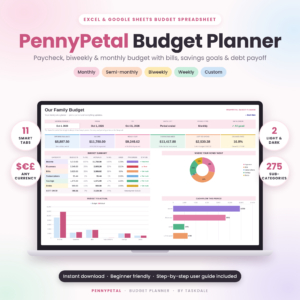
PennyPetal Budget Planner Spreadsheet
Price: $4.99 | Best for: biweekly, weekly or irregular earners
PennyPetal works in Excel and Google Sheets and lets you pick monthly, semi-monthly, biweekly, weekly or custom pay periods from one dropdown. It compares your plan with what actually happened, flags overspending, tracks bills and due dates, and rolls balances from one period to the next. Choose your pay period first, then add your bills so each one lands under the right paycheck.
Once bills are tied to paychecks, the dread around the 28th usually fades. You know which check covers rent before it arrives.
Adding a debt calculator to the monthly plan
A budget calculator tells you that $200 is free for debt this month. It does not tell you where that $200 does the most good. That is a separate sum, and it matters when you owe on more than one card or loan.
The two common methods are simple. The snowball pays the smallest balance first for a quick win. The avalanche pays the highest interest rate first and usually costs less overall. Say you owe $1,100 on a store card at 26% and $5,400 on a car loan at 7%. The store card wins under both methods here, so the choice is easy. With six debts, it rarely is.
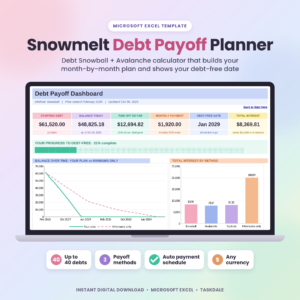
Snowmelt Debt Payoff Planner
Price: $9.99 | Best for: anyone with two or more debts
Snowmelt is an Excel debt calculator that runs snowball, avalanche and your own custom order side by side for up to 40 debts. It builds a month-by-month payment schedule, rolls each cleared payment into the next debt, and has a payment log plus a dashboard showing what is due this month. Type your balances, rates and minimums into the yellow cells, then compare the debt-free dates for each method.
Whatever the debt calculator says, copy the monthly payment into your budget calculator as its own line. The two files should agree.
Mistakes that throw off the numbers
Most budget calculators are only as good as what goes into them. These are the slips that cause the most head-scratching.
- Typing gross pay. A $52,000 salary is not $4,333 in your account. Use the figure on the deposit.
- Rounding everything to the nearest $100. Twelve lines each rounded down by $30 leaves you $360 short.
- Leaving out cash. The $20 at the school fair and the $8 car wash still count.
- Overwriting formulas. Typing a number over a total cell breaks it quietly. Ready-made files usually lock or color those cells to stop this.
- Planning too tight. A plan with zero breathing room fails on the first flat tire. Keep a small buffer line, even $50.
If a number looks wrong, check the inputs before you doubt the formula. Nine times out of ten it is a typo.
One person this approach does not suit: someone who truly hates screens. If opening a laptop feels like a chore, a printed planner with a pencil and a cheap calculator will serve you better than the smartest spreadsheet left unopened. The Rosy Cents planner in the table above sits between the two, with tablet pages for writing and an Excel calculator for the adding.
Frequently asked questions
Is there a free budget calculator spreadsheet?
Yes. Google Sheets and Excel both include basic budget templates, and you can build your own with SUM and a subtraction formula as shown above. Ready-made files add yearly views, debt tools and protection against broken formulas.
How do I calculate my monthly budget in Excel?
List take-home income at the top, list every expense below it, total each group with =SUM, then subtract total expenses from total income. Aim for a result of zero or a small positive buffer.
What should a monthly budget spreadsheet include?
Income, fixed bills, variable spending, savings and debt goals, a left-to-plan figure, and a column for actual spending so you can compare plan with reality.
What is the difference between a budget calculator and a budget tracker?
A calculator plans the month ahead and shows what is left to assign. A tracker records what you actually spend. Most good spreadsheets do both on the same page.
How often should I update a budget calculator?
Plan once at the end of each month, then log spending once or twice a week. Daily works too, but weekly is easier to keep up.
Can I use a budget calculator spreadsheet on my phone?
Files that run in Google Sheets open in the free Sheets app on a phone, which is handy for logging a purchase at the checkout. Planning the month is still easier on a laptop.
Your next step
On the last weekend of this month, open a spreadsheet and plan next month line by line until the left-over number reaches zero. If you would rather have all twelve months, the dashboards and the sums ready on day one, set up the Ultimate Annual Budget Spreadsheet and plan your first month this weekend.