You should not need a calculator to run a household budget. Type in a pay day, a phone bill and a supermarket shop, and the totals, the charts and the amount left for the week should sort themselves out. That is what a budget spreadsheet that does the maths for you is meant to deliver, and the good ones do.
This guide is for people who have given up on budgeting before because the adding up felt like homework. Maybe you kept a notebook and lost track of the running total by the 9th. Maybe you built a spreadsheet, broke a formula, and never trusted it again. Below you will find exactly which sums a self-calculating sheet handles, the few jobs it still leaves to you, a worked week of real numbers, how to check the formulas are right, and four ready-made files on Taskdale to compare.
Quick picks: budget spreadsheets that add up on their own
| Product | Best for | Price | Link |
|---|---|---|---|
| Pocketbloom Annual Budget Spreadsheet | Excel users who want everything done for them | $24.99 | View |
| Bloom Budget Planner | Budgeting pay day to pay day | Original price was: $2.79.$1.89Current price is: $1.89. | View |
| Ultimate Annual Budget Spreadsheet | Google Sheets on a phone and laptop | $6.00 | View |
| Seaglass Budget Planner | A calm Excel file with a bill calendar | Original price was: $19.99.$9.99Current price is: $9.99. | View |
Which sums a good spreadsheet handles for you
“Does the maths” can mean anything from one total at the bottom of a column to a whole year of linked pages. It helps to know what to expect. A properly built budget file should work out all of these without you touching a formula:
- Totals per category. Every food shop you log adds itself to Groceries.
- Money left in each category. Plan £400 for food, log £265, and the sheet shows £135 to go.
- Money left overall. Income minus everything spent and set aside so far.
- Plan versus actual. Over or under, line by line, often with a colour change when you go over.
- Bill status. Paid, due soon or overdue, based on today’s date.
- Yearly totals. Twelve months rolled into one view, so you can see that takeaways cost £1,140 last year.
- Savings and debt progress. How far you are towards a goal and, in better files, the month you will get there.
If a template makes you copy the same number into two places, it is not really doing the maths. It is a pretty table. Real automation means you type each figure once and every page that needs it picks it up.
The jobs that are still yours
No spreadsheet can know what you spent unless you tell it. That is the honest catch, and it is worth being clear about it before you buy anything.
Three jobs stay with you. First, setting up: your categories, your monthly targets, your regular bills and pay dates. That takes fifteen to thirty minutes the first time. Second, logging: every purchase, or at least a weekly batch from your bank statement. Third, deciding: when the sheet shows Eating Out at £40 over, only you can choose whether to take it from Clothes or from Savings.
That last part is the bit people forget. The spreadsheet removes the arithmetic. It does not remove the choices, and frankly you would not want it to. The choices are where the money actually gets saved.
A worked week: watching the numbers move
Here is what a self-calculating sheet looks like in use. Imagine a couple with a monthly food budget of £520, an eating out budget of £120 and £180 for fuel. It is the second week of the month.
| Day | What you type | What the sheet works out |
|---|---|---|
| Monday | Supermarket £84.20, Groceries | Groceries left: £203.40 |
| Wednesday | Fuel £58.00 | Fuel left: £62.00, amber warning at 66% used |
| Friday | Pizza £31.50, Eating out | Eating out left: £16.50 |
| Saturday | Market £22.80, Groceries | Groceries left: £180.60 |
| Sunday | Nothing new | Safe to spend per day until pay day: £14.20 |
Five entries. Maybe four minutes of typing in total. In return, by Friday night you already know Eating Out has £16.50 left for the rest of the month, so next Friday is a home film night. Nobody had to add up a column of receipts at the kitchen table. That small moment of knowing, before you overspend rather than after, is the whole point.
A full-year Excel file with everything linked
If you use Excel on a laptop and want the most done for you, look for a workbook where recurring income and bills fill the whole year from a single setup page. You enter your salary and your council tax once, and all twelve months show them.
Linked files also tend to protect their own formulas, which solves the most common way home-made budgets break: typing over a total by accident.

Pocketbloom Annual Budget Spreadsheet
Price: $24.99 | Best for: Excel users who want it all automatic
Pocketbloom is an annual budget spreadsheet for Microsoft Excel with 34 connected tabs: monthly budgets, a dashboard with six live charts, a bill tracker and calendar, savings goals, a debt payoff plan comparing snowball and avalanche, and a money health score. Recurring income and bills fill all twelve months, white boxes show where to type, and the formulas are protected. Start with the guided setup and add your regular bills first.
The Seaglass Budget Planner in the table above is a close cousin: 30 Excel tabs, a Start Here menu, budget versus actual on every month and a bill calendar. Pick whichever layout you find easier on the eye. You will be looking at it every week, so that matters more than it sounds.
Budgeting by pay day instead of by calendar month
Monthly budgets can feel wrong when you are paid weekly or fortnightly. The month says you have £600 left. Your bank says you have £85 until Friday. Both are true, and the second one is the one that matters on a Tuesday.
A pay-period spreadsheet does the maths around your actual pay dates instead. It shows which bills fall before the next pay day and divides what is left by the number of days remaining. For someone paid every other Friday, that “safe to spend per day” figure is often the one number they check.
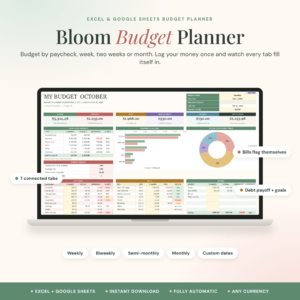
Bloom Budget Planner
Price: Original price was: $2.79.$1.89Current price is: $1.89. | Best for: weekly or fortnightly earners
Bloom is a paycheck budget spreadsheet for Excel and Google Sheets that works from one transaction list, so every figure is typed once. You can budget weekly, every two weeks, twice a month, monthly or on your own dates. It shows planned against actual, a safe-to-spend-per-day figure, a bill tracker with Paid, Partial, Overdue and Upcoming status, and categories that turn amber at 80% of plan. Pick your pay period and start date first, and the rest follows.
Once you see the per-day figure, small decisions get easier. A £6 coffee looks different when the sheet says you have £11 a day.
When you want the sums on your phone as well
A budget only adds up if you log the spending, and most spending happens away from your laptop. So if you want to type in the £4.80 sandwich while you are still in the queue, choose a file that runs in Google Sheets. The free Sheets app opens it on your phone, and the totals update the same as on a computer.
The trade-off is speed. Phones are fine for adding a line, and fiddly for setting up categories. Do the setup on a laptop one evening, then use the phone for logging.

Ultimate Annual Budget Spreadsheet
Price: $6.00 | Best for: phone and laptop budgeters
This annual budget workbook works in Google Sheets, Excel 2016 or later and LibreOffice, with 22 tabs including 12 monthly dashboards, an annual overview, a 50/30/20 view, net worth, sinking funds and a debt payoff calculator. You only fill the gold cells, and everything else calculates itself. You get the Excel file, a Google Sheets link and a quick-start guide, so set it up on a computer and then open it in the Sheets app.
Bookmark the transactions tab on your phone’s home screen. One tap and you are logging, which makes it far more likely you will actually do it.
How to check the formulas are right
Trust is the real problem with automated budgets. If you once found a sheet quietly adding the wrong rows, you will second-guess every total after. So test a new file before you rely on it. It takes ten minutes.
- Enter one easy test. Log £10 to Groceries. Check that Groceries spent goes up by exactly £10 and money left goes down by exactly £10.
- Check a second page. Find the dashboard or yearly view and confirm the same £10 appears there too.
- Test a bill. Mark one bill as paid and see that its status changes and the total left falls by the bill amount.
- Compare with your bank. At the end of the first week, the sheet’s total spending should match your statement within a pound or two.
- Delete the test entry. Make sure everything goes back to where it was.
If all five pass, you can stop checking. That is a lovely feeling, by the way. The first time you look at a total and simply believe it.
A ten-minute routine that keeps the totals honest
Automatic maths only stays accurate if the entries keep coming. The households that stick with a spreadsheet tend to give it one fixed slot a week rather than trying to log every purchase the moment it happens.
Thursday evening works well for many people, because the weekend shop has not happened yet and there is still time to rein things in. The routine is short:
- Open your banking app and the spreadsheet side by side.
- Log every card payment since last week. Copying from the statement is quicker than hunting for receipts.
- Add any cash you spent. A note on your phone during the week helps.
- Glance at the three categories that run out first, usually food, fuel and eating out.
- Tick off any bills that went out.
That is it. Ten minutes, often less. A family of four doing this every Thursday ends the month with figures that match the bank to the pound, and nobody spent a Sunday afternoon with a shoebox of receipts.
Mistakes that break the automatic maths
Even a well-built file can be tripped up. These are the usual culprits:
- Typing words into number cells. “about 50” is text, not a number, so it gets ignored in the total.
- Adding a pound sign by hand. In some cells, typing £12 instead of 12 turns the entry into text. Type the plain number and let the cell format it.
- Deleting rows inside a table. Clear the contents instead, or use the file’s own delete instructions.
- Renaming a category in one place only. If a file has a category list on its setup tab, rename it there so every page follows.
- Opening an Excel file in an old version. Some formulas need Excel 2016 or later. Check the listing before you buy.
Who a self-calculating spreadsheet is not for
If you love writing figures with a pen and find the act of adding up calming, a printed planner might keep you engaged in a way a spreadsheet never will. Some people budget better precisely because it is slower.
And if you would rather never log a purchase at all, a bank-connected app will suit you better, as long as you are comfortable with the subscription and sharing your bank login. A spreadsheet needs you to type. Usually ten minutes a week. For most households that is a fair trade for owning the file outright, and for anyone curious how the same idea works beyond money, our post on a life organiser spreadsheet that does the adding up shows it applied to the whole household.
Frequently asked questions
Is there a budget spreadsheet that calculates automatically?
Yes. Ready-made budget workbooks for Excel and Google Sheets add up categories, totals, money left and bill status as you type. You enter the amounts and the formulas do the rest.
Can I make my own automatic budget spreadsheet?
You can, using SUM and SUMIF formulas. A simple version takes an evening. A linked yearly version with dashboards takes much longer, which is why many people buy one instead.
Which is better for an automatic budget, Excel or Google Sheets?
Excel suits people who work on one laptop and want speed. Google Sheets suits anyone who wants to log spending on a phone or share the file with a partner. Several templates work in both.
Why is my budget spreadsheet total wrong?
Usually a number was typed as text, a row was deleted, or a formula was typed over. Check the cell format and look for any total that has become a plain number.
How long does it take to set up a budget spreadsheet?
Most ready-made files take fifteen to thirty minutes to set up: categories, targets, regular bills and pay dates. After that, logging takes a few minutes a week.
Your next step
Gather last month’s bank statement and write down your regular bills and pay dates. That list is everything a self-calculating budget needs on day one. For a broader comparison before you decide, see our pick of the best budget spreadsheets for Excel and Google Sheets, or open the Pocketbloom Annual Budget Spreadsheet and type in your first pay day tonight.