Juggling one client is easy. Juggling seven, each at a different stage, with feedback rounds, invoices and a couple of “quick questions” that turn into half-day jobs, is where things start to slip. A client project tracker gives you one place to see every job, where it’s at and what happens next.
You don’t need fancy software for this. A well-built spreadsheet does it nicely. What matters is tracking the right things and looking at them on a regular schedule. Here’s how to set one up if you’re a freelancer, consultant, VA or small studio.
What a client project tracker should record
For every project, keep one row with these columns:
- Client: linked to a client list so names are consistent
- Project name: short and specific (“Spring catalogue design”, not “Design work”)
- Stage: from a fixed dropdown (more on this below)
- Start date and due date
- Value: fee or estimated fee
- Progress: a percentage or number of milestones done
- Next action: the single next thing that needs to happen
- Owner: who’s responsible for that next action (you, the client, a subcontractor)
- Last contact: when you last heard from or spoke to the client
“Next action” and “owner” are the two columns most trackers miss, and they’re the ones that stop projects stalling. A project waiting on the client for two weeks looks the same as one you’ve forgotten, unless you write down who’s holding the ball.
Use fixed stages
Free-text statuses (“nearly there”, “waiting”, “sent v2??”) make it impossible to count anything. Pick five to seven stages and stick to them. A typical set for service work:
- Lead / proposal sent
- Onboarding
- In progress
- Client review
- Revisions
- Delivered / invoiced
- Closed
Now you can see at a glance that you’ve got four projects sitting in Client review, which explains why this week feels oddly quiet and next week will be chaos.
Onboarding: start every project the same way
A lot of project problems start in week one: missing logins, unclear scope, no agreed deadline for feedback. An onboarding checklist fixes that. Typical items:
- Contract or agreement signed
- Deposit invoiced and paid
- Kick-off call held and notes saved
- Access and files received
- Scope and deliverables confirmed in writing
- Feedback turnaround agreed
Tick these off for every new client. It feels a bit formal for a small job. It’s still worth it, because the one time you skip it is the time the scope doubles.
Track deliverables separately
A project often has several deliverables: a logo, a brand sheet, social templates. Keep a simple deliverables log with project, item, due date, status and date delivered. When a client says “we never got the final files”, you can check the date in ten seconds.
Watch your capacity
The quickest way to let clients down is to say yes to everything. Estimate hours for each active project per week and compare with what you actually have. If you work 30 billable hours and your projects need 41, something will slip, probably the client who complains least.
Seeing that number in red before you accept a new project is far easier than apologising for a missed deadline.
Follow up on schedule
Add a follow-up list: who you’re waiting on, about what, and when you’ll chase. A gentle nudge after three working days keeps projects moving without sounding pushy. The “last contact” column helps here. Sort by it and the clients you’ve gone quiet with jump to the top.
A ready-made option
The Operations Planner & Client Project Tracker Pack puts all of this in one colour-coded spreadsheet. On the client side it has a client directory, an onboarding checklist that turns green as you complete each step, a project tracker with progress bars, a project timeline planner for breaking big jobs into phases, a deliverables log and a reusable meeting-notes template.
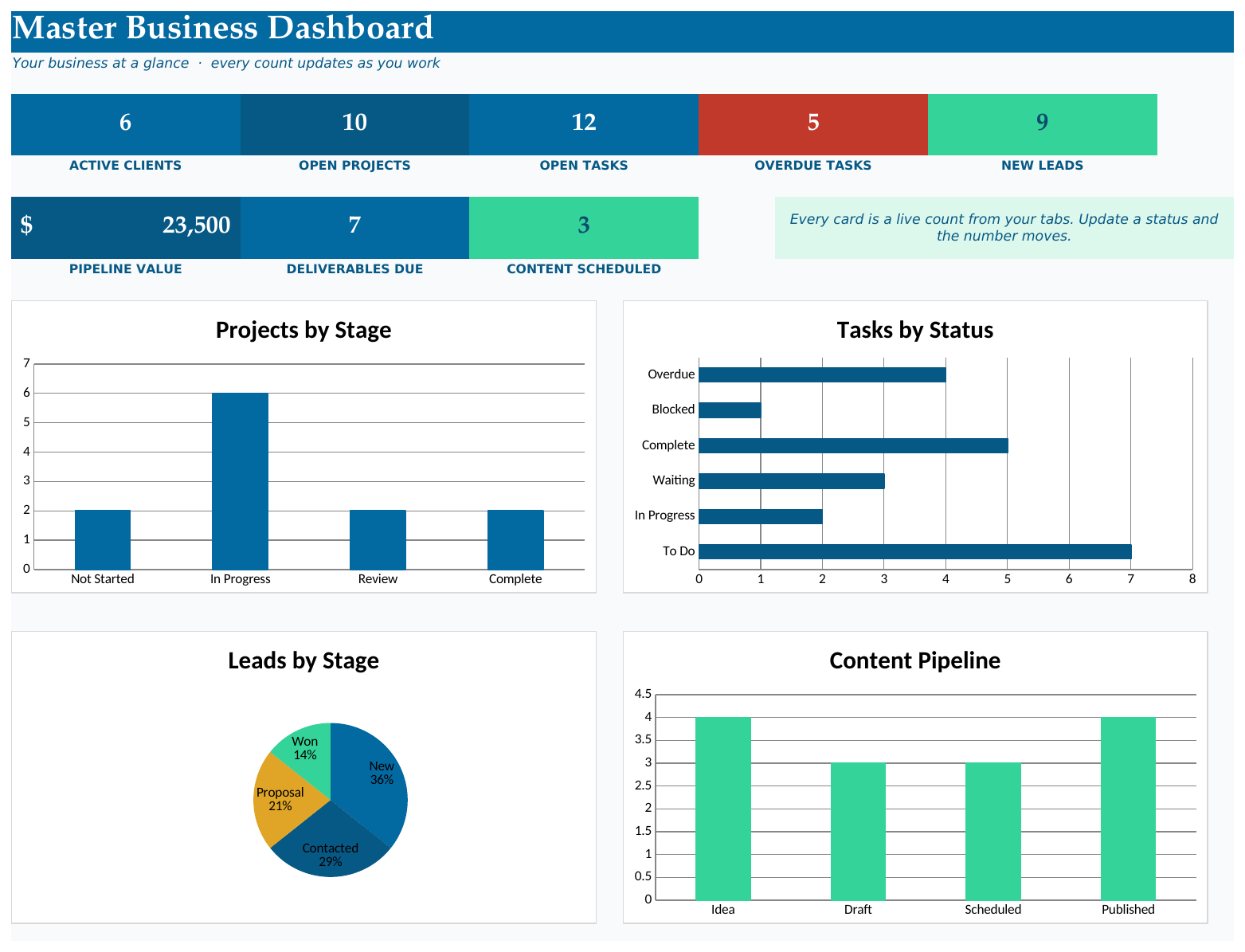
The Master Dashboard reads those lists and counts active clients, open projects, open tasks, overdue work in red, new leads, pipeline value, deliverables due and content scheduled, with four live charts (projects by stage, tasks by status, leads by stage and your content pipeline). Update a status word and the dashboard moves.
It also covers the rest of running a small service business: a capacity planner that warns you in red when you’re overbooked, a follow-up tracker, a priority matrix, a recurring admin checklist, a lead tracker and sales pipeline, a content calendar, and planning sheets for annual goals, quarterly focus and monthly overviews. It runs in Excel and Google Sheets, with notes for both.
It’s aimed at solopreneurs, virtual assistants, designers, coaches and small studio owners who are tired of juggling five apps.
A 20-minute weekly review
Once a week (Friday afternoon or Monday morning), go through the tracker:
- Update the stage and progress for every active project.
- Check every “next action” has an owner and a date.
- Chase anything waiting on a client for more than three working days.
- Check capacity for next week before accepting new work.
- Invoice anything that moved to Delivered.
Twenty minutes, and you start the week knowing exactly where every client stands.
Client project tracker FAQ
Can I track client projects in Excel or Google Sheets?
Yes. A spreadsheet with a client list, a project tracker with fixed stages and a simple dashboard works well for freelancers and small teams. You avoid per-user fees and keep everything in one file.
What’s the difference between a project tracker and a task list?
A project tracker shows each client job as a whole: stage, dates, value and next action. A task list breaks the work into individual to-dos. Most people need both, linked by project name.
How many projects can one person manage?
It depends on project size, but capacity matters more than count. Estimate weekly hours for each project and compare with your available time. Once you’re over, new work should wait.
Should clients see my tracker?
Usually not the full thing, since it includes fees and other clients. Share a simple status update or a copy of their own project’s timeline instead.