A digital bullet journal keeps the best part of the original method, rapid logging, and drops the worst part: redrawing the same monthly spread by hand every four weeks. You still write short bullets with a pen. You just do it on a tablet, where you can move, copy and find things in seconds.
I came to it the usual way. Two paper bullet journals, both abandoned around page 40, both with a gorgeous January and a sad, empty March. The method wasn’t the problem. The setup time was.
Here’s how rapid logging works on a tablet, which pages you actually need, and how to keep it quick enough that you’ll still be using it in spring.
Rapid logging in one minute
The bullet journal method was created by Ryder Carroll, and rapid logging is its core habit. Instead of writing full sentences, you capture everything as short entries with a symbol in front that says what kind of thing it is.
- A dot (•) is a task. “• Call the dentist.”
- An open circle (○) is an event. “○ Mia’s recital 6 pm.”
- A short line (-) is a note. “- Printer ink is the 302 cartridge.”
As tasks change, the dot changes too:
- X over the dot means done.
- An arrow pointing right (>) means migrated, moved to a later day or month.
- An arrow pointing left (<) means scheduled into your future log.
- A line through the entry means it no longer matters.
Some people add a star for priority or an eye for “look into this.” Keep it to one or two extras. That’s the whole system: short entries, clear symbols, and a regular habit of moving unfinished tasks forward.
Why a tablet changes the method (mostly for the better)
On paper, every new month means drawing a calendar, ruling lines and copying unfinished tasks by hand. On a tablet, most of that disappears.
- Copy, don’t redraw. Duplicate a page layout you like instead of drawing it again.
- Move entries with the lasso. Circle a task and drag it to tomorrow. That’s migration in two seconds.
- Search your handwriting. Many note apps can search handwritten notes, so “printer ink” turns up even if you wrote it in March.
- Infinite pages. No more running out of notebook in October.
- Undo. A wobbly line is one tap away from gone.
The downsides are real, though. A tablet doesn’t smell like a new notebook. The glass can feel slippery until you add a matte screen protector. And the battery dies at the worst moment, usually 9 pm on a Sunday when you’re doing your monthly setup. Charge it while you plan.
There’s also one quiet risk: it’s very easy to spend an hour decorating instead of logging. More on that near the end.
Blank dot grid or premade pages?
This is the first real choice. Purists start with a blank dot grid notebook and draw everything. Busy people start with a premade planner and use its pages as a skeleton for rapid logging.
My honest view: use both. A hyperlinked planner gives you a linked calendar, so you can jump to any month in one tap. A dot grid notes section gives you freedom for daily logs and collections. If you only ever print pages, our post on premade bullet journal pages ready to print is the paper version of this idea.
Hearthday is a strong fit for this hybrid setup. It’s an undated hyperlinked planner with 30 note styles, including dot grid, lined and graph, plus 10 custom notebooks you name yourself, each with a cover and three linked pages. Because it’s undated, you can start your bullet journal on a Tuesday in March and use the same file again next year.

Hearthday Undated Digital Planner
An undated hyperlinked planner with dot grid among its 30 note styles and 10 notebooks you name yourself, so you can rapid log and keep collections in one file.
- 30 note styles including dot grid, lined and graph
- 10 custom notebooks, each with a cover and three linked pages
- Undated, so you can start any month and reuse it
- 756 PNG stickers including date circles and page flags
If you go fully blank, set a firm rule: the dot grid is for logging, not for art. Draw boxes only when you need them.
Setting up the core collections
The classic bullet journal has four core pieces. On a tablet, each one gets easier.
Index
On paper, you number pages and write a table of contents. In a hyperlinked planner, the tabs and links already do this. In a blank notebook, your app’s outline or bookmarks list works as the index. Bookmark each new collection as you make it.
Future log
This is where events and tasks for later months go. A dentist appointment in August. Car insurance due in November. You glance at it each month and pull the relevant items forward.
Monthly log
A simple calendar on one page and a task list on the other. At the start of each month, you look at last month’s unfinished tasks and decide: migrate, schedule or drop.
Daily log
The heart of it. Write the date, then rapid log through the day. No fixed layout, no boxes. Some days get three lines. Some get a whole page.
Linenleaf covers a lot of this structure out of the box. It’s a hyperlinked planner with a future log for the next three years, a year calendar where every date and week number is linked, monthly calendars and overviews, plus notes pages in lined, dotted, grid and Cornell styles and 10 custom sections. You’d use the future log and monthly calendars as your bullet journal frame, then rapid log on the dotted notes pages.
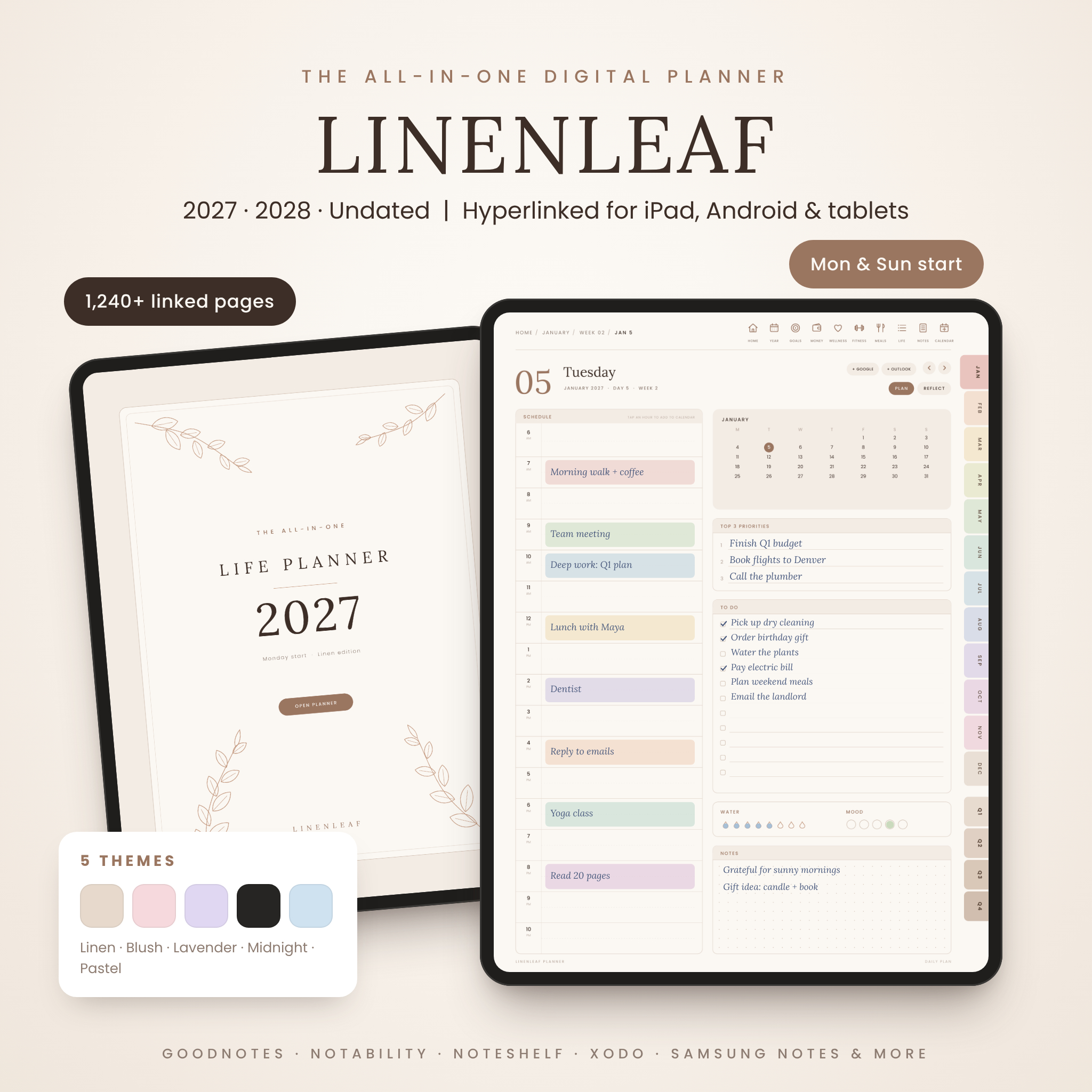
Linenleaf Digital Planner 2027 2028 & Undated
Its future log for the next three years and linked monthly calendars make a ready-made bullet journal frame, with dotted notes for daily logs.
- Future log for the next three years
- Year calendar with every date and week number linked
- Lined, dotted, grid and Cornell notes plus 10 custom sections
- 2027, 2028 and undated planners
One tip: don’t set up every collection on day one. Start with the four above. Add a reading list or a habit tracker only once you notice you need it.
Daily rapid logging on a tablet
Here’s what a normal day looks like for me. It’s 7:30 am. I open today’s page and write the date. Three tasks from yesterday that I migrated sit at the top. During the day I add entries whenever something comes up: a quick “- Jo’s new number” at lunch, “• send invoice” after a call, “○ parents’ evening Thurs” when the school email arrives.
At night I spend two minutes on it. X the finished tasks. Arrow the ones that move to tomorrow. That’s it.
A few tablet habits help:
- Use one pen color for logging. Save color for highlighting and trackers.
- Turn on palm rejection or whatever your app calls it, so your hand doesn’t leave stray marks.
- Keep a quick-capture page. For days when you can’t find today’s page fast, write on one “inbox” page and sort later.
- Type when your hand is tired. Your app’s text tool works fine for rapid logging. Bullets are short anyway.
Stickers can double as signifiers, too. A small star sticker for priorities or a heart for something you’re grateful for is faster than drawing. Sagebloom comes with 1,204 digital stickers sorted into 10 folders, plus a 20-page sticker book for quick copying with your lasso tool. The planner also has a master to-do list, a brain dump page, monthly habit and mood trackers and 10 notebooks in 10 paper styles, each with a linked contents page, which is handy for collections.
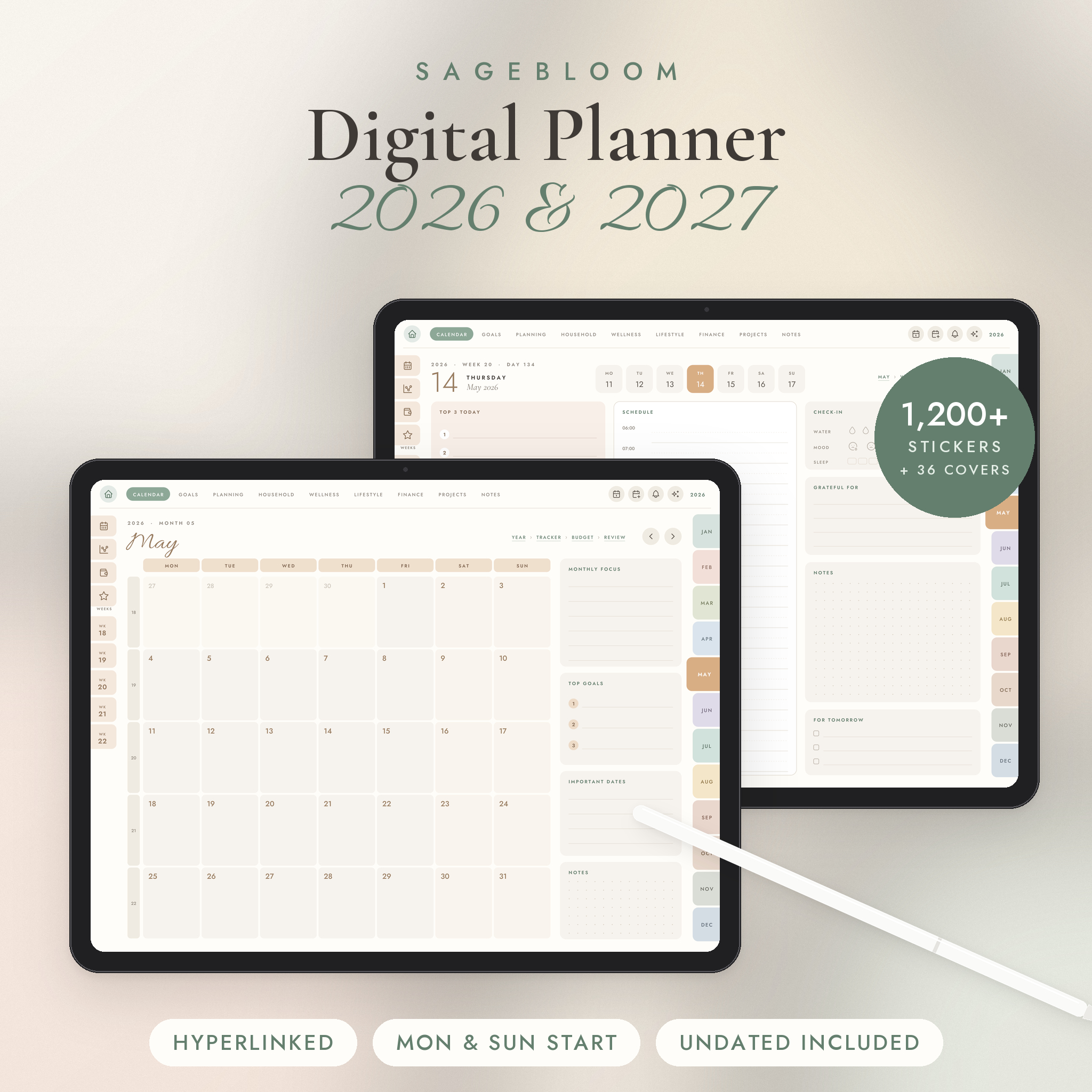
Over 1,200 digital stickers plus a master to-do list and brain dump make it easy to mark priorities and collections without drawing.
- 1,204 digital stickers sorted into 10 folders
- 20-page sticker book for quick lasso copying
- Master to-do list, brain dump and monthly habit trackers
- 10 notebooks in 10 paper styles with linked contents pages
If stickers aren’t your thing, skip them. Plain bullets are the method. Everything else is decoration. For more on sorting and using them, see our guide to digital planner stickers.
Migration without the rewriting
Migration is the habit that makes a bullet journal honest. At the end of each month, you look at every open task and ask whether it still matters. If it does, move it. If it doesn’t, cross it out.
On paper this means rewriting. The rewriting is partly the point, because it makes you think about whether a task deserves the effort. On a tablet you can lasso and drag, which is faster but makes it too easy to carry junk forward forever.
My compromise: lasso-move tasks between days, but rewrite them by hand when moving between months. That monthly rewrite is a small filter. If you can’t be bothered to write it again, you probably can’t be bothered to do it.
This fits nicely with a weekly check-in too. Our digital planner weekly review routine works well alongside monthly migration, so nothing sits unnoticed for four weeks.
Trackers, moods and the fun pages
Most bullet journal fans have a few favorite trackers: habits, moods, sleep, books read. On paper they take ages to draw. On a tablet you can use ready-made ones and get straight to filling them in.
The 2027 Cozy Doodle Journal leans fully into this side of bullet journaling. It has 36 mood trackers with original line art you color in one space a day, 44 Year in Pixels trackers (half with a blank key you fill in yourself), Doodle of the Day pages, habit wheels and grids, and 53 dated weekly spreads for 2027. You get a 290-page hyperlinked digital edition for your note app, and the printable PDFs come in dotted and plain versions in four paper sizes.
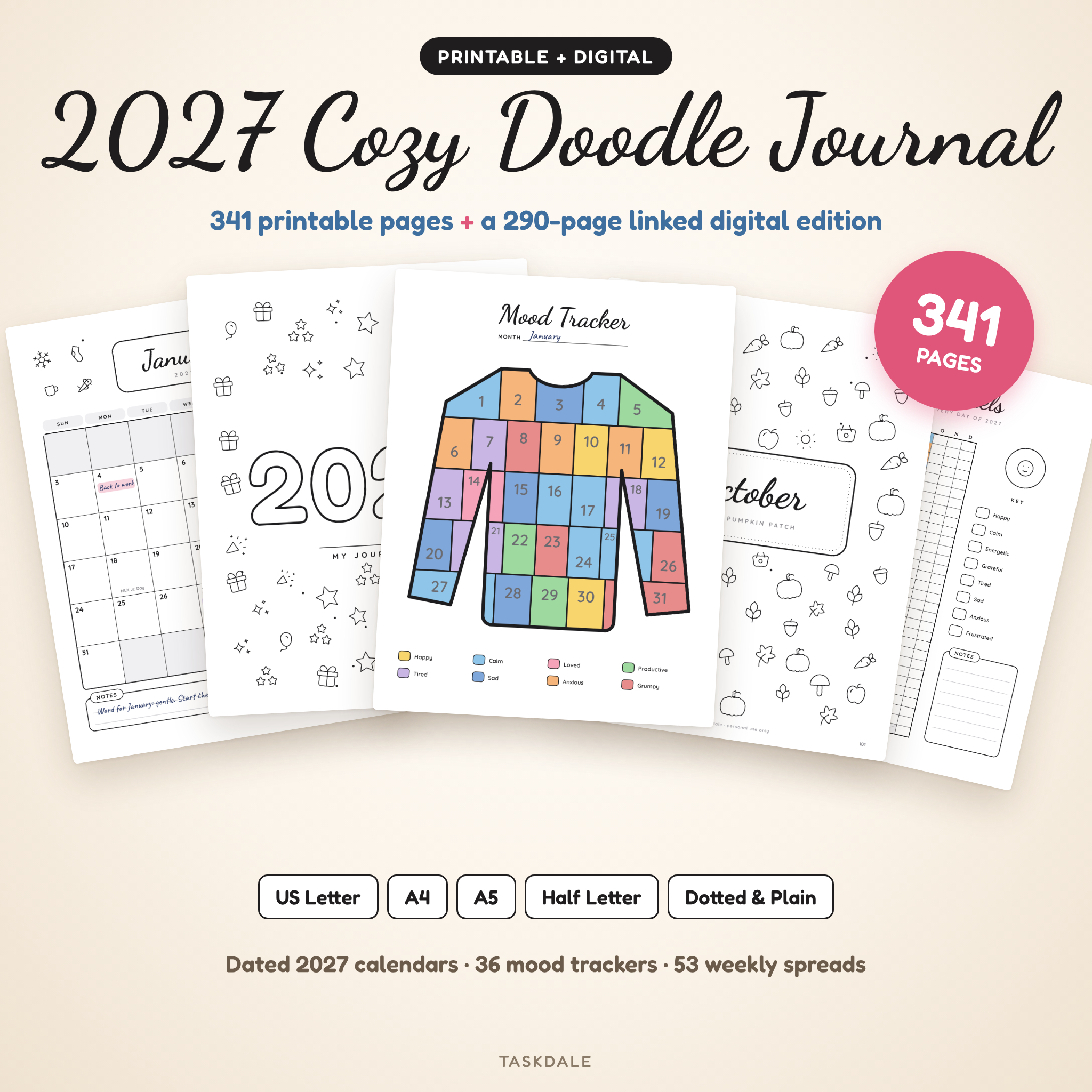
A journal bundle made for bullet journal fans tired of drawing trackers by hand, with a linked digital edition for your tablet.
- 36 mood trackers and 44 Year in Pixels trackers
- 290-page hyperlinked digital edition
- Printables in dotted and plain, in four paper sizes
- 53 dated weekly spreads for 2027
Coloring in a mood tracker with a fat brush just before bed is oddly calming. It’s also the bit that keeps a lot of people coming back to their journal, so don’t feel silly about enjoying it.
For people who like a little structure
Pure rapid logging can feel too loose for some weeks. School holidays, a busy launch, a house move. That’s when a structured weekly page helps, with your rapid log living in the notes beside it.
The Washi Doodle Weekly Planner keeps the cute doodled washi tape look that bullet journalers love and adds practical weekly layouts. Its 16 layouts include a My Week page with days, top 3 priorities, a to-do list and habit dots, a weekly schedule, a meal planner and a Week in Review. The bonus pages include lined and dot grid notes, and the 255-page hyperlinked version works in GoodNotes, Notability, Noteshelf and Samsung Notes. It’s undated, so you can start any week.

Cute washi-style weekly layouts for weeks when you want a little structure next to your rapid log.
- 16 layouts including My Week, schedule and Week in Review
- Bonus lined and dot grid notes pages
- 255-page hyperlinked planner for GoodNotes and Notability
- Undated, with Monday and Sunday start
Use the weekly page for plans and the dot grid notes for the actual log. Plans on the left, real life on the right.
Keep it from turning into a craft project
This is the part nobody warns you about. Digital tools make decorating so easy that the journal can turn into a hobby of its own. Hobbies are lovely. But if your goal is to get things done, watch for these signs:
- You spend longer setting up the month than you spend logging in it.
- You skip logging because today’s page “isn’t pretty yet.”
- You have six habit trackers and look at none of them.
- You keep switching fonts, themes or sticker packs.
The fix is simple. Log first, decorate later, and only if you want to. If your handwriting feels cramped or messy on glass, our tips on making digital planner handwriting more comfortable help more than any sticker pack.
FAQ
What’s the best app for a digital bullet journal?
Any note app that handles PDFs, handwriting and a lasso tool will do. GoodNotes and Notability are popular on iPad. On Android, look for an app that supports PDF links if you’re using a hyperlinked planner.
Do I need dot grid pages?
No, but they help. Dot grid gives you light guides for lines and boxes without the heaviness of lined paper. Check the product description for “dot grid” or “dotted” before buying a planner for bullet journaling.
Can I use a dated planner as a bullet journal?
Yes. Use the dated calendar as your monthly log and future log, then rapid log in the notes section. An undated planner gives you more freedom if you start mid-year.
How long does a digital bullet journal take each day?
A couple of minutes in the morning and a couple at night, plus logging as things come up. Monthly setup takes 15 to 30 minutes once you have a layout you like.
Start small: a future log, this month’s page and today’s log. Use dots, circles and lines, and move what’s unfinished. Give it a month on your tablet, and you’ll have the first bullet journal you didn’t abandon by March.