An Excel meal planner sounds like overkill until you’ve stood in the supermarket for the third time in a week because someone forgot the onions. A paper list can tell you what’s for dinner. A spreadsheet can tell you what’s for dinner, what to buy, what you already have and what the whole thing will cost.
The trick is building it so the grocery list writes itself. If you still have to copy ingredients from the plan to the list by hand, you’ve only moved the chore from paper to a screen.
Here’s how a working meal planning spreadsheet fits together, what to put on each sheet, and where a ready-made template saves you a weekend of formula wrangling.
The four sheets every Excel meal planner needs
You can make this as fancy as you like. But strip it back and every useful meal planner runs on four sheets:
- Recipes: each recipe with its servings and an ingredient list (quantity, unit, aisle, cost).
- Week planner: a grid of days and meals where you pick a recipe for each slot.
- Pantry: what’s already in the cupboard, fridge and freezer.
- Shopping list: the sheet that adds everything up and takes the pantry off.
The recipe sheet is the engine. Everything else reads from it. Get that part right and the rest is plumbing.
Step 1: Write your recipes as data, not prose
Most of us save recipes as a paragraph. “Brown 500g mince, add a tin of tomatoes, simmer.” Excel can’t do anything with that.
Instead, give every ingredient its own row: name, amount, unit, store aisle and cost. So spaghetti bolognese for four becomes six or seven rows. Mince, 500, g, meat, 6.50. Tomatoes, 1, tin, canned, 0.90. And so on.
It feels slow the first time. Fifteen minutes for your first three recipes, maybe. After that you’re reusing ingredients you already typed, and it speeds up a lot.
Start with the dinners you actually cook. Not the ones on Pinterest. Most households rotate 10 to 15 meals, and that’s plenty to begin with.
Step 2: Use dropdowns on the planner
On the week sheet, every meal slot should be a dropdown that pulls from your recipe names. In Excel that’s Data Validation, set to List, pointing at the recipe name column.
Why bother? Because typing “Spag bol” on Monday and “Spaghetti Bolognese” on Thursday breaks every lookup. A dropdown means one spelling, every time.
Add two non-recipe options while you’re at it: “Leftovers” and “Eating out”. They fill the slot without adding anything to the shopping list. That small thing matters more than you’d expect, because a plan with empty gaps looks unfinished and people stop trusting it.
Step 3: Make the grocery list add itself up
This is the bit that turns a pretty grid into a useful tool. The shopping list needs to:
- Count how many times each recipe appears on the planner (COUNTIF does this).
- Multiply each recipe’s ingredient amounts by that count, scaled to how many people are eating.
- Total each ingredient across all recipes (SUMIF or SUMPRODUCT).
- Subtract what’s already in the pantry.
- Sort what’s left by aisle.
Steps 1 to 3 are a few formulas. Steps 4 and 5 are where homemade versions usually get messy, and where a lot of people give up around 10pm on a Sunday.
There’s one more detail that separates a good list from an annoying one: rounding. If your recipes need 7.83 peppers across the week, you’re buying 8. A list that says 7.83 is technically right and practically useless. Wrap the quantity in ROUNDUP for anything sold whole.
Step 4: Add costs so you see the bill before you shop
Once ingredients carry a cost, the planner can show cost per meal, per day and per shop. Say your weekly food budget is $150 and the plan comes to $172. You can swap Thursday’s salmon for a bean chili and watch the total drop before you’ve spent anything.
Your prices won’t match the till exactly. Prices move and you’ll grab things that weren’t on the list. But being within $10 or so is enough to plan with.
The ready-made route
If you’d rather skip building the formulas, there are two Excel-format meal planners on Taskdale that already do all of the above. They’re close cousins, so here’s how they differ.
Market & Table: four weeks, five meals a day
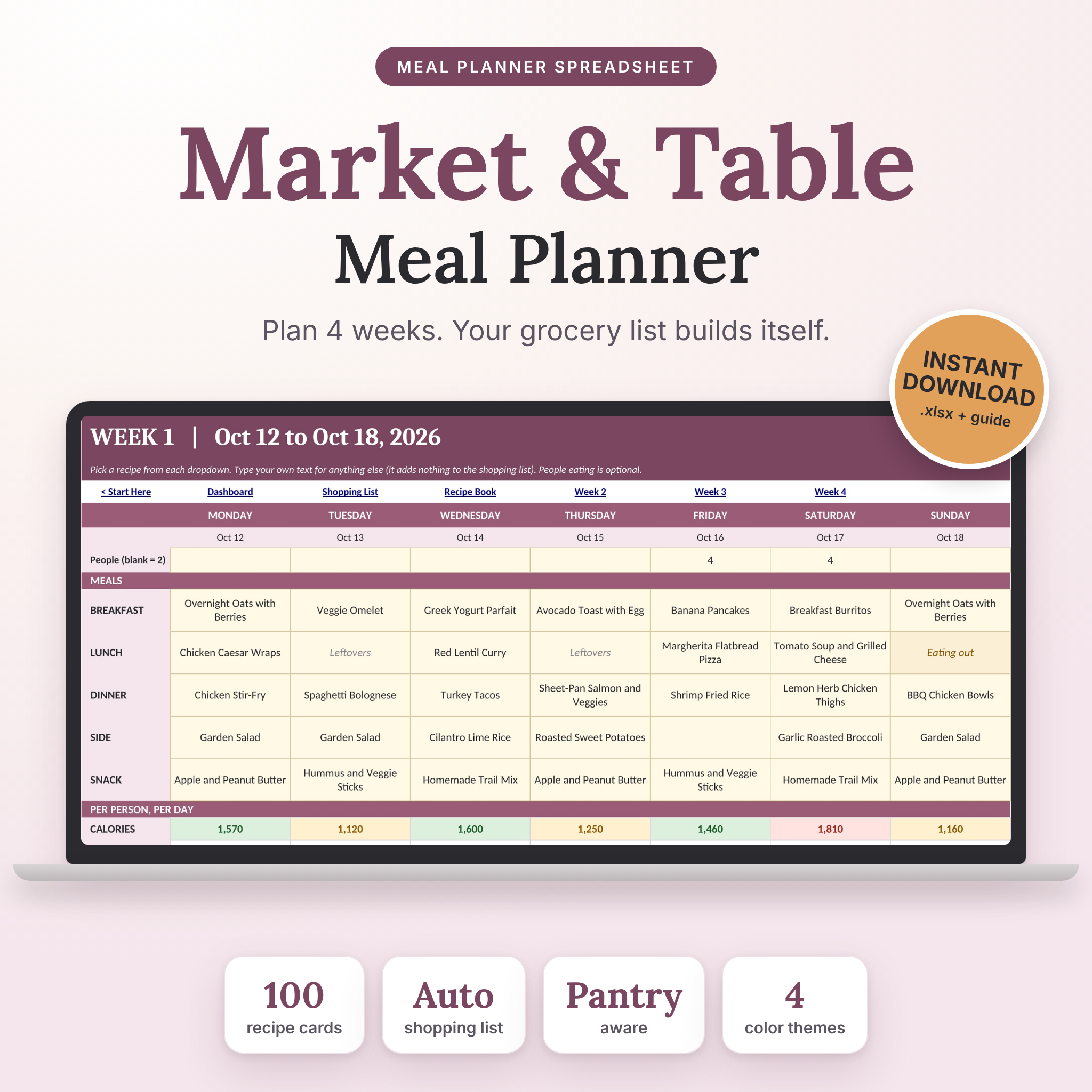
The Market & Table meal planner spreadsheet plans four full weeks with breakfast, lunch, dinner, a side and a snack for every day. Pick meals from dropdowns and the shopping list builds itself, grouped by aisle, minus whatever’s on the Pantry sheet. Whole items round up. You can shop for one week, two or all four.
It holds 100 recipe cards with 12 ingredient lines each, a 200-row pantry with use-by flags, and a dashboard with charts for weekly cost, daily calories, spending by aisle and macro split. You set the number of people eating, then override it for a single day when guests turn up. It arrives blank, with a 16-page user guide.
One thing to know: the seller built and tested it in LibreOffice Calc. It’s a standard .xlsx with no macros, but they’re upfront that they haven’t tested it in Microsoft Excel or Google Sheets.
Fresh Week: made for Excel, with an example file
The Fresh Week Meal Planner workbook is built for Microsoft Excel and also tested in LibreOffice. It has 13 sheets, four weekly planners and a month view for spotting repeats. The grocery list sorts into 12 aisles, takes off what you have on hand and rounds up to pack sizes, because you can’t buy 0.4 of a carton of eggs.
The big plus for beginners is the second file: a filled-in example with 19 recipes and four planned weeks. Seeing it working before you start makes the setup a lot less intimidating. It holds 60 recipes and 200 ingredients, flags calorie and protein targets per person, and locks formula cells (no password) so you can’t break anything by clicking around.
Which one?
If you live in Microsoft Excel and want to learn from a finished example, go with Fresh Week. If you want five meal slots a day, more recipe space and a bigger pantry, Market & Table has the edge, as long as you’re comfortable with an .xlsx that was tested in LibreOffice.
Keep your meal planning spreadsheet alive
The best planner is the one you open next week. A few habits help:
- Plan on the same evening each week. Ten minutes, with the fridge door open.
- Update the pantry right after you unpack the shopping. Not later. Later never comes.
- Add one new recipe a week at most. Building a 60-recipe library in one sitting is how people burn out.
- Keep a copy of a good week. Some weeks are worth repeating as-is.
Excel meal planner FAQ
Can Excel make a grocery list from a meal plan automatically?
Yes. If each recipe has its ingredients listed in rows, formulas like COUNTIF and SUMPRODUCT can total them based on what’s on the planner. Subtract a pantry column and you have a list of only what you need to buy.
Do I need Microsoft Excel to use a meal planner spreadsheet?
Not always. Many .xlsx files open in LibreOffice Calc, which is free. Check each template’s notes though, because formulas and dropdowns don’t behave identically in every app.
How long does it take to set up?
Plan on about 30 minutes to enter a dozen recipes and your usual prices. After that, a week’s plan takes roughly five minutes.
Is a spreadsheet better than a meal planning app?
It depends what you want. A spreadsheet is a one-time purchase, works offline and lets you change anything. Apps are nicer on a phone. If cost tracking and pantry control matter to you, a spreadsheet usually gives you more of both.