A good Word invoice template saves you from fiddling with table borders at 10 p.m. The format is already set: your details at the top, the client below, a clean table of work in the middle, the total where everyone expects it. You type over the placeholders, save a PDF, and send it.
This article is for anyone who would rather bill in Microsoft Word than learn a spreadsheet or sign up for software. We will go through the standard invoice format line by line, show you how to edit a Word template without breaking it, fix the usual Word headaches, and point you to ready-to-edit Taskdale sets for general businesses and for trades.
Quick picks: Word invoice templates ready to edit
| Product | Best for | Price | Link |
|---|---|---|---|
| Ledgerline Business Forms Kit | Five matching Word forms in Letter and A4 | $2.99 | View |
| Ledgerline Invoice, Quote & Receipt Kit | Word templates with an Excel workbook for the math | Original price was: $3.00.$1.50Current price is: $1.50. | View |
| Rinsewell Pressure Washing Business Kit | Exterior cleaning and pressure washing crews | $7.59 | View |
The standard invoice format, from top to bottom
Invoice layouts vary in color and font, but the order of the parts barely changes. Clients and their bookkeepers are used to it. Stick to it and they find what they need in seconds.
- Header. Your logo and business name, top left or top center. The word “INVOICE” in large type, usually top right.
- Your details. Address, phone, email, website, and a tax number if you are registered.
- Invoice facts. Invoice number, invoice date, due date, and the client’s purchase order number if they gave you one.
- Bill to. The client’s name, company and billing address. Add a “Ship to” or “Job site” block if it differs.
- Line items table. Description, quantity, rate, amount. One row per item or task.
- Totals block. Subtotal, discount, tax, shipping, total, amount paid, balance due. Right-aligned under the table.
- Payment details. How to pay, with bank details or a payment link.
- Terms and notes. Due date wording, late fee policy if you have one, and a one-line thank-you.
That is the whole format. Eight blocks. A template that has all eight, in this order, is ready for almost any small business. For a broader look at how Word compares with Excel and PDF for invoicing, see our guide to invoice templates in Word, Excel and PDF.
How to edit a Word invoice template in 15 minutes
The first edit is the only slow one. After that, every invoice is a copy of a file you have already set up. Set a timer and work through this list.
- Open a copy. Never edit the original download. Copy it, rename the copy “Invoice MASTER”, and work on that.
- Swap the logo. Click the logo placeholder. In most templates you right-click and choose Change Picture, or use Insert, then Pictures. A logo about 1.5 inches wide looks balanced on Letter or A4.
- Type over the placeholders. Business name, address, phone, email. Many templates mark placeholders in gray, blue or square brackets, so they are easy to spot.
- Write your payment details. Bank name, account name, account number and any reference you want clients to use. Double-check the numbers. A wrong digit here means a lost payment.
- Set your terms. “Payment due within 14 days of invoice date” is clear and friendly.
- Change the color, if you like. Templates built with Word styles let you change heading colors across the whole page at once from the Design tab.
- Save and close. Now your master is ready.
That last step deserves a little pride. You now have a branded invoice that looks like it came from a much bigger company.
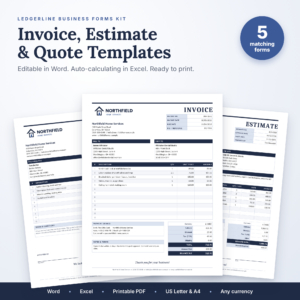
Ledgerline Business Forms Kit
Price: $2.99 | Best for: small businesses billing in Word
This kit gives you five matching Word forms (quote, job estimate, invoice, sales receipt and purchase order) in US Letter and A4, in a navy and soft blue design. The headings use real Word styles, the item rows grow when a description runs long, and there are up to 15 item rows per form. An Excel Invoice Maker and blank printable PDFs are included too. Set up the invoice first, then copy your details to the other four forms.
A worked example: one invoice, filled in
Seeing a finished invoice helps more than any list. Here is how Tom, a self-employed electrician, fills in his Word template after rewiring a garden shed.
- Invoice facts: Invoice 2026-037, dated 2 June, due 16 June.
- Bill to: Mrs. A. Lindqvist, 14 Elm Row. Job site is the same, so no extra block.
- Line 1: Labor, shed rewire incl. new consumer unit, 6 hours at $65 = $390.
- Line 2: Materials: cable, two double sockets, LED batten light, fittings = $148.
- Line 3: Call-out fee = $40.
- Totals: Subtotal $578. No tax, as Tom is not registered. Total $578. Amount paid $0. Balance due $578.
- Payment: Bank transfer details, with “Please use 2026-037 as your reference”.
- Note: “Thanks for having me. Certificate of work attached.”
Nothing fancy. Every line answers a question the client might have. Tom types it in about six minutes, adds the three line totals on his phone, and checks them twice because Word will not do it for him. He saves the PDF and emails it from the van before he drives off. Mrs. Lindqvist pays two days later.
Fixing the usual Word table headaches
Word is a page tool, not a calculator, and tables can misbehave. Here is how to handle the common problems.
You need more rows
Click inside the last item row, right-click, and choose Insert, then Insert Rows Below. Do this inside the item table, never under the totals, or your total will sit in the middle of the list.
The table spills onto page two
Long jobs happen. If the table breaks, select the header row, open Table Properties and tick “Repeat as header row at the top of each page”. The column titles then show on page two as well. Then untick “Allow row to break across pages”, so no single line splits in half.
The totals do not add up on their own
Most Word invoice templates do not calculate. You type the totals. If you want a simple sum, Word can insert a formula field such as =SUM(ABOVE) through the Layout tab, and F9 updates it. It works, but it is fiddly. If you have more than a few lines per invoice, a template that comes with an Excel version is the easier path.
The layout shifts when you type
That usually means a long word or number is stretching a column. Turn off automatic resizing in Table Properties, under Options, so the columns stay put.
Save it as a true Word template
This is a small trick that prevents a big mistake: typing over last month’s invoice and sending the client the wrong number.
Open your master file, choose File, then Save As, and pick “Word Template (*.dotx)” from the file type list. Now when you double-click that file, Word opens a fresh, untitled copy every time. You fill it in, save it with a new name, and the master stays clean.
Name each saved invoice the same way: invoice number, client name, date. “2026-052 Greenway Dental 2026-05-31.docx” sorts neatly in a folder and makes it easy to find when a client calls about it in August. Save a PDF beside it with the same name, and send only the PDF.
Keep a simple running list of invoice numbers too. Word will not warn you if you use 2026-052 twice. A notebook or a one-column spreadsheet will. If you want to go a step further, our guide to building an invoice tracker spreadsheet shows how to log every invoice and spot late payers.
When a Word invoice needs a spreadsheet partner
Word is perfect for a handful of invoices with a few lines each. It struggles once you have discounts, tax, part payments and a dozen line items. That is when a mistake creeps in, usually on a Friday afternoon.
A sensible middle path is a kit with Word templates and an Excel workbook in the same design. Use Word for a quick one-off. Use Excel for anything with real math. Clients see the same look either way.
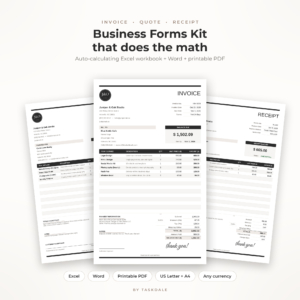
Ledgerline Invoice, Quote and Receipt Kit
Price: Original price was: $3.00.$1.50Current price is: $1.50. | Best for: Word users who want math done too
You get six Word templates (invoice, quote and receipt, each in US Letter and A4), four printable PDFs in Classic Black and Soft Taupe, and an Excel workbook with invoice, quote, receipt, statement, invoice log and dashboard sheets. Placeholders in the Word files sit in square brackets so they are easy to find. The Word and PDF versions do not calculate, so use the Excel workbook whenever you want totals worked out.
The 16-page user guide covers setup step by step, which helps if Word styles and Excel dropdowns are new to you.
Word invoice formats for trades
A general invoice works for most jobs. Some trades, though, need extra fields: square footage, surface type, a pre-job inspection, a sign-off. Building those into a blank template takes a whole weekend. A trade-specific set has them ready.
Take a pressure washing business. A driveway job might be billed by square foot, a house wash by size, and a deck clean with sealing as an add-on. Then there is the question of existing damage. Was that crack in the patio there before? A pre-service inspection form, signed by the client, answers that before anyone asks. Our guide on pressure washing prices shows how those jobs are usually quoted.
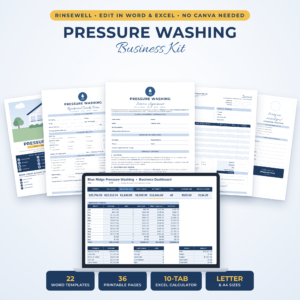
Rinsewell Pressure Washing Business Kit
Price: $7.59 | Best for: pressure washing and exterior cleaners
Rinsewell has 22 Word templates (36 printable pages) in US Letter and A4, plus a 10-tab Excel quote and invoice calculator and a 12-page user guide. It covers a service agreement, maintenance plan agreement, residential and commercial intake forms and proposals, a pre-service property inspection, job completion sign-off and invoice, estimate and receipt templates. Type over the blue placeholders and add your logo to the invoice first.
Small slips that make a Word invoice look rushed
Most of these come from copying last month’s invoice and not checking every field. Run your eye over this list before you hit send.
- Old dates. The invoice date still says May. It happens more than anyone admits.
- Leftover placeholder text. “[Client Name]” in square brackets, sent to a real client. Search the page for “[” before saving the PDF.
- A blank row in the middle of the table. Delete empty rows or move them below your last item.
- Totals that do not match the lines. Since Word does not add up, recheck the sums every time.
- Track Changes left on. Red underlines in a PDF look odd. Turn it off in the Review tab.
Two minutes of checking saves a reissued invoice and an apologetic email.
Printing and sending tips for Word invoices
- Pick the right paper size. US Letter for the US and Canada, A4 almost everywhere else. Sending a Letter invoice to a client in the UK can crop the bottom line when they print it.
- Save as PDF, not print to PDF. File, then Save As, then PDF keeps links and text sharp.
- Check on a phone. Open the PDF on your phone before sending. If the total is easy to read there, it is easy to read anywhere.
- Print a paper copy for cash jobs. A handyman finishing a $240 repair can hand over a printed invoice and a receipt on the spot.
- Keep fonts standard. Fancy fonts can swap out on another computer. Calibri, Arial or Georgia are safe.
Frequently asked questions
Does Word have a built-in invoice template?
Word offers some basic invoice designs through File, then New. They are a fine start, but many have few rows and no matching quote or receipt. A paid set gives you matching forms, both paper sizes and a guide.
How do I make a Word invoice calculate totals?
Word can add a formula field such as =SUM(ABOVE) in a table, updated with F9. For regular use, an Excel version of your invoice is quicker and safer, since it recalculates every time you type.
Can I add more line items to a Word invoice template?
Yes. Click in the last item row, right-click and insert rows below. Keep new rows above the totals block so the layout stays in order.
Is a Word invoice professional enough for business clients?
Yes, if it has a clear format: your details, the client’s details, a unique number, dates, itemized work, totals and payment terms. Send it as a PDF so it looks the same on every screen.
Should my invoice be US Letter or A4?
Use the size your client prints on. That is US Letter in the United States and Canada and A4 in most other countries. If you bill clients in both, keep a master copy in each size so nothing gets cropped at the bottom when they print it.
Will these templates open on a Mac?
The Word files above are .docx templates, which open in Microsoft Word for Windows or Mac. Check each product page for the exact Word version it was built for.
Your next step
Download a template, give yourself 15 minutes with the editing list above, and save your master as a .dotx file tonight. For a matching quote, invoice and receipt set in both paper sizes, start with the Ledgerline Business Forms Kit.