Phone expense apps such as Money Manager Expense & Budget are popular because they make logging a purchase fast and show neat charts by category and account. If you want the same picture in a file you own and control, Excel can do nearly all of it. You need the right tabs, a sensible way to handle transfers and credit cards, and a quick logging habit. Get those three right and the spreadsheet often ends up clearer than the app.
This guide is for app users who are thinking about a Money Manager Expense & Budget alternative in Excel. It covers which features are worth rebuilding, how to lay out the workbook, the transfer mistake that breaks most homemade sheets, how to log quickly without a dedicated app, and a worked month moved from app to spreadsheet. We will be fair about the app side too, because for some people staying put is the right call.
Quick picks: Excel expense and budget trackers
| Product | Best for | Price | Link |
|---|---|---|---|
| Penny & Petal Income and Expense Tracker | Accounts, transfers and dashboards like an expense app | $4.99 | View |
| Budget Planner Spreadsheet for Excel and Google Sheets | One transaction list with a daily spending figure | $2.00 | View |
| Soft Ledger Budget Planner Printable | Paper planning pages with an Excel spreadsheet beside them | Original price was: $12.99.$8.99Current price is: $8.99. | View |
| Pennygrove Budget Planner for Google Sheets | People who would rather use Google Sheets than Excel | $7.99 | View |
Why some app users move to Excel
Expense apps do one thing brilliantly: capture a purchase in seconds, wherever you are. The reasons people leave are rarely about that. They tend to be about what happens after the logging.
- Ownership. An Excel file lives on your computer or your own cloud drive. You can copy it, back it up and open it in ten years.
- Flexibility. Want a column for tags, a sinking funds tab or a chart of grocery spending by week? In Excel you add it. In an app, you wait and hope.
- Reviewing on a big screen. A month of transactions is far easier to read, sort and fix on a laptop than on a phone.
- Cost and ads. Many expense apps are free with ads or offer extra features through a paid upgrade. Check current terms in your app store. Some people would simply rather buy or build one file.
- Privacy. A spreadsheet with no sync service means your records stay where you put them.
If those matter to you, Excel is worth the switch. If you mainly value logging on the go and rarely review, an app may still suit you better. More on that at the end.
What to rebuild from an expense app, and what to skip
You do not need every feature an app offers. Most people rely on six things. Rebuild those well and the rest rarely gets missed.
- Accounts. Checking, savings, cash, credit cards and loans, each with a running balance.
- Transactions. Date, account, category, amount and a short note, in one long list.
- Categories and subcategories. Food, with groceries and eating out under it, and so on.
- Transfers. Money moving between your own accounts, kept separate from spending.
- Monthly stats. Totals by category, with a chart.
- Budgets. A planned amount per category, with what is left.
Things you can often skip: photo receipts (a folder on your phone works), passcode locks (use your computer’s own security), and fancy widgets. Bank syncing is the one real loss for some people. Many banks let you download a CSV, which you can paste in once a week instead.
How to lay out the Excel workbook
If you build your own, five tabs cover the core. Keep it this simple to start.
The five tabs
- Setup. Your list of accounts and categories. Everything else reads from here, so a renamed category updates everywhere.
- Transactions. One row per purchase or income. Columns: Date, Account, Category, Subcategory, Amount, Note. Turn it into an Excel Table (Ctrl+T) so formulas grow with it.
- Transfers. One row per move between your own accounts: Date, From, To, Amount.
- Budget. Categories down the side, months across the top, planned amounts in each cell.
- Dashboard. Monthly totals, budget versus actual, account balances and a couple of charts.
The one formula that does most of the work
SUMIFS adds up amounts that match several conditions. To total groceries for March, it looks like this: =SUMIFS(Transactions[Amount], Transactions[Category], “Groceries”, Transactions[Date], “>=”&DATE(2026,3,1), Transactions[Date], “<“&DATE(2026,4,1)). Point the category and dates at cells instead of typing them, copy it across your dashboard, and you have monthly stats by category.
Add data validation dropdowns on the Account and Category columns, pulling from the Setup tab. That keeps typos out, and typos are the main reason homemade sheets drift. If you want ideas for what the summary page should show, our guide to what a budget dashboard in Excel should show walks through the most useful tiles and charts.
Transfers and credit cards: where homemade sheets go wrong
This is the single biggest difference between a good expense tracker and a messy one. Apps handle it for you. A homemade spreadsheet often does not.
When you buy groceries with a credit card, that is spending. When you later pay the card from checking, that is not new spending. It is money moving between two of your own accounts. If you log the card payment as an expense, you count the same groceries twice.
An example of the double count
Say you put $1,120 of purchases on a card in March, then pay the card’s $860 balance from February. A sheet that logs both as expenses shows $1,980 of spending. Your real March spending on that card was $1,120. The $860 was February’s spending, already counted last month. Your budget looks $860 worse than reality, and you start wondering where the money went when nothing went anywhere.
The fix
- Log card purchases as expenses on the card account.
- Log the card payment on the Transfers tab: from checking, to the card.
- Account balances use both tabs. Spending totals use only the Transactions tab.
The same applies to moving money into savings, withdrawing cash and paying a loan’s principal. All of them are transfers. Getting this right is often the moment a spreadsheet starts to feel trustworthy. If you would rather not build it yourself, look for a template that already separates transfers.

Penny & Petal Income and Expense Tracker
Price: $4.99 | Best for: app users who want accounts and transfers handled
Penny & Petal is an income and expense tracker for Excel and Google Sheets with 12 connected tabs. Card payments and savings moves go on their own Transfers tab, so they never inflate spending. It has monthly, annual and custom date-range dashboards, an accounts dashboard with card utilization warnings, a budget for up to 50 categories, bills and subscriptions, and up to 15 savings goals. Enter your accounts and opening balances on the setup tab first, then log one week.
Logging quickly without a dedicated app
Speed of entry is what apps do best, so this is where you need a plan. The good news: most people find a short daily or weekly logging habit is enough once the sheet is set up.
Four ways to log fast
- Excel on your phone. The free Excel mobile app opens files from OneDrive. Add a row to the Transactions table at the checkout. Dropdowns make it a few taps.
- A notes app, then a weekly paste. Jot “14 lunch” in your phone notes during the week. On Sunday, type the list into Excel in five minutes.
- Bank CSV import. Download last week’s transactions from your bank, paste them into the Transactions tab, then pick categories. Fast for card-heavy spenders.
- Receipts in one spot. For cash, keep receipts in one envelope and log them at your weekly review.
Pick one method and stick with it for a month before judging. Mixing all four usually means nothing gets logged.
A single-list template
If you liked how an app kept everything in one feed, a template built around a single transactions sheet will feel familiar. You add every purchase, paycheck and payment in one place, and the dashboard does the sorting.
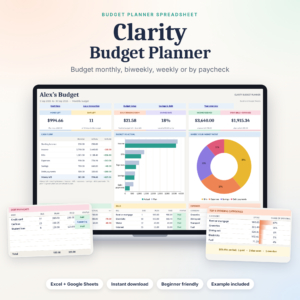
Budget Planner Spreadsheet for Excel and Google Sheets
Price: $2.00 | Best for: people who liked a single app feed
This budget planner works in Excel and Google Sheets for monthly, weekly, biweekly or payday-to-payday budgets. Everything goes into one Transactions sheet, and a dashboard with six live cards shows money left, days left, bills due and a daily spending room figure. Bills show Paid, Due soon, Upcoming or Overdue, and debts get an estimated payoff date. Type your currency symbol once, add your bills, then start logging.
Worked example: one month moved from app to Excel
Tom had used a phone expense app for two years. He tracked four accounts: checking at $2,140, savings at $5,600, a credit card owing $860, and $80 in cash. He switched to Excel on April 1.
Setup took about 40 minutes. He exported his app history to a CSV file for safekeeping, entered the four opening balances, and copied his 14 categories into the Setup tab with the same names the app used.
During April he logged on his phone in Excel at the checkout about half the time, and caught the rest from his bank’s CSV on Sundays. By April 30:
- Income: $3,900, paid into checking
- Spending: $2,780 across 14 categories: $1,120 on the card, $60 in cash and $1,600 from checking
- Transfers: $860 card payment, $400 to savings, $60 cash withdrawal
His dashboard showed $2,780 of spending, not $3,640, because the card payment sat on the Transfers tab. Checking ended at $3,120: $2,140 plus $3,900 income, minus $1,600 spent from checking, minus $860, $400 and $60 in transfers. The card owed $1,120, savings stood at $6,000, and cash was back to $80 after $60 of cash spending.
The part Tom liked most was the Sunday review on a big screen. He spotted three subscriptions he had stopped using, together $38 a month, which had been easy to miss in a phone list. That one find covered the effort of switching several times over.
Paper pages with an Excel engine
Some people leave apps because they want to slow down, not speed up. Writing a budget by hand makes each number feel real, while a spreadsheet beside it does the adding. That pairing works well for anyone who found an app too easy to ignore.
Plan the month on a printed page, log purchases on a daily sheet on the fridge, and enter totals into Excel once a week. You get the reflection of paper and the accuracy of formulas. Our roundup of the best budget spreadsheets for Excel and Google Sheets covers more options if you want to compare layouts first.
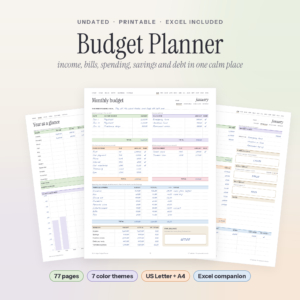
Soft Ledger Budget Planner Printable
Price: Original price was: $12.99.$8.99Current price is: $8.99. | Best for: people who want paper plus formulas
Soft Ledger is a 77-page undated printable budget planner with an Excel spreadsheet that does the math for you. Each month has four linked pages: Budget, Overview, Daily log and Review, and the Overview turns what is left into a weekly and daily spending number. It works in any currency, and the PDF can be written on in a tablet app too. Print the Budget page first and copy its totals into the spreadsheet.
Who should keep the app
Excel is not the right answer for everyone. Stay with your expense app if:
- You rarely use a computer and do everything on your phone.
- You only log, and never really review. An app’s built-in charts may be all you need.
- You rely on bank syncing and would stop tracking without it.
- You enjoy the app and use it daily. That habit is worth more than any spreadsheet feature.
Plenty of people use both: an app for quick capture on the go, and a monthly export into Excel for the deeper review. There is no rule that says you must pick one.
Frequently asked questions
Can Excel replace a money manager app?
For most people, yes. Excel handles accounts, transactions, transfers, budgets and charts well. The main trade-off is quick logging on the go, which the Excel mobile app or a weekly bank CSV import can cover.
How do I track credit card spending in Excel without double counting?
Log purchases as expenses on the card account. Log the card payment as a transfer from checking to the card, not as an expense.
Can I import my expense app data into Excel?
Many expense apps offer a CSV or spreadsheet export. Open it in Excel, match the columns to your Transactions tab, and paste. Check categories match before you rely on the totals.
Does an Excel budget work on my phone?
Yes, through the free Excel mobile app with the file saved to OneDrive. Large workbooks are easier to review on a computer, but adding a row works fine on a phone.
Is Google Sheets better than Excel for expense tracking?
Google Sheets is easier for sharing and phone logging. Excel is stronger offline and with large files. Many templates work in both, so you can choose based on habit.
Your next step
Export your current app history if it lets you, then write down your accounts with today’s balances and your list of categories. That is everything you need to start a workbook. When you want transfers, dashboards and budgets set up for you, enter those balances into the Penny & Petal Income and Expense Tracker and log your first week.