A personal finance dashboard should answer your money questions on one screen. Am I on budget? What’s due this week? How’s the debt going? What am I actually worth? Most people have those answers scattered across a banking app, a notes file, two spreadsheets and a sticky note on the fridge. Each one is a little out of date.
The fix isn’t more tools. It’s one place where everything feeds everything else. This guide shows how to set that up using Cedarly Money Hub, an offline dashboard on Taskdale, and what a sensible weekly and monthly routine looks like once it’s running.
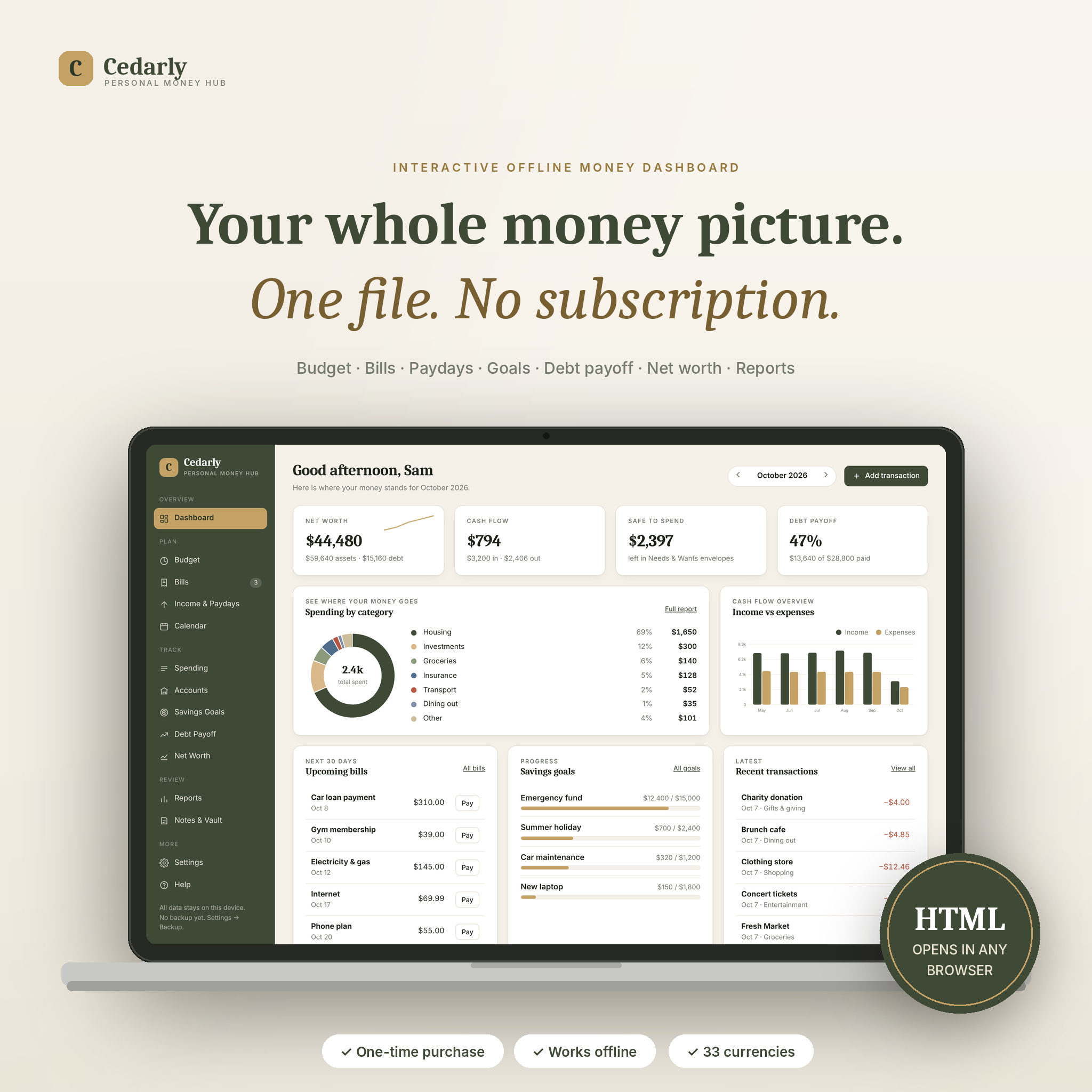
What a good personal finance dashboard shows
Whatever tool you use, the home screen should cover five things at a glance:
- Safe to spend: money left after this month’s committed bills and savings
- Cash flow: income against spending, this month and over the last few
- Upcoming bills: what’s due soon, and what’s overdue
- Debt progress: balances falling, with a payoff date
- Net worth: the long-term scoreboard
If you have to click into five places to see those, it’s not a dashboard. It’s a filing cabinet.
Why Cedarly is a dashboard, not a spreadsheet
Cedarly is a single HTML file. Double-click it and it opens in your browser like an app: a sidebar, live charts, a month switcher and forms instead of cells. There’s no account to create, no cloud and no monthly fee. Your data stays in the browser on your device.
The bit that makes it a real dashboard is that everything is linked. Mark a bill paid and four things happen at once: the transaction is logged, the budget bar fills, the account balance drops and the report updates. One entry, everywhere. Your paydays are matched to the bills they cover. Your debt payments update your accounts. Your goals tell you the monthly amount that gets you there on time.
Setting it up: an evening, not a weekend
When you first open the file, a checklist on the dashboard walks you through the setup. In order:
1. Add your accounts
Checking, savings, cash, credit cards, loans, investments and other assets. Enter today’s balance for each. From then on, balances calculate from your transactions, and there’s a one-step adjust if they ever drift from your bank.
2. Add income and paydays
Weekly, every two weeks, twice a month or monthly are all supported, and variable income works too. The payday planner then shows which paycheck covers which bill, and what’s left after.
3. Add bills and subscriptions
Each gets a due date, with tags for autopay and subscriptions. You’ll get Due soon and Overdue flags, and a figure for the yearly cost of all your subscriptions, which is often the most sobering number in the whole setup.
4. Set the month’s budget
Cedarly uses zero-based planning: planned, spent and remaining for each category, with a banner counting down what’s left to assign. Prefer 50/30/20? There’s a view for that. You can auto-fill from your bills to save typing.
5. Log your first transaction
Press N, fill the short form, done. If you’d rather not type history in, you can import CSV statements from your bank.
Not sure you’ll like it? Load the full sample household first and explore. You can erase it in one click.
The weekly routine
Ten minutes, once a week:
- Log anything you didn’t log as it happened.
- Hit Pay on bills that went out. The dashboard’s upcoming bills list has a Pay button right there.
- Glance at budget categories turning red and decide whether to move money between them.
The monthly routine
Twenty minutes at month end:
- Check the reports: planned against actual by category, needs, wants and savings split, top payees.
- Save a net worth snapshot. These build a trend chart over the months.
- Copy last month’s budget into the new month and adjust.
- Download a backup. There’s a backup reminder so you don’t forget.
Other parts worth knowing about
A few features that don’t fit neatly above but come in handy:
- Debt payoff planner: snowball and avalanche simulated side by side, with months to debt-free and total interest, and how much faster an extra payment gets you there.
- Savings goals and sinking funds: target, saved so far, monthly amount needed, and the date you’ll get there at your current pace.
- Calendar: bills, paydays and goal deadlines on one month view.
- Notes and vault: policy numbers, important contacts and a money to-do list, stored on your device only.
- Privacy PIN, five color themes plus dark mode, and 33 currencies with matching number formats.
Who Cedarly suits
- People who want an app feel without paying monthly
- Anyone who won’t hand a budgeting app their bank password
- Couples and families with several accounts and paydays
- People starting a zero-based or 50/30/20 budget who want the full picture in one place
Who should look elsewhere
If you love building your own formulas and tweaking columns, a spreadsheet will feel more natural. Cedarly is customizable from inside the dashboard (categories, colors, currency, themes), but it isn’t a grid you can rewire.
And because data is stored in the browser you open the file in, moving between devices means using the backup file. It works on Windows, Mac, Linux, Chromebook, Android and iPhone browsers, but it won’t sync between them on its own. If you need live sync across phones, a cloud app is the better fit.
Personal finance dashboard FAQ
Does Cedarly need the internet?
No. It runs offline in Chrome, Edge, Firefox, Safari or Brave. No internet connection is needed.
Can it import my bank transactions?
You can import CSV statements downloaded from your bank. It doesn’t connect to your bank directly, which keeps your login private.
What do I get in the download?
The dashboard HTML file, a 23-page user guide, a sample backup file with an example household, and a quick-start text file.
Is it a subscription?
No. You buy it once and it’s yours, with no account and no monthly fee.