Personalised planner pages with your name and colours feel different the moment you open them. A plain page is a form. A page with your name on the cover, your favourite shade of green in the headers and a colour key you chose yourself is a place. People open places more often than forms, and that is the quiet reason personalising a planner is worth an evening.
This guide is for anyone who wants a planner that looks like theirs without paying for a custom design. You will learn the three ways to personalise printable and digital pages, how to pick a colour palette that stays readable, how to build a colour key you will actually stick to, and which Taskdale planners let you edit, type into or restyle the pages yourself.
One honest note before we start: the Taskdale planners below are ready-made files, not printed to order. You add the name and the colours. The good news is that it takes minutes, and you can change your mind next month.
Quick picks
| Product | Best for | Price | Link |
|---|---|---|---|
| Clearweek Weekly Planner Printable | Changing fonts, labels and table colours in Word | $5.00 | View |
| The Everyday Planner Kit | Typing your name into fillable pages and colouring the covers | $14.99 | View |
| Rosewren Undated Digital Life Planner | Cover colours, named sections and stickers on a tablet | $32.99 | View |
| Petalpath Undated Daily Planner | Soft colour pages or an ink-saver version | $2.39 | View |
Three ways to personalise a planner
Every planner file falls into one of three groups, and each one is personalised differently. Knowing which you have saves a lot of frustration.
- Editable files, such as Word documents. You can change the text, fonts and colours on the page itself. This is the most flexible option.
- Fillable PDFs. The layout is fixed, but form fields let you type your name, headings and plans straight onto the page before printing.
- Fixed PDFs and digital planners. The page itself cannot be edited, but you can choose cover colours, add text boxes and stickers in a note app, or colour the printed page by hand.
None of these is better than the others. A Word file suits someone who likes tinkering with fonts on a laptop. A fillable PDF suits someone who wants tidy typed headings and then a pen. A digital planner suits someone who already writes on an iPad and loves stickers.
Choose a colour palette you can live with
The fastest way to make a planner feel yours is colour. The fastest way to make it hard to read is too much colour. Aim for a small palette and stick to it for at least a month.
Pick three to five colours
One main colour for headings, one or two accents for categories, and one soft shade for backgrounds or shading. That is it. A planner in sage, terracotta and cream feels calm and grown-up. Navy, mustard and pale grey feels crisp. Lilac, peach and soft yellow feels cheerful. Each palette is only three colours, and each one has a mood.
Test it on paper first
Colours look different printed. A bright teal on screen can come out murky on a home inkjet, and pale yellow can vanish completely. Print one page with your palette before you print fifty. If you cannot read black text on the shaded areas, lighten the shade.
Think about ink
Big blocks of colour drink ink. If you print weekly, keep the colour to headers, thin lines and small accents, and leave the writing areas white. Many planners also come in an ink-saver version, which you can then colour in by hand with highlighters.
Editable Word pages: change everything
If you want your name in the header and your colours in the tables, an editable Word file is the most direct route. Open the file, click into the header, type your name, then change the table shading to your palette. Five minutes, and every week you print carries your name.
Here is a simple process that works for most Word planners:
- Save a copy first. Name it something like “Weekly page, Amara, sage version”. Keep the original untouched.
- Add your name. Put it in the header or at the top of the page, in the same font as the headings so it looks built in.
- Change the table shading. Click a shaded cell, open the shading menu and choose your main colour. Use the custom colour option if you have a specific shade in mind.
- Rename labels. Change “Priorities” to “Big Three”, or swap a section for “Etsy shop” or “Allotment”. This is where the page starts to fit your life.
- Print one test page. Check the colours and the margins before you print a stack.
A weekly planner with editable Word files makes this easy.
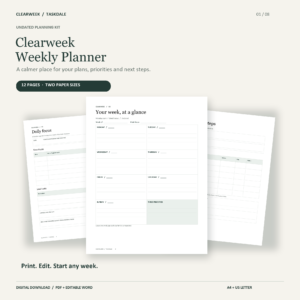
Clearweek Weekly Planner Printable
Price: $5.00 | Best for: people who like to restyle pages in Word
Clearweek includes editable Word source files so you can change text, labels, fonts and table colours, alongside ready-to-print PDFs in US Letter and A4. You get Monday-start and Sunday-start weekly pages in lined and open versions, each with a main focus and three priorities, plus six worksheets such as a task inbox and weekly review. Open the Word file for your start day, add your name to the top and change the table colour to your main shade.
Fillable PDFs: type your name, then write by hand
A fillable PDF keeps the designer’s layout exactly as it is, but lets you click into form fields and type. That makes it ideal for the bits you want neat and the same every time, like your name on the cover, your month headings or a recurring list. Then you print and use a pen for everything else.
Open the file in a free PDF reader such as Adobe Acrobat Reader, type into the fields, and save. Your entries stay put. Print a year cover with your name, twelve month covers, and a dashboard page with your goals, and the planner already feels personal before you write a single plan.
If the pages are mostly black and white, add colour by hand. Highlight headings with your accent colour, or colour a printed cover with pencils on a Sunday evening. It is oddly relaxing. And the result is a cover nobody else in the world has.
For more on combining pages from different sets into one binder, this guide on how to build your own planner from printable pages walks through choosing, printing and ordering sections.
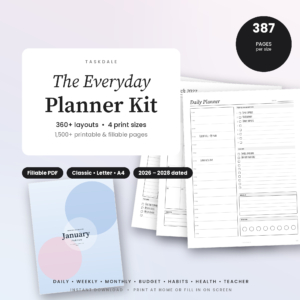
The Everyday Planner Kit
Price: $14.99 | Best for: disc planner and binder users
The Everyday Planner Kit has 387 fillable pages in four PDF files: Classic 7 x 9.25 disc planner, US Letter, A4 and Classic-on-Letter with cut marks. It includes 12 colour monthly covers, year covers, minimalist, colouring and motto covers, dated calendars for 2026 to 2028, thirteen weekly styles and trackers. Type your name into a year cover in Acrobat Reader first, then print the colouring cover and fill it in your own palette.
Personalising a fixed daily page
Some of the prettiest planners are fixed PDFs: you cannot type into them or change their colours, but they already come in a soft palette. In that case, personalise by choice rather than by editing.
Pick the version that suits your palette. A daily planner in blush, coral, sage and butter tones looks lovely in a binder with sage and cream dividers. If the printed colours clash with your plan, print the ink-saver version instead and add your own accents with two highlighters.
Then make the page yours with what you write on it. Your name and the date on the top line every morning. A small symbol in the corner for the kind of day it is: a sun for a good one, a cloud for a slog. Your colour key on the task list. After a month, flicking through those pages feels like reading your own handwriting diary, not a stack of printouts.
If you are still choosing a daily layout, this round-up of printable daily planner pages compares four styles side by side.
Digital planners: covers, colour keys and named sections
On a tablet you cannot usually recolour the page itself, but you can do a lot around it. Choose a cover colour from the set that comes with the planner. Use your note app’s text tool to add your name to the cover in a font you like. Pick highlighter and pen colours in your palette and save them as favourites so they are always one tap away.
The best digital planners also let you name your own sections. Instead of a generic “Notes” tab, you get “Wedding”, “Side hustle” or “Mum’s care”. That one change makes the planner feel built for you.
Stickers finish the job. A few washi strips in your colours, date stickers on an undated page, a small icon for each category. Keep a short favourites list of stickers in your palette so you are not scrolling through hundreds each time. This guide to digital planner stickers covers adding, sorting and using them.
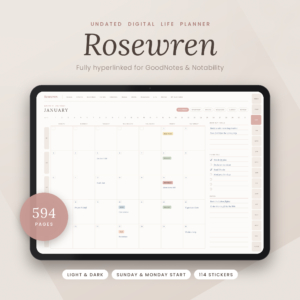
Rosewren Undated Digital Life Planner
Price: $32.99 | Best for: tablet planners who love to customise
Rosewren is an undated hyperlinked planner for GoodNotes and similar apps on iPad and Android, with 594 pages in Light and Dark editions, each in Sunday or Monday start. It comes with 10 cover colours, eight custom section dividers you name yourself, and a sticker pack of 114 PNG stickers including dates, labels and washi tapes. Pick your cover colour first, then rename the eight sections to match your life.
Build a colour key you will actually use
A colour key turns your palette into a system. Each colour means one area of life, and you can see the balance of your week at a glance. The trick is keeping it short.
| Colour | Area | Example |
|---|---|---|
| Sage | Work | Client calls, deadlines |
| Terracotta | Family | School runs, birthdays, visits |
| Mustard | Money | Bills, payday, savings transfers |
| Lilac | Me | Gym, reading, a long bath |
Four colours, four areas. Write the key on the inside cover or the first page, so you never forget what mustard means. After a month, flick back through your weeks. If there is no lilac for three weeks in a row, that tells you something. Usually that it is time to book something just for you.
Use the same colours everywhere: highlighter on paper, pen colours on the tablet, shading in Word. When the colours match across pages, the planner feels like one thing rather than a pile of printouts.
Small touches that make pages feel yours
Beyond names and colours, a few small details do a lot of work:
- A motto or quote on the cover. One line you like. Change it each quarter.
- Your own section names. “Big Three” instead of “Priorities”. “Brain dump” instead of “Notes”.
- A photo page. On a tablet, drop in a favourite photo on the year page. On paper, tape one inside the cover.
- The right paper. Slightly heavier paper, around 100 to 120gsm, feels nicer and stops pen ink showing through.
- One consistent pen. A planner written in the same pen looks tidy even on a busy week.
None of these costs much. Together, they turn a downloaded file into something you are a bit proud of.
Mistakes when personalising a planner
Too many colours
Eight colours means eight decisions every time you write. Keep it to five at most, and fewer if you can.
Dark shading behind writing space
It looks lovely on screen and terrible with a black pen. Keep shading light, or keep it to headers.
Spending all your time decorating
Personalising should take an evening, not every Sunday. Set up your cover, palette and key once, then use the planner.
Sharing the files
Most planner files, including the ones above, are licensed for personal use. Personalise them for yourself and your household. If you want a branded version for a team or a class, look for a product with a group licence.
Frequently asked questions
Can I put my name on a printable planner?
Yes. With an editable Word file, type your name into the header. With a fillable PDF, type it into the cover or title field. With a fixed PDF, add it by hand or with a text box in a note app before printing.
How do I change the colours on a printable planner?
Editable files such as Word templates let you change table shading and font colours directly. Fixed PDFs cannot be recoloured, so print an ink-saver version and add colour with highlighters or pencils.
What colours work best in a planner?
Three to five colours with one main shade, one or two accents and a soft background colour. Keep writing areas white or very pale so your handwriting stays easy to read.
Can I personalise a digital planner in GoodNotes?
Yes. Choose a cover colour, add your name with the text tool, save favourite pen and highlighter colours, and add stickers. Some planners, such as Rosewren, also let you name your own sections.
Is a personalised planner worth it?
For many people, yes. A planner that looks like yours tends to get opened more often, and a planner you open is a planner that works.
Your next step
Choose three colours tonight and write them down with what each one means. Then open one planner page, add your name and those colours, and print a single test copy. If you want pages you can fully restyle, start with the editable Word files in the Clearweek Weekly Planner Printable.