“Who’s doing that?” If you hear that question in week three of a project, the plan has a hole in it. Somewhere there is a task without a name next to it, or a name without a date. That is where projects stall.
A project planner for tasks, deadlines and owners fixes this with three columns that never get left blank. What needs doing. By when. By whom. Everything else, the charts, the boards, the colors, is helpful decoration on top of those three facts.
This guide is for small teams, freelancers juggling clients, office managers, event organizers and families running a renovation. You will learn how to split work into tasks a person can own, how to set dates that survive contact with real life, how to run a short weekly check-in, and which Taskdale planners suit one project or thirty.
Quick picks
| Product | Best for | Price | Link |
|---|---|---|---|
| Plumrise Multi Project Planner | Several projects and a team in Google Sheets | $17.95 | View |
| Project Command Center | Teams up to 20 who need budgets and risks | $19.00 | View |
| Inkframe Productivity Suite | Meeting notes and projects on an e-ink tablet | $24.99 | View |
The three columns that hold a project together
Strip any project plan down and you find the same core. A task. A due date. An owner. If a row has all three, someone knows what to do and when. If one is missing, the row is a wish.
Four more columns earn their place once the basics are in:
- Status. Keep the choices short: Not started, In progress, Blocked, Done. More options mean more arguing about which one applies.
- Start date. Useful for longer tasks, so you can see when work must begin to finish on time.
- Priority. Three levels are plenty. High, normal, low.
- Notes. One line for context, like “waiting on quote from electrician”.
Resist adding more. A sheet with fifteen columns looks impressive and gets filled in by nobody. If you are building your own from scratch, our guide on setting up a project management spreadsheet that lasts shows a lean column layout.
Turning a fuzzy project into tasks someone can own
“Sort out the website” is not a task. It is a cloud. Nobody can own a cloud, and nobody knows when it is finished. The fix is to break work down until each piece passes three tests.
Test 1: it starts with a verb
Write, call, order, approve, book, send. A verb makes it obvious what action comes next. “Homepage text” becomes “Write homepage text”.
Test 2: it has a finished state
You should be able to point at something and say “done”. A sent email, a signed contract, a photo uploaded. “Research suppliers” has no end. “Shortlist three suppliers with prices” does.
Test 3: it takes between an hour and a week
Anything smaller clutters the list. Anything larger hides problems, because a two-month task can be “in progress” for seven weeks while nothing happens. Split big ones into stages with their own dates.
Then give every task exactly one owner. Not “Sam and Priya”. Pick one. The other person can help, but one name is responsible for the row turning green. Shared ownership feels fair and usually means nobody moves first.
Setting deadlines that actually hold
Most project dates are guesses made on a good day. Here is a way to make them sturdier.
- Start from the end. Write the final date first, the launch, the move, the event. Then work backward.
- Find the chain. Some tasks cannot start until another finishes. You cannot print flyers before the design is approved. Mark those links.
- Ask the owner. The person doing the work gives the estimate. A date set by someone else is a date nobody believes.
- Add a buffer. Pad each stage by about a fifth. A ten-day stage gets two spare days.
- Set milestones. Every two to three weeks, a checkpoint where a chunk of work should be complete. Milestones catch slippage early.
When a date does slip, move it openly and note why. A planner full of quietly changed dates teaches the team that deadlines are suggestions.
A worked example: a small office move
A five-person design studio is moving across town on the 30th. Here is a slice of their plan, already broken into owned tasks.
| Task | Owner | Due | Status |
|---|---|---|---|
| Get three quotes from movers | Lena | Day 3 | Done |
| Book chosen mover | Lena | Day 5 | Done |
| Order internet for new office | Marcus | Day 6 | In progress |
| Measure new space and draw desk plan | Aisha | Day 8 | Not started |
| Email clients about new address | Tom | Day 20 | Not started |
| Pack shared supplies cupboard | Jo | Day 27 | Not started |
| Update address on invoices and website | Tom | Day 29 | Not started |
Notice the internet order sits early. Business lines can take a couple of weeks to install, so it has to start long before the move. That is the chain at work. Without that early date, the studio would arrive at a new office with no connection, a very common moving-day headache.
Notice too that every person owns at least one row. Nobody can say they did not know what was theirs.
One more detail worth copying: Tom owns both client-facing tasks. Grouping related jobs under one owner means one person holds the full picture of what clients have been told, and nobody sends a second, slightly different email. When you assign owners, look for clusters like this before you spread work evenly.
One project or many: picking the planner
A single project for a single person fits in a simple list. Once you have several projects running at once, or several people sharing the work, you need views that a list cannot give you: who is overloaded, what is late across everything, and how each project is tracking.
For several projects in Google Sheets
If your team already lives in Google Workspace, a shared Google Sheet means everyone sees the same plan without emailing files. Look for one master task list that feeds every other view, so nobody types the same task twice.
Plumrise Multi Project Planner
Price: $17.95 | Best for: small teams running several projects
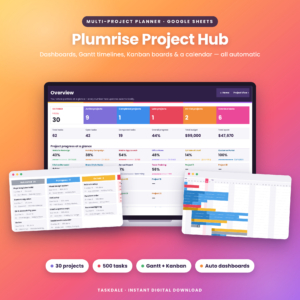
A Google Sheets project hub for up to 30 projects and 500 tasks in one master list. Each task gets a project, owner, status, priority, start and due dates, and a live due status such as 5d left or Overdue 3d. It builds two Gantt charts, two Kanban boards with owner on each card, a due-date calendar and a Team sheet showing each person’s open, overdue and completed tasks. Add your team members first, then one project at a time.
The Team sheet is the part that saves friendships. When one person has nine overdue tasks and another has two, you can see it in a chart instead of guessing.
For teams that also track money and risks
Some projects carry a budget, contractors and things that could go wrong. A renovation, a product launch, a client build with a fixed fee. For those, you want cost tracking and a place to note risks beside the task list.
Project Command Center
Price: $19.00 | Best for: freelancers and teams up to 20
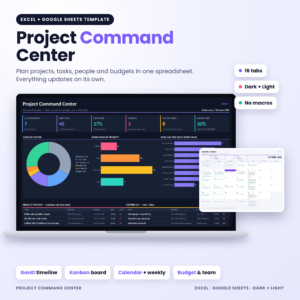
A project management spreadsheet for Excel 2013 and newer and Google Sheets, with 16 tabs that fill in from one projects list and one task list. It covers up to 50 projects and 1,000 tasks, a Gantt timeline, a Kanban board, a Team Workload tab showing hours against capacity, a Budget tab with planned versus actual, and a risk register with a 5 by 5 heat map. It comes in dark and light versions, each with and without example data. Open the example file first to see how it fills in, then switch to the blank one.
For a broader side-by-side of project templates, our roundup of the best project management templates compares five options by team size and features.
The 20-minute weekly check-in
A planner nobody looks at is a museum piece. The habit that keeps it alive is a short check-in, same day, same time, every week. Monday at 9:30 works for many teams. Friday at 3:00 works if you like to close the week tidily.
- Five minutes: overdue tasks. Go through anything past its date. For each one, the owner says what is blocking it and picks a new date.
- Five minutes: this week. Each owner reads out what is due in the next seven days. Anyone who sees a clash says so now.
- Five minutes: blocked items. Anything stuck waiting on someone else gets a name and a nudge.
- Five minutes: new tasks. Anything that came up gets added with an owner and a date before the meeting ends.
The rule that makes it work: nobody leaves with an unowned task on the list. It feels strict for two weeks. Then it feels like relief, because everyone knows exactly what is theirs.
Turning meeting notes into owned tasks
Many tasks are born in meetings and die there. Someone says “I’ll look into it”, everyone nods, and it never reaches the planner. The fix is to capture action items with an owner and a date right on the meeting page, then copy them across the same day.
If you take notes on a paper tablet, a meeting template with a fixed action items box makes this a habit rather than an afterthought.
Inkframe Productivity Suite
Price: $24.99 | Best for: e-ink tablet users who run meetings
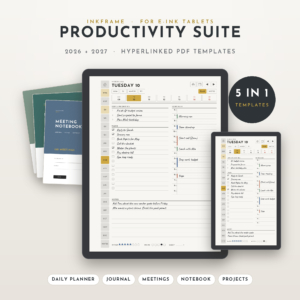
A set of five linked PDF templates sized for the Paper Pro, Paper Pro Move and model 2 e-ink tablets. The Meeting Notebook holds 150 meetings with attendees, agenda, decisions and action items, plus a five-page action item tracker. The Project Planner covers 30 projects, each with an overview, a 12-week timeline, a To Do, Doing, Done board and a budget page. Start each meeting on a new meeting page and fill in the action items box before anyone leaves the room.
Even if your team plan lives in a spreadsheet, the handwritten meeting page keeps you present in the room. Then five minutes after the meeting, each action item becomes a row with an owner and a date.
Mistakes that quietly sink a plan
- Tasks with two owners. Each assumes the other is on it. One name per row.
- Dates set by the boss alone. The person doing the work should give the estimate.
- No start dates on long tasks. A task due on the 30th that needs ten days of work must start by the 18th. Without a start date, it starts on the 28th.
- Status updates only in meetings. Ask owners to update their own rows as they go. The check-in then confirms, rather than collects.
- Never closing tasks. Finished rows should be marked done straight away. A list full of finished work looks scarier than it is and hides what is truly left.
- Too many projects at once. If the workload view shows everyone overloaded, the answer is to pause a project, not to work harder.
When a spreadsheet planner is not enough
Spreadsheet planners suit teams of one to about twenty people with a handful of projects. They are clear, cheap to run and easy to share. But they have limits.
If your team has 60 people, needs strict permissions so contractors only see their own tasks, or must log every change for compliance, dedicated project software is the better fit. The same goes for teams that need automatic email alerts when a task is reassigned. A spreadsheet will show you that information when you open it, but it will not chase people for you.
For most small businesses, households and volunteer groups, though, a well-kept sheet with clear owners does the job for years.
Frequently asked questions
What should a project planner include?
At minimum: each task, its owner, its due date and its status. Start dates, priority and a notes column help once the basics are in place. Larger projects add milestones, a budget and a list of risks.
How do I assign owners to tasks fairly?
Give each task one owner, ask them to estimate the time, and check a workload view each week. If one person has far more open or overdue tasks than others, move work before it piles up further.
How often should a project plan be updated?
Owners should update their own rows as work happens, and the whole team should review the plan once a week in a short check-in.
Can I manage several projects in one spreadsheet?
Yes. Use one master task list with a project column, then filter or build views per project. Plumrise handles up to 30 projects and Project Command Center up to 50.
Is Google Sheets good for project management?
For small teams, yes. Everyone sees the same live file, and a template with Gantt charts, boards and a team view covers most needs without a monthly subscription.
Your next step
Open a blank page and list every task in your current project with a verb at the front. Then put one name and one date beside each row, no blanks allowed. When the list is ready, move it into the Plumrise Multi Project Planner and share it with your team before Monday’s check-in.