Most planners come with a calendar that works fine. Where they fall down is the stuff around it: the habit you swore you’d build, the goal you wrote on January 2nd, the project that lives in six different notes apps. A good habit tracker digital planner page, a real goal page and a proper project page fix most of that.
This guide covers the pages worth looking for, what makes each one good, and the planners and trackers on Taskdale that have them. Some are tablet planners. One is a spreadsheet. One runs in your web browser. They’re all built around these three jobs.
Quick note on the word “inserts”: it just means extra pages you add to a planner you already use. If that’s new to you, our beginner’s guide to digital planner inserts explains it in plain terms.
What makes a good habit tracker page
A habit tracker looks simple. Rows for habits, columns for days, tick the box. But small design choices decide whether you’re still using it in week three.
Here’s what to look for:
- Enough rows, but not too many. Eight to fifteen habits a month is plenty. A page with 40 rows mostly makes you feel behind.
- A box for every day of the month. All 31 days, so long months don’t run off the edge.
- A totals column. Seeing “18 of 31” at the end of the month tells you more than a sea of ticks.
- Room to write the habit name. Big enough for “walk 10 min after lunch”, not just “walk”.
- A weekly version too. A 7-day row on your weekly spread keeps the habit in front of you, not buried on a monthly page you open twice.
Three common habit tracker layouts
| Layout | Good for | Watch out for |
|---|---|---|
| Monthly grid (habits by 31 days) | Seeing patterns over a whole month | Easy to forget if it’s buried at the back |
| Weekly row (habits by 7 days) | Daily nudges on the page you plan from | Hard to see the bigger picture |
| Streak or pebble tracker | One habit you really want to stick | Breaking a long streak can sting |
The best setups use both: a monthly page for the big picture and a small weekly tracker where you actually plan. If you’d like ideas for which habits to track in the first place, our post on 30-day habit tracker challenges that stick has a good list.
Small habit pages for the days motivation doesn’t show up
Here’s an honest truth about habit trackers. They work great when you’re keen and make you feel awful when you’re not. Miss four days and the empty boxes start to stare.
The fix is to track tiny habits. One glass of water before coffee. Two minutes of tidying. Put the meds next to the kettle. Small enough that you can do them on a bad day.
The Pebblestep ADHD Digital Planner is built around this idea. It has a micro habit builder, a ready-made menu of 42 one-minute habits, a 100-pebble streak tracker, and a 10-habit tracker with totals in every month. It’s made for ADHD and other neurodivergent minds, and for anyone who’s tired of all-or-nothing systems.
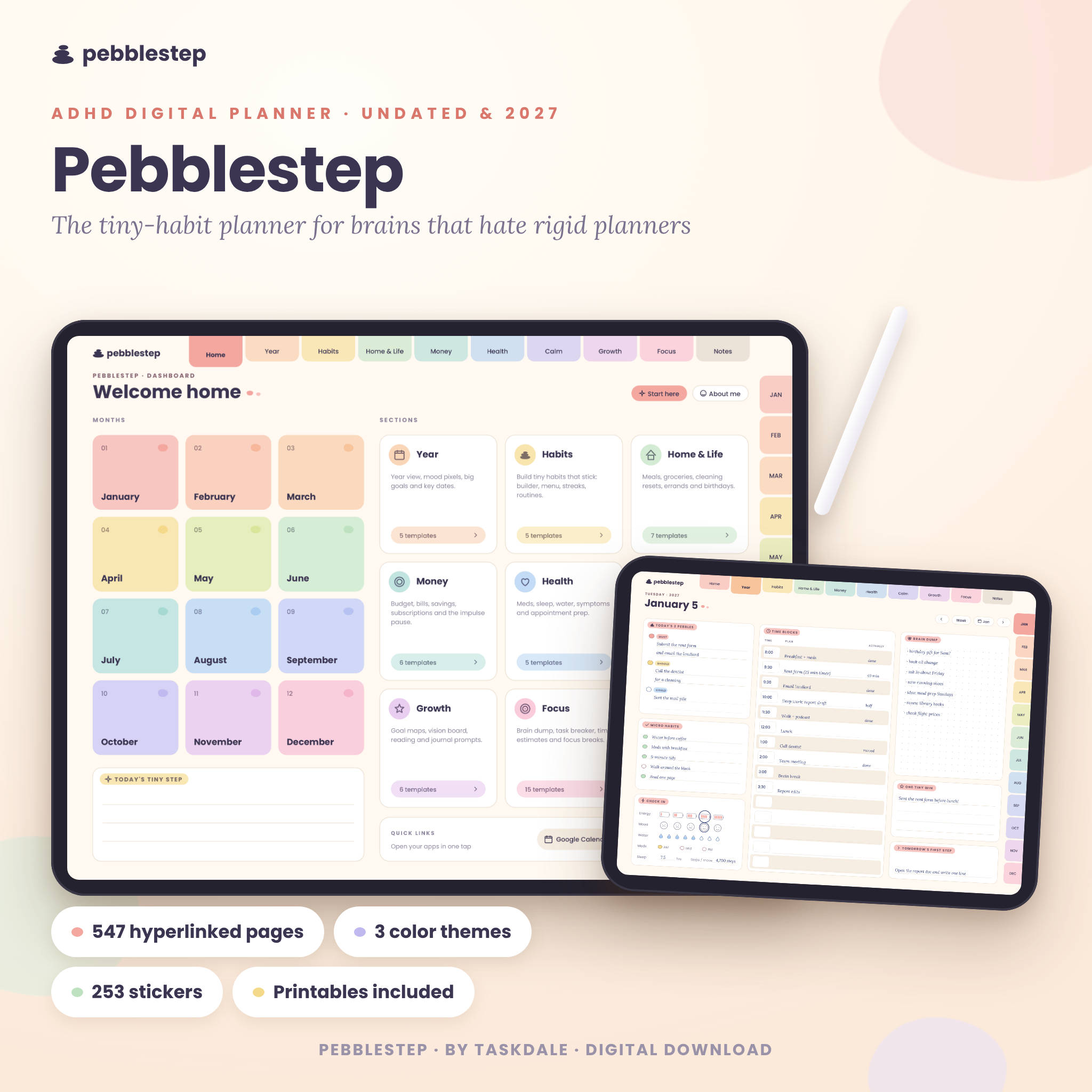
Pebblestep ADHD Digital Planner
Built around small, doable steps, with habit pages that don't punish you for a missed week.
- Micro habit builder and a menu of 42 one-minute habits
- 10-habit monthly tracker with totals and a 100-pebble streak tracker
- Undated or 2027 dated, three themes including dark mode
One thing I like about its undated version: there are no empty dates staring back at you after a rough week. You just turn to today and carry on.
When you want the counting done for you
A PDF page can’t add anything up. You tick the boxes, then count them yourself, or don’t. If you want streaks, percentages and charts without doing the math, a spreadsheet or app-style tracker is the better tool. Plenty of people use one alongside their tablet planner.
The Streakline Habit Tracker Spreadsheet works in Excel and Google Sheets. You list up to 40 daily habits, set how many days a week you’re aiming for, and tick each day. It fills in streaks, rings, charts and a Year in Pixels view by itself.
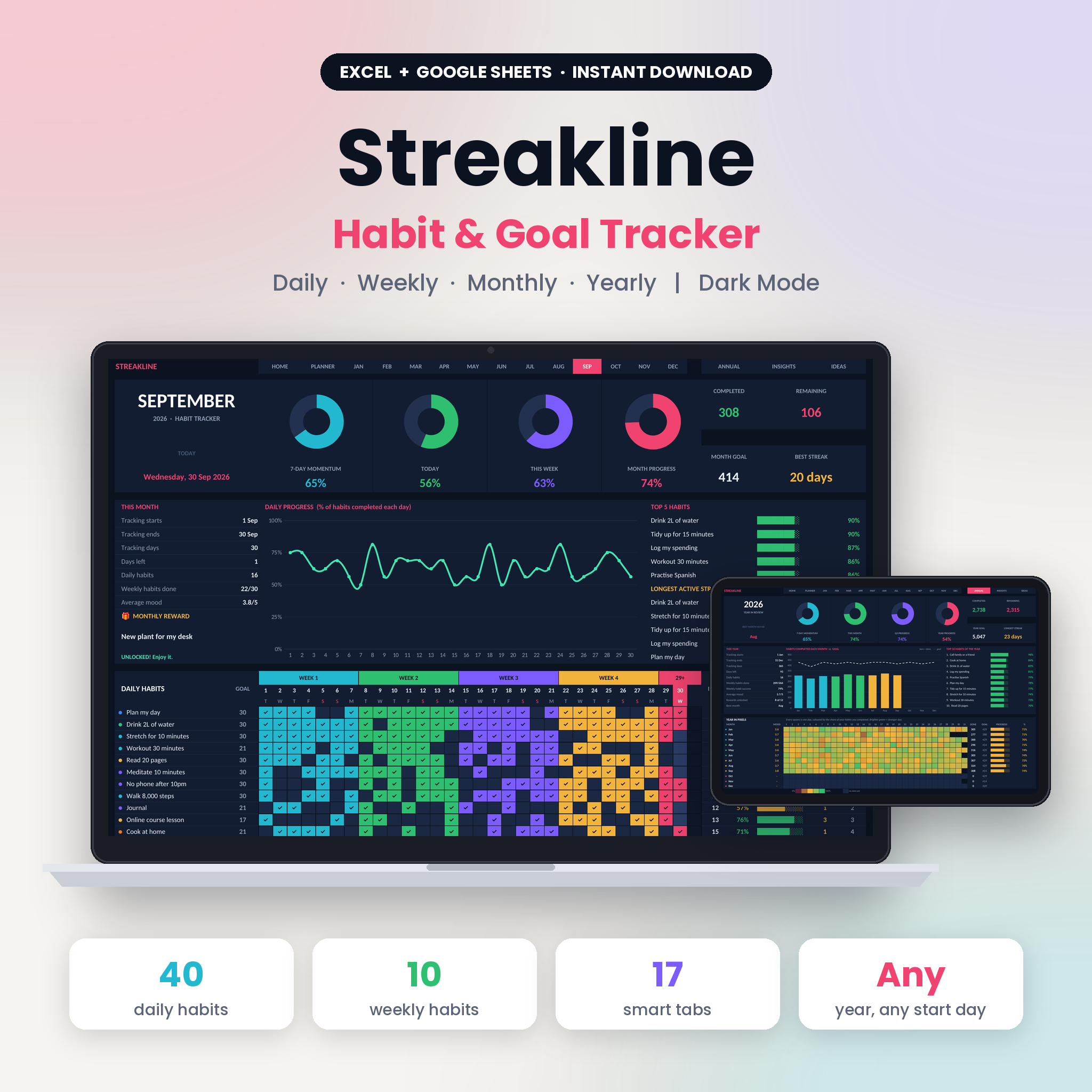
Streakline Habit Tracker Spreadsheet
A spreadsheet tracker that works out your streaks, rings and charts while you just tick the boxes.
- Works in Excel and Google Sheets, no macros
- Up to 40 daily habits with days-per-week goals
- Year in Pixels view and an annual dashboard
The days-per-week goal is the clever bit. A gym habit you only plan three times a week isn’t marked as a failure on the other four days. That alone makes it feel a lot fairer than a plain grid.
The downside? You’re typing in a spreadsheet, not writing with a pen. If handwriting is half the joy of planning for you, keep the spreadsheet for the numbers and your planner for everything else.
Goal pages that turn a wish into weekly steps
“Get fit” isn’t a goal. It’s a mood. A good goal page makes you write down what done looks like, why it matters, and the first few steps.
The pages that work best come as a small set:
- A yearly goals page with three to five goals, spread across life areas.
- A goal breakdown page for each one: why, what done looks like, milestones, steps.
- A quarter plan so a 12-month goal becomes a 13-week one.
- A check-in page you come back to every month or quarter.
Here’s what that looks like for a real goal. Say it’s “run a 5K by June”. Done looks like crossing a finish line without walking. The quarter plan says: January to March, run three times a week, building to 20 minutes. The first step for this week is buying shoes that don’t hurt. Suddenly it’s not a resolution. It’s a Tuesday task.
That fourth page is the one most planners skip, and it’s the one that matters. Goals don’t fail in January. They fade in April when nobody looks at them. For a worked example of the 90-day approach, see our guide to turning one big goal into a 90-day plan.
If you’d rather have the progress tracked for you, Becoming Atlas is a goal planner and habit tracker that opens in your web browser. Tick a step and the goal’s progress bar moves. Log a habit and your streak and weekly score update on their own.
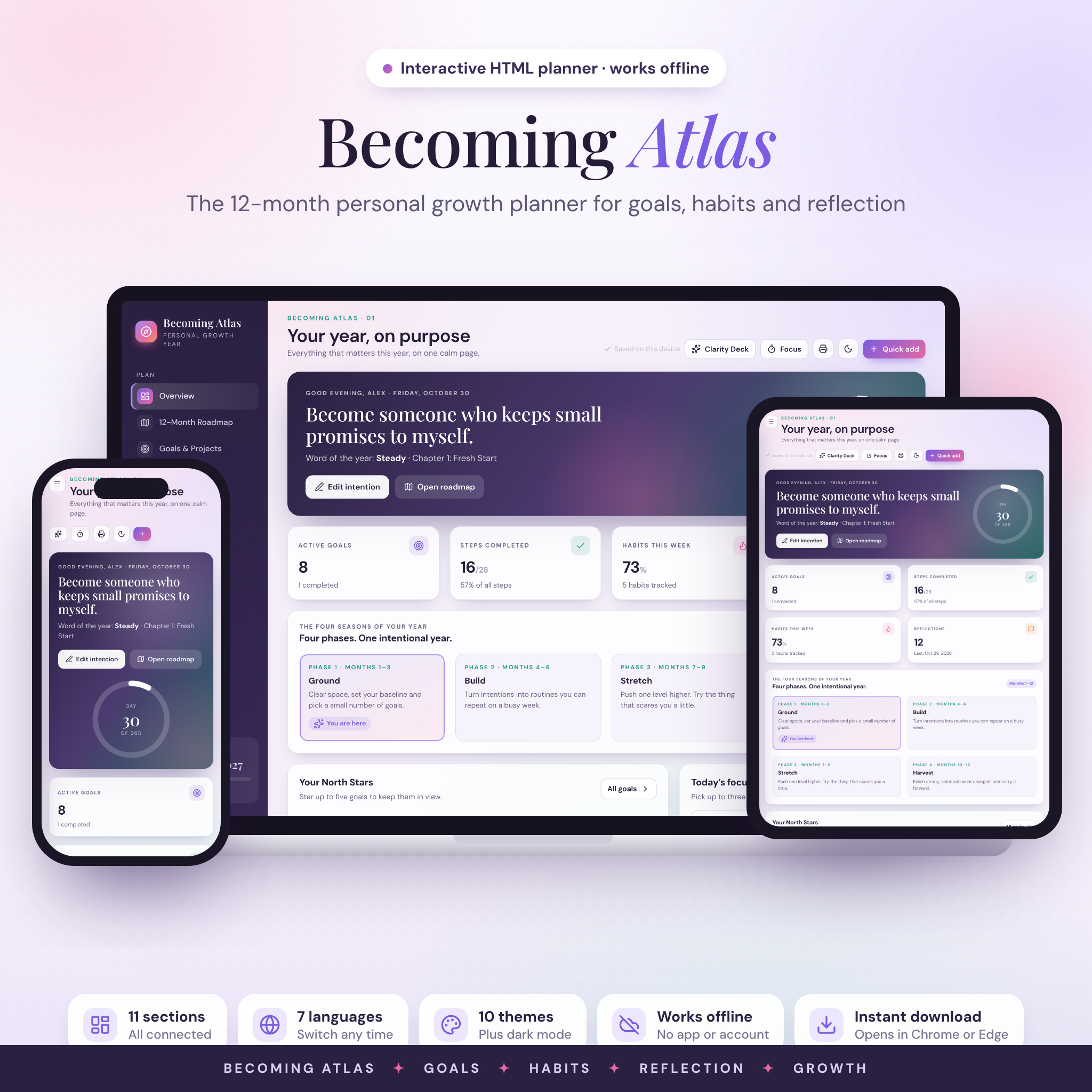
Tick a goal step and the progress bar moves, with habits, reviews and a 12-month roadmap in the same place.
- Opens in your web browser and works offline
- Goals with step checklists and a 12-month roadmap
- Habit streaks, a 12-week heatmap and weekly reviews
It’s a different kind of tool from a PDF planner. It’s tested in Chrome and Edge on computers, and your data saves in that browser rather than syncing between devices, so treat it as your goals desk rather than something you scribble in on the sofa.
Year in review pages: the ones to grab before January
It’s November. This is the best time of year to add review pages, because you can still see what happened this year before you plan the next one.
A good year review asks a handful of plain questions. What went well? What drained you? Which part of life needs attention? Then it turns the answers into goals, and the goals into habits you track month by month.
The Turning Leaf 2026 Year in Review Workbook does exactly that in 58 fillable and printable pages. You look back on 2026, pick three goals for 2027, plan them by quarter, then track the habits behind them on 12 monthly trackers dated for 2027.

2026 Year in Review Workbook & 2027 Goal Planner
Look back on 2026, then turn what you learn into three goals and the habits that support them.
- 58 fillable and printable pages in US Letter and A4
- 12 monthly habit trackers dated for 2027
- Four quarterly check-ins through 2027
You can type into it on a computer, write on it in a tablet note app, or print it. Four quarterly check-ins are dated through 2027, so the plan doesn’t vanish after New Year’s Day.
Project pages that keep work from falling apart
Projects need different pages from daily life. A to-do list on your daily page is fine for “call the plumber”. It’s useless for a website rebuild, a house move or a wedding.
Look for these pages in any project planner:
- A project overview: name, dates, budget and a progress bar.
- A task list or kanban board: to do, in progress, done.
- A simple timeline: so you can see what has to happen before what.
- Meeting notes: with space for decisions and action items, not just notes.
- A budget page: planned against actual, so you notice drift early.
The Kickoff to Close Digital Project Planner puts all of that into one hyperlinked PDF for GoodNotes, Notability and Noteful. One file holds six projects with 27 linked pages each, plus a Home dashboard showing every project’s progress on one screen.
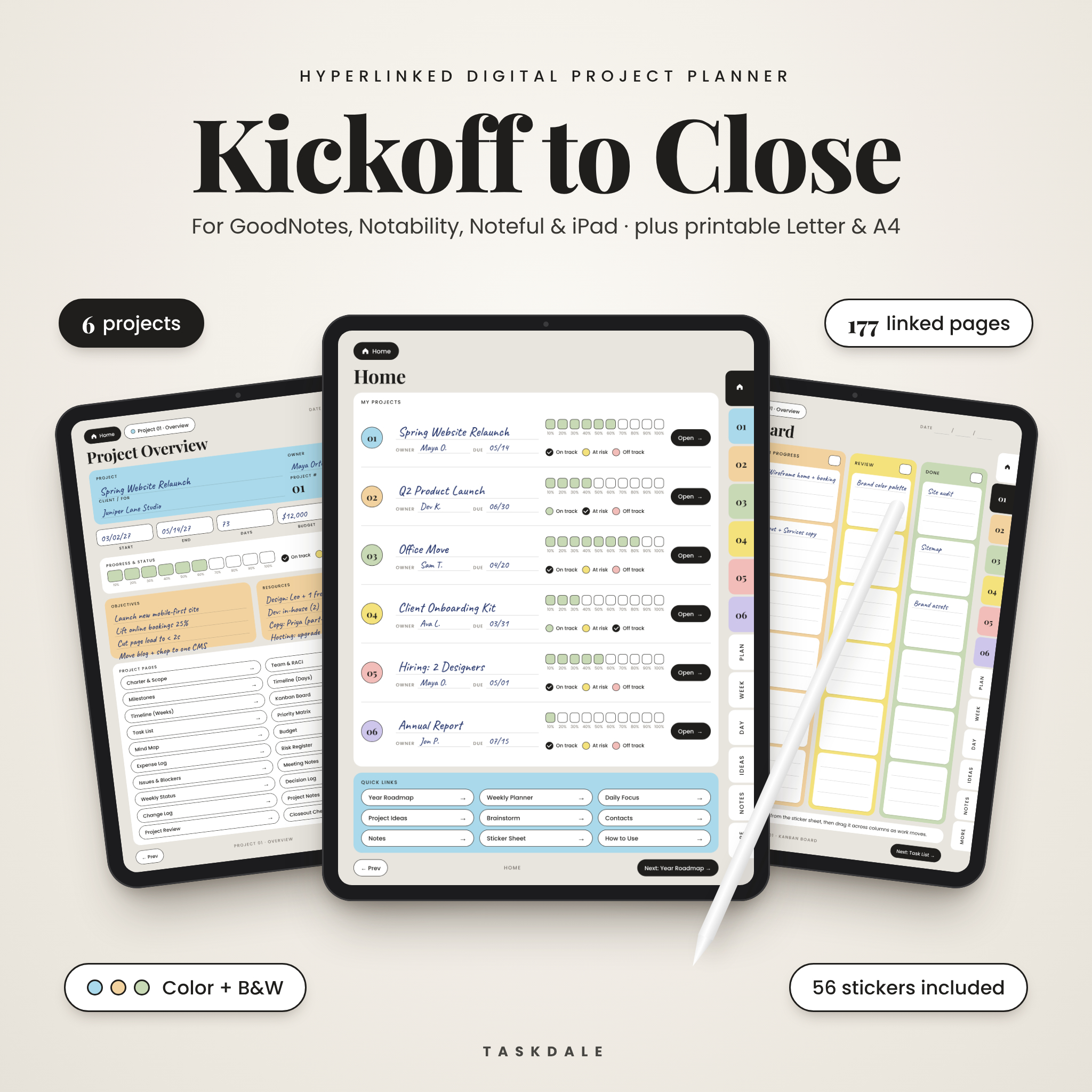
Digital Project Planner for GoodNotes & iPad
Every page a project needs, linked together, with a dashboard that shows which one needs you today.
- Six projects per file, 27 linked pages each
- Kanban board, Gantt-style timelines and a budget page
- Undated, with color and black-and-white editions
It’s undated, so you can start any day, and it includes a black-and-white edition if you plan on an e-ink tablet.
A word on scope. If you’re juggling more than three or four live projects, the overview page matters more than anything else. You want to open one page on Monday morning and see which project is on track and which one is quietly slipping. Without that, you end up working on whichever project shouted loudest last.
And keep project tasks out of your daily to-do list until they’re actually due this week. Otherwise the daily page fills up with “redo the website” and you never get to the small, finishable jobs.
How to fit these pages into the planner you already use
You don’t have to switch planners to get better habit, goal and project pages. You have a few choices:
- Keep them in a separate notebook. A project planner works well as its own file, in the same folder as your main planner.
- Add PDF pages at the end of your planner. It’s the safest spot, because the built-in links don’t move. Our guide to adding inserts to a digital planner without breaking the links walks through it.
- Use a spreadsheet or browser tracker alongside. Your planner handles the day. The tracker handles the counting.
Pick one home for each job and stick to it. Two habit trackers in two places is how habits get lost.
Here’s a setup that works well for a lot of people. The main tablet planner holds the calendar, the weekly spread and a small weekly habit row. A separate project notebook sits in the same folder. And a spreadsheet tracker, opened once a week on a laptop, does the counting for the two or three habits you care most about. Three tools, but each one has a single clear job, so nothing gets written twice.
If that sounds like too much, start with just the planner. Add the second tool only when you notice yourself wishing for it.
A simple weekly routine that ties it together
Pages only help if you look at them. This ten-minute Sunday routine is enough for most people:
- Open the habit tracker. Count the week’s ticks. Pick one habit to protect next week.
- Open your goal page. Write the one step you’ll take this week.
- Open each active project. Move one card or tick one task. Note the next step.
- Copy those three things onto next week’s spread.
That’s it. No color coding, no perfect handwriting. Just one look at each page, once a week.
FAQ
Can I add a habit tracker to a digital planner I already have?
Yes. Add the tracker pages at the end of your planner file, or keep them in a separate notebook. Bookmark them so you can reach them in one tap.
Is a spreadsheet habit tracker better than a PDF one?
It depends on what you enjoy. A spreadsheet counts streaks and draws charts for you. A PDF page feels more like a paper planner and works with a stylus. Lots of people use both.
How many habits should I track at once?
Start with three to five. Once they feel automatic, add another. A page with fifteen habits on day one rarely survives February.
Do these pages work on Android tablets?
The PDF planners work in Android apps that support PDF links, like Xodo or Noteshelf. Spreadsheets work in Google Sheets. Browser-based trackers depend on the browser, so check each listing.
Start with whichever page you’re missing most. For most people that’s the check-in page, the one you come back to. Get that habit going and everything else follows.