A digital calendar planner sits somewhere between a paper diary and a phone calendar. You write on it with a stylus like paper, but it lives on your tablet, tap a date and you jump straight to that day, and you never run out of pages. For many people it is the first planner they have kept going past March.
This guide explains how digital calendar planners work, which apps you need on iPad and Android, how to load one in a few minutes, and how to use the monthly, weekly and daily pages together. It also covers spreadsheet calendars that run on a tablet, how to pair a handwritten planner with phone reminders, and the mistakes that make people give up.
It is for students, parents, freelancers and anyone with a tablet who wants a calm, handwritten calendar without carrying a notebook around.
Quick picks: digital calendar planners
| Product | Best for | Price | Link |
|---|---|---|---|
| Wayfold 2027 Digital Planner | Handwritten planning with Apple or Google Calendar buttons | $27.99 | View |
| Bloom Digital Planner 2026 2027 2028 | Three years of daily, weekly and monthly pages | $1.29 | View |
| MonthMosaic Monthly Calendar Planner | A typed calendar in Excel or Google Sheets | $8.40 | View |
| Monthly Scheduler Spreadsheet | Events typed once and placed on every view | $2.00 | View |
What a digital calendar planner actually is
There are three kinds of digital calendar, and they suit very different people.
Hyperlinked PDF planners
A PDF file with hundreds of pages, all linked together. Month tabs run down the side, dates on the monthly page link to that day, and buttons take you back home. You open it in a note-taking app and write on it with a stylus. It looks and feels like a paper planner, without the weight.
Spreadsheet calendars
An Excel or Google Sheets file laid out as a calendar. You type rather than write, and formulas do the heavy lifting: dates fill in, events appear on the right day, progress bars update. These run on a tablet through the Excel or Google Sheets app.
Calendar apps
Apple Calendar, Google Calendar and the like. Great for reminders and shared family events, less good for thinking, planning and seeing a whole month at a glance in your own handwriting.
Many people end up using a planner for thinking and planning, and a calendar app for alerts. Later in this guide you will see how to make the two work together.
What you need on your tablet
Before buying any digital planner, check you have the basics.
- A tablet. An iPad of almost any recent generation, or an Android tablet. A larger screen makes the weekly and monthly pages easier to write on.
- A stylus. An Apple Pencil, a compatible third-party stylus, or the pen that came with your Android tablet. You can use a finger, but writing small dates gets frustrating.
- A PDF note-taking app. On iPad, popular choices include GoodNotes, Notability and Noteshelf. On Android, Xodo, Noteshelf and similar apps work. Check that your app supports PDF hyperlinks.
- Somewhere to store the file. iCloud, Google Drive or your tablet’s own storage. The planner file can be large, so leave some room.
For a spreadsheet calendar, you only need the free Google Sheets app or the Excel app. No stylus required.
Loading a digital planner in five minutes
The steps are similar in most apps. Here is how it goes in a typical note-taking app.
- Download the planner on your tablet, or on a computer and save it to cloud storage.
- Unzip it if it comes as a ZIP file. The Files app on iPad does this with one tap.
- Choose your version. Many planners include Sunday and Monday starts, light and dark modes, or portrait and landscape. Pick one and stick with it.
- Open it in your note app. Tap the PDF, choose “Share” or “Open in”, and select your app. It will import as a new notebook.
- Test the links. Switch to read or view mode, then tap a month tab and a date. If nothing happens, check your app’s link settings.
Once it opens on today’s date with one tap, you are set up. That small moment of everything clicking into place is satisfying.
If you are new to setting up a planner on an iPad, our walk-through for a digital planner in GoodNotes set up in an hour covers templates, stickers and app settings step by step.
Using the monthly, weekly and daily pages together
A digital calendar planner usually has three layers. Using each one for its own job keeps the planner tidy and fast.
Monthly: the big picture
Write fixed dates here: appointments, birthdays, school holidays, bill due dates, trips. Keep it short. One or two words per entry. The monthly page is for seeing the shape of the month, not for detail.
Weekly: the working plan
Every Sunday, open the coming week. Copy across anything from the monthly page, then add tasks, meals, workouts or errands. This is where most of your planning happens.
Daily: busy days only
You do not need to fill a daily page every day. Use it for days with lots going on: a full schedule, a big deadline, a trip. On quiet days, the weekly page is plenty.
Picture a nursing student with lectures, two clinical rotations and a part-time job. Exam dates and rotation blocks go on the monthly page in September. Each Sunday she fills the weekly spread with lectures, shifts and study slots. On clinical days she opens the daily page and writes the unit, the start time and three things to review. Three layers, each doing one job.
A planner that covers several years in one file means you never have to migrate notes or rebuild your system each January.
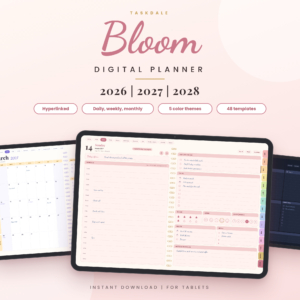
Bloom Digital Planner 2026 to 2028
Price: $1.29 | Best for: students and parents planning several years
Bloom is a hyperlinked PDF planner for tablets running from January 1, 2026 to December 31, 2028, with 1,096 daily pages, a weekly planner and an hourly weekly schedule for every week, 36 monthly calendars and a year plan for each year. It comes in five color themes with Sunday and Monday starts, and a top bar and side month tabs take you anywhere in one tap. Open it to this month, write in your fixed dates, then tap through to this week.
Dated or undated: which to choose
Digital planners come in two flavors, and the choice matters more than it first seems.
Dated planners have every date printed and linked. Tap March 14 on the monthly page and you land on March 14. Setup takes minutes, and you never write a date by hand. The trade-off is that the planner has an end date, so you will need a new one when it runs out.
Undated planners leave the dates blank. You can start in any month and reuse the file year after year, but you write in the dates yourself, and the links go to page numbers rather than specific days.
For most people who want a calendar first and a journal second, dated is the easier choice. If you plan in bursts, skip months, or want one file to last for years, undated is kinder. A multi-year dated planner sits nicely in the middle: no date writing, and no new file for a while.
Pairing a handwritten planner with phone reminders
The one thing a handwritten planner cannot do on its own is beep at you. If you write “dentist 3:15” on Tuesday, nothing reminds you at 2:45. That is why many people keep a calendar app alongside their planner.
The simplest system is this: write everything in the planner, and add only time-sensitive appointments to your phone calendar with an alert. Meetings, appointments, school pickups that change. Tasks and ideas stay in the planner.
Some planners make this easier by adding calendar buttons to each day. Tap the button and a new event opens in Apple Calendar or Google Calendar already set to that date, so moving an appointment across takes seconds.
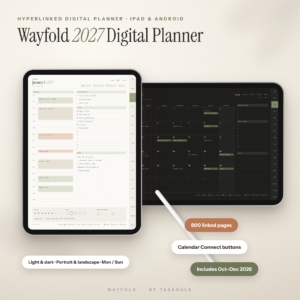
Wayfold 2027 Digital Planner
Price: $27.99 | Best for: people who want paper feel and phone alerts
Wayfold is a hyperlinked 2027 digital planner for iPad and Android with 800 linked pages, a start-of-year workbook and Calendar Connect buttons on every daily page that open Apple Calendar, Google Calendar or Apple Reminders on that exact date. It includes an October to December 2026 mini planner, eight versions (portrait or landscape, light or dark, Monday or Sunday start), stickers, covers and a user guide. Write your week by hand, then tap the calendar button for any appointment that needs an alert.
When a spreadsheet calendar is the better choice
Not everyone wants to write with a stylus. If you prefer typing, or you share the calendar with someone on a laptop, a spreadsheet calendar might suit you better. It runs on a tablet through the Google Sheets or Excel app, and on a computer at work.
Spreadsheet calendars shine at a few things a handwritten planner cannot do:
- Automatic dates. Choose the year and start day, and every month lays itself out.
- Repeating key dates. Add a birthday once and it appears on the right day every year.
- Progress tracking. Tick off tasks and see daily, weekly and monthly completion rates.
- Sharing. A Google Sheets calendar can be shared with a partner or team, and both people see changes straight away.
For a closer look at how these work, see our guide to a monthly calendar spreadsheet that fills itself in.

MonthMosaic Monthly Calendar Planner
Price: $8.40 | Best for: typists who like progress tracking
MonthMosaic is an editable monthly calendar planner for Excel and Google Sheets with twelve monthly tabs and five task lines under every date. Choose your year and start day and the dates, weekdays and US holidays update automatically. Key dates added once appear every year, tasks cross out with a tick dropdown, and a dashboard shows completion rates, best month and an upcoming key-dates countdown. Open it in the Google Sheets app on your tablet and add your key dates first.
Hyperlinked PDF or spreadsheet: a quick comparison
| Hyperlinked PDF planner | Spreadsheet calendar | |
|---|---|---|
| How you enter plans | Handwriting with a stylus | Typing |
| Best on | iPad or Android tablet | Tablet, laptop and phone |
| Feel | Like a paper planner | Like a tidy, automatic grid |
| Reminders | Needs a calendar app alongside | Needs a calendar app alongside |
| Sharing | Hard, it lives in your note app | Easy with Google Sheets |
| Extras | Stickers, journaling, goal pages | Progress bars, totals, charts |
If you love the feel of writing and want a planner that is just for you, choose a PDF. If you want automatic dates, sharing and numbers, choose a spreadsheet. Some people happily use both: a spreadsheet for the shared family calendar and a PDF planner for personal planning.
A 30-minute first setup
Set aside half an hour the first time. It makes the planner yours and gets you using it straight away.
- Load the planner and test the links (5 minutes).
- Fill in the year at a glance with birthdays, holidays and known trips (10 minutes).
- Write this month’s fixed dates on the monthly page (5 minutes).
- Plan this week on the weekly spread (5 minutes).
- Add the planner to your dock or home screen so it is one tap away (1 minute).
- Pick your pen colors: one for appointments, one for tasks, one for personal (4 minutes).
Keep it simple at first. Stickers and decorating can come later, once the habit is in place.
Mistakes that make people abandon digital planners
- Too many versions open. Import one file only. Five copies of the same planner is a recipe for confusion.
- Writing in edit mode and tapping in view mode. Learn your app’s switch between writing and following links. It saves a lot of stray marks.
- No backup. Turn on your app’s automatic backup or cloud sync. Losing a year of handwritten plans is painful.
- Decorating instead of planning. Stickers are fun, but if setting up a week takes an hour, you will stop by October.
- No reminders for timed events. Put appointments with a set time into your phone calendar as well.
Frequently asked questions
What is the best app for a digital calendar planner?
On iPad, GoodNotes, Notability and Noteshelf are common choices. On Android, Xodo and Noteshelf are popular. Pick one that supports PDF hyperlinks and handwriting.
Do digital planners work on Android tablets?
Yes. Most hyperlinked PDF planners work in Android note apps that support PDF links. Test the month tabs after importing.
Can a digital planner send me reminders?
A PDF planner cannot send alerts on its own. Add timed appointments to your phone calendar, or use a planner with buttons that open a calendar event on the right date.
Is a dated or undated digital planner better?
Dated planners save setup time and link dates automatically. Undated planners let you start any month and reuse the file, but you write the dates in yourself.
Can I use a spreadsheet as a calendar on my tablet?
Yes. Excel and Google Sheets calendar templates work in their tablet apps, and Google Sheets lets you share the calendar with family or a team.
Your next step
Decide tonight whether you want to write or type. If you want to write, open your note app, create a test notebook and try writing a few dates with your stylus. If it feels good, load a planner and do the 30-minute setup this weekend. For handwritten planning that still sends your appointments to your phone, start with the Wayfold 2027 Digital Planner.