Google Sheets has one big advantage over every other meal planning tool: the person you live with can open it. Same file, on their phone, at the shop, at 5:52pm when they’re wondering whether there’s still pasta at home. No app to install, no account to share, no “can you send me the list?” text.
A Google Sheets meal planner turns that shared file into the place your week gets decided. You choose meals, the sheet adds up the ingredients, and the grocery list is there for whoever does the shopping. This guide walks through how that works in practice using TableTally, a template built and tested in Google Sheets, and who it suits (and who it doesn’t).
Why use a Google Sheets meal planner at all?
- It’s free to run. Google Sheets costs nothing with a Google account.
- It’s shared by default. Share your copy with your household and everyone sees the same plan and list.
- It works on your phone. Plan on a laptop, tick off the list in the Sheets app at the store.
- It does arithmetic. Which is the whole reason to pick a spreadsheet over paper.
Setting up TableTally in about ten minutes
You download an .xlsx file, upload it to Google Drive, open it, and choose File, then Save as Google Sheets. The user guide walks through this with each step. There are no scripts, macros or add-ons, so you’ll never see a permission pop-up asking for access to your account. Then open the Start Here tab and set four things: colour theme (there are four), currency symbol, household size and weekly budget.
Step 1: Add the recipes you actually cook
Type each recipe and its ingredients once. Costs and calories are optional, so if you only care about the list, skip them. The file holds 150 recipes and 1,500 ingredient lines.
Units are free text, so “g”, “cups”, “tins” and “handful” all work. One tip: use the same unit for the same ingredient every time (“g” for pasta, not grams in one recipe and cups in another), so the list can combine them properly.
For meals that aren’t really recipes (cereal, toast, your usual takeout order), there’s a Quick Meals list. Add them with a calorie count and they’re ready to drop into the plan without a full recipe.
Step 2: Plan the week
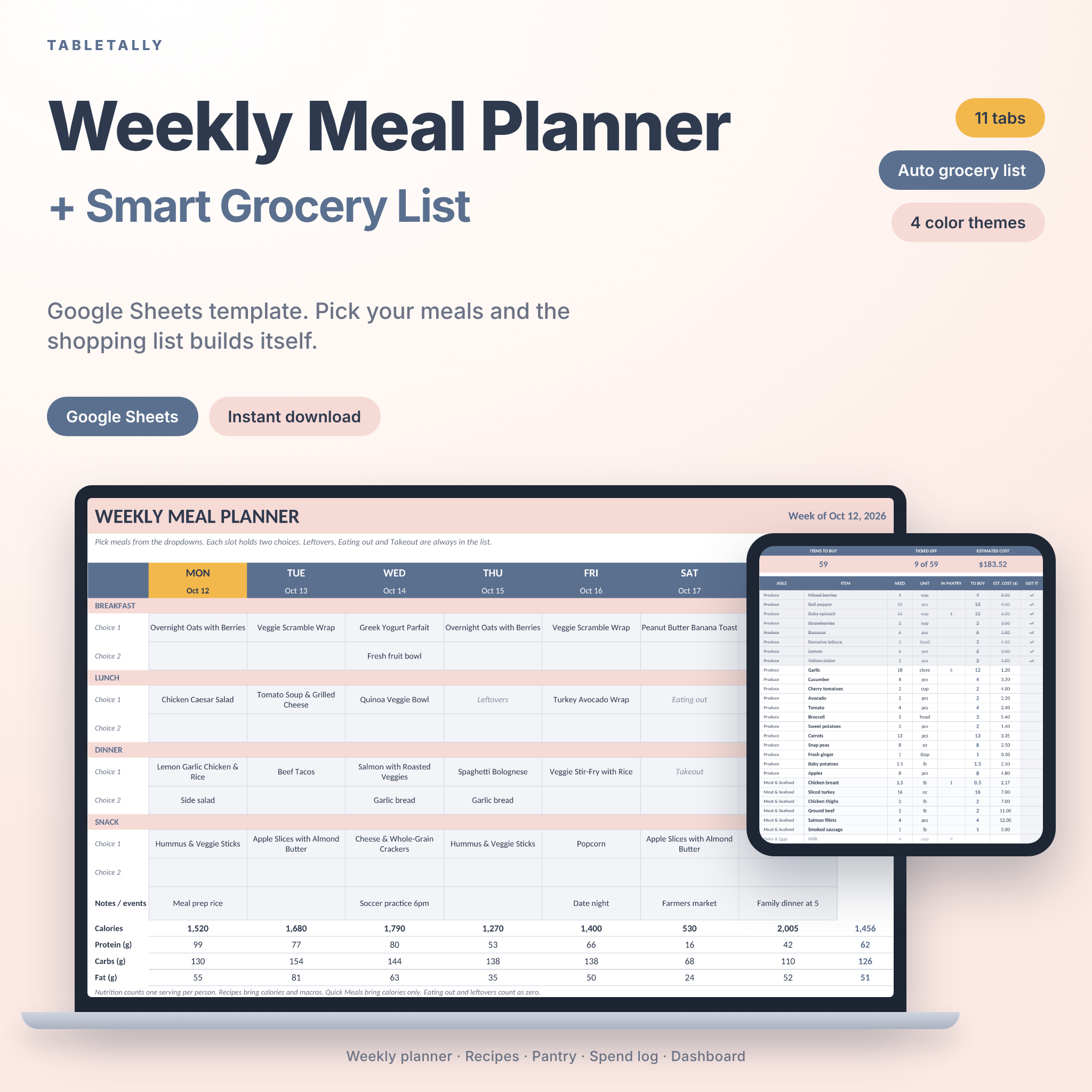
The weekly planner has seven days and four meal types, and each slot has two choices. That second slot is more useful than it sounds: it gives sides a home (curry plus rice), or a backup if plans change. Today’s column is highlighted in gold so you don’t have to think about which day it is.
Under each day, calories, protein, carbs and fat add up, with a weekly average. There’s also a notes row for things like “practice night” or “late meeting” and a small prep and to-do list.
If you’re stuck for ideas, the Meal Ideas tab has 160 suggestions: 40 each for breakfast, lunch, dinner and snacks.
Step 3: Tell it what’s in the kitchen
The pantry tracker logs what you own, where it lives and when it expires. Rows turn amber when food needs using soon, red when it’s expired and blue when stock runs low. Anything you have comes off the shopping list. Expired items are never counted, so you buy a fresh one instead of trusting a carton of cream from last month.
Step 4: Shop from the automatic list
This is the bit that saves the time. If three meals use garlic, you see one garlic line with the combined amount. Recipes scale to your household size, so a recipe written for two becomes the right amount for four. You can switch scaling off if you’d rather use amounts exactly as typed. Totals, units, aisles and estimated costs are filled in, and you tick items off as you go.
The automatic list shows up to 80 items, with 40 more lines for extras like dish soap and paper towels. For a normal family week that’s plenty.
Step 5: Check the dashboard
Eight number tiles and four charts update as you change the plan: calories per day, macro split, meals by type, and groceries against spend against budget. The spend log takes each food purchase with a date, store and category, and shows what’s left of your weekly budget.
A realistic Sunday with TableTally
Say you’re a couple with one child. On Sunday evening you open the planner, fill five dinners from your recipes, drop “Leftovers” and “Pizza night” quick meals into the gaps, and add breakfast staples. You check the pantry tab: two items are amber, so Monday’s dinner changes to use the mince that needs cooking. The grocery list now shows 34 items with an estimated cost. Your partner opens the same sheet on their phone at the shop on the way home Monday. Total time at the laptop: about 15 minutes.
Who TableTally suits
- Couples and housemates who share cooking and shopping
- Families who want dinner decided before 5pm
- Anyone tracking calories and macros per person
- Meal preppers planning one big shop a week
- Budget watchers who want spending against a weekly target
Who it doesn’t suit
Being upfront matters here. TableTally was built and tested only in Google Sheets. It’s a standard .xlsx, but if you live in Microsoft Excel, it isn’t the supported option, and you’d be better off with an Excel-tested planner. It’s also a one-week planner: if you want to plan a whole month at once, look elsewhere. And if you’d rather write with a pen, a printable will make you happier.
Google Sheets meal planner FAQ
Do I need to pay for Google Sheets?
No. Google Sheets is free with a Google account, and TableTally needs no paid add-ons.
Can two people use the same planner?
Yes. Share your working copy with the people in your household and you can all view and edit it, including from the Sheets phone app.
Does it work with metric units?
Yes. Units are free text, so grams, kilograms, millilitres and litres work as well as cups, ounces and pounds.
Can I print the plan and the list?
Yes. The weekly planner prints on one page and the grocery list prints as a checklist.