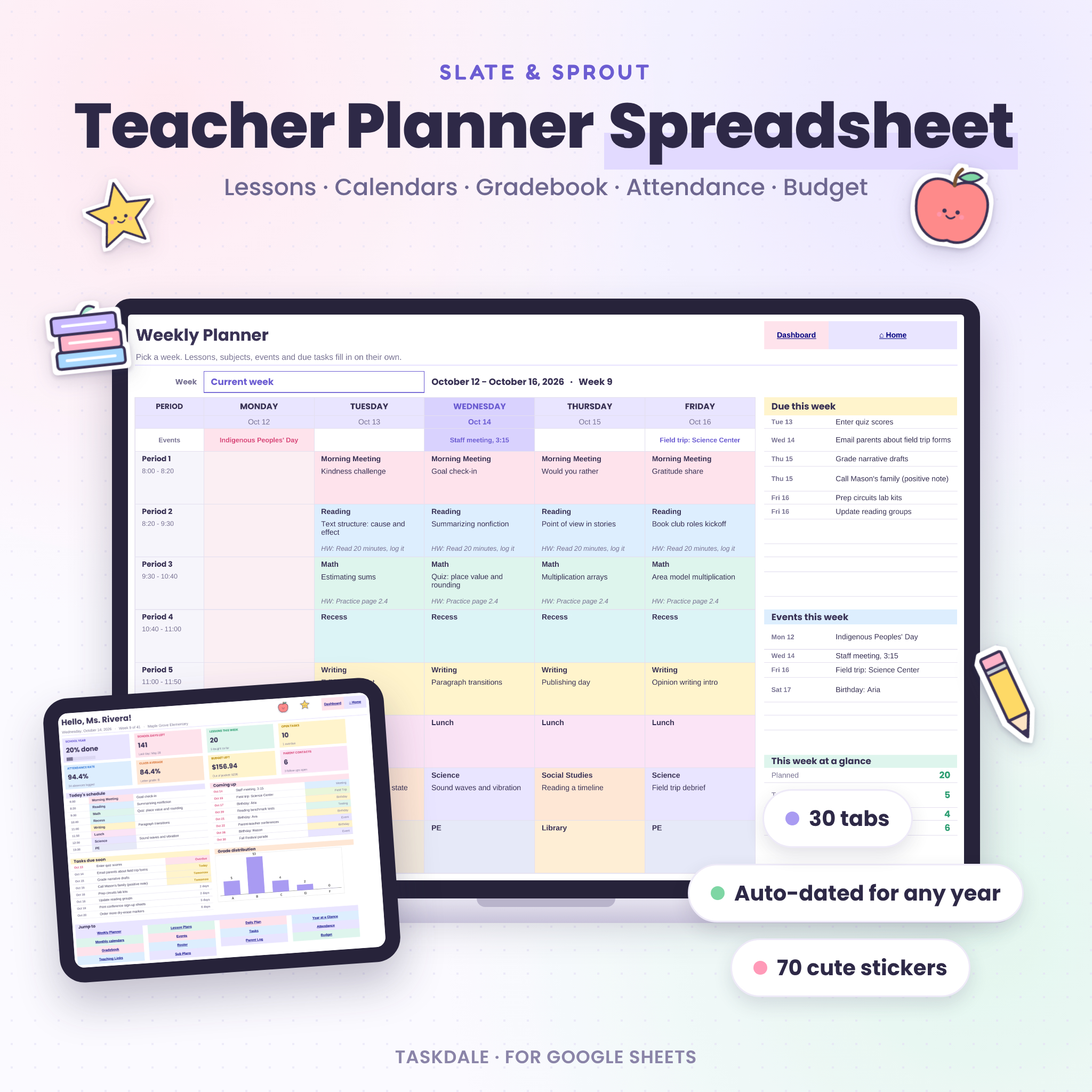
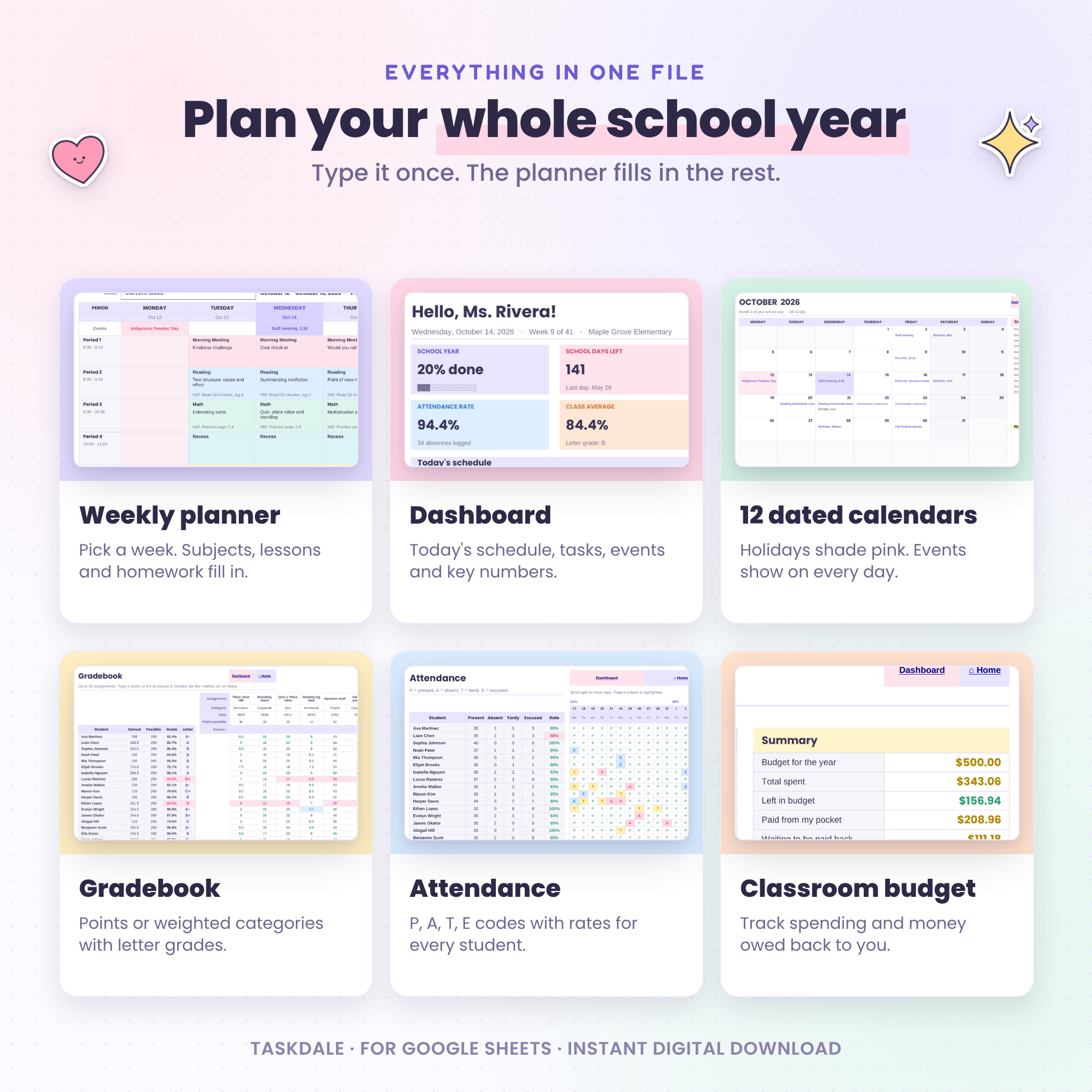
This teacher planner spreadsheet for Google Sheets puts your lesson plans, calendars, gradebook, attendance and classroom budget in one file. You fill in your school year once. After that, the planner dates every calendar, colors every subject and fills each week with your timetable. Type a lesson in one place and it shows up on the weekly planner, the daily plan, the dashboard and your sub plans.
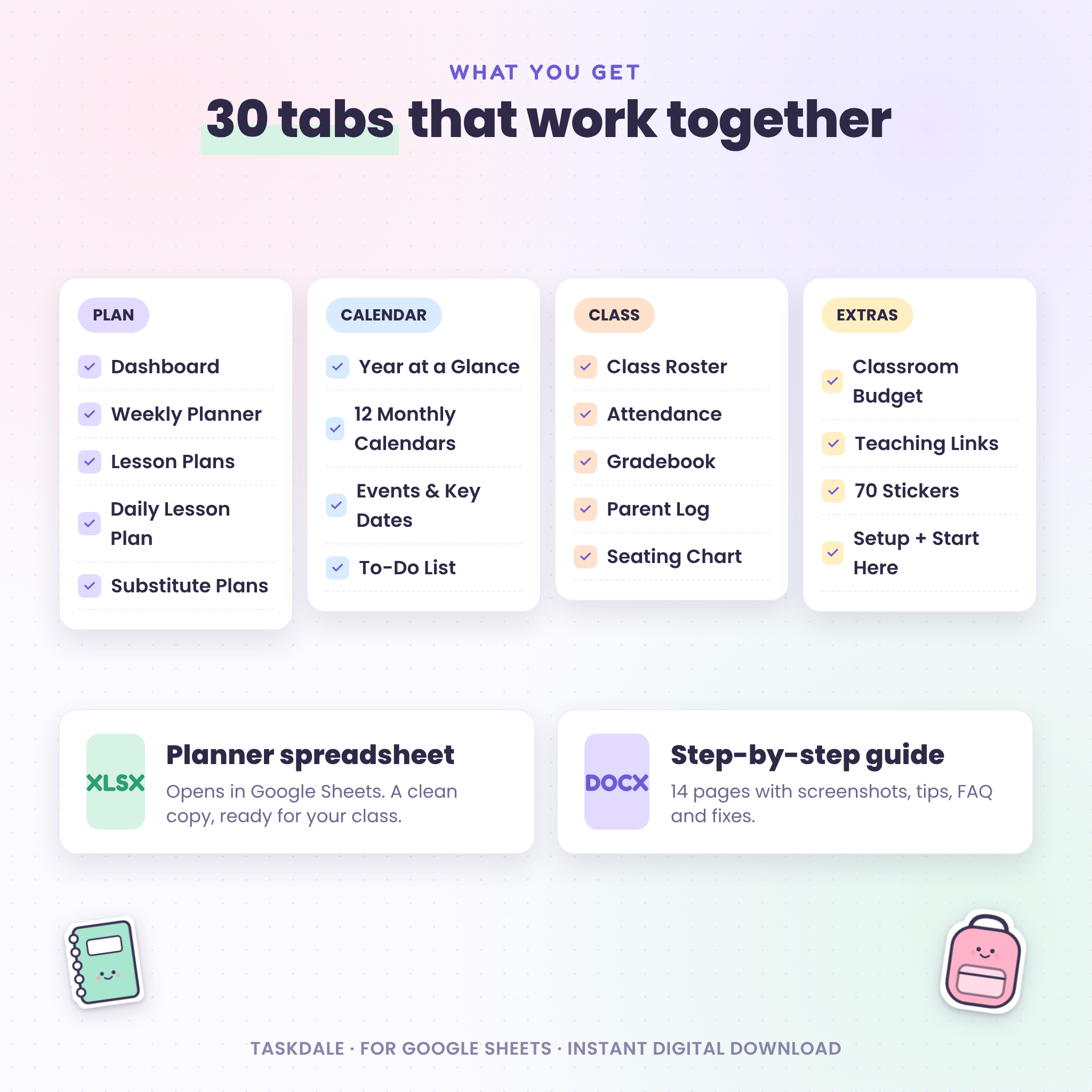
Slate & Sprout has 30 tabs, 70 original stickers and a 14-page guide with screenshots. It’s built for real teachers on real school days, so it stays simple even when your week isn’t.
What this teacher planner spreadsheet does
Most spreadsheet planners give you one weekly page and ask you to copy it again and again. Plans get duplicated. Old weeks disappear. This one works differently.
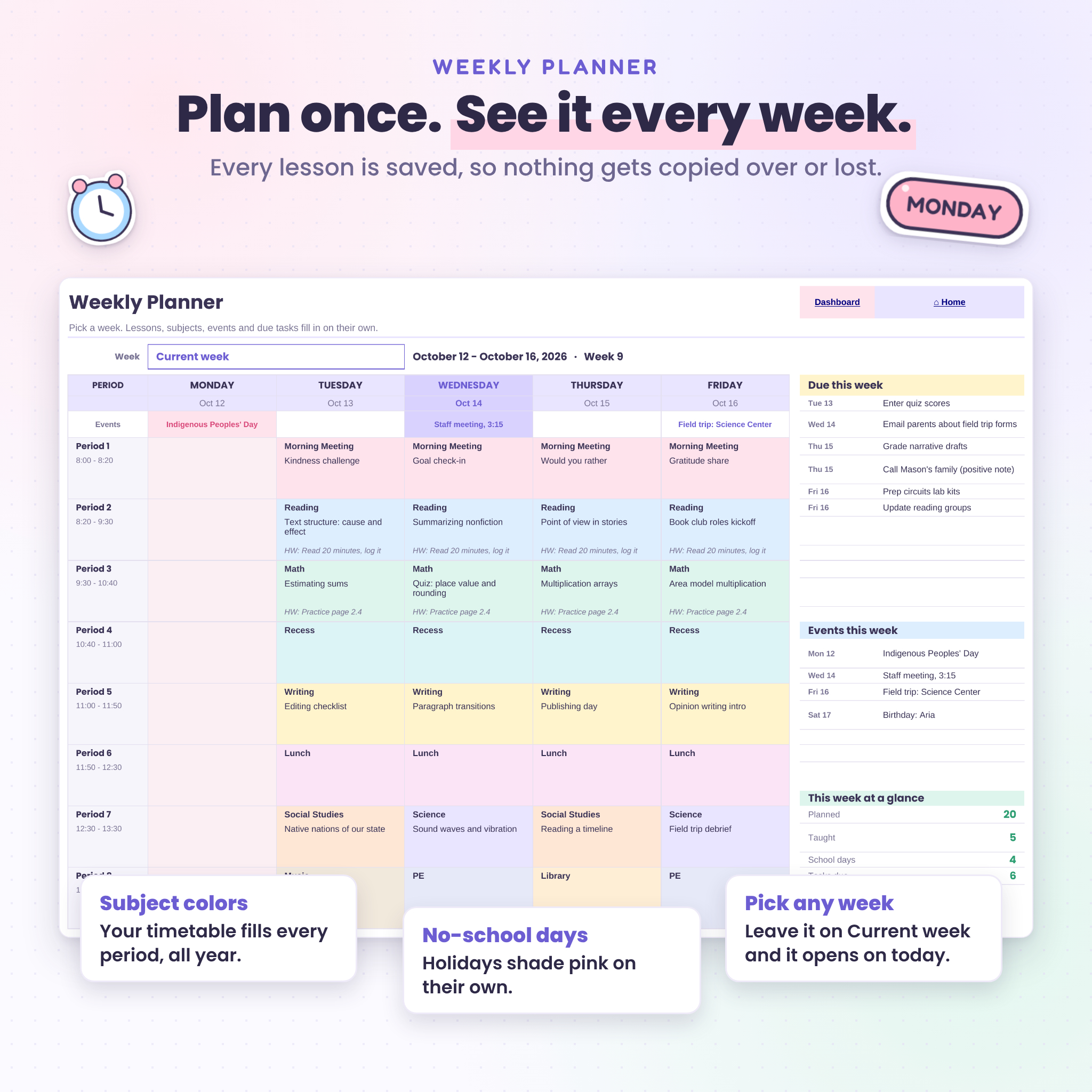
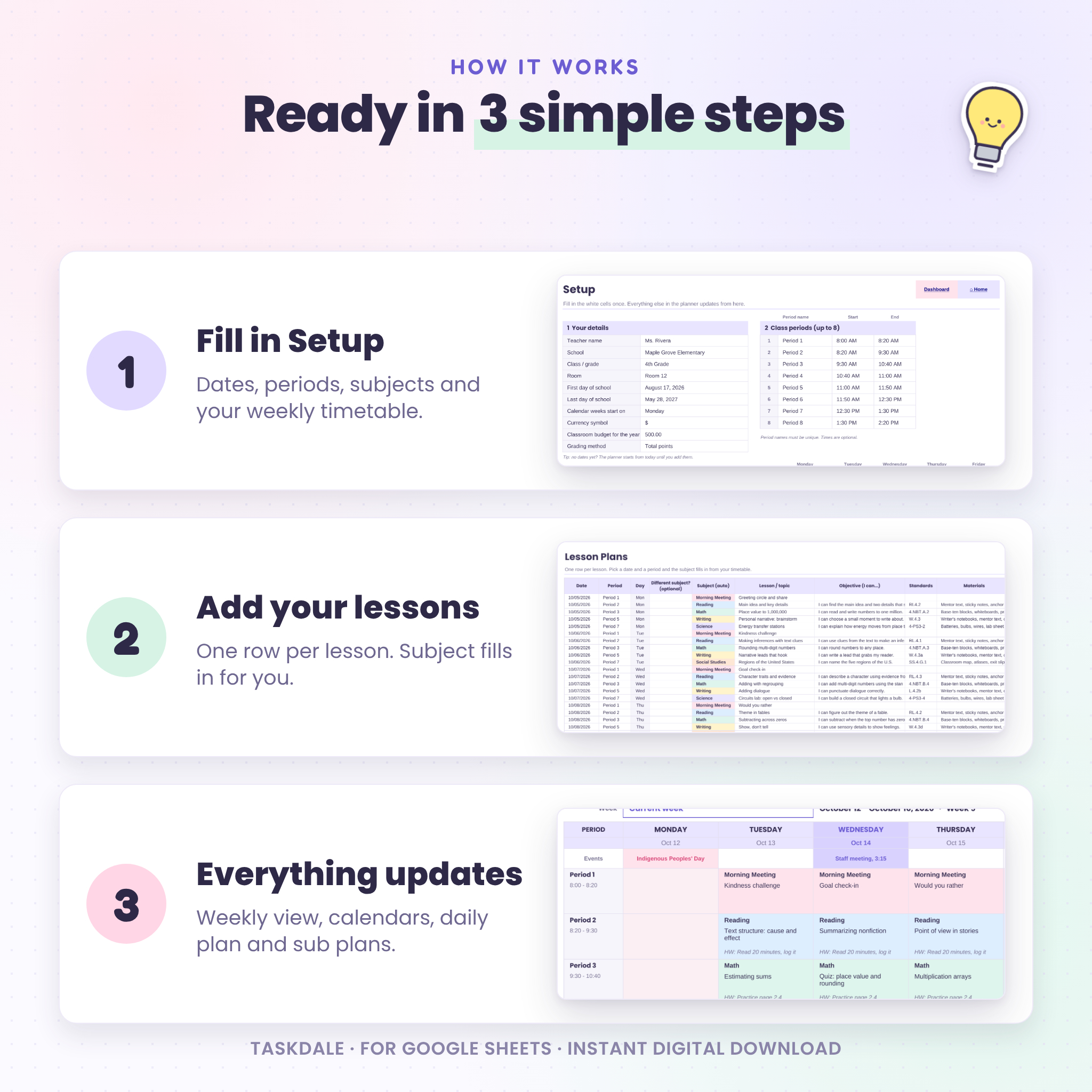
Every lesson is saved as a single row on the Lesson Plans tab. Pick any week on the Weekly Planner and your lessons appear in the right period, on the right day, with the subject color from your timetable. Go back to week 3 in April and it’s all still there. If you ever enter two lessons for the same period, both rows say Duplicate in pink so you can fix it in seconds.
Who it’s for
- Elementary, middle and high school classroom teachers
- Homeschool parents who want a calendar, lesson log and grade tracker together
- Student teachers who need to share plans with a mentor or supervisor
- Tutors and specialists who see groups on a set schedule
Main benefits
- It dates itself. Enter your first and last day of school. Twelve monthly calendars, a year at a glance and an attendance sheet all line up with your year.
- Holidays show everywhere. Add a no-school day once on Events. It turns pink on every calendar and on the weekly planner.
- Birthdays add themselves. Type student birthdays on the roster and they appear on the right calendar day.
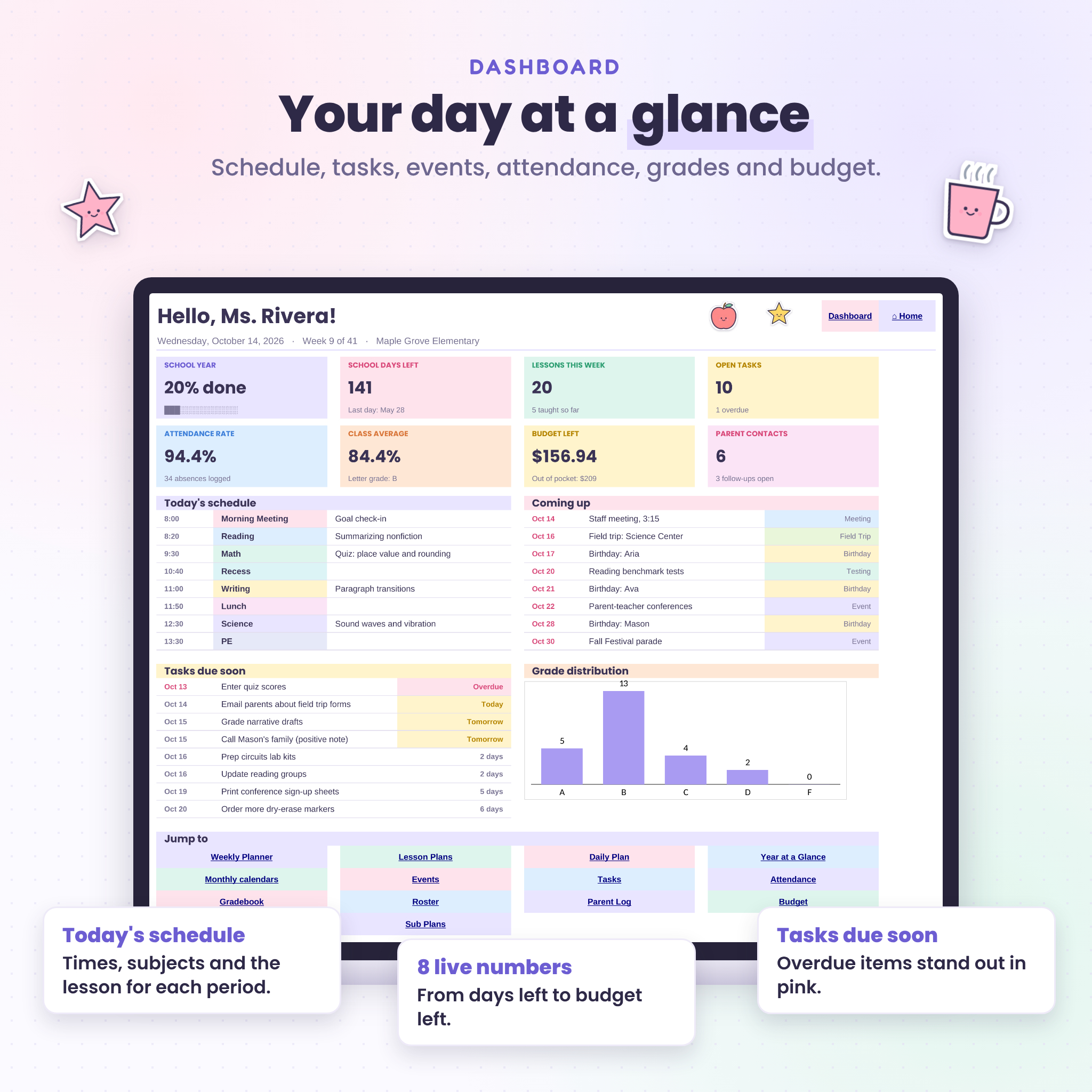
- Your morning in one view. The dashboard shows today’s schedule, the next eight events, tasks due soon, attendance rate, class average and budget left.
- Hard to break. Formula cells are locked with no password, so a stray key press won’t wipe out a calculation. You can still format anything.
Features
Planning
- Weekly Planner with a week picker, subject colors, lesson topics, homework, daily events and a “due this week” list
- Lesson Plans log for up to 1,500 lessons: topic, I can objective, standards, materials, activities, assessment, homework and status
- Daily Lesson Plan you can print for walkthroughs or your supervisor
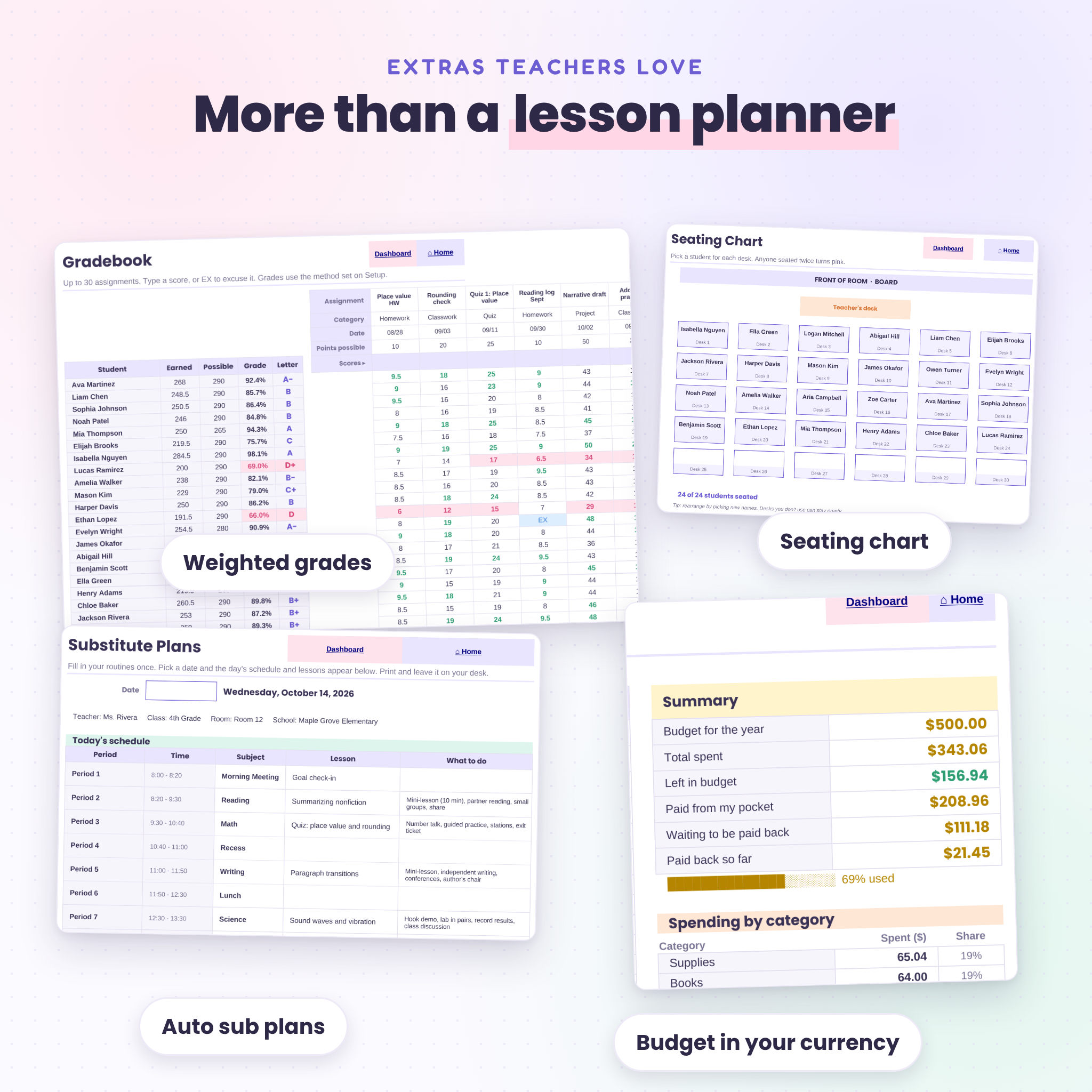
- Substitute Plans that pull the day’s schedule and lessons for any date you pick
Calendars
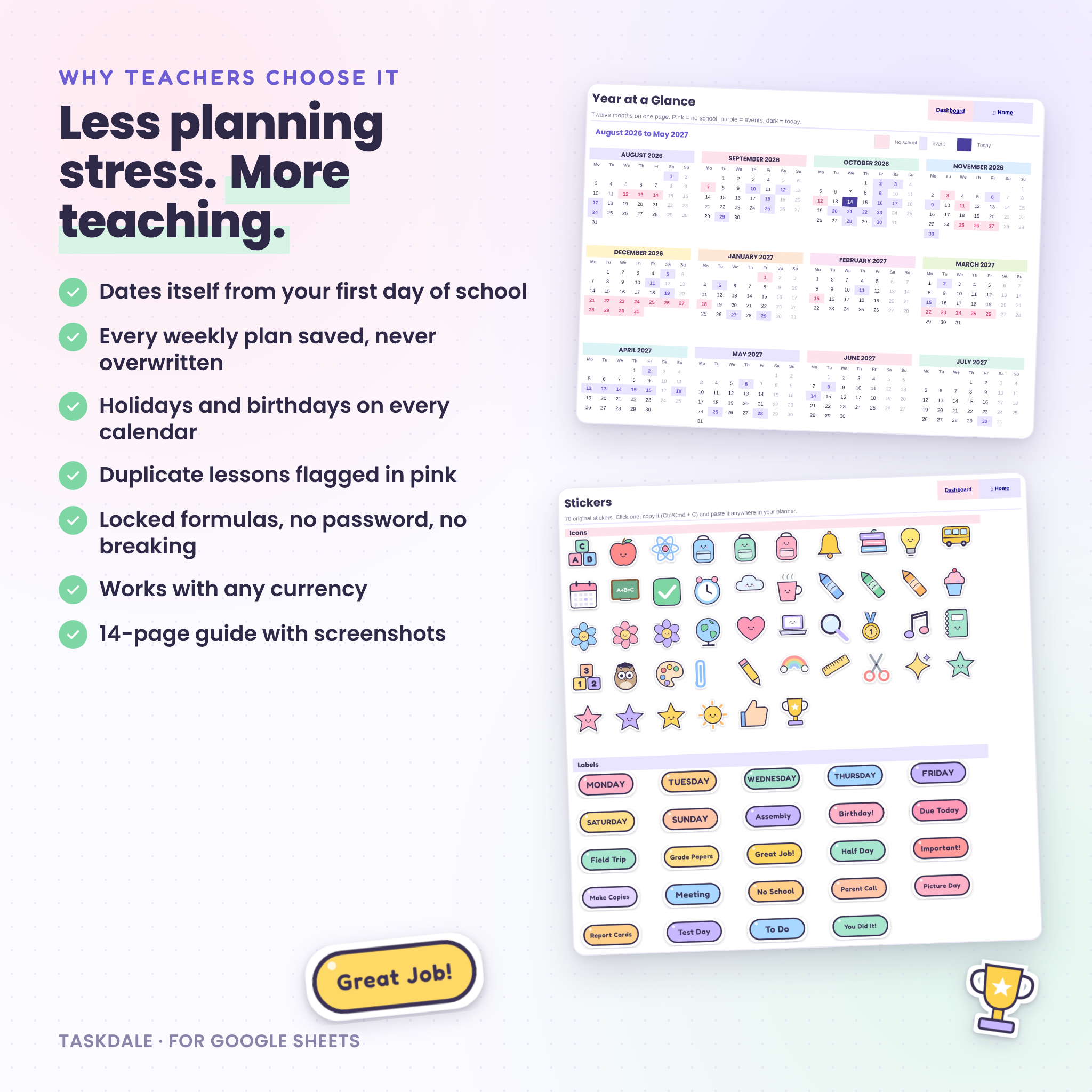
- Year at a Glance with no-school days, events and today marked in color
- 12 dated monthly calendars with up to three events per day, a monthly event list and a notes box
- Monday or Sunday week start
- Events list with multi-day support for breaks and testing windows
Class management
- Roster for up to 40 students with parent contacts and notes
- Attendance tracker for the whole year with P, A, T and E codes, totals and attendance rates
- Gradebook for 30 assignments with total points or weighted categories, an editable grade scale, letter grades, class averages and a grade chart
- Parent Communication Log with follow-up dates and overdue alerts
- Seating Chart with 30 desks filled from your roster
Extras
- Classroom Budget that tracks spending, out-of-pocket costs and reimbursements, with a category chart
- Teaching Links library with one-click Open buttons
- To-Do list with priorities, due-date countdowns and a progress bar
- 70 original stickers, including day-of-the-week labels
What’s included
- Slate-and-Sprout-Teacher-Planner.xlsx (the planner, ready for your class)
- Slate-and-Sprout-User-Guide.docx (14 pages with screenshots, tips, troubleshooting and FAQ)
How it works
- Upload the file to Google Drive, open it, then choose File > Save as Google Sheets.
- Fill in Setup: your name, school dates, class periods, subjects and weekly timetable. It takes about 10 minutes.
- Add holidays and key dates on Events and your students on Roster.
- Add lessons on Lesson Plans. Then open the Weekly Planner and pick a week.
File format and software
You get an .xlsx spreadsheet made for Google Sheets. You’ll need a free Google account and a web browser. We built and tested the planner in Google Sheets on a computer, which is the setup we recommend and support. The guide is a Word (.docx) file, and it also opens in Google Docs.
Customize it
- Up to 8 class periods with your own names and times
- Up to 12 subjects, each with its own pastel color
- Your own grade scale and category weights
- Any currency. Type your symbol once on Setup and every money total updates.
- Change fonts, colors and column widths wherever you like
Digital download
This is an instant digital download. No physical item will be shipped. Your files are ready to download as soon as payment goes through.
Real ways teachers use it
- Sunday planning. Add next week’s lessons, check the weekly view, print the daily plan for Monday.
- Sick day. Pick tomorrow’s date on Sub Plans, print, and the schedule and lessons are already there.
- Parent conferences. Pull up grades, attendance and your parent log notes for each student.
- Supply runs. Log receipts in the budget so you know what to submit for reimbursement.
- Homeschool year. Track lessons by subject and keep a clear record of what was taught.
Teacher planner FAQ
Does this teacher planner work in Google Sheets?
Yes. It was built and tested in Google Sheets. Upload it to Google Drive and save it as a Google Sheets file.
Is it dated or undated?
Both, in a way. It dates itself from the first day of school you enter, so it works for 2026-2027 and any year after.
Can I use it for middle or high school?
Yes. Set up to 8 periods and choose a subject for each one, day by day.
Does it include a gradebook and attendance tracker?
Yes. The gradebook handles 30 assignments and weighted categories. Attendance covers every school day for 40 students.
Does it work in Microsoft Excel?
The file is a standard .xlsx, but it’s designed and supported for Google Sheets.
Can I share it with my team?
It’s licensed for one teacher. A co-teacher in your own classroom can use your copy, but please don’t share the file with others.
What if I get stuck?
The guide covers setup, every tab and common fixes. You can also contact Taskdale and we’ll help.
License
© Taskdale. Personal use for one teacher. You may edit and print the planner for your own classroom or homeschool. Please don’t resell, share or redistribute the files, in full or in part, with or without changes.
Reviews
There are no reviews yet.