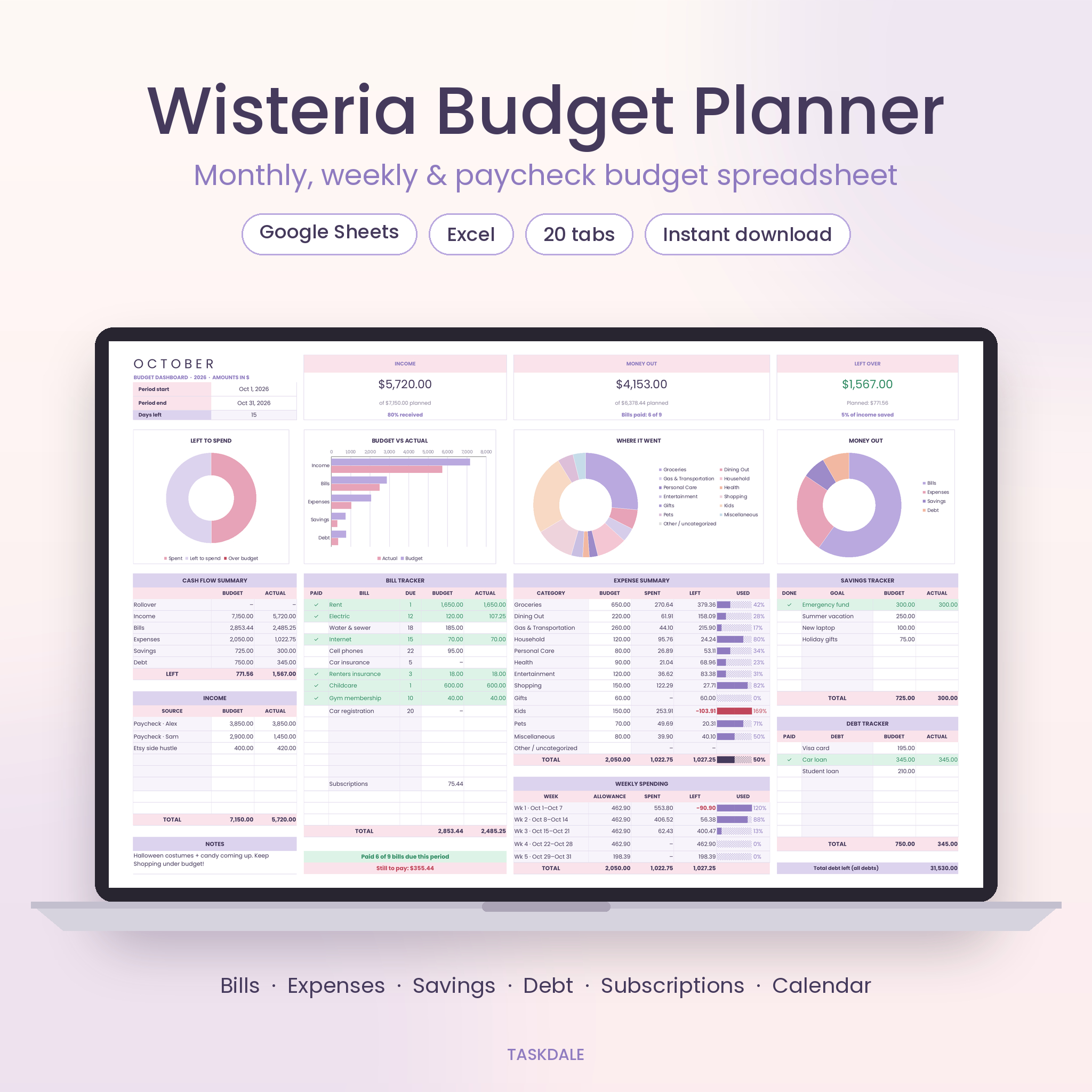

The Wisteria Budget Planner is a budget planner spreadsheet for Google Sheets and Excel that keeps your whole financial life in one tidy workbook. Bills, spending, savings, debt and subscriptions all live here. You set things up once. After that, each month mostly fills itself in, and you just type what actually happened.
It’s built for real people, not accountants. White cells are for typing. Lilac cells do the math. If you can type a number, you can run this budget.
What this budget spreadsheet does for you
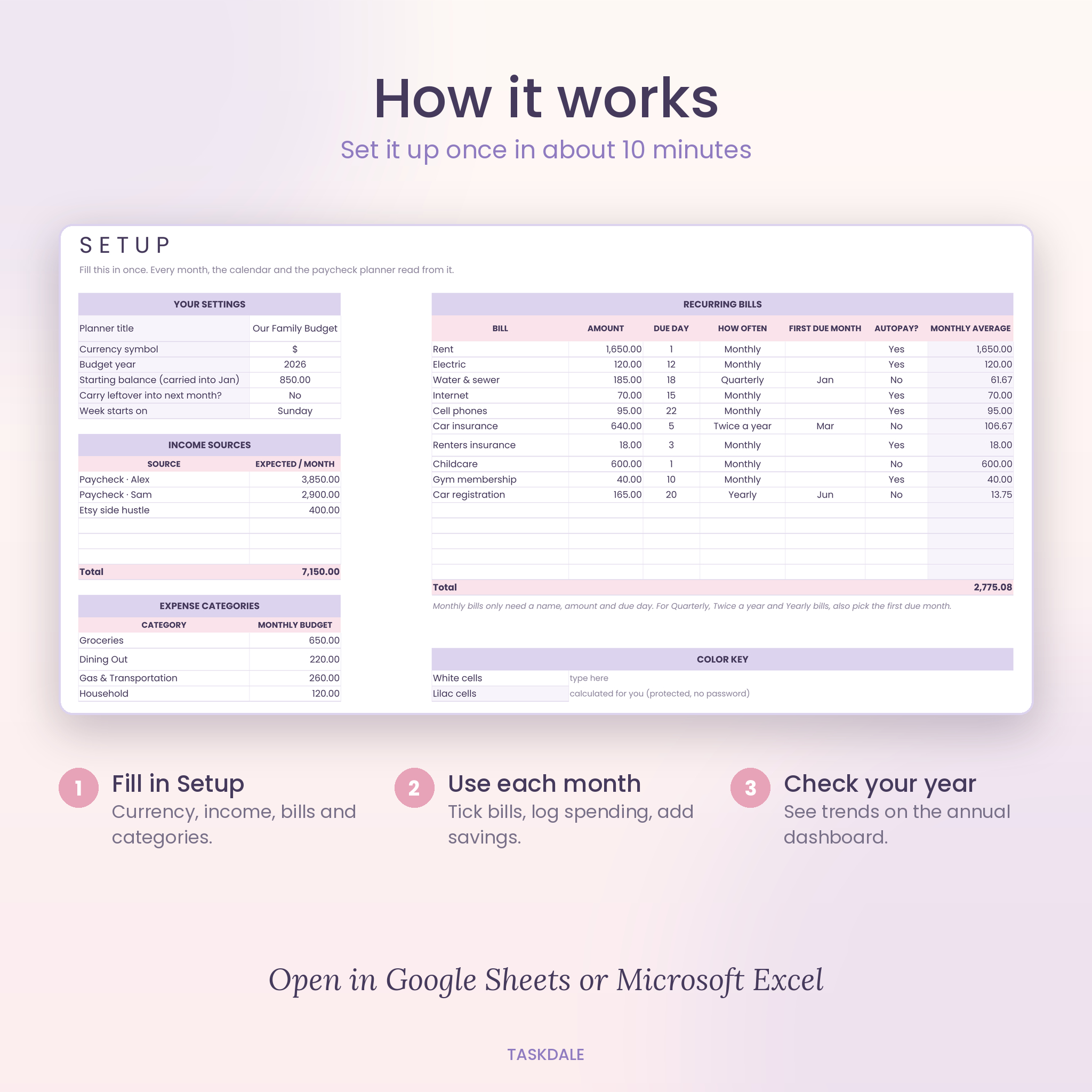
Most budget templates give you one tab and a lot of blank boxes. This one connects everything. Add your rent once on the Setup tab and it shows up in all 12 months, on the bill calendar on its due date, and in the paycheck planner under the right paycheck. Add a debt and its payment appears in every month. Log a $40 grocery run and the category total, the weekly table, the charts and the yearly summary all move with it.
So instead of copying numbers around, you spend about five minutes a few times a week logging what you spent. That’s it.
Who it’s for
- Beginners who want a simple monthly budget template that still looks good
- Families and couples who share bills and want one place to see them
- Anyone paid weekly, biweekly or twice a month who wants a paycheck budget
- People paying off credit cards, car loans or student loans
- Savers building an emergency fund or sinking funds for trips, gifts or a new laptop
Features
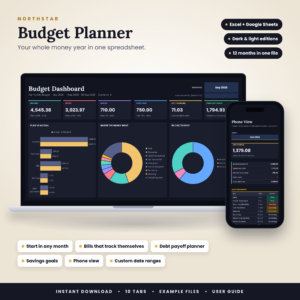
12 monthly budget dashboards
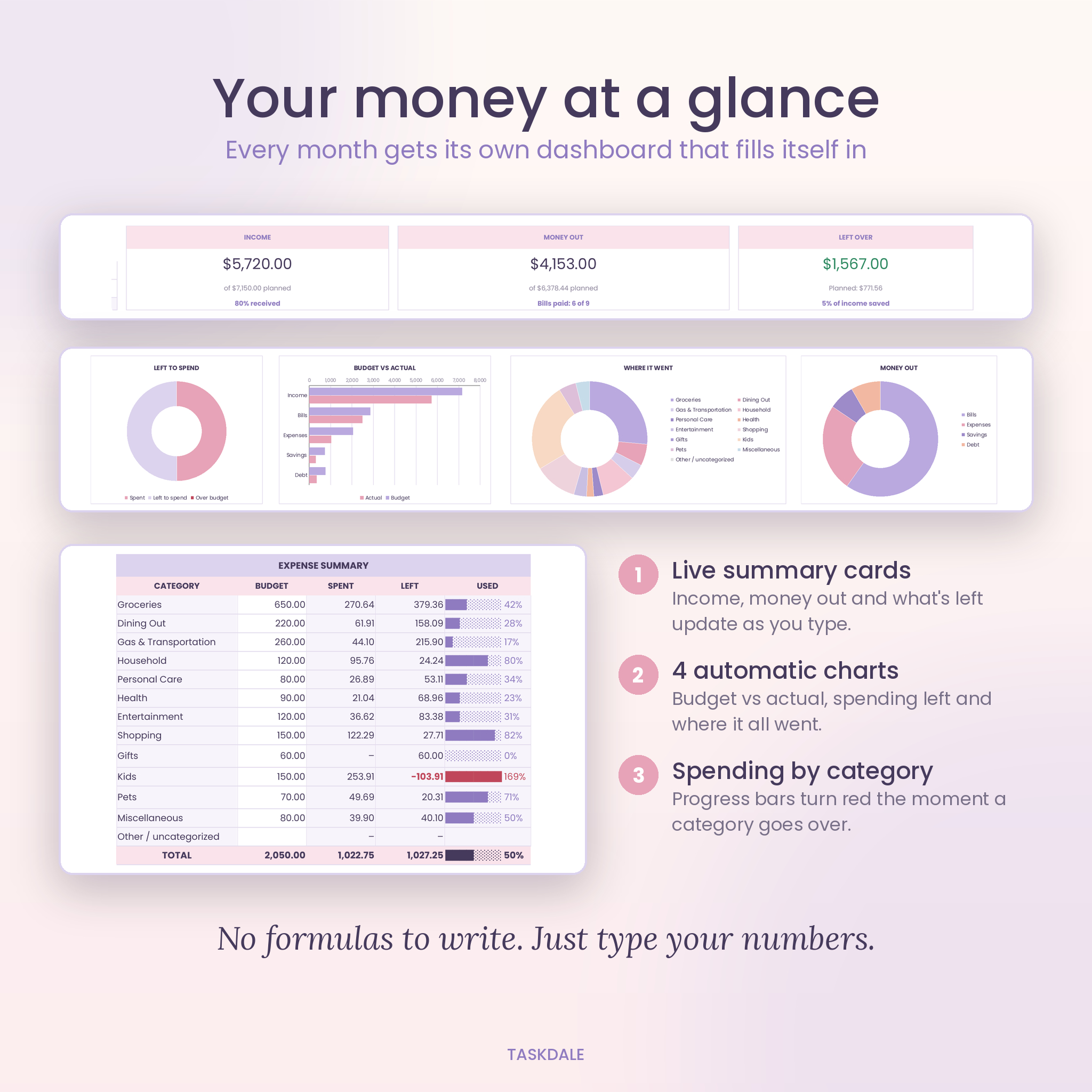
- Three summary cards: income, money out and what’s left over
- Four charts that update on their own: left to spend, budget vs actual, where your money went, and how money out splits up
- Cash flow summary with optional rollover from last month
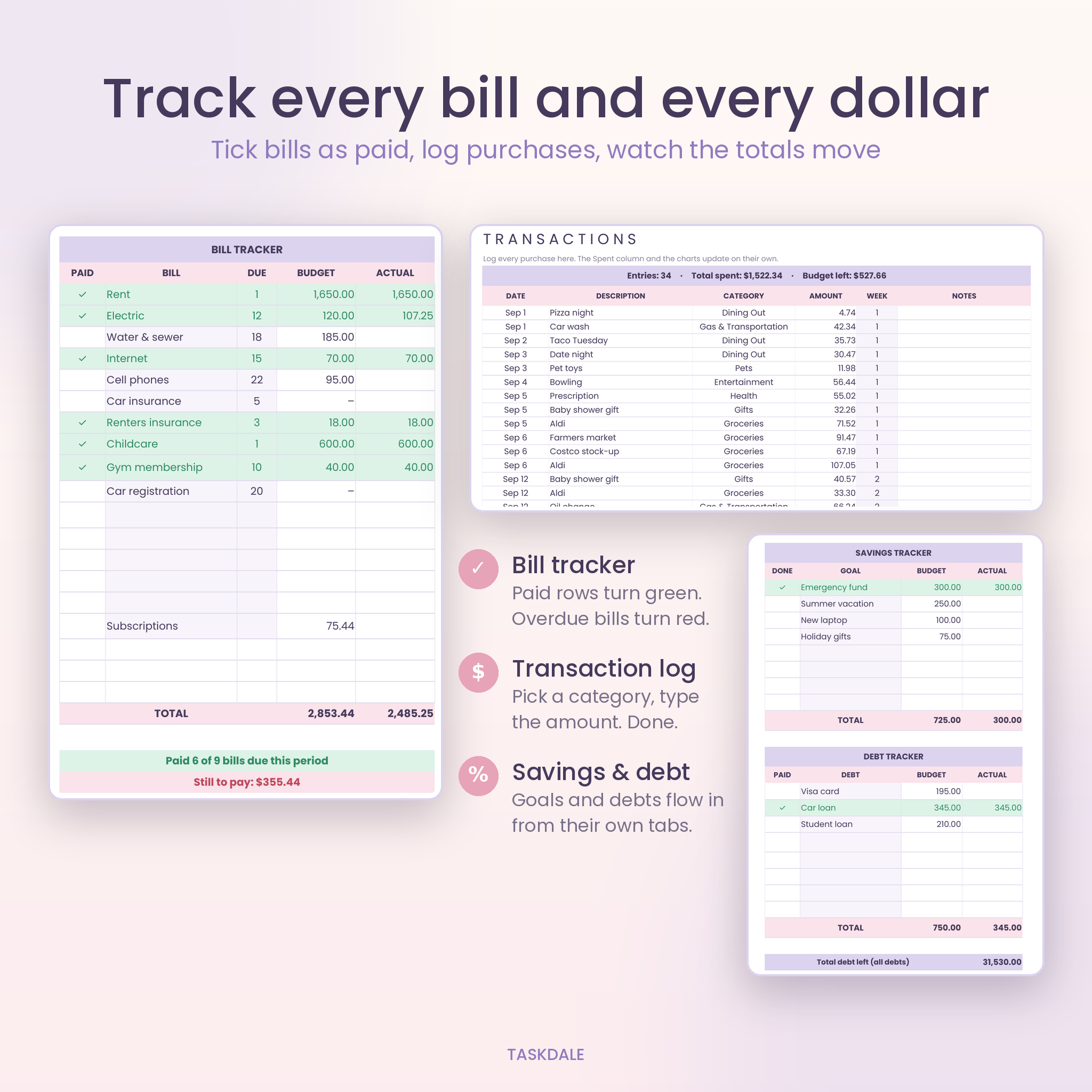
- Bill tracker with a paid tick. Paid rows turn green and overdue bills turn red
- Expense summary with progress bars for 12 categories (rename them any way you like)
- Weekly spending table with a weekly allowance, handy if you like a weekly budget
- Savings and debt trackers fed straight from their own tabs
- A 200-row transaction log for every month with category dropdowns
- Custom period dates, so you can budget by calendar month, by paycheck or biweekly
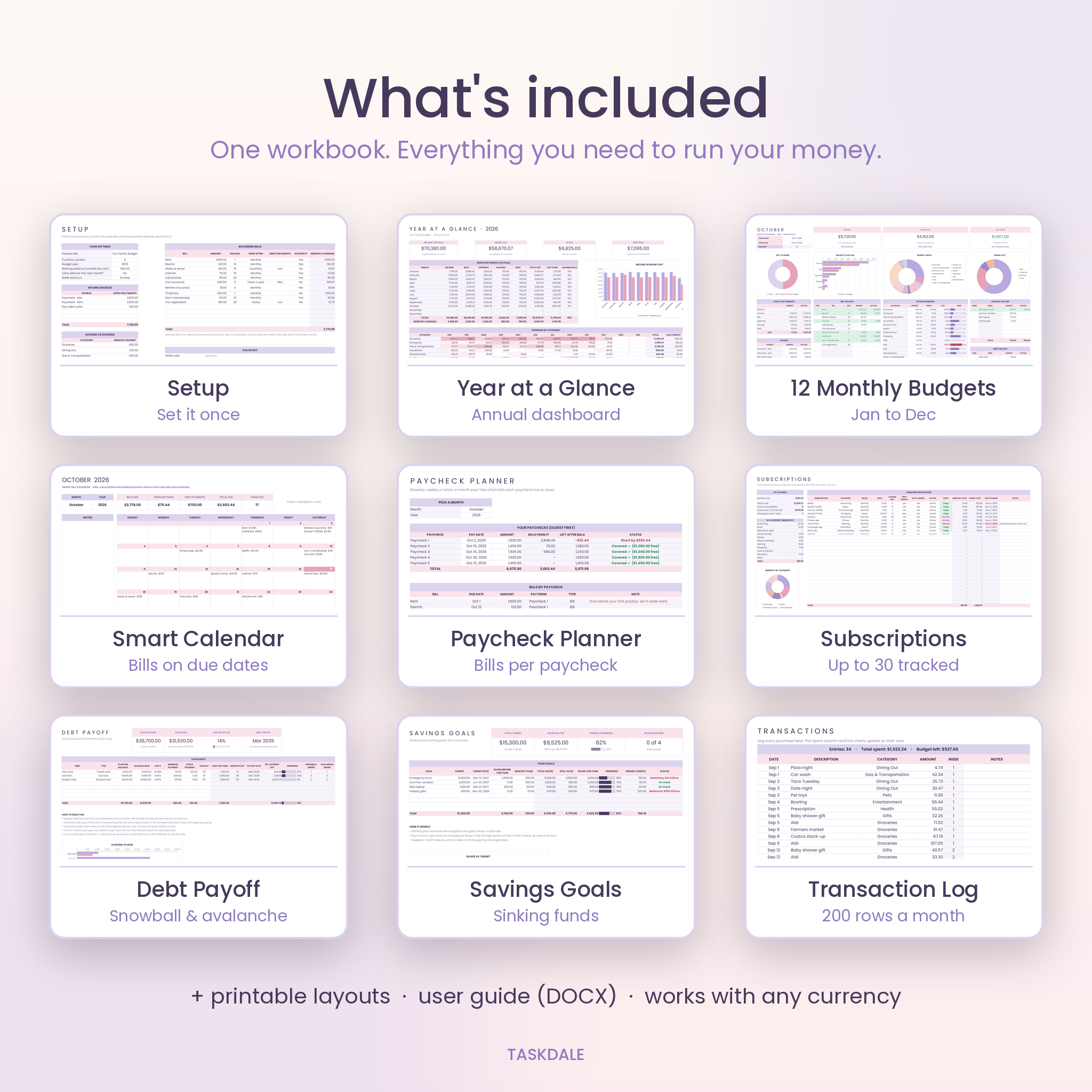
Smart bill calendar
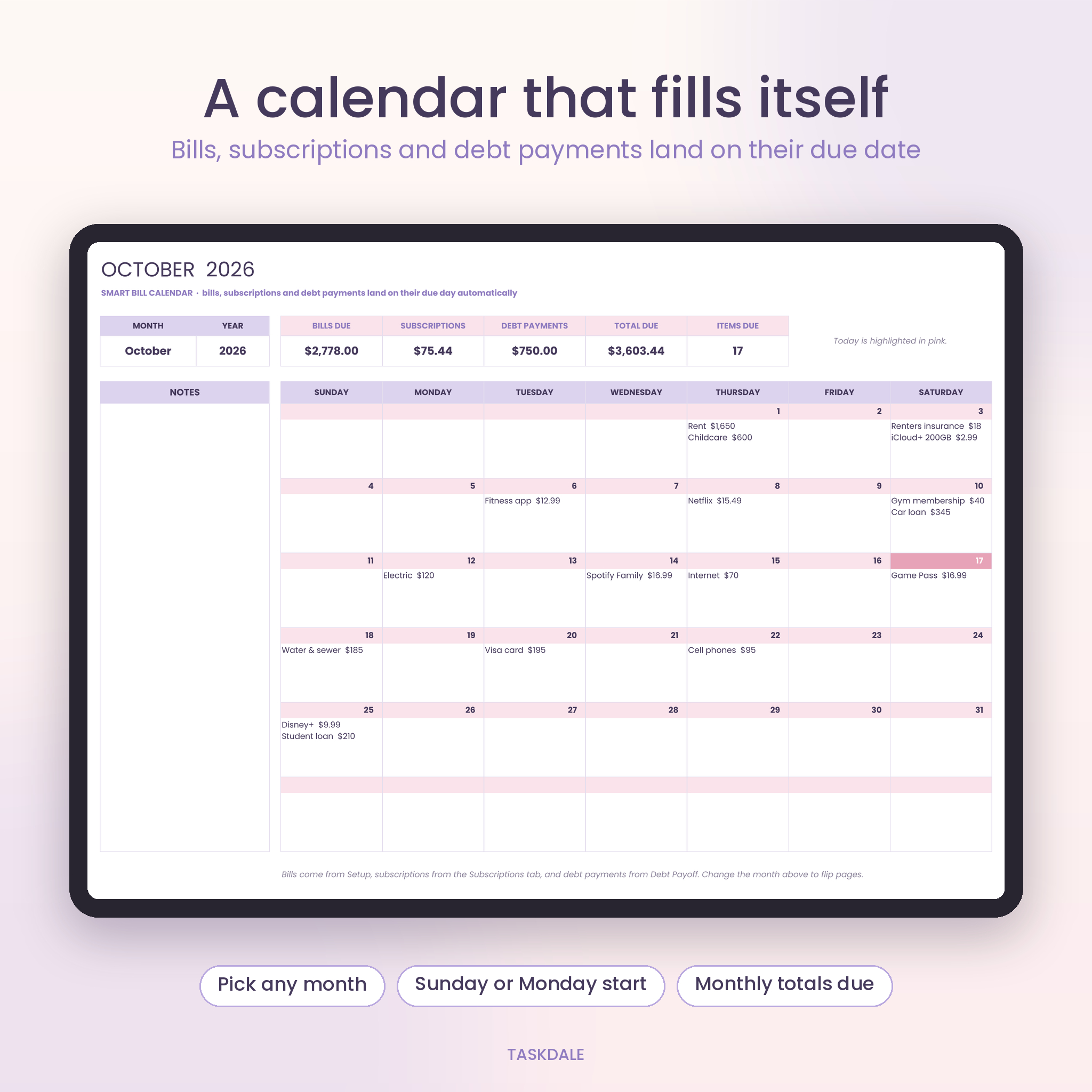
Pick a month and every bill, active subscription and debt payment appears on its due day with the amount. A strip at the top totals what’s due. Today is highlighted. Sunday or Monday start.
Paycheck planner
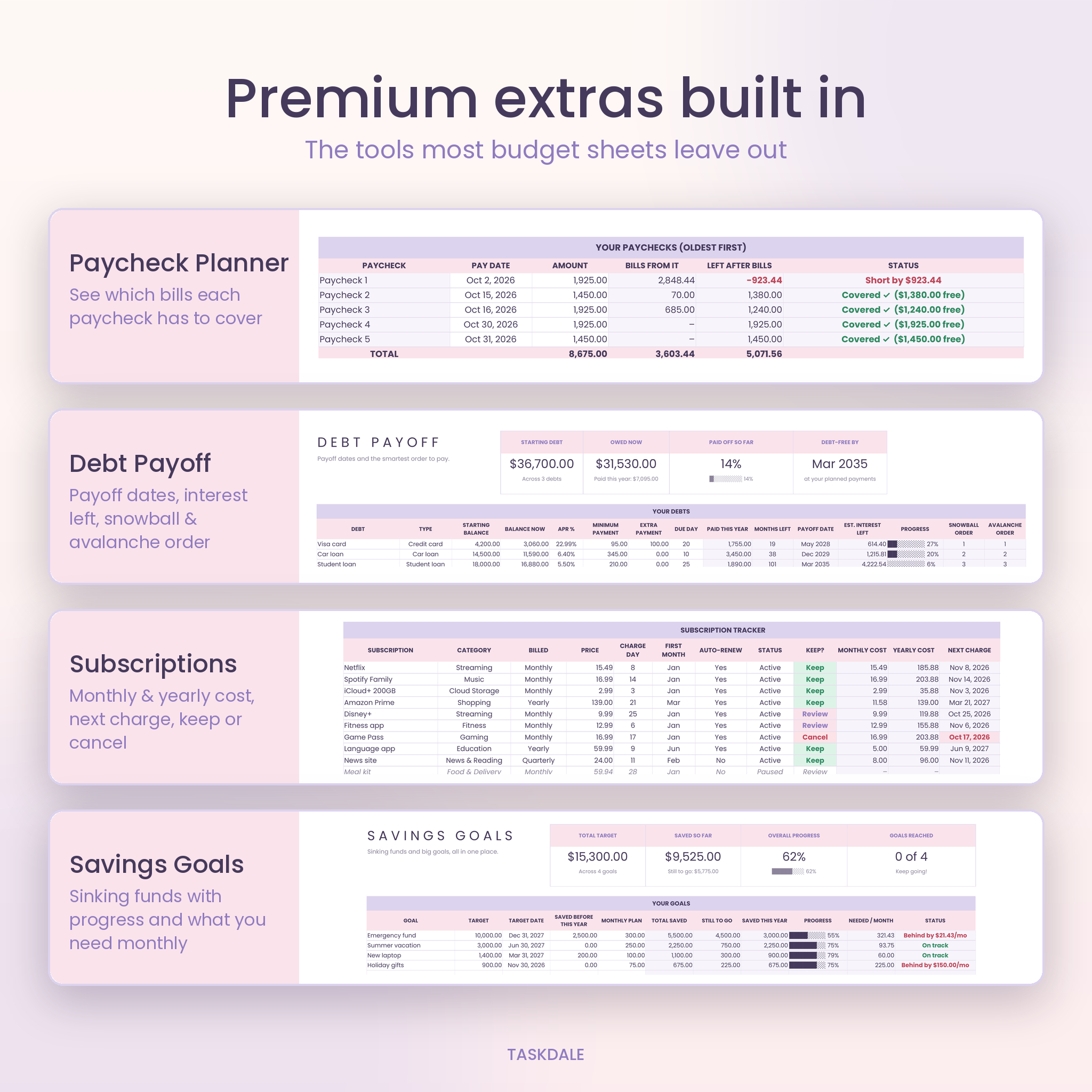
Type up to five paydays and amounts. Each bill goes to the latest paycheck on or before its due date, and you see straight away whether each paycheck is covered or short, and by how much.
Subscription tracker
Track up to 30 subscriptions billed monthly, quarterly, twice a year or yearly. See the real monthly and yearly cost, the next charge date, and a Keep, Review or Cancel flag that shows how much you’d save in a year.
Debt payoff tracker
Up to 8 debts with payoff dates, months left, interest left, a progress bar, and both snowball and avalanche order so you know which one to attack first.
Savings goals and sinking funds
Up to 8 goals with a target and a date. The planner works out what you need each month and tells you if you’re on track or behind.
Year at a glance
Every month rolled into one view: income, bills, expenses, savings, debt paid, what was left and your savings rate, plus a category heat map and three charts.
What’s included
- Wisteria Budget Planner workbook (.xlsx) with 20 tabs: Start Here, Setup, Annual, January to December, Calendar, Paycheck Plan, Subscriptions, Debt Payoff and Savings Goals
- User guide (.docx, 16 pages) with screenshots, tips, troubleshooting and FAQ
How it works
- Download the files right after checkout.
- Open the workbook in Excel, or upload it to Google Drive and save it as a Google Sheet.
- Fill in Setup: currency, income, recurring bills and spending categories. About ten minutes.
- Use each month: tick bills as paid, log purchases, add what you saved.
- Check the Annual tab whenever you want the big picture.
File formats and software
- Format: Microsoft Excel workbook (.xlsx) plus a Word user guide (.docx)
- Google Sheets: free Google account. Upload the file to Drive, open it, then File > Save as Google Sheets
- Microsoft Excel: Microsoft 365, Excel 2024, 2021 or 2019 on Windows or Mac. The bill calendar needs Excel 2019 or newer
- Works on desktop, and on phones and tablets through the free Google Sheets or Excel apps
- Not made for Apple Numbers or Excel 2016 and older
Make it yours
Pick any currency symbol on the Setup tab and every total shows it, with $ as the default. Rename all 12 spending categories. Change colors whenever you like, since formatting stays open even with protection on. Formulas are protected with no password, so you can’t break anything by accident, but you can unlock them in two clicks if you want to tinker.
Ways people use it
- A couple paid on different schedules uses the paycheck planner to see that rent and childcare land on the first check, then moves a bill so nothing comes up short.
- A first-time budgeter logs spending on Sundays and watches the weekly table to stop overspending on takeout before the month is gone.
- A family paying down a $4,000 credit card uses snowball order and the payoff date to stay motivated.
- Someone with eight streaming services marks three for Cancel and sees they’d keep about $200 a year.
Digital download
This is an instant digital download. No physical item ships. Your files are ready on the order confirmation page and in your account right after payment.
FAQ
Does this budget spreadsheet work in Google Sheets?
Yes. Upload it to Google Drive and save it as a Google Sheet. We tested every tab there, charts and calendar included.
Can I use it in Excel?
Yes, in Microsoft 365, Excel 2024, 2021 or 2019. The bill calendar needs 2019 or newer.
Is it good for a biweekly or paycheck budget?
Yes. Use the paycheck planner to split bills by payday, and set custom period dates on any month tab.
Can I change the currency?
Yes. Pick or type your symbol once on Setup. Every total uses it.
Is it beginner friendly?
Very. There’s a Start Here tab, a color key and a step-by-step guide. You never have to write a formula.
Can I reuse it next year?
Yes. Keep a clean copy, change the year on Setup and start again.
Is my data private?
Yes. The file lives on your own computer or Google Drive. Nothing is sent anywhere.
Licence: personal use only. Please don’t share, resell or redistribute the files. © Taskdale.
Reviews
There are no reviews yet.