Bins out on Tuesday. Rent on the 1st. Piano lesson every Thursday at 4. If you keep recurring tasks in a digital planner built from a PDF, you already know the catch: the page has no idea any of that repeats. You write it once, and next week you write it again.
That isn’t something you just have to put up with. It means the repeating has to come from a habit and a bit of setup, not from the file. I’ve run a PDF planner for years alongside a pile of weekly chores, school runs and bills, and the setup below is what finally stopped things slipping through.
We’ll start with the quick wins (a master list and a symbol key) and work up to the bigger ones, like pairing your planner with a spreadsheet that remembers the repeats for you.
Why a PDF planner can’t repeat anything on its own
A PDF is a fixed set of pages. Think of it as printed paper living inside your tablet. The tabs and buttons in a hyperlinked planner are links, which just means “tap here, jump to that page”. They move you around. They can’t copy your handwriting forward.
So when you write “water the plants” on Monday’s page in GoodNotes or Notability, that’s ink on one page. The app won’t carry it to next Monday, and it won’t ping you at 7 am either.
Honestly? That’s partly why people like PDF planners. Nothing moves unless you move it. But it does mean your repeating jobs need a home and a routine, or they live only in your head, which is the exact place you bought a planner to get them out of.
If you want your tablet to actually nudge you, read our guide to what a digital planner can and can’t automate. This article is about making the planner itself handle repeats without fuss.
Sort your repeats into four types first
Not every repeating job behaves the same way. Before you copy anything anywhere, sort your list. It takes ten minutes and saves you from cramming everything onto the daily page.
| Type | Example | Where it lives |
|---|---|---|
| Fixed appointments | Piano, Thursday 4 pm | Hourly or weekly schedule |
| Routine chores | Bins, laundry, weekly review | Weekly to-do list |
| Daily habits | Vitamins, a 20-minute walk | Habit tracker |
| Long-gap repeats | Car service, filter change, birthdays | Year or month pages |
The habits row is the one most people get wrong. If “drink water” sits on your to-do list every single day, you’ll copy it 365 times and feel like you failed every time you skip it. A tracker grid does the same job in one tick.
The long-gap row is the opposite problem. A filter change every three months is easy to forget because it’s rare. Those need a reminder that sits further ahead, on a page you see at the start of each month.
Keep one master list of everything that repeats
This is the backbone. One page, in your planner or beside it, that lists every recurring job with three things next to it: how often it happens, what day, and who does it (if you share the load).
Mine looks something like this:
- Bins out: weekly, Tuesday night
- Pay rent: monthly, 1st
- Change bed sheets: every 2 weeks, Saturday
- Smoke alarm test: every 3 months
- Car insurance renewal: yearly, March
Most planners have a notes or brain dump page that works fine for this. The point is that it’s the single source you copy from. When a new repeat turns up (the dog starts a monthly flea treatment, say), it goes on the master list first, then into the week.
If you’d rather plan on a printed or typed weekly page, the Wrenweek Weekly To-Do List has a Brain Dump & Master List page split into Work, Home, Personal and Errands, which is a tidy place to park your repeats.
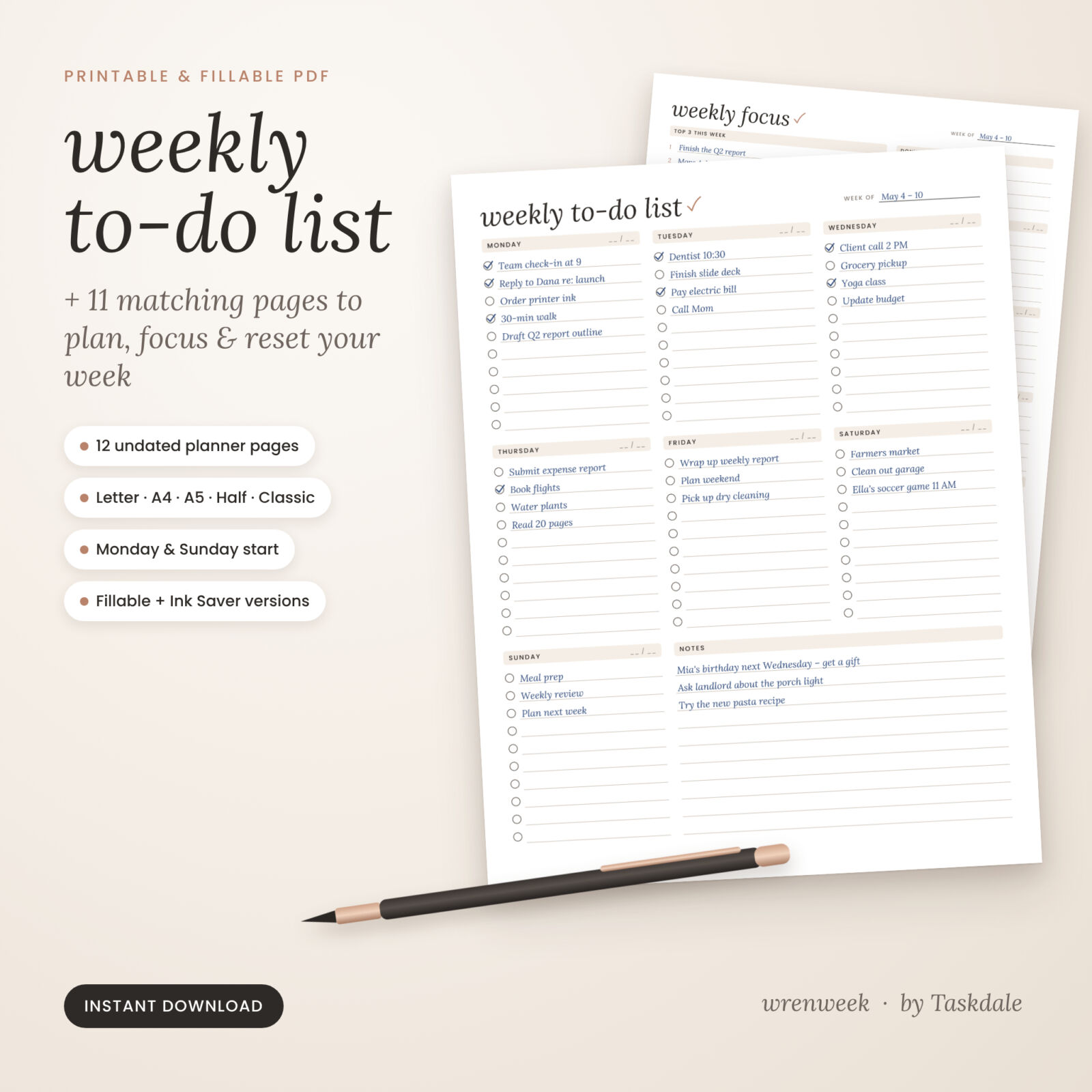
Weekly To-Do List Printable & Fillable PDF
Its Brain Dump and Master List page gives every repeating job a home, and the weekly reset helps you copy them forward.
- 12 undated pages including a Brain Dump & Master List and Weekly Review & Reset
- Printable and fillable PDF versions, Monday or Sunday start
- 5 sizes: US Letter, A4, A5, Half Letter and Classic Happy Planner
One thing I’d add to any master list: a “last done” column for the rare jobs. You won’t remember whether you descaled the kettle in June or August. The list will.
The Sunday copy-forward routine
Here’s the habit that makes a static planner feel almost automatic. Once a week, open your master list and copy the coming week’s repeats onto your weekly spread. That’s it.
It sounds like a chore. In practice it’s about ten minutes with a cup of tea, and it doubles as a look at the week ahead. You’ll spot the clash between the dentist and the school pickup on Sunday instead of at 2:45 on Wednesday.
A rough order that works:
- Fixed appointments first, straight onto the hourly schedule.
- Weekly chores next, onto the right days.
- Check the master list for any every-2-weeks or monthly jobs that fall this week.
- Glance at next month for anything with a deadline you need to prepare for.
If you already do a weekly review, fold this into it. Our weekly review guide walks through the full routine step by step.
Mark repeats so you can tell them apart
Give recurring items their own symbol. A small loop, an “R” in a circle, a colored dot. When you look at Thursday and see a loop next to “piano”, you know it’s a standing commitment, not a one-off you can push.
The Linen Days Undated Digital Planner has a planner key on its Home page for exactly this kind of thing: you give each thing you track its own color or symbol, and it comes with 53 weekly planners plus 53 hourly weekly schedules.
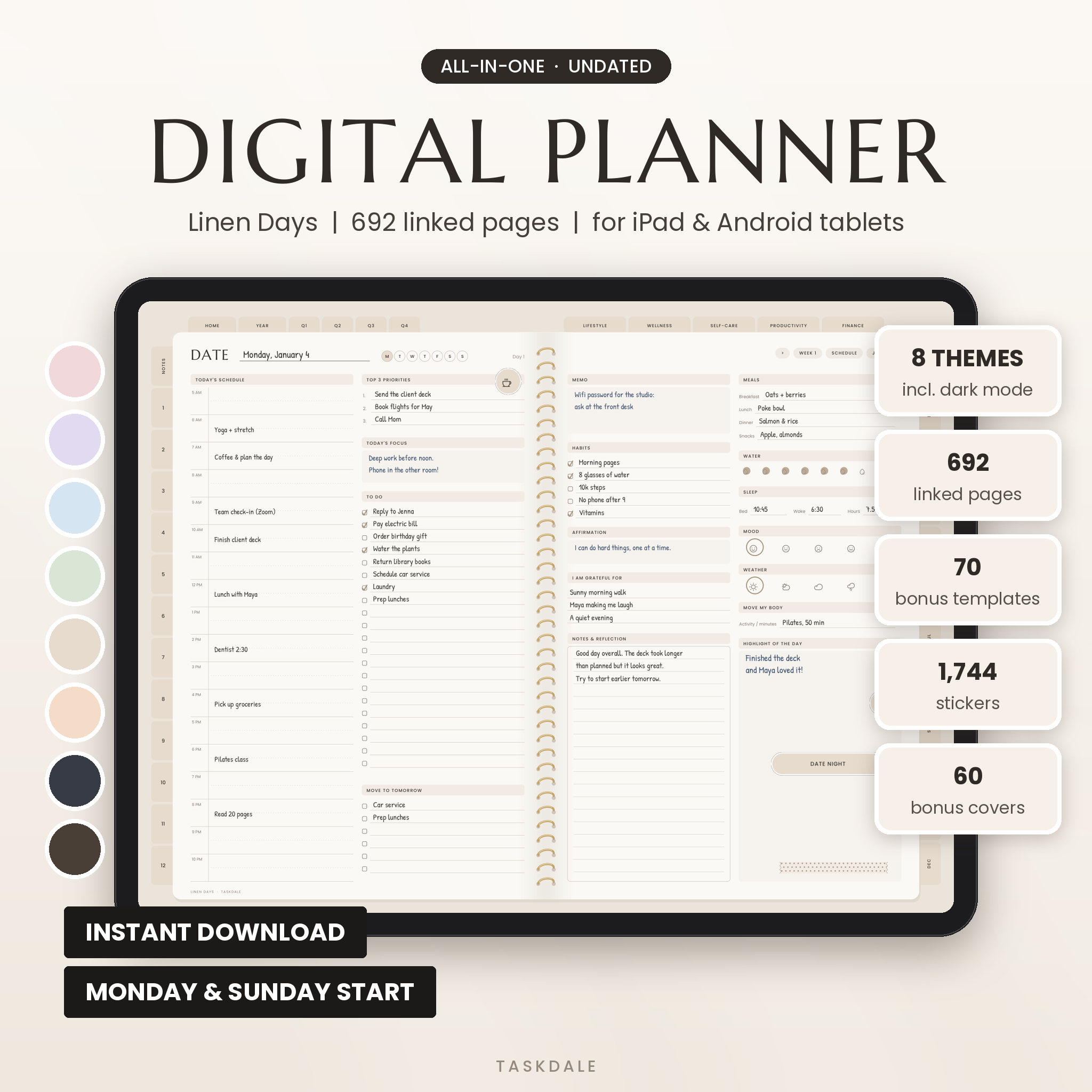
Undated pages and a planner key mean you can mark standing commitments with their own color or symbol and start any week.
- 692 linked pages per planner, no printed dates
- 53 weekly planners plus 53 hourly weekly schedules
- Works in GoodNotes, Notability and other PDF apps with link support
Let your app do the copying
Writing “bins out” by hand every Tuesday gets old. Most note apps give you shortcuts:
- Lasso and copy. Select last week’s handwritten repeats with the lasso tool, copy, then paste them onto this week’s page.
- Stickers. Make a sticker for each frequent repeat (a small “Bins” label, a “Pay rent” label) and drop it in. Our digital planner stickers guide covers how to save your own.
- Typed text boxes. If your handwriting gets messy at speed, type the repeats once and copy the text box.
A word of warning on duplicating whole pages: in a hyperlinked planner, the tabs still point to the original dated page, not your copy. So a duplicated weekly page pre-filled with your repeats is handy as a template you copy from, but don’t plan on it replacing the real week.
Time-block the appointments that never move
Fixed weekly appointments are the easiest repeats to automate on paper, because they’re the same every week. Football practice is Tuesday at 5. Team call is Monday at 9. You don’t need to think about them. You just need them on the grid before anything else gets booked over them.
The trick is a template week. Fill in an hourly grid with only your standing appointments, save a clean copy, and start each new week from that copy. With a printable planner you photocopy or reprint it. With a fillable PDF (one with boxes you can type into) you save it as a new file each week.
The FlowBlock Weekly Hourly Planner suits this well, since every hour label can be renamed and you can type straight into the boxes, then save a fresh copy for each week.
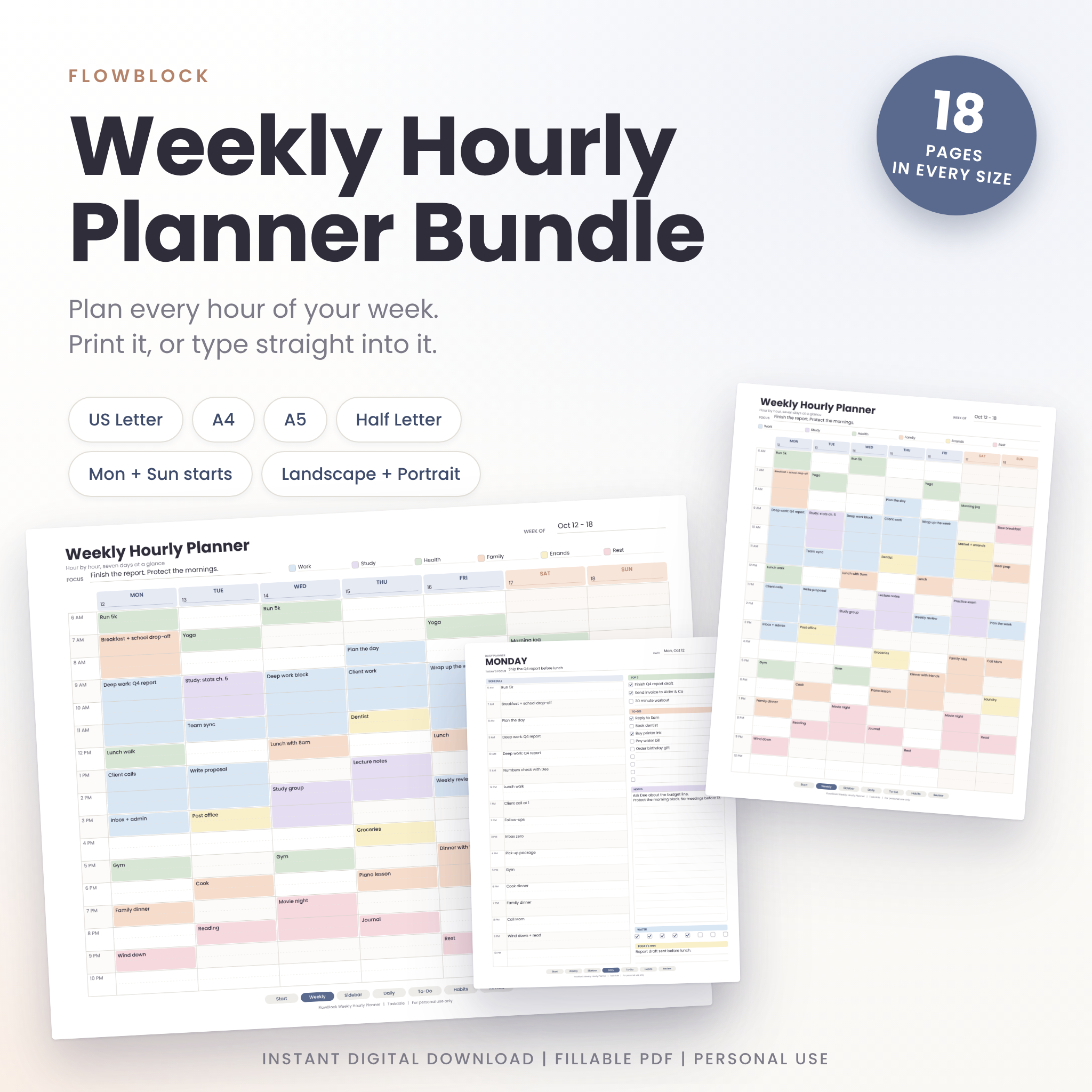
FlowBlock Weekly Hourly Planner
Type your standing appointments into the hourly grid once, then save a fresh copy for each week.
- Hour rows from 6 AM to 10 PM with half-hour guides
- Editable hour labels and six renameable color categories
- Undated fillable PDF in US Letter, A4, A5 and Half Letter
If you’ve never planned hour by hour, start small. Block in only the fixed things for two weeks. Then add the flexible stuff around them. Our time blocking planner guide goes deeper on that.
Let a spreadsheet remember the repeats for you
Here’s where I’ll be blunt. If you have more than 15 or so repeating jobs, some every 2 weeks, some quarterly, some on the last day of the month, copying them by hand from a master list starts to break down. You’ll miss one. Probably the quarterly one.
A spreadsheet is good at exactly the thing a PDF is bad at: working out dates. You tell it “every 3 weeks, starting March 4” and it figures out the next one. Then on Sunday you open it, look at what’s due in the next seven days, and copy only those into your planner. The planner stays your place to think and write. The spreadsheet does the counting.
We’ve written a whole piece on setting up a recurring task tracker that runs itself if you want the details. The short version: the Clearday Task Tracker Spreadsheet handles up to 40 routines with 12 repeat options, and it shows a Coming Up list for the next 7 days that’s perfect for a Sunday copy-forward.
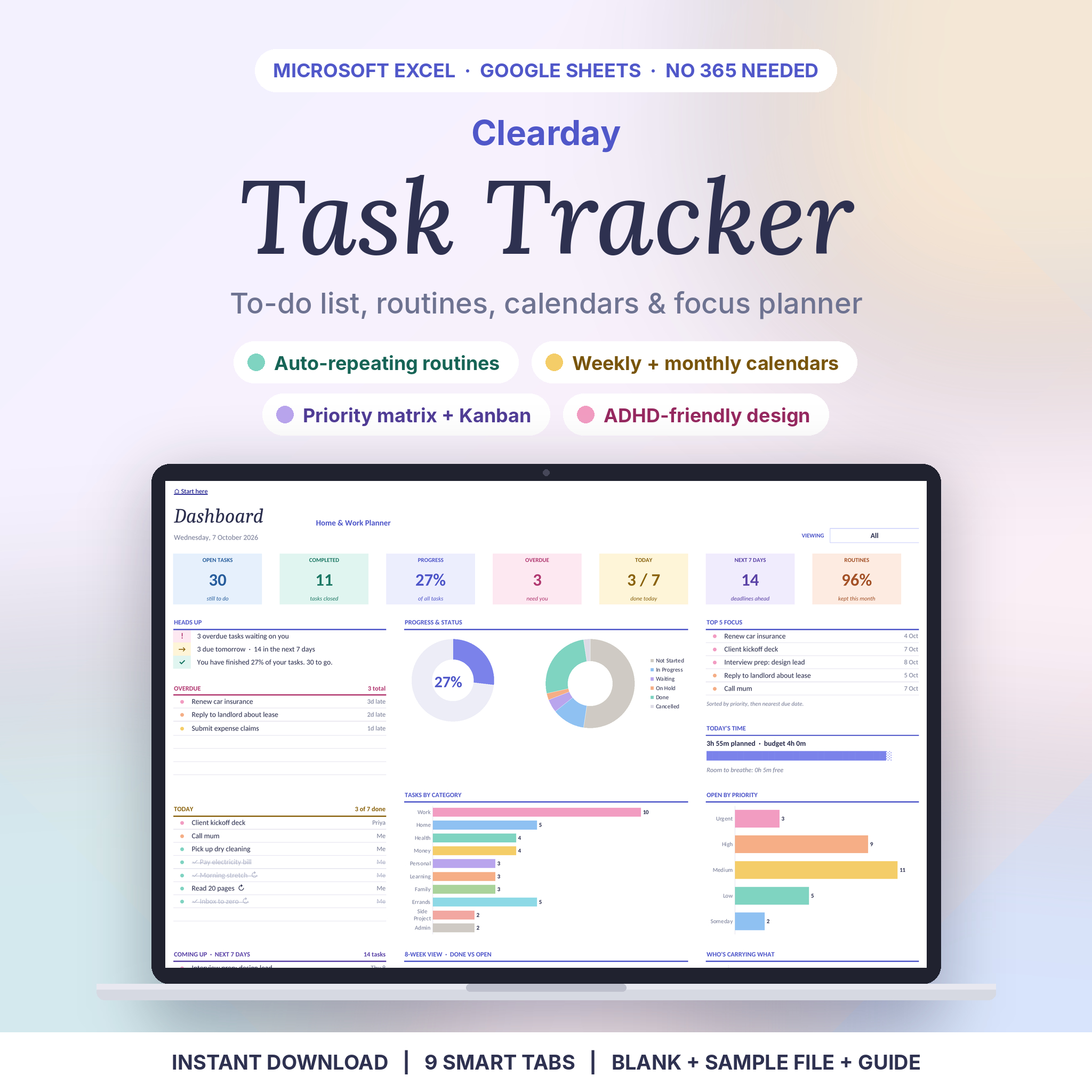
Clearday Task Tracker Spreadsheet
It works out when each routine is due, so your Sunday copy-forward is just reading a list.
- Up to 40 routines with 12 repeat options, from daily to yearly
- Coming Up list shows the next 7 days
- Works in Excel 2010 or newer, Excel for the web and Google Sheets
The downside? It’s two tools instead of one, and the spreadsheet is easiest to set up on a computer. If your whole life runs from one tablet on the couch, you might prefer to stick with the master list and accept the occasional miss.
Habit trackers and meeting notes for daily and weekly repeats
Back to that habits row. Anything you do every day, or most days, belongs on a tracker grid, not a to-do list. One row per habit, one box per day, tick as you go. At the end of the month you can see the pattern at a glance, which a list of crossed-out lines never shows you.
Recurring meetings are a similar story. The weekly one-to-one, the monthly team catch-up, the parents’ committee. If you keep notes in a separate notebook with one page per meeting, give each recurring meeting its own section so you can flip back and see what was agreed last time.
If you write on an e-ink tablet like the Paper Pro, the Inkframe Productivity Suite covers both: a monthly habit tracker (20 habits on the Standard edition), a weekly plan with a 5-habit check-in, and a meeting notebook with tables for recurring meetings and an action item tracker.
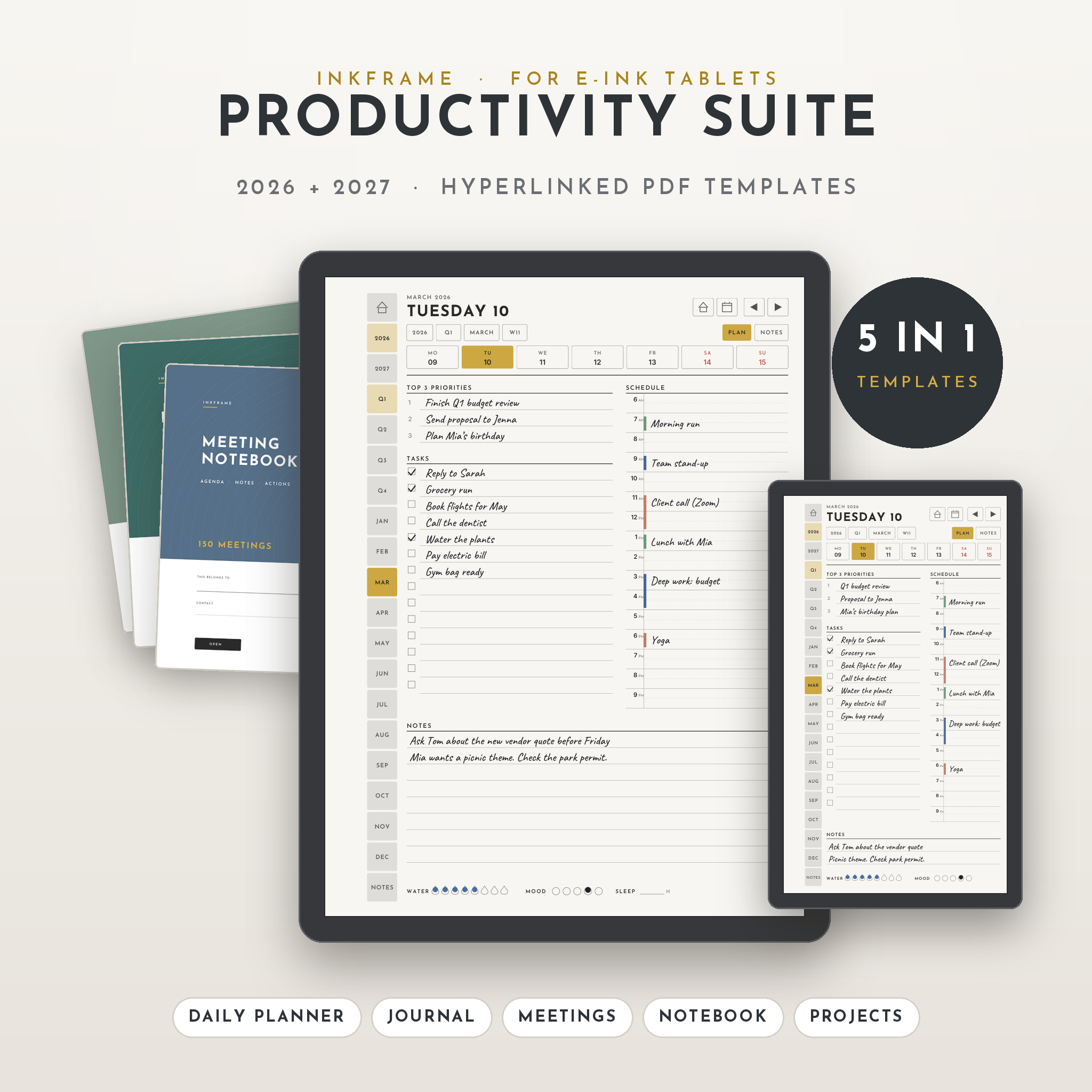
Habit trackers, weekly check-ins and a meeting notebook with recurring meeting tables keep daily and weekly repeats in one place.
- 24 habit trackers and a weekly plan with a 5-habit check-in
- Meeting notebook with tables for recurring meetings and an action item tracker
- Sized for the Paper Pro, Paper Pro Move and model 2 e-ink tablets
New to loading templates onto an e-ink tablet? Our guide on adding templates to the Paper Pro and its older sibling covers the transfer step.
Yearly repeats, and when a calendar app should take over
Birthdays, renewals, the annual boiler service. These are the repeats a planner is worst at, simply because a year is a long time and you don’t open the yearly page very often.
Two habits fix most of it:
- Write them all on the year or key dates page once. Do it on a quiet evening in January (or whenever your planner starts).
- Check that page on the first of each month. Copy anything due that month onto the monthly calendar, and add a prep task a week before if it needs one, like buying a card.
Now the honest part. Some repeats need a nudge that a planner can’t give. Bin day at 6 am. A medication time. A bill with a late fee. For those, set a repeating event in your phone’s calendar app and let it ping you. Write it in the planner too if you like seeing the full picture, but don’t rely on paper for anything with a penalty attached.
If you want both tools without writing everything twice, our guide on pairing a digital planner with your calendar app splits the jobs up clearly. And for daily task lists that actually get finished, see our daily task planner guide.
FAQ
Can a digital planner repeat tasks automatically?
Not if it’s a PDF. A PDF can link between pages, but it can’t copy your writing forward or count dates. For automatic repeats, pair it with a spreadsheet that has repeat rules, or a calendar app that sends reminders.
What’s the fastest way to copy recurring tasks into a digital planner each week?
Keep a master list, then use your app’s lasso tool to copy last week’s repeats and paste them onto the new week. Stickers made for your most common repeats are even quicker.
Should I use an undated planner for recurring tasks?
It helps. With an undated planner you can keep a pre-filled “template week” and never waste pages if you skip a fortnight. Dated planners work too, you just copy forward onto the printed dates.
Where should daily habits go?
On a habit tracker grid, not the to-do list. One tick per day is faster than rewriting the same habit every morning, and the grid shows your streaks.
Start with the master list tonight. Even if you never touch a spreadsheet or a sticker, one page of repeats and ten minutes on Sunday will catch most of what used to slip. Add the other pieces only when that list starts to feel crowded.