You update your note app, open it the next morning, and your planner is gone. Or it’s there, but March is blank and the cover looks wrong. Your stomach drops. Before you tap anything else, stop. Most of the time you can recover a digital planner after an app update, or at least get most of it back, if you go about it in the right order.
I’ll be straight with you, though. If your handwriting only ever lived inside that one app on that one tablet, and it never synced or backed up anywhere, there may be nothing to recover. No guide can promise otherwise. What you can always get back is the blank planner itself, and we’ll cover that too.
Work through these steps from top to bottom. The early ones are quick and solve the problem more often than you’d expect.
Step one: don’t delete or reinstall anything yet
The instinct is to delete the app and install it again. Please don’t. On many tablets, deleting an app also deletes the files stored inside it. If your notes were only kept locally, reinstalling is how “missing for a bit” becomes “gone for good”.
Also hold off on:
- Signing out of your cloud account inside the app
- Importing a fresh copy of the planner over the top of the old one
- Restoring the whole tablet from an old backup (that’s a last resort, and we’ll get to it)
Charge the tablet, connect to Wi-Fi, and give it a few minutes. Then start looking.
Work out what kind of “lost” you have
“My planner is gone” can mean a few different things, and each one points to a different fix. Take thirty seconds to name yours before you start poking around.
- The whole notebook has vanished from the library. It’s probably moved, filtered out, in the trash or still syncing.
- The notebook is there, but some pages are blank. Often a sync that hasn’t finished, or a copy that was overwritten by an older one.
- Your writing is there, but the pages look odd or the tabs don’t jump. Your notes are safe. That’s a link or display issue, not lost data.
- The app opens to an error or won’t open the notebook at all. The file may be damaged. Backups and a fresh copy are your friends here.
Jot down what you see, and when you last saw everything working. “Fine on Sunday night, updated Monday morning, April onward blank” is the kind of note that makes the next steps much faster, and it helps a lot if you end up contacting the app’s support team.
Check whether it’s still syncing
After a big update, some apps re-check every document against your cloud copy. While that’s happening, a notebook can look empty, show blank pages, or not appear at all. A 300 MB planner full of handwriting can take a while to come back down, especially on slow Wi-Fi.
Look for a sync icon, a progress bar or a little cloud symbol on the document. Leave the app open on the library screen for 10 or 15 minutes. If pages start filling in, you’re fine. Make a cup of tea.
If you use the same planner on more than one device, check the other one too. Your phone or second tablet might have the full copy. Our guide on syncing a digital planner across devices covers how that works.
Look in the places files hide
Updates sometimes change how the library is sorted or filtered. Your planner may be sitting in plain sight under a different view. Check these:
- Search. Use the app’s search for the planner’s name, or a word you know you wrote in it.
- Folders. Open every folder, including ones you rarely use. Updates occasionally move things around.
- Sort and filter. Switch sorting to “by date” or “by name”, and clear any filter or favorites-only view.
- Trash or recently deleted. Most note apps have one. If your planner is in there, restore it right away.
- The Files app or file manager. On iPad, look in the Files app under your note app’s folder and your cloud drive. On Android, check the file manager.
A planner with a big, consistent menu is easier to check once you find it, because you can jump straight to the month you’re worried about. The Daywoven Digital Planner, for example, has twelve month tabs and clear section buttons on every page, so you can confirm in a few taps whether March really is empty.

Daywoven Digital Planner 2027 2028 & Undated
Big labeled tabs on every page make it quick to see which months survived and to get planning again.
- 2027, 2028 and undated editions in one download
- Twelve month tabs plus clear section buttons on every page
- Files available from your order confirmation or account page
Check your backups, starting with the app’s own
The app’s auto-backup
GoodNotes, Notability and several other note apps can back up to a cloud drive automatically, but usually only if you turned it on. If you ever did, this is your best chance.
Go to the app’s settings and look for anything about backup or auto-backup. If it’s on, check which service it saves to (iCloud Drive, Google Drive, Dropbox, OneDrive and so on), then open that service and find the backup folder. You’ll often see exported copies of each notebook with dates.
Find the newest copy from before the update and import it back into your app as a new document. Don’t overwrite anything. Keep the broken version too, at least for now.
If you’ve never set this up, it’s not your fault. Plenty of people don’t know it exists. The beginner steps in how to use a digital planner in GoodNotes are a good place to see where settings like this live.
No luck there? Cast a wider net.
Exported copies
Did you ever share or export your planner as a PDF? Maybe you emailed it to yourself, saved it to a cloud drive or sent it to your laptop. Search your email and cloud storage for the planner’s file name. An old export with three months of notes is far better than nothing.
Older versions in a cloud drive
Some cloud drives keep earlier versions of a file when it changes. If your planner was stored there, look for an option like version history on that file. It’s worth checking, even if you’re not sure it’s turned on.
Whole-device backups
If the tablet backs itself up to the cloud or a computer, that backup may include your app’s data. Restoring a whole device is a big move, though. It can roll back everything else on the tablet, too. Try every other step first, and if you do go this way, make sure the backup date is from before the update.
Budget pages are often what people panic about most, because the numbers are hard to remember. If you keep your money in a planner like Ledgerlark Digital Budget Planner, remember it’s a write-in planner: every figure lives on the pages themselves, so any exported copy you find holds the numbers you wrote down.
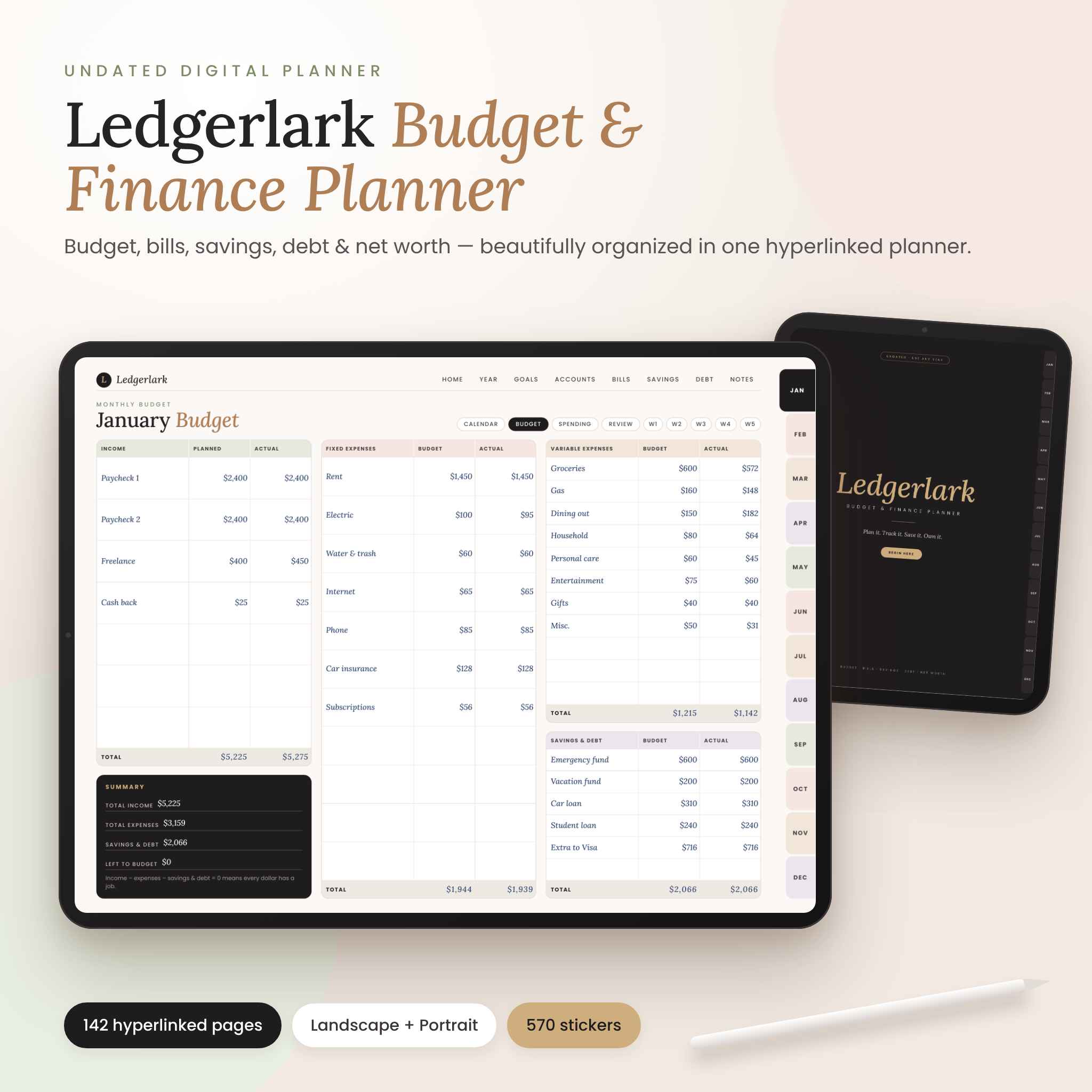
An undated money planner you can start again in any month, with printable copies for a paper backup.
- Undated, so you can re-import a fresh copy each year
- 142 linked pages for budget, bills, savings and debt
- Printable US Letter and A4 editions included
Re-download your original planner from Taskdale
Here’s the part you can always count on. If you bought your planner from Taskdale, the original file is still in your account. Log in, go to your account’s downloads or your order, and download it again. You can also use the link in your order confirmation.
That gives you a clean, working planner with every page and link intact. It won’t contain your handwriting, of course. It’s the blank original. But if the update scrambled your links or left you with a half-broken file, starting from a fresh copy is often the fastest way back to planning today.
If the file comes as a ZIP, unzip it first, then import the PDF as a new document. Our guide on how to unzip and import a digital planner PDF walks through it.
For things like weddings, losing notes stings more because there are other people and money involved. The Dovetail Digital Wedding Planner helps here because it splits the job in two: the PDF holds your notes and ideas, and a separate spreadsheet for Excel or Google Sheets holds the budget, RSVPs and seating.
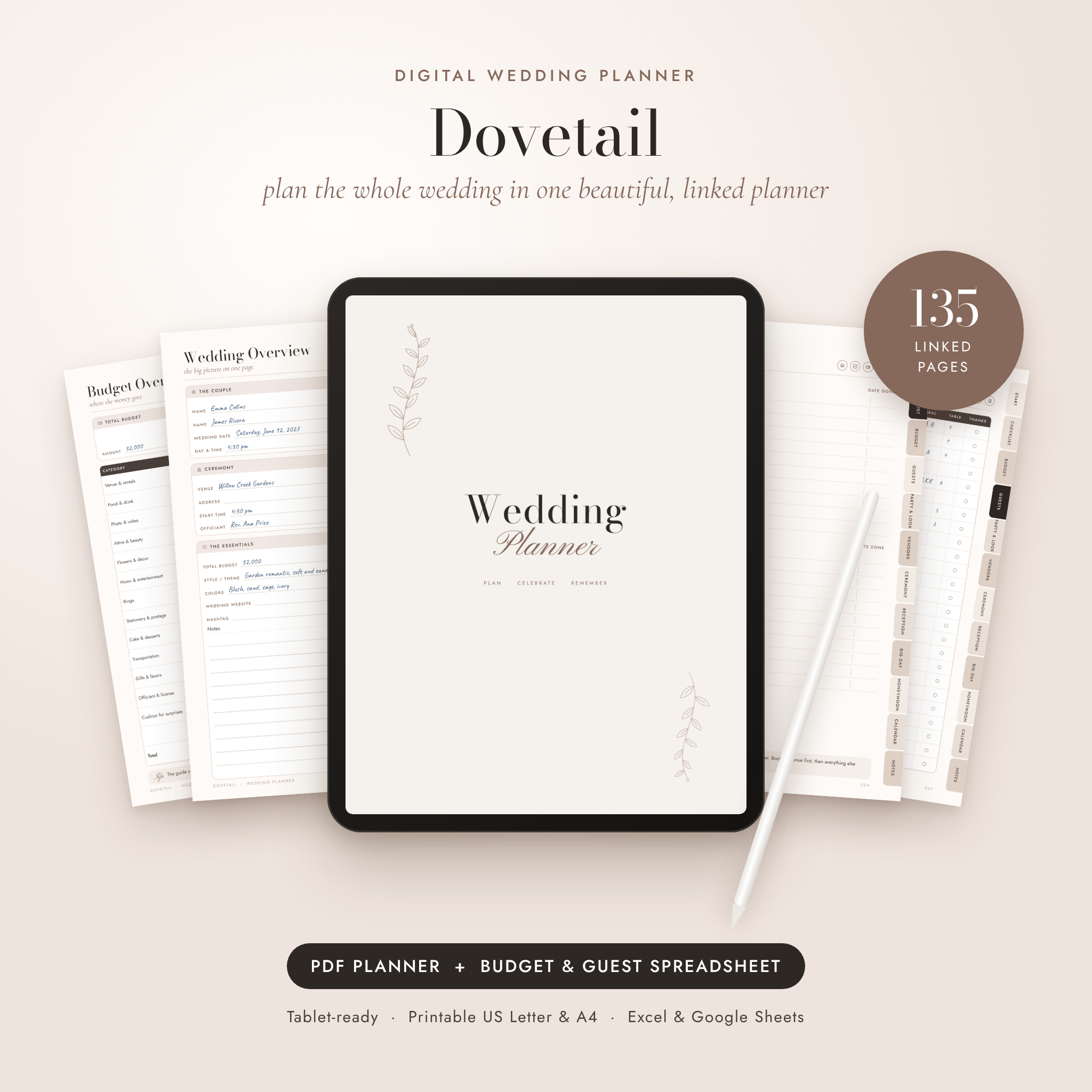
Dovetail Digital Wedding Planner 2026-2028
Your wedding notes live in the PDF while the budget, RSVPs and seating sit in a separate spreadsheet.
- 135 hyperlinked pages for tablet or printing
- Budget and Guest spreadsheet for Excel and Google Sheets
- Linked calendar from October 2026 to December 2028
That kind of split means one broken file doesn’t take everything with it.
Rebuild without starting from zero
Say you got some of it back. Or none. Here’s how to get moving again without spending a whole weekend recreating the past.
- Start from today. Open a fresh copy, jump to this week and plan forward. Don’t try to fill in every missed day.
- Copy over what matters, not everything. Goals, budgets, key dates, ongoing projects. Old daily to-do lists can stay lost.
- Keep the damaged copy for a month. You might remember something and want to look back.
- Use screenshots of the old version. If the broken file opens but links don’t work, screenshot the pages with notes you need and drop them into the new planner.
Teachers have it harder, because records like attendance and grades can’t just be “started fresh”. The Lesson Lane Digital Teacher Planner keeps the number work in a separate Excel gradebook with attendance, so even if the tablet planner goes wrong, your grades and records live in their own file you can back up separately.
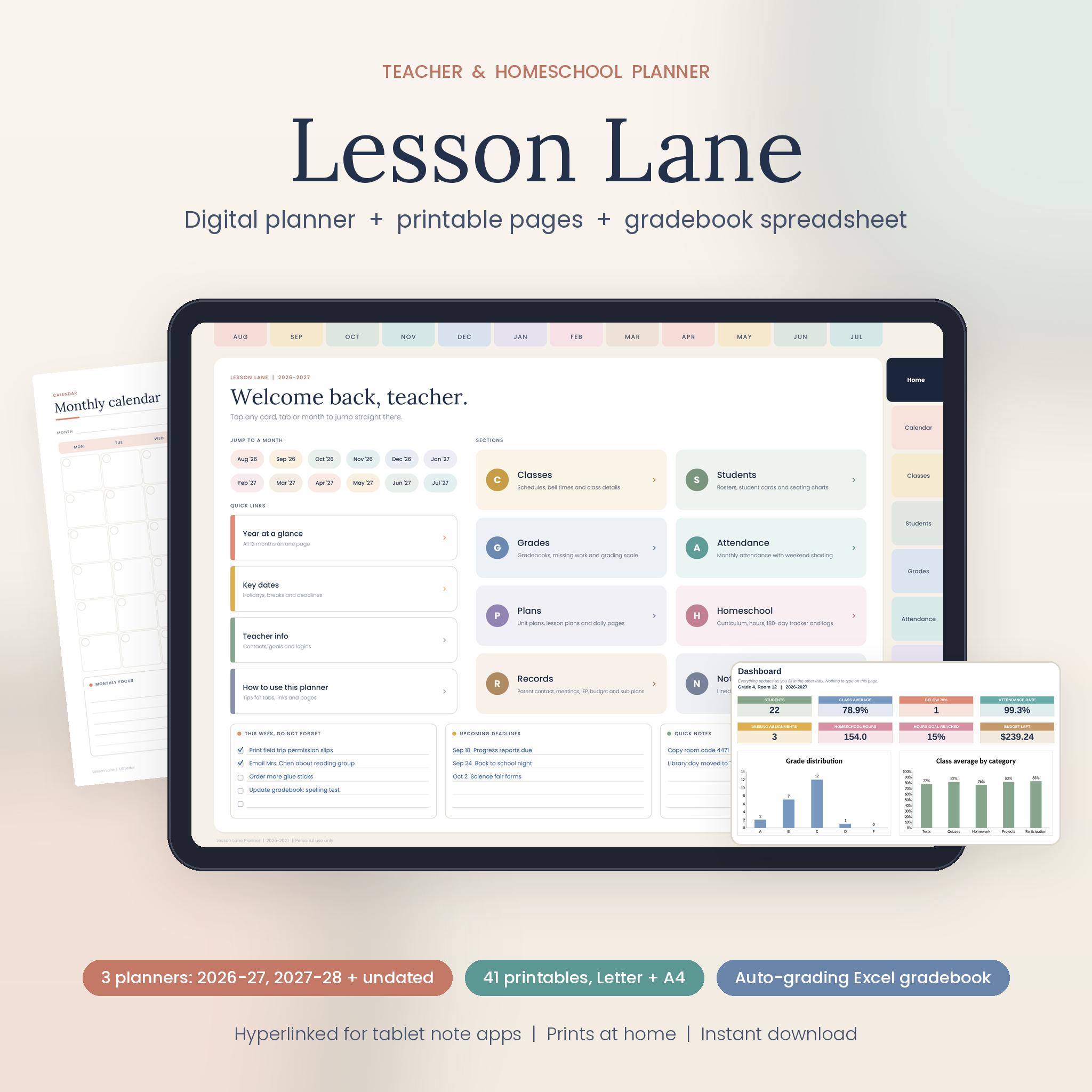
Lesson Lane Digital Teacher Planner 2026-2027 & Homeschool Planner
Grades and attendance live in an Excel gradebook, separate from the tablet planner you write in.
- Dated 2026-2027, 2027-2028 and undated planners
- Excel gradebook with attendance and homeschool hours tabs
- 41 printable templates in US Letter and A4
Browser-based planners: a different kind of backup
Not every planner is a PDF. Some are interactive HTML files that open in your web browser and save your entries inside that browser. They don’t break when a note app updates, but they have their own risk: clearing your browser data, switching browsers or getting a new computer can leave you with an empty planner.
The fix is their built-in backup. The Becoming Atlas Goal Planner & Habit Tracker, for instance, saves everything in your own browser, lets you export a backup from Settings, and reminds you when one is due. Keep those backup files somewhere else, like a cloud drive or a USB stick.
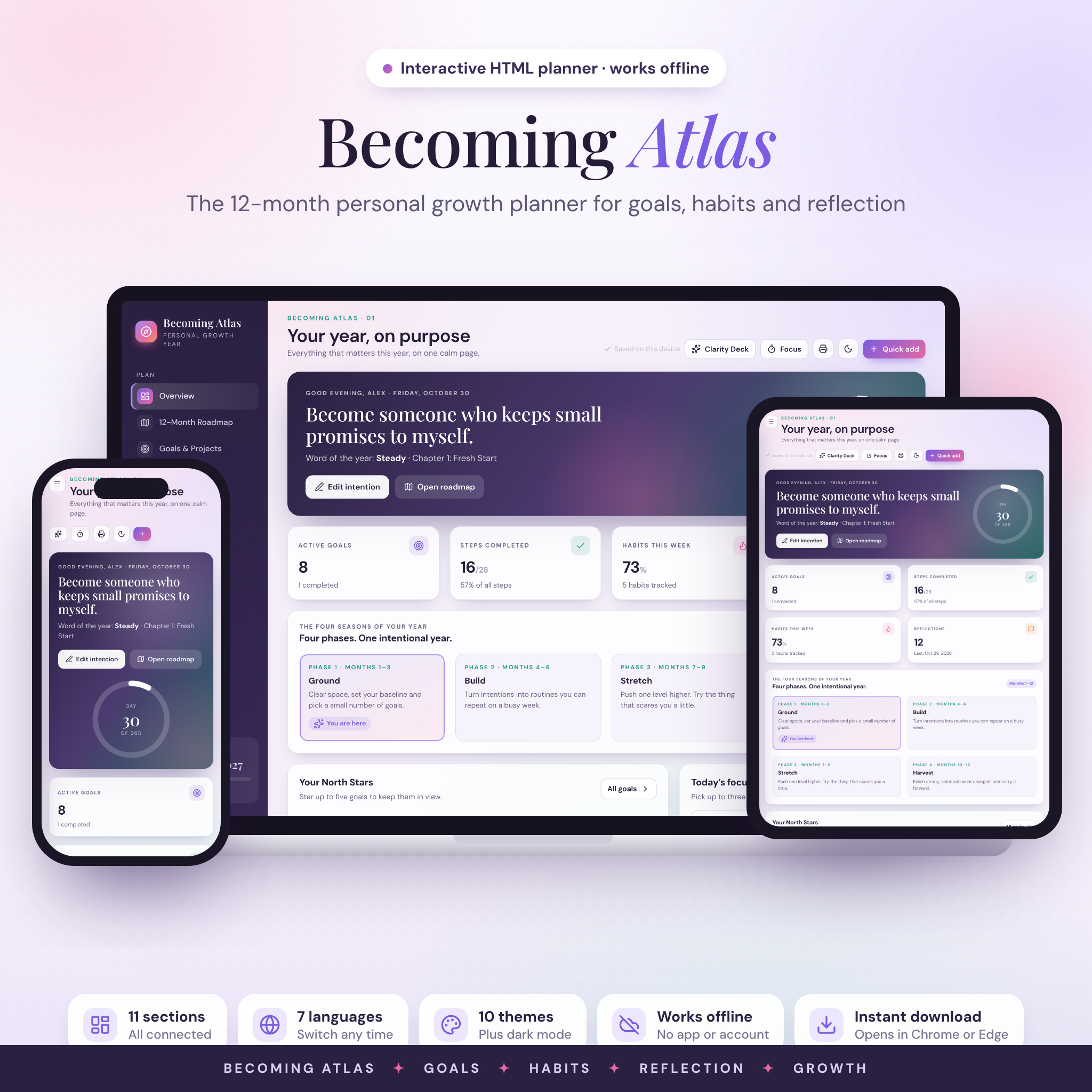
A browser-based planner with an export backup button and a reminder when a backup is due.
- Everything saves inside your own browser
- Export and import backups to move between devices
- Works offline once downloaded
Stop this from happening again
You don’t need a complicated system. Three small habits cover almost everything.
- Turn on your app’s auto-backup today. It takes two minutes in settings. Pick a cloud drive you actually use.
- Export a PDF copy once a month. First Sunday of the month, export your planner and save it with the date in the name, like “planner-2027-03.pdf”.
- Back up before you update. If an app update is waiting, export first. Then update.
We go into more detail in our guide to digital planner backup if you want a fuller setup.
FAQ
Can I recover handwriting that was never backed up?
Usually not. If the notes only existed inside the app on one device and they’ve been deleted, there’s often nothing left to restore. Check sync, trash and device backups first, but be ready to rebuild.
Will re-downloading from Taskdale bring back my notes?
No. It gives you the original, blank planner with every page and link working. Your handwriting lives in your note app, not in the file you downloaded.
My pages are there but the links stopped working. Is that the same problem?
Not quite. Your notes are safe. Links often stop working because of the app’s mode or how pages were added. See our guide to fixing broken planner links.
Should I stop updating my note app?
No. Updates fix bugs and keep things secure. Just back up first.
Losing a planner feels awful, especially months in. But you’re rarely starting from nothing. Check sync, check the trash, check backups, grab a fresh copy from your account, and pick up from today. And this time, set up that monthly export.