In January your planner flew. Tap a tab, land on the page. By April there’s a pause. By August you tap the weekly spread, watch a gray page for two seconds, and wonder if the app froze. If your digital planner is slow, you’re not imagining it, and you’re not stuck with it either.
Planners get laggy for a handful of reasons, and most of them build up quietly: file size, page count, stickers, months of handwriting, app settings and a tablet that’s nearly full. Each one adds a little weight. Together they add up to that frustrating pause.
Here’s how to find which one is slowing you down, and what to do about each.
Why a planner that started fast gets slow
Every time you open a page, your note app has to do a surprising amount of work. It loads the page design from the PDF. It works out where every link sits. Then it draws your handwriting on top, stroke by stroke, plus every sticker and photo you’ve added.
On day one, there’s almost nothing on top. By month six, there might be thousands of pen strokes, 200 stickers and a few photos per week. The planner file itself hasn’t changed. Everything you’ve layered over it has.
That’s good news, because it means most slowdowns are fixable. You don’t need a new tablet. Usually you need a lighter notebook.
The fixes below go roughly from “check this first” to “bigger changes.” Work through them in order.
Cause 1: File size and page count
Start with the planner itself. Two numbers matter: how big the file is, and how many pages it holds.
A planner with daily pages for a full year easily runs past 700 pages. Add multiple years in one file and you can pass 1,000. A large page count isn’t a problem on its own, but it makes the app work harder when you jump around, and it gives your handwriting more places to pile up.
File size is the other half. To check yours, look at the file in your tablet’s Files app or file manager before you import it. A planner of a few megabytes is light. One of 20 MB or more will take longer to open and may feel heavier on an older tablet.
How the pages are built matters too. Planners drawn as vector pages (shapes and text the app can redraw at any zoom) tend to stay light and sharp. Planners made from big background images can balloon in size.
The Linen Days Undated Digital Planner is a good example of a light build. Each planner holds 692 linked pages, and the listing puts the file at about 2 MB so it opens fast on iPad and Android tablets.
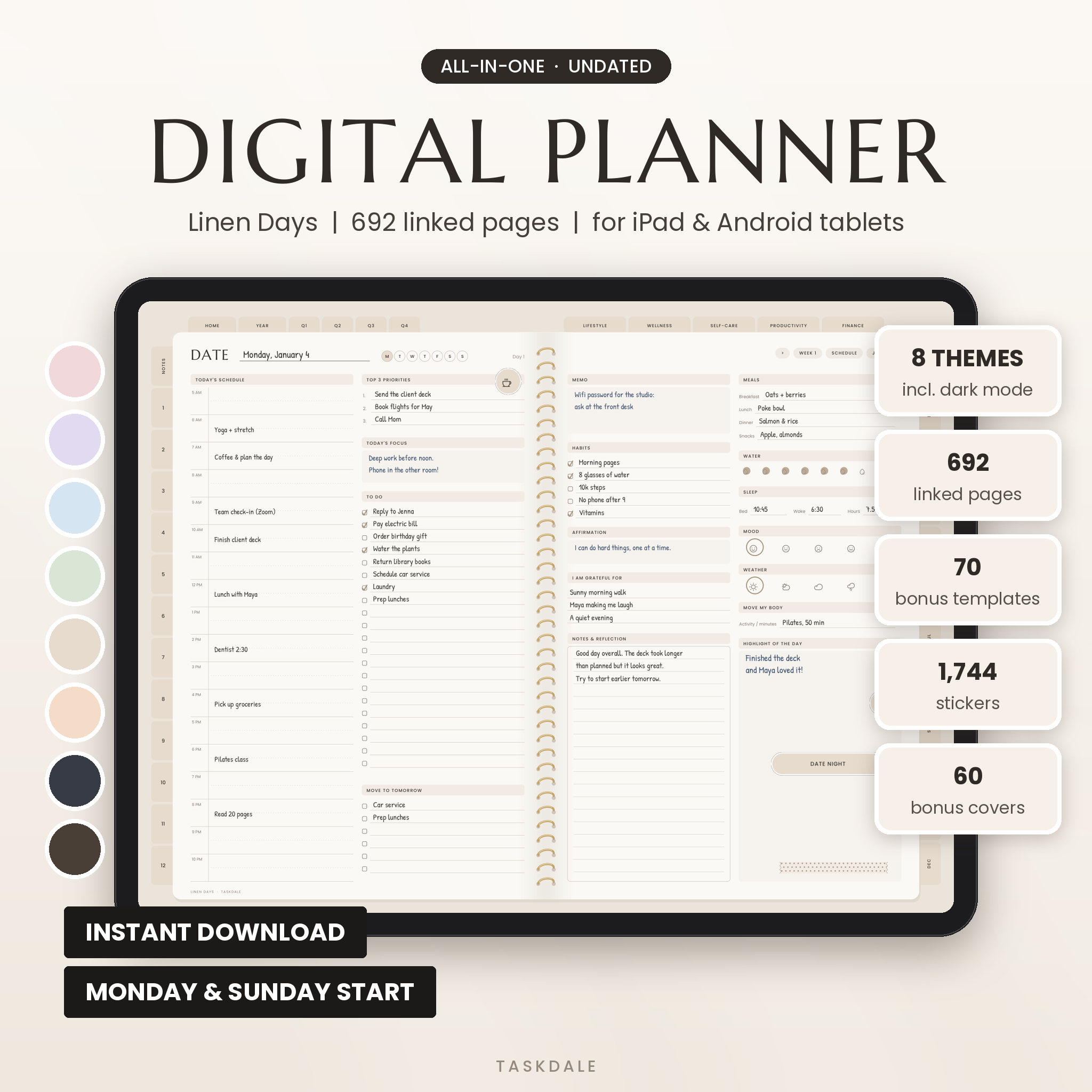
A full undated planner in a light file, made to open fast on iPad and Android tablets.
- 692 linked pages per planner, about 2 MB each
- 8 color themes, two of them dark mode
- 70 bonus templates, 1,744 stickers and 60 covers
If you’re still choosing a planner, file size and page count belong on your checklist next to layout. Our guide to the best digital planner features for tablets covers the other features worth comparing.
Cause 2: Stickers and photos
Stickers are the sneakiest cause of lag, because each one feels tiny. It isn’t.
A digital sticker is an image file. Some are small. Some are large, high-resolution PNGs that look crisp at any zoom but weigh far more than they need to on a little weekly box. Paste 10 of those a week and by summer you’ve added hundreds of images to one notebook.
Photos are worse. A single photo straight from your phone camera can weigh more than the entire planner PDF.
What helps:
- Shrink before you paste. If your app lets you crop or resize on insert, use it. A sticker shown at thumbnail size doesn’t need to be poster quality.
- Reuse the same few. Copying a sticker that’s already in your notebook is often lighter than importing a new image file each time, depending on the app.
- Keep photos out of daily pages. Put them on one “memories” page per month, or in your photo app.
- Use a sticker book for browsing. Keep a separate sticker notebook, copy from it, and keep your main planner lean.
For more on adding and organizing stickers without the clutter, see our guide to using digital planner stickers.
The Sunlit Undated Digital Planner keeps this simple: the planner is 207 pages, and its 138 stickers come as individual PNG files plus a sticker book PDF so you can browse first and only add what you’ll use.
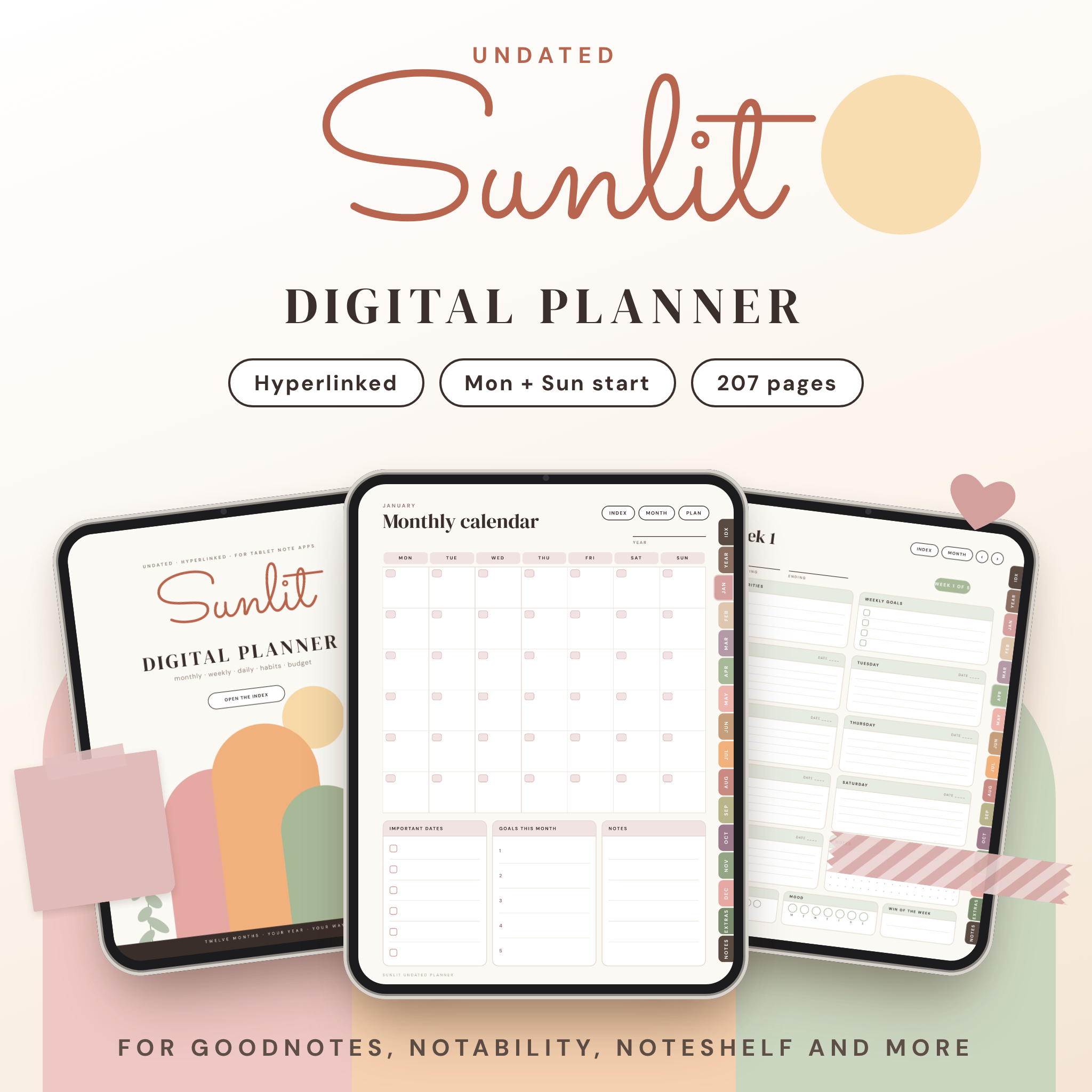
Undated Digital Planner for Goodnotes and Notability, Hyperlinked PDF with 138 Stickers
A compact undated planner with stickers kept as separate PNG files, so you only add what you'll use.
- 207 pages with over 4,000 working links per file
- 138 transparent PNG stickers plus a sticker book PDF to browse
- Monday and Sunday start versions included
Cause 3: Months of handwriting in one notebook
This is the one most people miss. Your handwriting is stored as data, not as a picture. Every stroke, every scribble, every highlighter swipe. A full daily page might hold hundreds of strokes. A year of daily pages holds a lot.
The app has to keep track of all of it. So the planner that opened in a blink in January can drag in October without a single sticker on it.
The fix is to stop asking one notebook to carry the whole year.
How to split a planner by quarter
Splitting sounds technical. It isn’t. Here’s the low-fuss method:
- Back up your current planner. Export a copy, or make sure your app’s backup has run. Our digital planner backup guide covers how in any app.
- Rename it. Something like “Planner 2027 Q1.” This becomes your archive. You can still open it any time.
- Import a fresh copy of the original planner PDF as a new notebook, named “Planner 2027 Q2.”
- Carry forward only what matters: open tasks, your goals page, ongoing trackers. Copy or rewrite them. Leave finished weeks behind.
- Optional: delete the months you’ve already finished from the new copy. Just know that tabs pointing to deleted pages will lead nowhere, which is fine if you’ll never go back there.
Now your working notebook only holds three months of ink. It feels like January again.
Daily planners benefit most, because that’s where ink piles up fastest. The Latte Hours Digital Daily Planner has one page for every day of the year plus weekly and monthly pages, close to 500 pages in each file, and over 24,000 links. It comes in both 2027 dated and undated versions, so starting a fresh copy mid-year is easy. Its listing also gives a useful tip: if you add pages, add them at the end so the links stay in place.
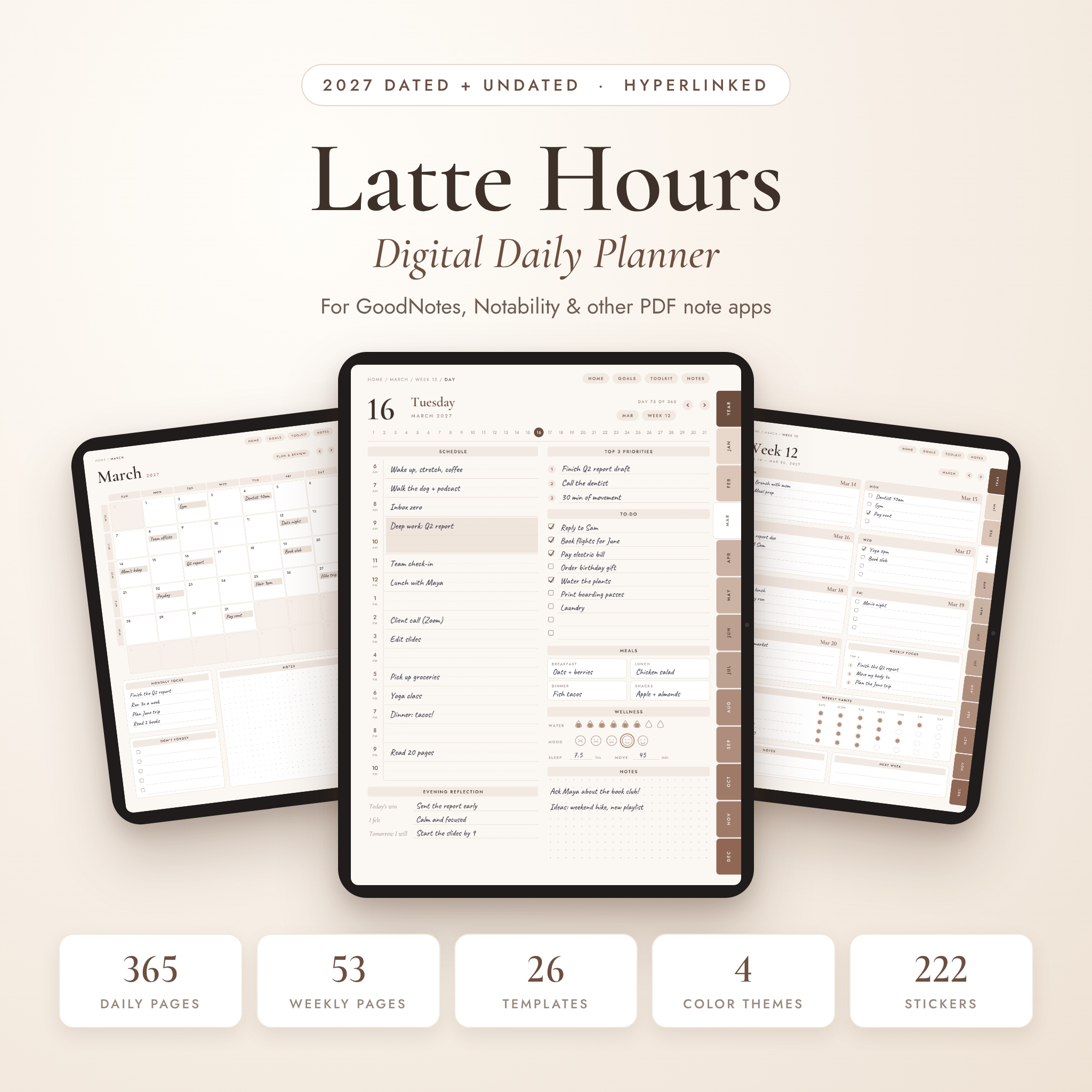
Latte Hours Digital Daily Planner 2027 + Undated
A day-per-page planner in dated and undated versions, so starting a fresh copy for a new quarter is easy.
- One page for every day with an hourly schedule, top 3 and to-do list
- 2027 dated and undated versions, Sunday or Monday start
- Over 24,000 internal links per file
Prefer to split by year instead? Our guide to archiving last year’s digital planner walks through the year-end version of the same idea.
Cause 4: App settings
Your note app has settings that quietly affect speed. Names and menus vary by app and version, so look for these ideas rather than exact labels:
- Open notebooks and tabs. Some apps, GoodNotes included, can keep several notebooks open at once in tabs. Close the ones you aren’t using.
- Cloud sync. When a big notebook syncs, the app may lag while it uploads. If the slowdown always hits right after a long writing session, sync is a likely cause. Let it finish on Wi-Fi.
- Handwriting search. If your app reads your handwriting so you can search it, that work happens in the background on new pages. On an older tablet, it can add lag while it catches up.
- Scroll direction. Some people find page-by-page (horizontal) scrolling feels snappier than continuous vertical scrolling in a long planner. Worth a try.
- App updates. Keep the app current. Speed fixes show up in updates more often than you’d think.
In GoodNotes, our walkthrough of how to use a digital planner in GoodNotes shows where the main settings and modes live.
Cause 5: Device storage and memory
Sometimes the planner is fine and the tablet is tired.
When your storage is nearly full, the whole device slows down, and note apps feel it first because they read and write a lot. If you’re down to your last gigabyte or two, clear some space. Old videos and downloaded files are the usual space hogs.
Memory is the other part. A tablet with 15 apps open in the background has less room for your planner.
- Restart the tablet once a week. It’s boring advice that works.
- Close apps you aren’t using.
- Check storage in your device settings and keep a healthy chunk free.
- Delete old copies of the same planner you’ve imported by accident. It happens more than you’d guess.
Android tablets vary widely in power, and note apps on Android vary too. If you’re on a Galaxy tablet, our guide to setting up a digital planner for Android in Samsung Notes includes setup tips worth checking. On an older or budget tablet, a lighter planner and a quarterly split make the biggest difference.
Cause 6: The planner is bigger than you need
Last one, and it’s an honest question to ask yourself. Do you use all those pages?
Lots of people buy an all-in-one planner with daily, weekly and monthly pages plus 150 templates, then plan mostly on the weekly spread. That’s fine. But you’re carrying hundreds of pages you never open.
Two ways to lighten up:
Pick a planner built light
Look for a listed file size. The Plotwell All-in-One Digital Planner is a good example of a lot of planner in a small file: each one is about 2.6 to 2.8 MB with 749 to 763 pages, and the listing says it opens quickly in your note app. You still get daily, weekly and five linked monthly pages, plus 158 templates.
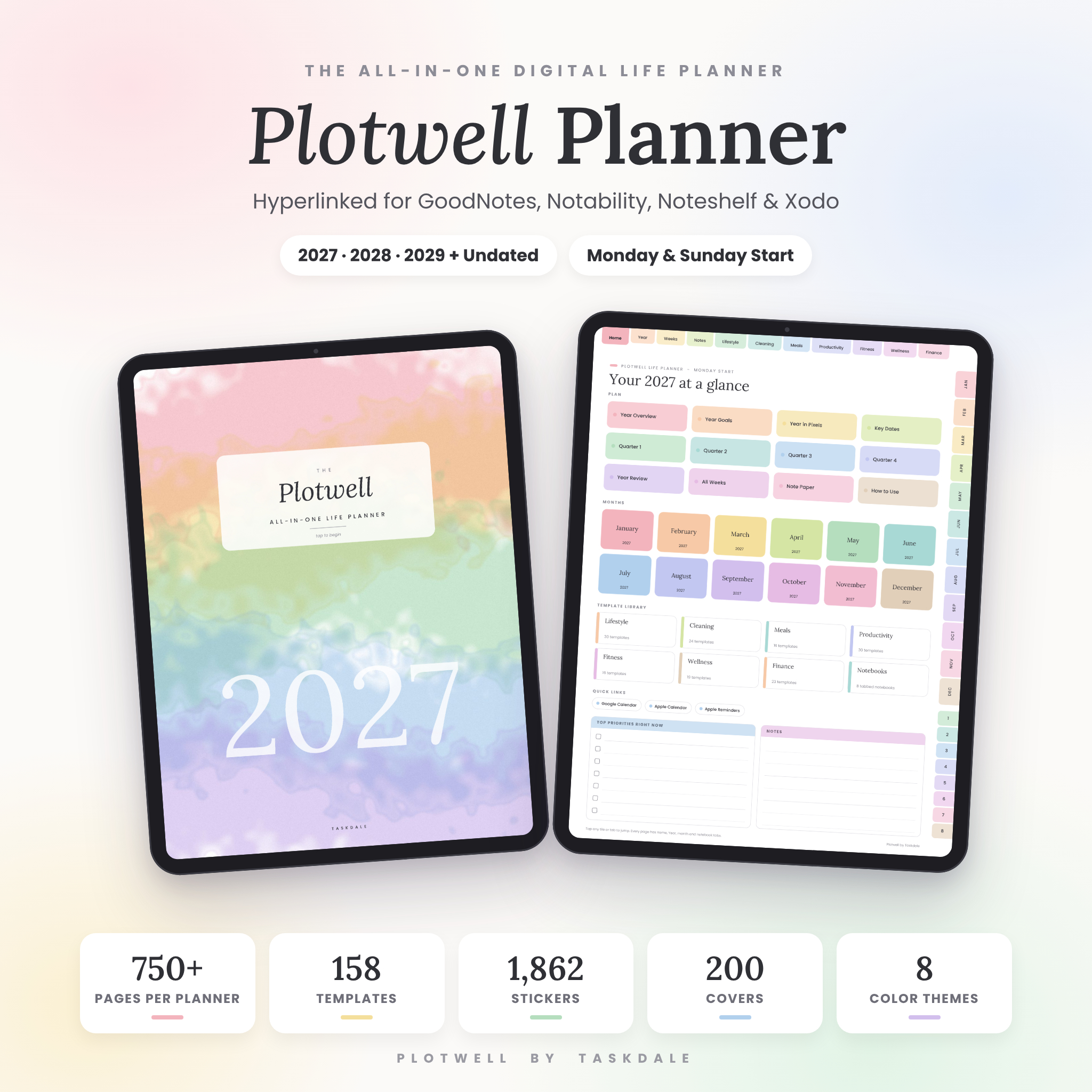
Plotwell All-in-One Digital Planner 2027 2028 2029 + Undated
A full all-in-one planner in a small file that the listing says opens quickly.
- About 2.6 to 2.8 MB per planner with 749 to 763 pages
- Daily pages, weekly spreads and 5 linked monthly pages
- 158 templates in 7 libraries
Or plan with fewer pages
If your weeks live in a calendar app and your planner is mostly for big-picture monthly planning, a monthly-only planner is about as light as it gets. The Duskday Digital Monthly Planner has 47 pages in the dated version and 42 in the undated one: a calendar, a focus page and a notes page per month. It also includes PNG inserts, so you can add Duskday pages to a notebook you already use.

Duskday Digital Monthly Planner 2026-2027
A monthly-only planner with a tiny page count, ideal if you mostly plan by the month.
- 47 pages dated (Nov 2026 to Dec 2027) or 42 undated
- Calendar, Focus and Notes pages for every month
- PNG inserts to add pages to a notebook you already use
A tiny file like that will feel instant on almost any tablet.
Quick-fix checklist
Short on time? Run through this list in order:
- Restart the tablet and close other apps.
- Close other open notebooks or tabs in your note app.
- Let any sync finish on Wi-Fi.
- Free up storage if you’re nearly full.
- Update your note app.
- Stop adding large photos and oversized stickers to daily pages.
- Split the planner by quarter and start a fresh copy.
- If it’s still slow, switch to a lighter planner or fewer pages.
If your planner is slow and the tabs also stop responding, check our guide on fixing digital planner links that aren’t working, since a laggy tap can look like a broken link.
FAQ
Is a 1,000-page planner too big?
Not by itself. Plenty of planners that size run fine. Page count becomes a problem when it’s combined with a large file size, lots of stickers or months of handwriting on an older tablet.
Will deleting pages I don’t use speed it up?
It can help a little, especially if those pages have writing or images on them. But tabs pointing to deleted pages stop working, so delete with care, or split into a new notebook instead.
Does dark mode make a planner faster?
Not really. A dark theme changes colors, not the amount of work your app does. Choose it for comfort, not speed.
Why is it slow only when I first open it?
Larger files take a few seconds to load the first time, while the app reads the pages. If it’s quick after that, it’s normal. If it stays slow, work through the checklist above.
A slow planner is almost always a heavy planner. Lighten the load, split the year into smaller pieces, and keep the tablet itself in decent shape. Your tabs will snap back to life, and planning will feel easy again.