Everybody has a Notion graveyard. A dashboard built on a Sunday night, color coded, perfect. Used for four days. Then abandoned for a sticky note.
A Notion life planner doesn’t have to end that way. The ones that last are small, clear and built around the things you actually do each week. This guide walks through how to build a life OS in Notion, step by step, what to leave out, and when it makes more sense to start from a ready made template.
| Product | Best for | Price | Link |
|---|---|---|---|
| Blossom Life OS | An all-in-one Notion life planner with an aesthetic pink look | $8.99 | View product |
| Calm Chaos ADHD Notion Template | A Notion dashboard with focus timer, habit tracker, budget, brain dump and chore chart | $14.99 | View product |
| Well-Kept Life Planner Spreadsheet | Budget, bills, habits and goals in an Excel file | $14.99 | View product |
What a Notion Life Planner Actually Is
Strip away the fancy cover images and a life OS is a few linked lists. Tasks. Goals. Habits. Notes. Maybe money. That’s it. Notion’s strength is that these lists can talk to each other, so a task can belong to a goal, and a goal can belong to a year.
That linking is what makes a Notion life planner feel different from a paper planner. On paper you copy things. In Notion you connect them. Change a task’s date once and it shows up in your weekly view, your monthly view and your goal page.
The catch? Power invites over-building. People spend six hours designing and zero hours using. So the first rule is to decide what your planner is for before you open a blank page.
Start With Four Questions
Grab a pen. Answer these before you touch Notion.
- What do I forget most often? (Appointments, bills, birthdays, follow-ups.)
- What do I want to do more of? (Exercise, reading, saving.)
- How often will I realistically open this? (Daily, or only on Sundays.)
- Do I need it on my phone?
Your answers shape everything. Someone who opens their planner once a week needs a weekly review page, not a daily journal. Someone who lives on a phone needs a simple home screen with big buttons. Be honest. The planner you’ll use beats the planner you admire.
Build Your Notion Life Planner in Five Steps
Step one: make one home page
Create a single page called Home. Everything links from here. Resist the urge to build five dashboards. One screen, one place to start, every day.
Step two: add a tasks database
A database is just a table that can show itself in different ways. Create one for tasks with a few properties: name, date, status and area (work, home, health, money). Keep status to three options. To do, doing, done. More than that and you’ll spend your time managing statuses.
Step three: add goals and link them to tasks
Make a second database for goals. Add a “relation” property to your tasks so each task can point to a goal. Now you can open a goal and see every task attached to it. That view alone is worth the setup.
Step four: add a habits section
This can be a simple database with a row per day and a checkbox per habit. Start with three habits, not twelve. If you want a deeper tracker later, a dedicated spreadsheet can help, and we’ll get to that below.
Step five: add a weekly review
Make a template page with four prompts: what got done, what didn’t, what’s coming, what needs to change. Duplicate it each Sunday. Takes ten minutes. This is the page that keeps the whole system honest.
The Pieces Most People Skip (and Regret)
Three things get left out of a typical Notion life planner, then missed later.
First, an inbox. A single place to dump any thought, task or idea without sorting it. Sorting later is easy. Capturing in the moment is the hard part, so make it quick to reach from your phone.
Second, an archive. Done tasks pile up and slow your views. Set a filter so finished items hide after a week, and keep them in a collapsed section in case you need them.
Third, a “someday” list. Ideas that aren’t ready yet but that you don’t want to lose. Without one, your task list turns into a wish list and starts to feel heavy.
A small example
Say you want to read more. Goal: finish 12 books this year. Add a books database with title, author, status and finish date. Link it to the goal. Now you see “4 of 12” at a glance. Nothing fancy. But you can see the progress, and that is what keeps people going.
Mistakes That Quietly Kill a Planner
The same errors turn up over and over. Here are the big ones.
Too many properties. Every extra field on a task is one more thing to fill in, and you won’t. Name, date, status, area. Stop there until you feel a real gap.
Copying someone else’s setup without checking if it fits. A YouTube dashboard built for a full-time creator won’t suit a nurse working night shifts. Borrow ideas, not whole systems.
Perfect first, use later. If you’ve been tweaking icons for a week and have not logged a single task, close the tab. Add three real tasks right now. Then go back to the icons.
No end of day habit. A planner that only gets opened when you remember to is a planner that gets forgotten. Tie it to something that already happens, like your first coffee or shutting the laptop.
What a Good Sunday Review Looks Like
Set a timer for ten minutes. Open last week’s review page. Look at what got done and give yourself a second to notice it. That part is easy to skip, and it’s the part that feels nice.
Next, look at what didn’t happen. Don’t beat yourself up. Ask one question for each item: does it still matter? If yes, move it to a specific day. If not, delete it. Deleting is a skill, and it makes the list feel lighter.
Then glance at the week ahead. Appointments, deadlines, anything with a time attached. Add the three things that matter most to your goals and leave the rest as extras. Finally, write one line on what to change. Maybe it’s fewer evening tasks. Maybe it’s a bigger gap between meetings. One line is enough.
When to Build and When to Buy
Building your own teaches you how Notion works, and that’s valuable. It also takes real time. A reasonable first system can take a weekend, and you’ll tweak it for weeks. If that sounds fun, go for it.
If it sounds like homework, a ready made template gets you to the useful part faster. You duplicate the template into your workspace, replace the sample content with yours and start using it. You can still change anything you don’t like.
There’s no shame in either route. What matters is that you end up with a planner you open.
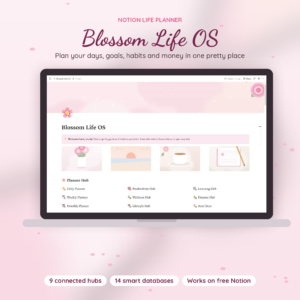
Blossom Life OS: All-in-One Notion Life Planner Template
Price: $8.99 | Best for: anyone who wants a ready made Notion life planner with a soft pink look
Blossom Life OS is an all-in-one Notion life planner template with an aesthetic pink digital planner design. It suits people who like a pretty workspace and would rather start from a finished layout than build every page. Open it in Notion, make it yours and start planning.
A Notion Life Planner for a Busier Brain
Some people find a clean, pretty planner calming. Others open it, see forty empty boxes and freeze. If your days run on bursts of focus and long stretches of “where did the afternoon go?”, you may need a layout that catches loose thoughts fast and keeps the daily view short.
That’s where a dashboard built around brain dumps and focus sessions can help. The idea is simple: get everything out of your head onto one page, pick the one or two things that matter today, and work in short blocks. A chore chart and a budget page sit a click away, so the house and the bills don’t live in your head either.
A quick note. This is a planning tool, not treatment, and it does not replace advice from a doctor or therapist. It is simply one way to organize a day.
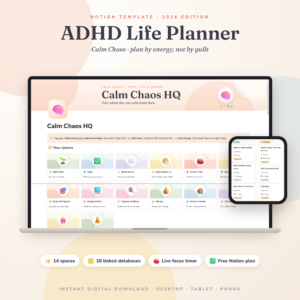
Calm Chaos ADHD Notion Template
Price: $14.99 | Best for: people who want a Notion dashboard that catches loose thoughts and keeps the day simple
This is an ADHD life planner and Notion dashboard for 2026. The title lists a focus timer, a habit tracker, a budget, a brain dump and a chore chart. It suits anyone who wants one Notion home for daily focus, household jobs and money, with room to dump thoughts first and sort them later.
When a Spreadsheet Beats Notion
Here’s a take that may annoy Notion fans: for money, a spreadsheet is usually better. Notion can store numbers, but spreadsheets were made for sums, totals and tracking what’s left each month. If your life planner needs a proper budget, bills and debt payoff, an Excel file will do it with less fuss.
Plenty of people run both. Notion for tasks, notes and goals. A spreadsheet for money and bills. Each tool does what it’s good at, and neither feels crowded.
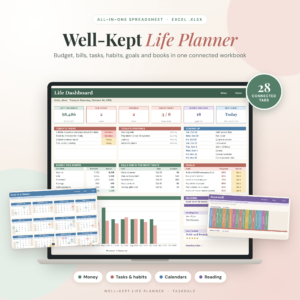
Well-Kept Life Planner Spreadsheet for Excel
Price: $14.99 | Best for: people who want money and life tracking in one Excel file
This is an all-in-one Excel planner with a budget planner, bill tracker, debt payoff, habit tracker, goal planner, weekly planner and book tracker. It’s undated for 2026 and 2027, so you can start any month. A good fit if you want one file for the numbers side of life.
Keep Your Notion Life Planner Alive for More Than a Month
Most planners die in week three. Not from lack of features. From friction. Here’s how to cut it.
Open it at the same time each day. Coffee time works. Put the page on your phone’s home screen. Keep the daily view short, five items at most. And do the Sunday review even when it feels pointless, because the weeks you skip it are the weeks things slip.
Also, change one thing at a time. If something annoys you, fix that single thing that day. Don’t rebuild the whole system on a whim. A planner you keep tweaking is a planner you keep using, as long as the tweaks stay small.
And forgive yourself the missed days. A gap of three days isn’t failure. Open the page, clear the old tasks that no longer matter, and start from today.
Compare the Options
| Product | Format | Price | Best for | Link |
|---|---|---|---|---|
| Blossom Life OS | Notion template | $8.99 | An all-in-one Notion life planner with a pink design | View product |
| Calm Chaos ADHD Notion Template | Notion template and dashboard | $14.99 | Focus timer, habits, budget, brain dump and chores in Notion | View product |
| Well-Kept Life Planner Spreadsheet | Excel spreadsheet | $14.99 | Budget, bills, debt payoff, habits and goals | View product |
Frequently Asked Questions
What is a Notion life planner?
It’s a set of linked pages and databases in Notion that hold your tasks, goals, habits and notes in one place. Because the pieces connect, a task can link to a goal and show up in daily, weekly and monthly views without retyping anything.
Is a Notion life planner free to use?
Notion has a free plan that many people use for personal planning, but plans and limits can change, so check Notion’s current pricing page. A template is a one time purchase of the file itself, and you add it to your own Notion workspace.
How do I set up a life OS in Notion from scratch?
Make one Home page, then add a tasks database, a goals database linked to tasks, a small habit tracker and a weekly review template. Start with only the parts you’ll use this week. You can always add pages later when a real need shows up.
Can I use a Notion template on my phone?
Notion has mobile apps, so you can open and edit pages there. Big databases can feel cramped on a small screen, so keep a simple Home page with the few views you use daily, and do heavier setup on a laptop.
Should I track my budget in Notion?
You can, but spreadsheets handle sums and totals more naturally. Many people keep tasks and goals in Notion and use an Excel or Google Sheets file for money. Pick whichever you will actually open every week.
So, the short version: keep it small, build around what you really do, and review it every Sunday. If you want a head start, grab Blossom Life OS for $8.99, make it your own, and let your first week of real use tell you what to change.