If you have been using Nudget or a similar phone budgeting app and it no longer fits, a simple budget template can do the same core job: show what came in, what went out, and what is left. The difference is that a template is a file you own. It does not need a login, it works in software you probably already have, and you can change any part of it.
This guide is for people weighing a Nudget alternative. It explains, fairly and in general terms, why some people move from apps to templates and why others should stay put. Then it shows you how to build a one-page budget tonight, compares three simple template routes (Google Sheets on your phone, Excel on a laptop, and a digital planner on a tablet), and walks through moving over without losing your progress.
Quick picks: simple budget templates
| Product | Best for | Price | Link |
|---|---|---|---|
| Pennygrove Budget Planner for Google Sheets | Budgeting on your phone through the Sheets app | $7.99 | View |
| Annual Budget Spreadsheet for Excel | A full year of budgets, bills and sinking funds on a laptop | Original price was: $19.99.$9.99Current price is: $9.99. | View |
| Ultimate Annual Budget Spreadsheet | Excel, Google Sheets or LibreOffice users who want one file | $6.00 | View |
| Hearthday Undated Digital Planner | Handwriting your budget on an iPad or Android tablet | $2.79 | View |
Why people look for a Nudget alternative
Budgeting apps are popular for good reason. They live on your phone, they are quick to open, and many make logging a purchase a two-tap job. Still, people move away from phone apps all the time. The reasons tend to fall into a few groups, and they apply to budget apps in general rather than to any single one.
- Ongoing cost. Many apps keep their fuller features behind a subscription or in-app purchase. Check the current terms in your app store. Over a few years, even a small monthly fee adds up, and some people would rather pay once.
- Where the data lives. With most apps, your history sits inside that app. If you stop using it, getting your records out can be awkward.
- Fixed layouts. An app shows what its designers chose to show. If you want a sinking funds tab, a paycheck split or a custom chart, you may not get it.
- Small screens. Logging on a phone is easy. Reviewing a whole month, or planning next year, is easier on a bigger screen.
- Wanting simpler, not fancier. Some people just want one page with income, bills and spending, and nothing else asking for attention.
None of that makes apps bad. It just means a different tool fits some people better. If two or three of those points made you nod, a template is worth a try.
What a simple budget template actually needs
A template can do a lot more than this, but if it does not do these five things well, it is not worth switching to.
- Income at the top. Every paycheck or payment, with its date.
- Planned amounts by category. Ten to fifteen categories is plenty for most people.
- A spending log. One place to enter purchases, with date, amount and category.
- Automatic totals. Planned versus actual for every category, with what is left, calculated for you.
- A bill list with due dates. So you can see what is coming before it arrives.
Nice extras include savings goals, a debt payoff estimate, a yearly view and charts. But start with the five. Simple is the point.
Build a one-page budget tonight
Before you choose a template, it helps to know your own numbers. Here is a one-page budget you can draft in about 30 minutes with last month’s bank statement.
- Write your monthly take-home pay at the top.
- List fixed bills with amounts and due dates.
- Look at last month’s spending and set realistic amounts for groceries, gas, eating out and personal spending.
- Add savings, debt payments, a small irregular-costs line and a buffer.
- Adjust until planned spending equals income.
Here is how that looks for someone bringing home $3,400 a month:
| Category | Planned |
|---|---|
| Rent | $1,150 |
| Utilities | $130 |
| Phone and internet | $95 |
| Groceries | $420 |
| Transport | $260 |
| Insurance | $140 |
| Credit card payment | $250 |
| Savings | $350 |
| Fun and eating out | $180 |
| Household and personal | $150 |
| Irregular costs fund | $175 |
| Buffer | $100 |
| Total | $3,400 |
That page is your blueprint. Whatever template you pick, these categories and amounts go straight into it. The setup becomes a 15-minute copy job rather than an evening of decisions, and you start the new system already knowing your plan.
Route one: a Google Sheets template on your phone
If you liked logging purchases on your phone, this is the closest swap. A Google Sheets budget opens in the free Sheets app, so you can add a coffee at the counter, then review the month on a laptop at the weekend. The same file, everywhere, saved to your own Google Drive.
It also suits couples. Share the sheet and both of you can add purchases, with no extra accounts to set up beyond the Google ones you already have. Our walkthrough on setting up a Google Sheets budget template in one evening covers the sharing settings and a few phone-logging tips.
Pennygrove Budget Planner for Google Sheets
Price: $7.99 | Best for: phone loggers and couples sharing one budget
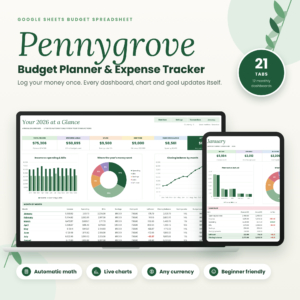
Pennygrove is a 21-tab budget planner for Google Sheets with 12 monthly dashboards and an annual dashboard. You type in the cream-colored cells and it handles the rest: categories turn amber near your warning level and red when over, bills show Paid, Due soon or Overdue, and savings goals and debt estimates update as you log. Enter the categories from your one-page budget, then add the Sheets app to your phone’s home screen.
Phone logging tips
- Pin the transactions tab so it opens first.
- Log at the moment of purchase, or at one set time each evening.
- Use dropdowns for categories so typing is minimal.
Route two: an Excel budget on a laptop
Some people realize, once they leave a phone app, that they actually prefer reviewing money on a big screen. A weekly 15-minute session at a laptop, with bank statements open, catches more than daily phone taps ever did. Excel also works fully offline, and the file sits on your own computer.
A good Excel budget handles the repetitive parts: recurring bills filled in for the year, sinking funds tracked automatically, charts redrawn every time you log.
Annual Budget Spreadsheet for Excel
Price: Original price was: $19.99.$9.99Current price is: $9.99. | Best for: weekly reviewers who prefer a laptop
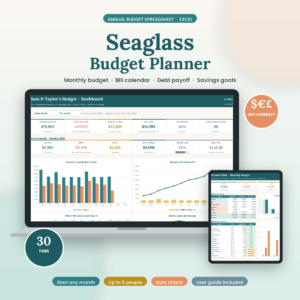
The Seaglass Budget Planner is an Excel workbook with 30 tabs: 12 monthly budget tabs with budget versus actual, a year dashboard, a bill calendar with paid, due and overdue status, a paycheck planner, a debt snowball, sinking funds and savings goals. Setup takes about 15 minutes from a Start Here menu, and the file arrives blank. Enter your one-page categories and recurring bills first, then log spending twice a week.
If you switch between computers or want a file that also opens in Google Sheets and LibreOffice, the Ultimate Annual Budget Spreadsheet in the quick picks table runs in all three, with an annual dashboard, 12 monthly dashboards and a 50/30/20 view.
Route three: a digital planner on a tablet
Not everyone wants a spreadsheet. If you enjoyed the visual side of an app but want something calmer, a hyperlinked digital planner lets you write your budget by hand with a stylus. It feels like a paper planner, with tabs and stickers, but lives on your iPad or Android tablet.
You do the adding yourself, which some people find helps them notice spending more. It is slower than an app and that is the point: writing $14 for lunch by hand makes it register in a way a tap does not.
Hearthday Undated Digital Planner
Price: $2.79 | Best for: tablet users who like writing by hand
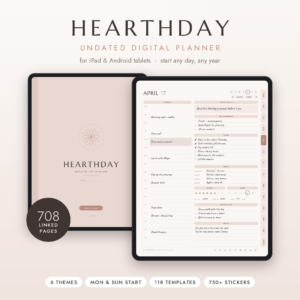
Hearthday is a 708-page undated hyperlinked planner for GoodNotes, Notability and other PDF note apps on iPad, Android and Windows tablets. It has yearly, monthly, weekly and daily pages plus 118 templates covering money, health, home and more, in six color themes including a true dark mode. Open the money templates first and copy your one-page budget onto the monthly budget page.
App or template: an honest comparison
Here is how the two approaches compare in general. Individual apps and templates vary, so check the details of any specific one.
| Question | Typical budget app | Budget template |
|---|---|---|
| How you pay | Often free with paid upgrades or a subscription | Usually a one-time purchase, or free if you build your own |
| Where your data lives | Inside the app or its service | In a file you own and can copy |
| Logging on the go | Very quick | Quick with Google Sheets; slower in Excel or a planner |
| Customizing | Limited to the app’s options | Change anything you like |
| Bank syncing | Some apps offer it | Usually manual entry or CSV import |
| Works offline | Depends on the app | Excel and PDF planners work fully offline |
If not paying monthly is your main reason for switching, our guide to finding a budget app without a subscription looks at offline options that sit between apps and templates.
Switching over without losing momentum
The risky part of any switch is the gap: a week or two where you stop using the old tool and have not settled into the new one. A few habits close that gap.
- Pick a start date. The first of the month or your next payday. Keep using the app until then.
- Export what you can. If your app offers a CSV or spreadsheet export, save it. Even if you never import it, you have your history.
- Match your categories. Use the same category names in the template so last month and this month compare cleanly.
- Bring over only balances and goals. Current account balances, debt balances and savings goal progress. Old transactions can stay in the export file.
- Run both for one week. Log in both. It is a little extra effort, and it shows you the template works before you let go of the app.
- Delete the app after one month. Once the template has held for a full month, remove the temptation to drift back.
Most people find the first weekly review in the new template is a quiet little moment of pride. Everything is laid out how you wanted it, and it is yours.
A first-month check-in plan
Put four short dates in your calendar for the first month. Week one: confirm every purchase made it into the template. Week two: check that bills are marked paid on time. Week three: compare spending against your one-page plan and move money between categories if needed. Week four: do a full review and set next month’s numbers. After that, one weekly check is enough.
Who should stay with an app
A template is not for everyone, and switching for the sake of it wastes energy you could spend on the budget itself. Staying with your current app may be the better choice if:
- You never open a laptop. If your phone is your only screen, an app built for phones will feel more natural than most spreadsheets.
- You rely on bank syncing. If automatic imports are the only reason you log anything at all, manual entry may not stick.
- You like your app and use it every week. If cost is your only worry, check whether a cheaper plan or a one-time option exists before moving.
- You share money with someone who loves the app. A budget both partners use beats a better tool only one of you opens.
The best budget tool is the one you open every week, whatever form it takes.
Frequently asked questions
Is there a free alternative to budgeting apps?
Yes. You can build a simple budget in a free Google Sheets or LibreOffice file using the one-page layout above. Paid templates save setup time and add dashboards, bill tracking and savings goals.
Can I use a budget spreadsheet on my phone?
Google Sheets templates work well in the free Sheets app on iPhone and Android. Excel files open in the Excel mobile app, though large workbooks are easier to review on a computer.
Do budget templates connect to my bank?
Most templates use manual entry, which many people find helps them notice spending. Some let you paste in a CSV export from your bank to speed things up.
How do I move my budget history from an app to a spreadsheet?
Check whether your app offers a CSV or spreadsheet export. Save it, then start the template fresh on a set date with your current balances and goals.
What is the simplest budget template to start with?
A single page with income, 10 to 15 categories, planned versus actual, and a bill list. Add savings goals and charts once that habit is steady.
How long does it take to set up a budget template?
With your one-page budget drafted first, most templates take 15 to 30 minutes to set up. Without it, expect an evening of decisions.
Your next step
Tonight, draft your one-page budget from last month’s statement, using the table above as a guide. Tomorrow, pick the route that matches how you like to work: phone, laptop or tablet. If you want to keep logging on your phone, copy your categories into the Pennygrove Budget Planner for Google Sheets and start on your next payday.