The reMarkable feels like paper, which is exactly why a bad template stings. You spend a few minutes loading something that looks fine on a laptop, and then it’s cramped, too faint or missing the one page you needed. Back to the default lines.
So what makes good remarkable templates, and which ones are worth a spot on your tablet? This guide covers what to look for, the page types that earn their place, and a closer look at one full suite built for the Paper Pro, reMarkable 2 and Paper Pro Move.
| Product | Best for | Price | Link |
|---|---|---|---|
| Inkframe Productivity Suite | A full set of reMarkable templates for the Paper Pro, reMarkable 2 and Paper Pro Move | $24.99 | View product |
| Hearthday Undated Digital Planner | A GoodNotes and Notability planner if you also use an iPad or Android tablet | $2.79 | View product |
| Willowday Undated Digital Planner | Another low cost undated planner for GoodNotes and Notability | $2.49 | View product |
What Good reMarkable Templates Have in Common
E-ink tablets are different from iPads. No color flash, no stickers, no endless zoom. You write on a calm, quiet screen, and that shapes what a good template looks like.
First, clean lines. Thin, light grid or ruled lines that guide your hand without shouting at it. If the lines are heavy, your handwriting disappears into them. Second, big enough tap areas. Hyperlinks only help if you can hit them with a pen tip without three tries. Third, a sensible size. Pages should suit the screen, so you aren’t pinching and squinting.
And fourth, purpose. A template should do one job well. A meeting page should make meeting notes easy. A project page should show tasks and next steps. The pretty ones that do nothing end up unused.
The Page Types Worth Having
You don’t need fifty templates. Most people use a handful, over and over. Here are the ones I’d put first.
A hyperlinked planner
This is the backbone. Tap a month, land on that month. Tap a day, land on the day. Links turn a pile of pages into something that feels like an app, and on a device without apps, that matters a lot.
A journal
Plain pages with a light structure for daily reflection or gratitude. E-ink is lovely for this. No notifications, no tabs, just you and the page.
A meeting notebook
A page with space for date, attendees, notes and action items. It sounds basic. But if you sit in meetings all week, it’s the page you’ll use most, and it keeps your notes findable later.
A project planner
A place for goals, steps and deadlines on one page. Useful if you juggle more than two things at once, which most of us do.
Best reMarkable Templates (2026): One Suite That Covers It
Here’s the honest picture of Taskdale’s range. There is one product built specifically for reMarkable, and it’s a big one. The title spells out what’s inside, so I’ll stick to that.
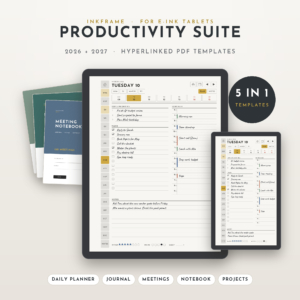
Inkframe Productivity Suite
Price: $24.99 | Best for: people who want reMarkable templates for planning, journaling, meetings and projects
Inkframe is a set of reMarkable templates for 2026 to 2027, made for the Paper Pro, reMarkable 2 and Paper Pro Move. The title lists a hyperlinked planner, a journal, a meeting notebook, a smart notebook and a project planner. It suits anyone who wants one purchase to cover most of their daily pages.
A Week With Good Templates
Let me paint a normal week, because feature lists don’t tell you much. Monday morning, you open the hyperlinked planner and tap into the week. You write three priorities. Not ten. Three.
Tuesday you have a 10am call. You flip to the meeting notebook, write the date, jot who’s there, and capture action items as they come up. When the call ends, the page is already organized. No retyping, no hunting for a stray scrap.
Wednesday afternoon, a small project lands on your desk. You open the project planner and break it into steps with dates. Thursday you tick two off and move one. Friday evening you open the journal and write four lines about what went well. That’s it. The tablet stays quiet the entire time.
Nothing in that week is fancy. That’s the point. Good remarkable templates fade into the background and let you get on with your work.
Template Mistakes to Avoid
Loading too many pages is the big one. A tablet with sixty templates feels like a junk drawer. Pick five. Use them hard.
Ignoring the device list is another. A file made for a different screen can have tiny text or odd margins, and you only find out after you’ve paid. Read the title first.
Third, skipping the backup. Tablets are tough, but not invincible. Keep a copy of every template file in cloud storage so a reset doesn’t cost you your setup.
And last, chasing looks over function. A page can be beautiful and still slow you down. Judge a template by how fast you can write on it, not by how it looks in a screenshot.
Is a $24.99 Template Suite Worth It?
It’s the most expensive item in this article, so it deserves a fair question. Think about cost per use. A planner you open every day for a year costs a few cents per day. A meeting notebook you use three times a week pays for itself in saved time and findable notes.
The flip side: if you only want a weekly page and nothing else, a big suite is more than you need. Be honest about how you work. If you already know you will use a planner, a journal and meeting pages, a suite saves you from hunting down separate files and checking whether each one fits your device.
One more thing. Bundled files tend to match each other. Same fonts, same spacing, same link style. That consistency makes the tablet feel like one tool instead of a drawer of mismatched papers.
How to Read a Template Listing
Listings can be vague, so know what to look for. The title should name the device. It should say what page types are inside. And it should say the years, if the planner is dated. The Inkframe title does all three: devices, page types and 2026 to 2027.
Be wary of listings that promise everything and show nothing. If you can’t tell what pages you get, you can’t tell if they suit you. A clear title is a good sign that the seller knows the product.
Also check whether links are mentioned. A hyperlinked planner is far nicer to use than one you have to flip through by hand. The Inkframe title says hyperlinked planner, and that’s the feature I would care about most on an e-ink screen.
Who Should Skip a Big Suite
If you want one page type, buy one page type. If you’re unsure you’ll keep using a tablet for planning at all, try the built in tools for a month first. There’s no prize for owning more templates.
But if you already write daily on your device and keep wishing for better structure, that’s the moment a suite makes sense. You know what you need, and you’re tired of improvising.
How to Pick Between Devices
Template files are often made for specific screen shapes. That is why the Inkframe title names the Paper Pro, reMarkable 2 and Paper Pro Move. If you own one of those, you’re covered. Always check the device list before you buy any template, because a file made for one screen can look off on another.
Also think about the screen itself. The Paper Pro has a color display, while the reMarkable 2 does not, so a template that looks great on one may need a different feel on the other. Look for clean, high contrast pages that work in either case.
If You Also Use an iPad or Android Tablet
Plenty of readers have both: an e-ink tablet for focus and an iPad for everything else. For the second device, there are planners built for GoodNotes and Notability. They are not reMarkable files, so don’t load them on your e-ink tablet expecting a match. They’re for the other screen.
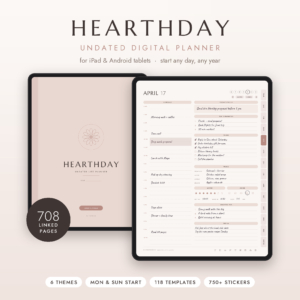
Hearthday Undated Digital Planner
Price: $2.79 | Best for: a hyperlinked planner for iPad and Android in GoodNotes or Notability
Hearthday is an undated, hyperlinked planner for GoodNotes and Notability on iPad and Android. The title lists daily, weekly and monthly pages, a budget and habit tracker, 118 templates, stickers and dark mode. A low cost way to plan on your other tablet.
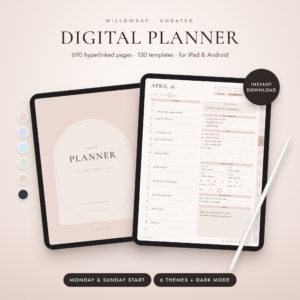
Willowday Undated Digital Planner
Price: $2.49 | Best for: a simple undated planner with lots of templates
Willowday is an undated, hyperlinked planner for iPad and Android in GoodNotes and Notability. The title lists daily, weekly and monthly pages, 130 templates and stickers. It suits anyone who wants a range of layouts to try at a small price.
One last tip before setup. Write a short note to yourself on the first page of your planner: what you want this tool to do for you this year. Something like “fewer missed deadlines” or “notes I can find”. When a page stops serving that goal, you’ll know to change it.
Setting Up Your Templates Without Chaos
Once you own templates, a little structure keeps your tablet tidy. Make a folder for each area of life: work, home, projects. Name files clearly. “Planner 2026” beats “Untitled 4”.
Keep one master copy of each file on your computer or in cloud storage. If something goes wrong, you can reload it. And don’t load everything at once. Start with the planner and one other page type, use them for two weeks, then add more if you miss something.
Review your setup each quarter. Which pages did you open? Which ones sat there? Delete the second group. A lean tablet is a fast tablet, and you’ll stop scrolling for the page you need.
Compare the Options
| Product | Format | Price | Best for | Link |
|---|---|---|---|---|
| Inkframe Productivity Suite | reMarkable templates for Paper Pro, reMarkable 2 and Paper Pro Move | $24.99 | Planning, journaling, meetings and projects on e-ink | View product |
| Hearthday Undated Digital Planner | Hyperlinked undated planner for GoodNotes and Notability | $2.79 | Planning on iPad or Android | View product |
| Willowday Undated Digital Planner | Hyperlinked undated planner for GoodNotes and Notability | $2.49 | Trying many templates at a low price | View product |
Frequently Asked Questions
What are reMarkable templates?
They are page layouts you load onto your reMarkable tablet, such as planners, journals, meeting pages and project pages. They give your notes structure, so you aren’t limited to the built in lines and grids. Always check that a file lists your device.
Do reMarkable templates work on the reMarkable 2 and Paper Pro?
Only if the product says so. Files are made for specific screens. The Inkframe suite title lists the Paper Pro, reMarkable 2 and Paper Pro Move, so check for that device list on any template before buying.
What is the best reMarkable template for beginners?
Start with a hyperlinked planner and a meeting notebook. Those two cover most daily needs. Once you know what you reach for, add a journal or project planner. A suite is handy if you already know you will use several.
Can I use GoodNotes planners on a reMarkable?
No, not as a match. GoodNotes and Notability planners are made for iPad and Android apps. Use them on that device, and use files made for reMarkable on your e-ink tablet.
Are paid templates better than free ones?
Not always. Free ones can be fine for a simple grid. Paid suites tend to offer matched pages, working links and more page types in one place, which saves time if you plan to use several of them.
So, here is the next step: decide which two page types you will use every week, and check that any file you buy lists your exact device. If you want the whole set in one go, look at Inkframe Productivity Suite for $24.99 and load your first planner today.