Best Budget Template: How to Choose One That Fits Your Pay
The best budget template is the one that matches how you are paid and the spreadsheet app you already use. For most households that means a paycheck-based planner in Excel or Google Sheets, with a bill calendar and a debt payoff tab. The templates below cover weekly to monthly pay, and one works offline with no subscription.
Key facts at a glance
- A budget template is a pre-built spreadsheet or file where you enter income, bills and spending once, and the totals, charts and balances calculate for you.
- Every template on this page includes a bill calendar or bill tracker, and every one handles debt payoff, using snowball, avalanche or payoff dates.
- Nine of these templates run in Excel, Google Sheets or both, while PayStretch Paycheck Budget Planner is a single offline HTML file.
- Tab counts range from 15 (Ledgerlark) to 38 (Cashcove), and more tabs means more features but a longer setup.
- Each template accepts any currency, and most let you start the budget year in any month.
Choosing a template can feel like a bigger decision than it is. Dozens of tabs, dashboards and sinking funds look daunting, but most of it is optional. We'll explain what matters, compare the options side by side and help you settle on one.
 Annual Budget Spreadsheet for Excel & Google Sheets | Lapis Ledger Monthly Budget Planner with Dashboard, Bill Calendar, Recurring Bills, Debt Payoff, Sinking Funds & Paycheck Planner
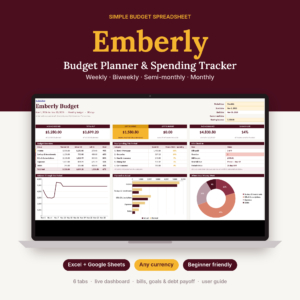 Simple Budget Spreadsheet for Excel & Google Sheets | Emberly Budget Planner & Spending Tracker with Dashboard, Bill Tracker, Savings Goals & Debt Payoff | Weekly, Biweekly or Monthly
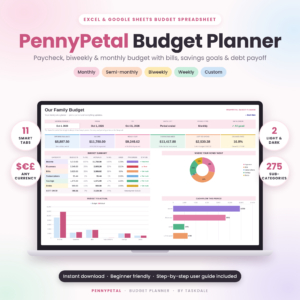 Budget Planner Spreadsheet for Excel & Google Sheets | PennyPetal Paycheck, Biweekly & Monthly Budget with Bill Tracker, Sinking Funds & Debt Payoff
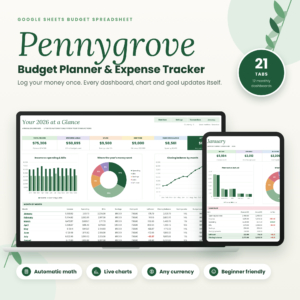 Budget Planner Spreadsheet for Google Sheets | Pennygrove Monthly Budget, Expense Tracker, Bill Calendar, Debt Payoff & Savings Goals
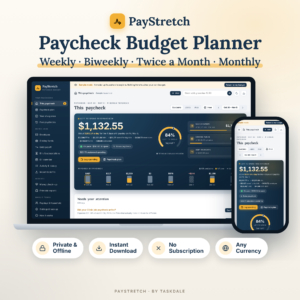 PayStretch Paycheck Budget Planner | Weekly & Biweekly Budget App with Cash Envelopes, Sinking Funds, Debt Snowball & Bill Calendar | Offline HTML, Any Currency
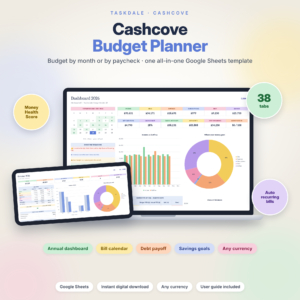 Budget Planner Spreadsheet for Google Sheets – Monthly & Paycheck Budget Template, Bill Tracker, Debt Payoff & Savings Tracker | Cashcove
 Paycheck Budget Spreadsheet for Excel & Google Sheets | Ledgerlark Biweekly & Monthly Budget Planner with Bill Tracker, Debt Payoff, Savings Goals & Calendar
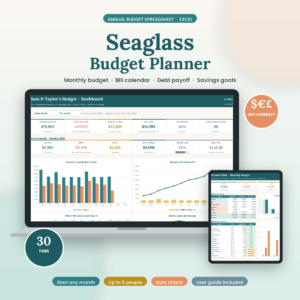 Annual Budget Spreadsheet for Excel | Seaglass Budget Planner | Monthly Budget, Bill Calendar, Debt Snowball, Sinking Funds & Paycheck Budget Template
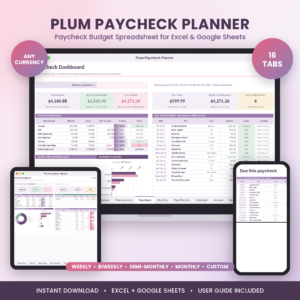
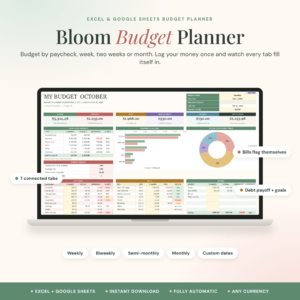
Table of Contents
Toggle
- What should you look for in a budget template?
- How do the budget templates compare?
- Which budget template suits you?
- How do you set up a budget template?
- What mistakes should you avoid with a budget template?
- What affects the price of a budget template?
- Common questions
What should you look for in a budget template?
Look for six things: a pay schedule that matches yours, the right app, a sensible level of detail, bill and debt tools, support for more than one person, and a clear guide. Each one decides how often you will open the file after the first week.
Does it match your pay schedule?
A paycheck budget template assigns each bill to the pay date that will cover it, instead of treating the month as one lump. This matters if you are paid weekly, biweekly or twice a month, because bills rarely fall evenly across paydays.
Emberly, PennyPetal, Plum, Bloom and PayStretch all support weekly, biweekly, semi-monthly and monthly pay. Pennygrove is built around monthly budgets, which suits a single monthly salary or pension.
Does it work in the app you already use?
Excel, Google Sheets and an offline file behave differently. Google Sheets works in a browser and is easy to open on a tablet or share. Excel suits people who prefer desktop software and keeping files on their own computer.
Pennygrove and Cashcove are for Google Sheets. Seaglass is for Excel. Lapis Ledger, Emberly, PennyPetal, Ledgerlark, Plum and Bloom list both. PayStretch needs neither, because it is one private HTML file that works offline.
How much detail do you actually want?
Detail is useful only if you will keep entering it. PennyPetal offers a 1,000-row transaction log and plan-versus-actual for 275 sub-categories, which suits someone who likes to see exactly where each pound or dollar went.
Emberly takes the opposite approach, with a dashboard of 6 cards and 3 charts and a calm layout. If you have never kept a budget, start with less detail. You can always move to a bigger template later.
Does it handle bills, debt and savings the way you need?
Look at how each template treats bills. Bloom flags each bill as Paid, Overdue or Upcoming, which is handy if you forget due dates. Cashcove schedules bills and subscriptions automatically.
For debt, the snowball method pays off the smallest balance first, and the avalanche method targets the highest interest rate first. Lapis Ledger, PennyPetal, Pennygrove, PayStretch, Cashcove, Seaglass and Plum offer one or both. Sinking funds, which are small pots set aside for known future costs, appear in most of the larger templates. Seaglass has 15 and PennyPetal has 20.
Can it handle a partner or household?
Two incomes change the setup. PayStretch supports one or two earners. Plum includes a couples split, and Ledgerlark includes a household split. Seaglass allows up to 6 people, which suits a larger household or someone managing money for a relative.
Does it come with a guide and an example?
A step-by-step user guide is the difference between a template you use and one you abandon. Pennygrove says it is easy even if you have never budgeted in a spreadsheet. Ledgerlark, Emberly and Bloom include a filled sample file, so you can see a working budget before you type anything. Bloom's guide runs to 22 pages, and Plum's is a printable Word document.
How do the budget templates compare?
The templates differ mainly in app, pay periods and size. The table shows what each one offers, using only the details supplied by the sellers.
Which budget template suits you?
Pick by your situation first and features second. These matches come from what each seller says the template does.
- Brand new to budgeting: Emberly Budget Planner and Pennygrove are the gentlest starts. Emberly has a clean layout and a sample file, and Pennygrove has a step-by-step guide.
- Paid every two weeks: Ledgerlark, Plum Paycheck Planner and Bloom Budget Planner all put bills on the right paycheck and show what is safe to spend.
- Want to avoid cloud storage: PayStretch is a private offline file, with no subscription.
- Planning a full year ahead: Lapis Ledger and Seaglass fill all 12 months from your paychecks and bills.
- Love detail: PennyPetal gives you the most categories and the biggest transaction log.
- Many subscriptions and recurring bills: Cashcove schedules them automatically.
- Sharing with a partner: Plum, Ledgerlark and PayStretch have couple or household features.
If you cannot decide, choose the one that matches your pay schedule and your app. Between two that do, choose the one with the sample file.
How do you set up a budget template?
Setting up a budget template takes about one sitting if you gather your figures first. Follow these steps.
- Copy the file into your own Excel or Google Sheets account, or save the HTML file if you chose PayStretch.
- Choose your currency and your start month or start date.
- Enter your paychecks and their dates.
- List every recurring bill once, with its due date.
- Add any debts, with balances, and choose snowball or avalanche.
- Log your spending for a week, then review the dashboard.
Open the sample file or user guide before step 3 if one is included. Seeing a filled example makes the layout much easier to follow.
What mistakes should you avoid with a budget template?
The most common mistake is choosing a template that is too big and then never finishing the setup. A 38-tab workbook gives you nothing if you stop at tab four.
- Buying for features you will not use. Investment forecasts and 275 sub-categories are useful to some people and clutter to others.
- Ignoring the pay schedule. A monthly layout with a biweekly wage hides the weeks when money runs short.
- Skipping the guide. The guide explains which cells to edit and which to leave alone.
- Overwriting formulas. Type only in the input cells the guide names.
- Logging spending in bursts. Entering a month of purchases at once makes the dashboard late and the numbers vague.
- Forgetting irregular costs. Car servicing and annual insurance belong in sinking funds, not in the month they surprise you.
What affects the price of a budget template?
The price of a budget template depends mainly on how much it does and how much you have to maintain. Larger workbooks with more tabs, extra forecasting tools and fuller guides tend to cost more than simple trackers. We have left exact prices out, because they change, and the live product cards show the current figure.
A one-off file with no subscription, as PayStretch offers, differs from a service that charges repeatedly. Check each listing for what you are buying and whether anything recurs. A cheaper template that you finish setting up is better value than a premium one that you leave half done.
Common questions
Is Google Sheets or Excel better for a budget template?
Neither is better overall. Google Sheets suits people who want browser access and easy sharing, while Excel suits people who prefer desktop software. Pennygrove and Cashcove are made for Google Sheets, Seaglass for Excel, and several others list both.
What is the difference between snowball and avalanche debt payoff?
The snowball method pays off your smallest balance first, which gives quick wins. The avalanche method pays off the highest interest rate first, which usually costs less overall. Most templates here, including Lapis Ledger and Plum Paycheck Planner, let you choose either.
What is a sinking fund in a budget template?
A sinking fund is money set aside in small amounts for a known future expense, such as car repairs or a holiday. PennyPetal offers 20 sinking funds and Seaglass offers 15, so you can plan for several costs at once.
Can a budget template work for someone paid weekly or biweekly?
Yes, if you choose a paycheck-based template. Emberly, PennyPetal, Plum, Bloom and PayStretch all support weekly and biweekly pay, and they assign each bill to the paycheck that covers it. Ledgerlark covers both too.
Do I need to be good with spreadsheets to use one?
No. You type numbers into marked cells and the totals calculate for you. Pennygrove says it suits people who have never budgeted in a spreadsheet, and Emberly, Ledgerlark and Bloom include a sample file. Start with one of those if you are unsure.