You bought the templates. The download is sitting in a folder. And now you’re looking at your reMarkable wondering where on earth they go.
Good news: it’s less scary than it looks. This guide explains how to add templates to reMarkable, whether you own the Paper Pro or the reMarkable 2, which file types to expect, and what to do when something doesn’t show up. Software menus change over time, so I’ll point out where to double check.
| Product | Best for | Price | Link |
|---|---|---|---|
| Inkframe Productivity Suite | Templates made for the Paper Pro, reMarkable 2 and Paper Pro Move | $24.99 | View product |
| Terra Undated Digital Planner | An iPad or Android planner for GoodNotes and Notability | $4.00 | View product |
| Linen Days Undated Digital Planner | A low cost iPad or Android planner for GoodNotes and Notability | $1.99 | View product |
Before You Start: Know What You Bought
This sounds obvious. It’s also where most trouble starts. Before you try to add templates to reMarkable (or work out how to add templates to reMarkable in the first place), open the product page and read the title and description. What device is it made for? What file types come in the download? Is it a planner, a set of page templates, or both?
The Inkframe Productivity Suite title says it’s made for the Paper Pro, reMarkable 2 and Paper Pro Move, and lists a hyperlinked planner, a journal, a meeting notebook, a smart notebook and a project planner. That tells you what to expect. If a seller’s title doesn’t tell you, ask them before you buy.
Then check the files you downloaded. Open the folder. Is there a PDF? A zip? A note with instructions? Many sellers include a read me file. Open it first, because the seller knows their own files better than anyone.
Two Kinds of Files, Two Ways to Use Them
Here’s the key idea. Planner and notebook files are usually documents, often PDFs. Page templates, the kind you pick when you make a new page, are a different thing. They work in different ways, and mixing them up is the most common mistake.
Documents you read and write on
A hyperlinked planner or a meeting notebook is typically a document. You add it to your tablet like any other file, then open it and write on it. Links inside the document take you between pages.
Templates you pick for new pages
These are the background layouts you choose when you start a fresh page. How you load them depends on your device and software version, and the steps can change with updates. For these, rely on the seller’s instructions and reMarkable’s own current help pages.
How to Add Templates to reMarkable: The Usual Routes
If your files are documents, there are a few common ways to get them onto the tablet. Which one you use depends on what you have set up.
- The desktop or mobile app. Sign in with your reMarkable account, add the file, and it syncs to the tablet.
- The cloud route. Upload the file through your account, then let the tablet sync over Wi-Fi.
- A USB connection. Connect the tablet to your computer and use reMarkable’s file transfer option, if your version of the software offers it.
All three are normal. Pick the one that matches how you already use the device. If you’ve never connected your tablet to an account, set that up first, since it makes everything else easier.
Learning how to add templates to reMarkable is mostly about patience. The process is simple, but each step has to finish before the next one starts.
A simple sequence
Whichever route you choose, the order is about the same. Download and unzip the files on your computer. Check each file opens. Add them to the tablet. Wait for the sync to finish. Then look for them in your file list.
How to Add Templates to reMarkable Step by Step
- Download the files from your Taskdale order and save them in a folder you’ll remember.
- Unzip anything that arrived as a zip file.
- Open one file on your computer to confirm it isn’t corrupted.
- Add the file using the desktop app, the mobile app or the other method you prefer.
- Give the tablet a minute on Wi-Fi to sync.
- Open the file on the tablet and tap a link to test it.
Follow that list once and you’ll know how to add templates to reMarkable for every future purchase. It really is the same routine each time. That last step matters. A hyperlinked planner is only useful if the links work. Tap a month. Tap a day. If you land in the right place, you’re set.
Paper Pro vs reMarkable 2: Does It Change Anything?
The broad process is similar. You add files through the same kinds of channels. The differences show up in the screen: the Paper Pro has a color display and the reMarkable 2 does not, so a file made for one may not look identical on the other.
That’s why compatibility in the title matters. The Inkframe suite lists the Paper Pro, reMarkable 2 and Paper Pro Move, so it’s built with each in mind. For any other template, look for your exact device in the listing.
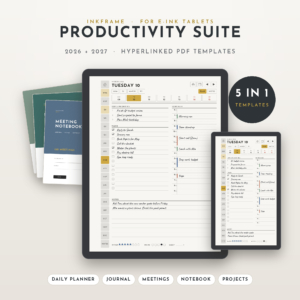
Inkframe Productivity Suite
Price: $24.99 | Best for: people who want ready made reMarkable templates for planning, meetings and projects
Inkframe is a set of reMarkable templates for 2026 to 2027, made for the Paper Pro, reMarkable 2 and Paper Pro Move. The title lists a hyperlinked planner, a journal, a meeting notebook, a smart notebook and a project planner. Check the files and any instructions in your download, then add them using the method that suits your setup.
Plan Your Layout Before You Load Anything
Before you add a single file, spend five minutes deciding where things will live. It sounds like fussing. It saves you real time later.
Sketch a rough list on paper. One folder for planners. One for work notebooks. One for journals. One for anything you’re trying out. Then, as you add each file, drop it in the right place straight away. A tablet that starts organized tends to stay organized.
Think about names, too. If you buy a new planner every year, put the year in the name. If you keep three meeting notebooks, label them by project or team. “Meetings 2026 Q1” is a lot easier to find than “Notebook 7”.
And decide what you’ll actually use. It’s tempting to load every page type on day one. Resist. Start with the planner and the meeting notebook. After two weeks, add the journal or project pages if you find yourself wanting them.
Your First Week After Adding Templates
The first week decides whether your setup sticks. On day one, open the planner and write three things you want to get done. On day two, take a real meeting or phone call and use the notebook. By day three, you’ll know if the layout suits your handwriting and pace.
Keep notes on what annoys you. Maybe the tap areas feel small, or maybe you wish a page had more room. Those notes are useful if you contact the seller, and they help you decide what to add or drop. By day seven, you should have a feel for whether this is the right set.
If something is off, don’t just put up with it. Check the seller’s instructions again, and reach out for help if you need it. A small fix, like moving a file or updating the software, can turn a clumsy setup into a smooth one.
Troubleshooting: When Templates Don’t Show Up
It happens to everyone. Run through this short list before you panic.
Is the file still syncing? Give it a few minutes on a good Wi-Fi connection. Large files take longer than you expect.
Is it the right file type? A planner that arrived as a zip has to be unzipped first. A tablet won’t open a zip like a document.
Did you try restarting? Turn the tablet off and on. It sounds silly, but it clears a surprising number of problems.
Is your software up to date? Features and menus change between versions. If instructions mention an option you can’t find, check for an update.
Did you add a template file where a document belongs, or the other way round? If so, go back to the section on file types and try the other route.
Keep Your Tablet Organized
Once you know how to add templates to reMarkable, keeping them tidy is the easy part. Create folders for planners, journals and work files. Name your files with the year. Move old planners to an archive folder when a year ends so they don’t clutter the view.
Also keep a backup of every file you buy on your computer or in cloud storage. If you ever reset the tablet, you can add everything again in minutes instead of searching old emails.
What About GoodNotes and Notability Planners?
If you also own an iPad or Android tablet, you may see lots of planners made for GoodNotes and Notability. Those are for those apps. They aren’t reMarkable files, so don’t expect them to work on your e-ink tablet. They’re a good fit for the other device.
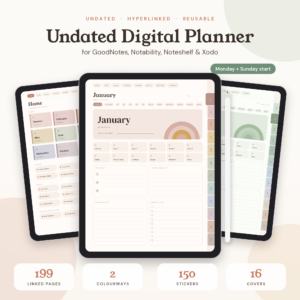
Terra Undated Digital Planner
Price: $4.00 | Best for: a hyperlinked iPad or Android planner with habit, mood and budget trackers
Terra is an undated, hyperlinked digital planner for GoodNotes and Notability. The title lists habit, mood and budget trackers, boho stickers, and Monday or Sunday start options. It is for your other tablet, not for reMarkable.
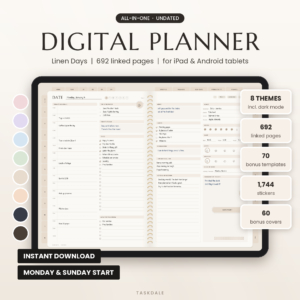
Linen Days Undated Digital Planner
Price: $1.99 | Best for: an inexpensive undated planner for GoodNotes and Notability
Linen Days is an undated digital planner for GoodNotes and Notability on iPad and Android, with daily, weekly and monthly planner pages and stickers. A low cost option for your second device.
Compare the Options
| Product | Format | Price | Best for | Link |
|---|---|---|---|---|
| Inkframe Productivity Suite | reMarkable templates for Paper Pro, reMarkable 2 and Paper Pro Move | $24.99 | E-ink planning, journaling, meetings and projects | View product |
| Terra Undated Digital Planner | Undated hyperlinked planner for GoodNotes and Notability | $4.00 | Habit, mood and budget tracking on iPad or Android | View product |
| Linen Days Undated Digital Planner | Undated planner for GoodNotes and Notability | $1.99 | A simple, low cost planner on iPad or Android | View product |
Frequently Asked Questions
How do I add templates to reMarkable?
Most planners and notebooks are documents. Download and unzip the files, then add them through the desktop app, the mobile app, the cloud or a USB connection if your software offers it. Page templates can work differently, so follow the seller’s instructions and reMarkable’s current help pages.
Can I add templates to reMarkable 2 and Paper Pro?
Yes, if the files are made for your device. Check the product title for your exact model, since that is the first thing to confirm when you add templates to reMarkable. The Inkframe suite lists the Paper Pro, reMarkable 2 and Paper Pro Move, so that is the kind of device list to look for.
Why are my templates not showing on my reMarkable?
Usually the file is still syncing, still zipped, or in a format your tablet cannot open. Wait a few minutes, unzip the download, restart the tablet and check that your software is up to date.
Do I need a reMarkable account to add templates?
Not always, since some methods use a USB connection. But an account makes syncing from the desktop or mobile app much easier. Check which options your software version offers before you start.
Can I use GoodNotes planners on reMarkable?
No. Planners for GoodNotes and Notability are made for those apps on iPad and Android. Use files made for reMarkable on your e-ink tablet, and keep the other planners for the other device.
So, the short version: read the product title, check your files, add them with the route that suits you and test a link. If you want a set made for the Paper Pro, reMarkable 2 and Paper Pro Move, take a look at Inkframe Productivity Suite for $24.99.