Grades in one app. Lesson plans in another. Attendance on a sticky note that went through the wash. If your school year runs on scraps like that, you are not lazy. You just never had a single place to put it all. A teacher planner for Google Sheets fixes that, and it costs less than a lunch out. Below, I will show you what a good teacher planner google sheets setup includes, how to use it week to week, and which two Taskdale spreadsheets are worth a look.
Quick picks: teacher planner spreadsheets
| Product | Best for | Price | Link |
|---|---|---|---|
| Teacher Planner Spreadsheet for Google Sheets | Lessons, seating chart and sub plans | $5.49 | View |
| Teacher Planner Spreadsheet & Weighted Gradebook | Weighted grades and attendance | $11.99 | View |
| Bright Days Teacher Planner | Teachers who prefer printing | $2.49 | View |
Why teachers move their planning to Google Sheets
A spreadsheet is the quiet workhorse of a classroom. Rows for students, columns for assignments, and a formula that adds it all up while you drink your coffee. Nobody gets excited about that. But ask any teacher who has recalculated twenty-six grades by hand at 11 p.m. and they will tell you the formula is the exciting part.
Google Sheets adds a few things on top. It opens in a browser, so you can check your attendance from the staff room, a library computer or your phone at the bus stop. It saves as you type. And if your laptop dies mid-term, your planner does not die with it.
Then there is sharing. Maybe you co-teach, or a mentor teacher wants to see your plans. Send a link, pick who can view or edit, and you are done. No emailing attachments back and forth.
A small honesty check, though. A spreadsheet planner is not pretty like a hand-lettered paper planner, and it does not feel like one. It feels like a tool. If you want a tool, keep reading. If you want a keepsake, a printable might suit you better, and I will point to one further down.
What a good teacher planner google sheets template should include
Not all spreadsheets are equal. Some are one tab with a few boxes and a lot of promises. Here is what I would want before I paid for any teacher planner google sheets template.
A lesson planner
You need a spot for each day or week with room for subject, topic, activity and notes. Bonus points if it is laid out so you can see the whole week at once. Planning in a tiny box leads to tiny plans, and tiny plans lead to Thursday panic.
A gradebook that does the math
The gradebook should add scores for you. If your grading uses categories, such as tests worth more than homework, you want a weighted gradebook. That is a different thing from a plain average, and it matters. We wrote a whole post on how weighted grades work in a spreadsheet if you want the detail.
Attendance tracking
One row per student, one column per day. Simple. But good ones count absences for you, so you do not have to tally at the end of the month.
Calendars
Dated monthly calendars show tests, trips and holidays at a glance. Put the big dates in first and the rest of the year starts to look manageable.
Seating chart and sub plans
Two small things that save a big headache. A seating chart helps a substitute teacher put names to faces. A sub plan page means your emergency instructions are ready before the emergency. For ideas on what to include, read our post on what to put in a substitute teacher plan template.
Our picks for a teacher planner in Google Sheets
These are the two Taskdale spreadsheets that fit this job best. Both spreadsheets below were chosen for what their product titles say they include.
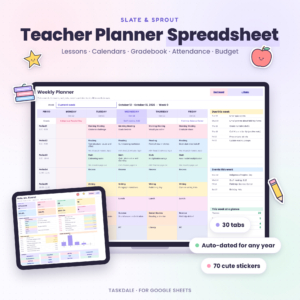
Teacher Planner Spreadsheet for Google Sheets
Price: $5.49 | Best for: day-to-day classroom planning
This spreadsheet covers a lesson planner, gradebook, attendance tracker, dated monthly calendars, a seating chart and sub plans. It is built for Google Sheets, so everything sits in one file you can open from any browser. If you want one tidy home for the whole classroom, this is the one to try first.
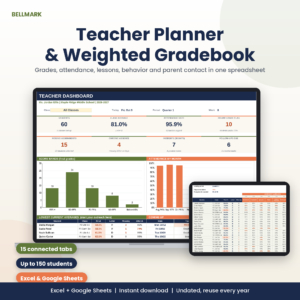
Teacher Planner Spreadsheet & Weighted Gradebook
Price: $11.99 | Best for: teachers who grade by category
This one works in Excel and Google Sheets and includes an attendance tracker, lesson plans and a weighted gradebook. The weighted gradebook is the reason to pick it. If tests count for more than quizzes in your class, the math is handled for you instead of by you.
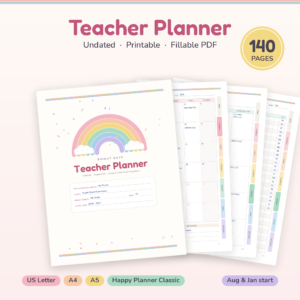
Bright Days Teacher Planner
Price: $2.49 | Best for: a printed backup or a paper-first teacher
Bright Days is a 140-page printable and fillable undated lesson planner with a gradebook, attendance and a sub binder. It comes in Letter, A4, A5 and Happy Planner sizes. Pair it with a spreadsheet if you like screens for grades and paper for ideas.
Comparison: teacher planner spreadsheets side by side
| Product | Format | Price | Best for | Link |
|---|---|---|---|---|
| Teacher Planner Spreadsheet for Google Sheets | Google Sheets | $5.49 | Full classroom planner with seating chart | View |
| Teacher Planner Spreadsheet & Weighted Gradebook | Excel and Google Sheets | $11.99 | Weighted grades | View |
| Bright Days Teacher Planner | Printable and fillable PDF, 140 pages | $2.49 | Paper planning | View |
How to set up your spreadsheet planner in under an hour
Open the file and make your own copy first. Always. Keep the original untouched, so if you break a formula at 10 p.m. you can start over without crying.
Start with the roster. Type or paste student names once. A good planner pulls those names into attendance and the gradebook, so you only enter them one time. If it does not, copy and paste, then double check the order. Mismatched names are the number one cause of grade mix-ups.
Next, set your grading categories. Say homework is 20 percent, quizzes 30 and tests 50. Type those into the weighted gradebook before you add any scores. Adding them later means redoing work.
Then drop in your calendar dates. School holidays, testing windows, report card deadlines. Seeing them in color on a monthly view changes how you plan the weeks around them.
Finally, write your first week of lesson plans. Just one week. You are testing the layout, not proving anything. If the boxes are too small, you will find out now rather than in October.
A tip on file names
Give every class its own tab or its own copy, and name it clearly. “Period 3 Maths 2026” beats “Copy of Untitled”. Future you will say thanks.
Weekly habits that keep the planner useful
A planner only works if you open it. So build a tiny routine. On Friday, spend ten minutes entering the week’s scores and marking any missing work. On Sunday, spend ten more looking at the coming week. That is twenty minutes, and it saves you from the Monday scramble.
Keep the gradebook current as you go. Entering forty scores on one night is miserable. Entering eight a day is nothing. And when a parent emails asking about a grade, you can answer in a minute instead of promising to get back to them.
Back up once a month. Google Sheets keeps a version history, which is a lifesaver if someone types over the wrong cell. Even so, download a copy at the end of each term and file it away.
One more thing: protect the formula cells if you share the file. Click the range, set protection, and nobody can accidentally delete the math. It takes a minute and prevents the worst kind of mess.
Who a teacher planner in Google Sheets suits best
New teachers tend to love a ready-made teacher planner google sheets file, because it hands them a structure on day one. They do not have to guess what a gradebook should look like. They just fill it in.
Experienced teachers like it for a different reason: speed. After ten years you know exactly what you need, and a spreadsheet lets you skip the decorating and get to the numbers. Tutors and homeschool parents often pick a teacher planner google sheets setup too, since one file can hold a handful of learners just as easily as thirty.
It is a weaker fit if you hate screens or your school bans cloud tools. In that case, go printable and keep a paper gradebook. There is no prize for forcing a tool that does not suit you.
A sample week in the spreadsheet
Here is how it might look on a normal Monday. You open the file before first period and glance at the lesson tab. Today’s plan is there, along with a note to hand back the quizzes. You tick attendance as students walk in, and the absence count updates by itself.
At lunch you enter the quiz scores. The weighted totals shift, and one student’s average dips below where it was last week. That is your cue to check in with them on Tuesday, before it turns into a bigger problem.
On Friday, you scan the calendar tab, see a field trip next Wednesday, and slide a lesson to Thursday. Nothing crossed out, nothing smudged. That calm is what you are paying for.
Mistakes to avoid with a Google Sheets teacher planner
The biggest mistake is building your own from scratch because it seems free. It is not free. A decent homemade gradebook takes a weekend, and the second you want weighted categories it gets complicated. Your time is worth more than $5.49.
Another is ignoring privacy. Student names and grades are sensitive. Follow your school’s rules about where that data can live, and do not share the sheet with anyone who should not see it. If your school has a policy on cloud storage, check it before you upload a roster.
Third, using one giant tab for everything. It looks efficient and feels awful. Separate tabs for lessons, grades and attendance keep each page quick to scroll.
And finally, never testing the formulas. Enter a fake student with known scores and check that the total matches your own math. Two minutes now, no surprises at report time.
Which teacher planner should you choose?
If you want the broadest all-round classroom file, choose the Google Sheets teacher planner with the seating chart and sub plans. If grading categories drive your life, the weighted gradebook version earns its higher price. And if you like a paper binder on your desk, Bright Days gives you printable pages for a small cost.
Still comparing? Our roundup of 10 gradebooks and lesson planners lays out more choices, and our guide to a weekly lesson plan template shows how to plan a week quickly.
Teacher planner Google Sheets FAQ
Is there a teacher planner for Google Sheets I can buy?
Yes. Taskdale sells a Teacher Planner Spreadsheet for Google Sheets with a lesson planner, gradebook, attendance tracker, dated monthly calendars, seating chart and sub plans for $5.49. There is also a weighted gradebook version that works in Excel and Google Sheets.
What is a weighted gradebook?
A weighted gradebook counts categories differently. For example, tests might count for half of a final grade while homework counts for one fifth. The spreadsheet multiplies each category by its weight and adds them up, so you do not have to calculate it by hand for every student.
Can I use these spreadsheets on my phone?
Google Sheets has a mobile app, so you can view and edit a spreadsheet on a phone. Wide gradebooks are easier on a laptop or tablet, though. Many teachers enter grades on a bigger screen and check attendance or notes on their phone.
Do I need to know formulas to use a spreadsheet planner?
No. A ready-made planner already has the formulas built in. You type names, dates and scores, and the totals update. If you want to change something, such as a grading scale, read the instructions with the file or try a small change on a copy first.
Is a spreadsheet better than a printable planner?
It depends on how you work. Spreadsheets calculate grades and sync across devices. Printable planners are better for handwriting and quick notes. Many teachers use both, with a spreadsheet for grades and a printable like Bright Days for ideas and meetings.
Your next step
Open your calendar, find a free hour this week, and pick one. For most classrooms, the Teacher Planner Spreadsheet for Google Sheets is the easiest place to start. Set up your roster, enter your first week, and see how it feels by Friday.